
Remove an Unwanted Object in Adobe Photoshop — or Erase It in 1 Click
学习如何使用 Magic Eraser Remove an Unwanted Object in Adobe Photoshop — or Erase It in 1 Click。免费 AI 工具的简单分步指南。支持网页、iOS 和 Android。
Last updated
立即尝试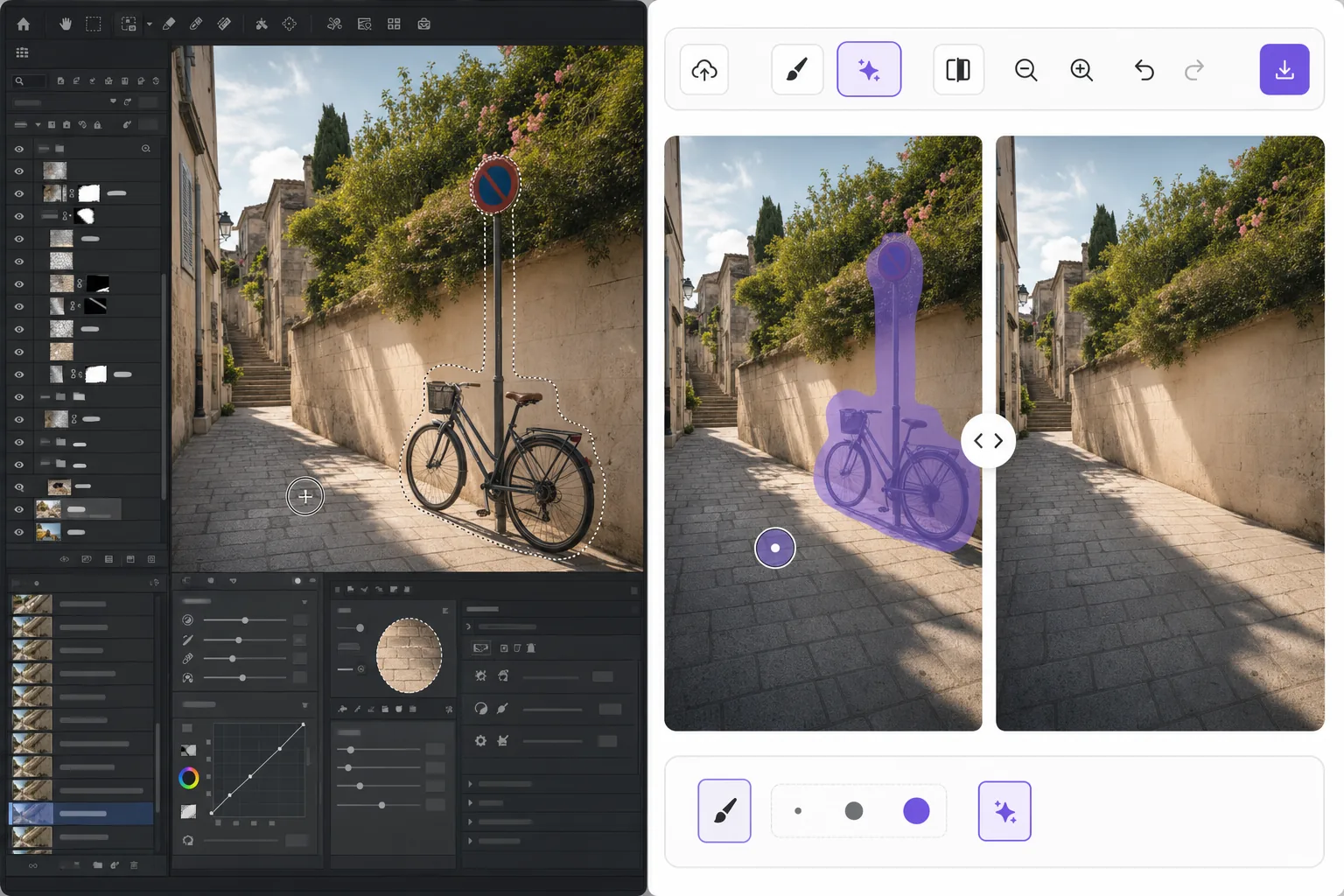
Two ways to remove an unwanted object — Magic Eraser
Searching for how to remove an unwanted object in Adobe Photoshop usually leads to a multi-step tutorial: make a selection around the object, then use Content-Aware Fill or the Clone Stamp and Spot Healing tools to paint over it with surrounding pixels. Adobe Photoshop is a powerful, professional editor and this approach produces excellent results — especially when you want frame-by-frame control over textures, edges, and shadows. The trade-off is the learning curve and the time: you need a paid Adobe subscription, the app installed, and several minutes of careful selecting and retouching per object. Magic Eraser takes the honest shortcut. Instead of selections and layers, you brush over the unwanted object and let AI inpainting reconstruct a plausible background fill. It runs in any browser plus iOS and Android, costs nothing to start, and handles most everyday photos — stray people, signs, wires, blemishes — in a single pass. If you need pixel-perfect compositing for a client deliverable, Photoshop is still a fine choice. For everything else, here is the faster path.
Before you start
分步教程
Start with 上传照片. The result preview above and tips below use this guide's existing content; no separate before-and-after proof is assumed.
- 1
上传照片
在网页、iOS 或 Android 上打开 Magic Eraser。拖放您的 JPEG、PNG、HEIC 或 WebP 照片。无需账户即可开始。
- 2
选择工具和区域
选择合适的工具并标记需要处理的区域。AI 会自动分析并在几秒内应用更改。
- 3
下载结果
预览结果并下载编辑后的照片。导出为高质量 PNG 或 JPEG 格式。
最适合
- Removing photobombers and strangers from travel and event photos
- Cleaning up power lines, poles, and wires from landscape shots
- Erasing signs, logos, watermarks, and date stamps
- Deleting blemishes, dust, or stray objects from product images
- Quick edits on mobile when you don't have Photoshop installed
获得最佳效果的技巧
Brush slightly beyond the object's edges so the AI has room to blend the fill, and include any contact shadow the object casts. For large objects against busy or detailed backgrounds (brick patterns, faces, repeating text), work in smaller passes and re-erase rather than covering everything at once — this gives the inpainting cleaner reference pixels. If a single result looks off, undo and re-brush; the fill is regenerated each time. And remember the honest caveat: Magic Eraser reconstructs a plausible background, it does not recover the real pixels hidden behind the object — so for forensic or pixel-exact compositing work, the manual Adobe Photoshop method still wins.
常见问题
- Remove an Unwanted Object in Adobe Photoshop — or Erase It in 1 Click功能是免费的吗?
- 是的,Magic Eraser 允许您在每日免费额度内Remove an Unwanted Object in Adobe Photoshop — or Erase It in 1 Click。升级到 Pro 可获得无限处理和高分辨率导出。
- Remove an Unwanted Object in Adobe Photoshop — or Erase It in 1 Click需要多长时间?
- 只需几秒钟。Magic Eraser 的 AI 快速处理照片——大多数结果在上传后立即可用。
- 可以在手机上使用吗?
- 是的,Magic Eraser 可在 iOS、Android 和所有网页浏览器上使用。您可以在设备间自由切换。
- 图片质量会下降吗?
- 不会,Magic Eraser 保持原始照片质量。AI 智能处理以保留细节和清晰度。