
AI Filter style
Bộ lọc ảnh pop art AI
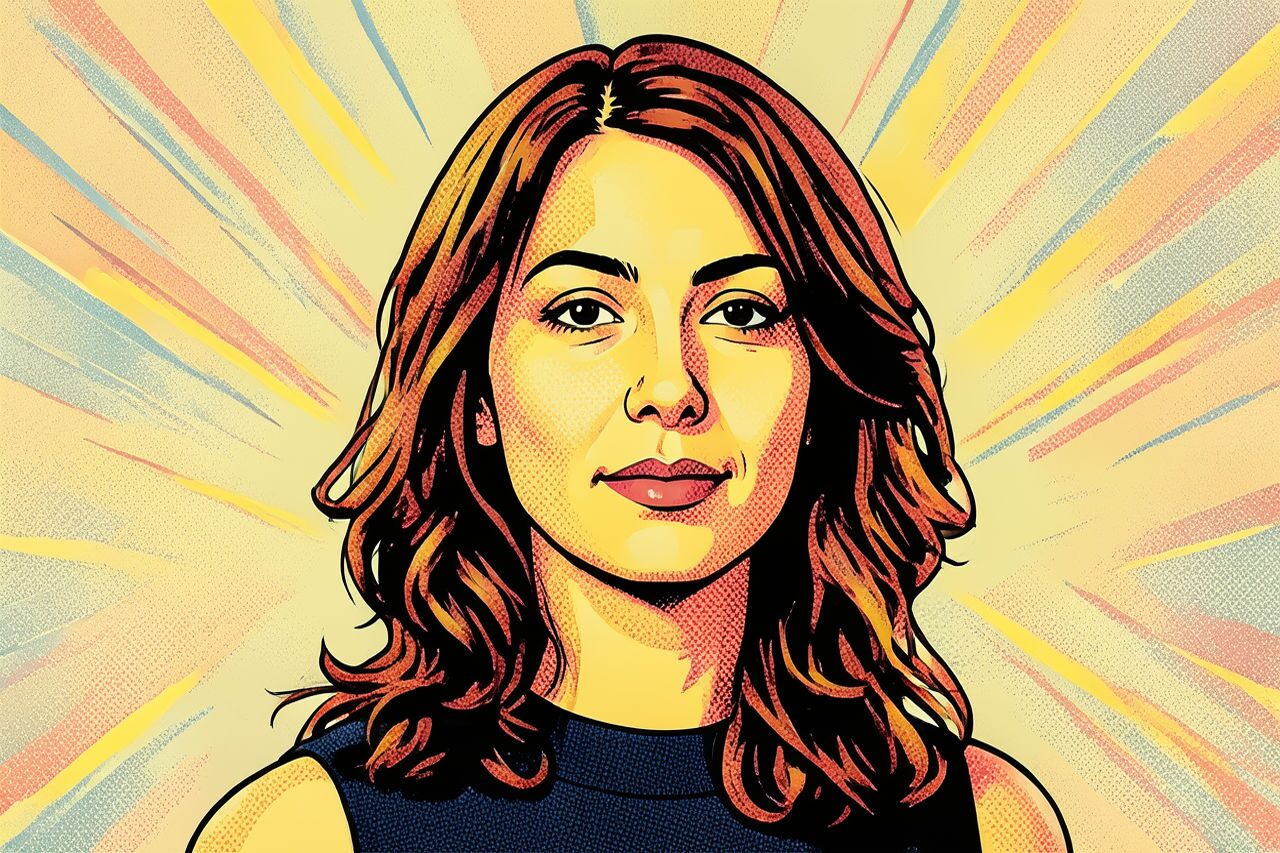
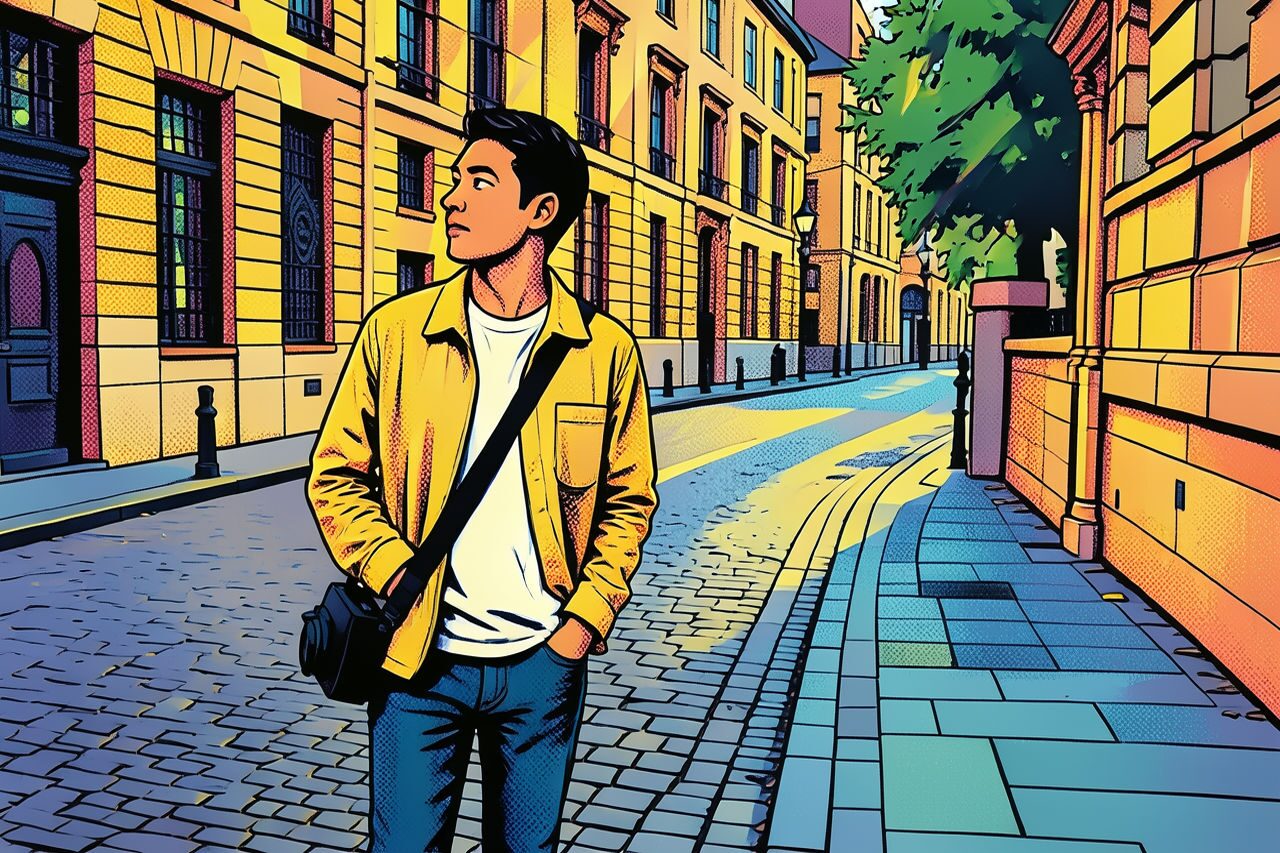
Biến ảnh thành hình pop art với mảng màu đậm, độ tương phản đồ họa và chấm halftone, đồng thời giữ chủ thể dễ nhận biết. Phù hợp với chân dung, thú cưng và ảnh sản phẩm đơn giản; hãy kiểm tra khuôn mặt, chữ, nhãn và màu sắc trước khi sử dụng.

Use case
Chân dung và ảnh đại diện nổi bật trên mạng xã hội.
Use case
Ảnh thú cưng hoặc phong cách sống mang cảm giác áp phích.
Use case
Ý tưởng sản phẩm và chiến dịch không yêu cầu màu sắc chính xác.
Filter preview
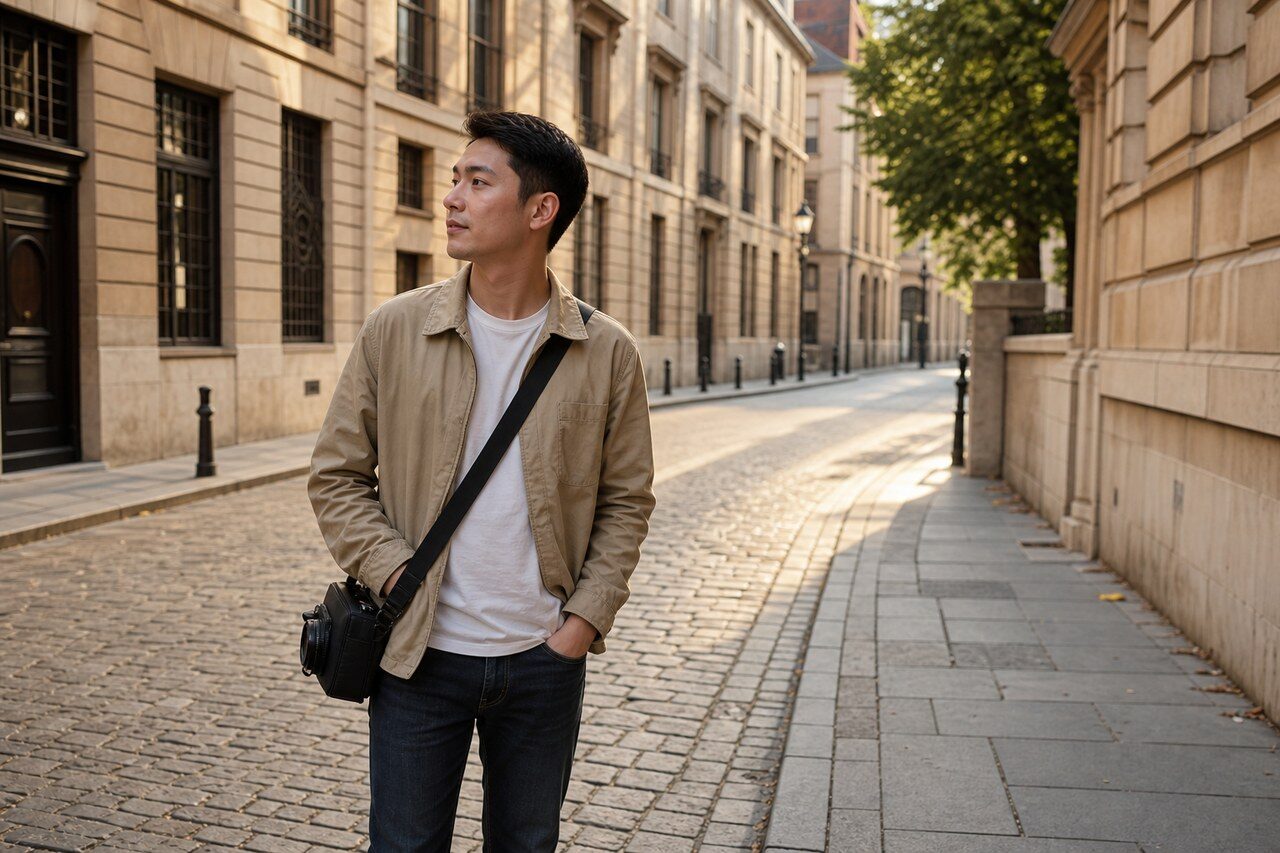
Compare the original photo with the pop art result
The example uses a generated source photo and the same filter API path as the app, so users can judge the visual treatment before uploading their own image.
More examples
Test the pop art filter on different photo types
Compare portrait, product, and pet examples before opening the filter. Each result uses the same filter API path as the Magic Eraser app.

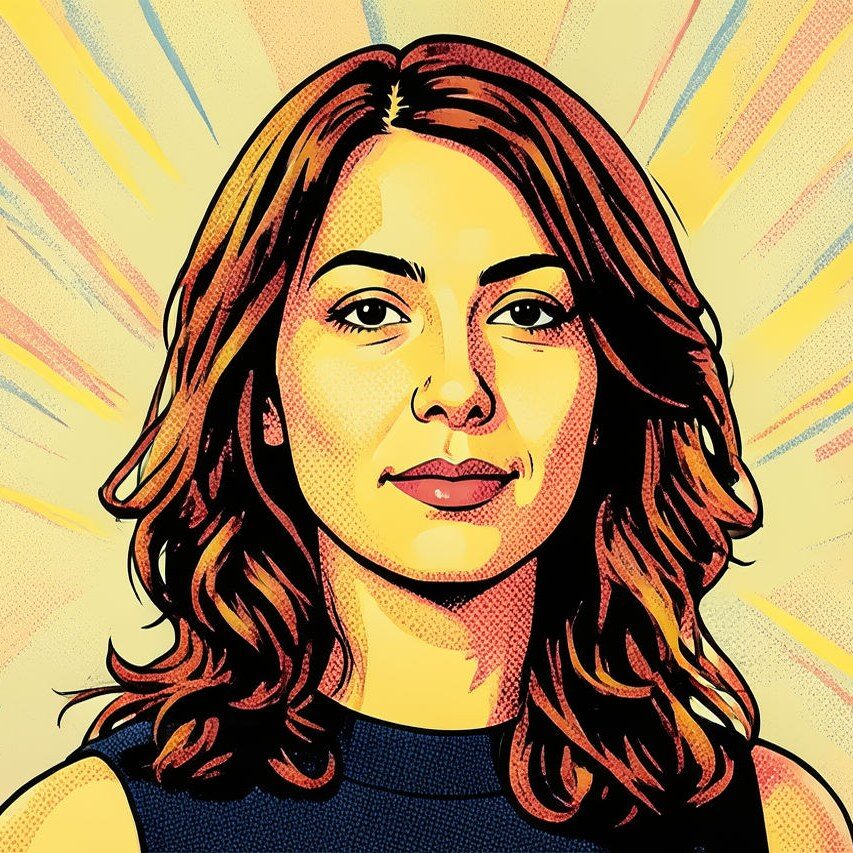
Portrait
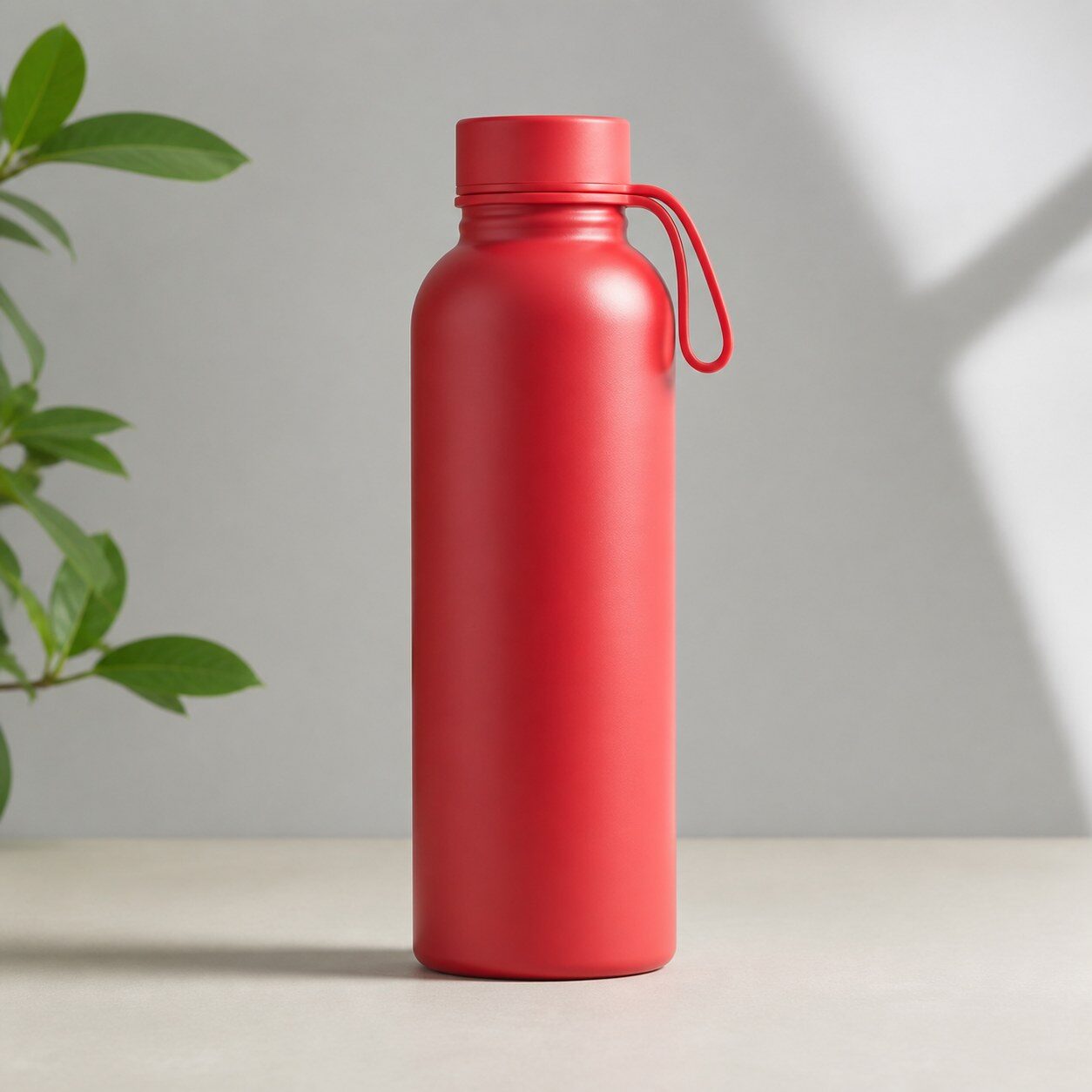
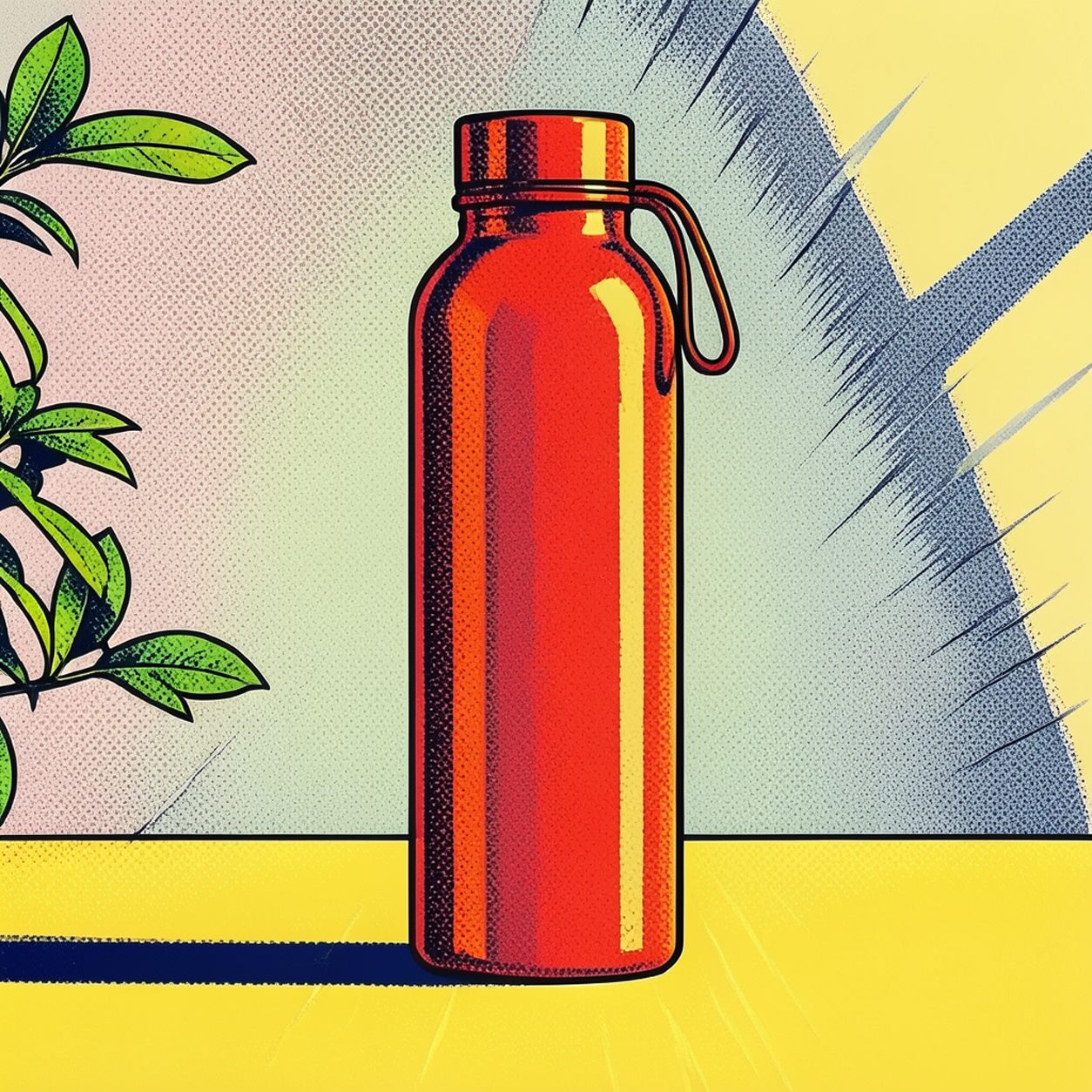
Product

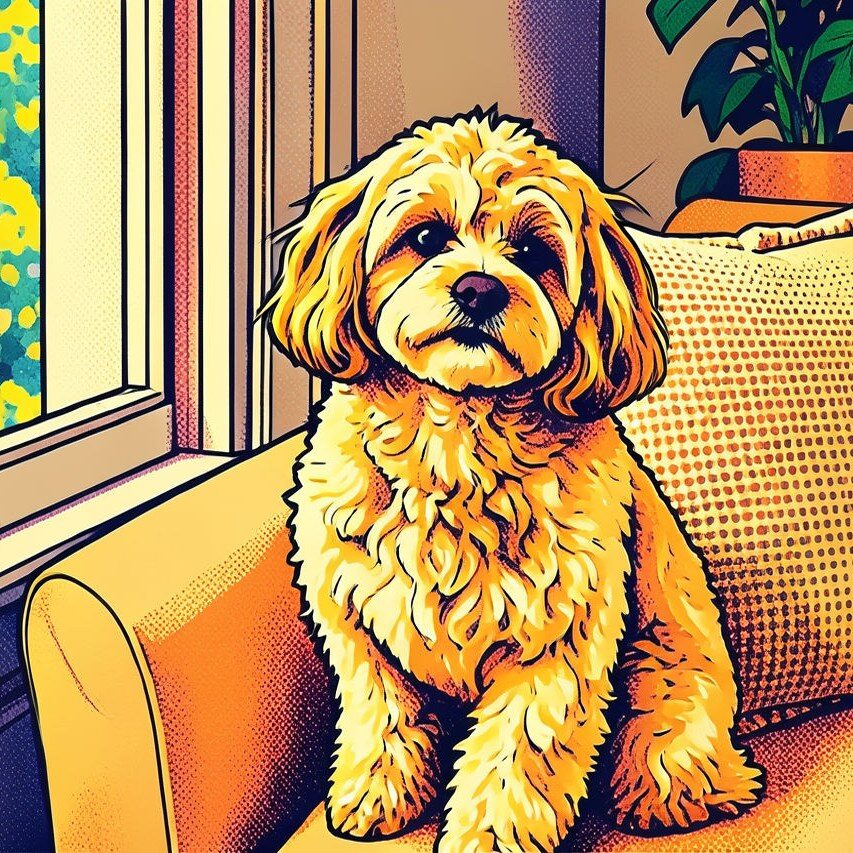
Pet
Photo workflow
How to get a cleaner pop art filter result
Chọn ảnh rõ, đủ sáng với một chủ thể chính.
Mở bộ lọc pop art, tải ảnh lên và so sánh khuôn mặt, cạnh và bố cục.
Cắt ảnh hoặc xóa chi tiết gây nhiễu trước khi xuất.
Best source photos
- Chân dung và ảnh nửa người.
- Ảnh thú cưng hoặc phong cách sống có nền gọn.
- Ảnh sản phẩm đơn giản không cần màu chính xác.
Filter tips
- Nền đơn giản thường cho mảng màu sạch hơn.
- Bộ lọc không thể sửa hoàn toàn ảnh mờ hoặc thiếu sáng.
- Kiểm tra lại chữ, logo, nhãn và màu sản phẩm.
Before upload checklist
- Use the largest clean version of the photo, not a compressed screenshot or reposted image.
- Crop loosely before filtering so the AI has enough room around the subject.
- Remove obvious distractions first if they sit directly on the face, product, or main subject.
- Check the result at the size where it will be used: profile image, feed post, story, thumbnail, or banner.
When this filter is a good fit
Choose the pop art filter when the original photo already has a clear subject and the goal is a recognizable stylized version, not a fully new generated scene. It is strongest for social, creator, profile, event, and campaign images where mood matters more than documentary accuracy.
Use a different workflow when the image needs exact product color, legal documentation, medical accuracy, or unmodified identity details. In those cases, use cleanup, crop, enhancement, or background tools instead of a heavy creative filter.
Free browser tools after filtering
FAQ
What should I upload?
Use a clear photo with one main subject. Strong lighting and simple backgrounds usually make the AI filter easier to control.
Can I keep editing after the filter?
Yes. After applying the filter, use Magic Eraser to crop, clean distractions, refine backgrounds, and export the final image.
Is this filter selected automatically?
The CTA opens AI Filter with the pop art style parameter, and the app falls back safely if the filter changes.