
AI Create style
Trình tạo ảnh lập thể bằng AI
Tạo ảnh phong cách lập thể từ câu lệnh với các góc nhìn phân mảnh, hình học táo bạo và các mảng màu chồng lớp. Phù hợp cho chân dung, tĩnh vật, áp phích và ý tưởng biên tập; hãy mô tả chủ thể, góc nhìn, bảng màu và mức độ trừu tượng.

Use case
Chân dung và nhân vật với nhiều góc nhìn hình học.
Use case
Tĩnh vật, áp phích và ảnh bìa trừu tượng.
Use case
Minh họa biên tập và ý tưởng sản phẩm với hình khối nổi bật.
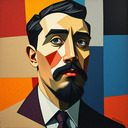
Visual direction preview
Use the style thumbnail as the creative target
The preview gives users a concrete reference for color, texture, edge detail, and mood before they open the generator. Pair it with the prompt starters below to keep the page useful instead of only decorative.
Generated examples
See the lập thể style in real outputs
These examples were generated through the Magic Eraser AI Create API with the lập thể style selected.
Prompt workflow
How to get a stronger lập thể result
Mô tả một chủ thể chính cùng bố cục và góc nhìn mong muốn.
Thêm các mặt phẳng phân mảnh, nhiều góc nhìn, bảng màu và mức độ trừu tượng.
Tạo vài phiên bản, chọn bố cục dễ đọc nhất rồi cắt và dọn chi tiết thừa.
Prompt starters
- “Chân dung nhạc sĩ phong cách lập thể, nhiều góc nhìn, mặt phẳng hình học xanh lam và cam”
- “Tĩnh vật lập thể với bình hoa và trái cây, hình khối chồng lớp, màu đất”
- “Áp phích thành phố lập thể, kiến trúc phân mảnh, đỏ đen nổi bật”
Style tips
- Giữ chủ thể đơn giản để các mặt phẳng hình học vẫn dễ nhận ra.
- Nêu màu sắc và góc nhìn cụ thể thay vì chỉ dùng tên phong cách.
- Thêm chữ và logo chính xác sau khi tạo.
Output planning checklist
- Decide the final placement before prompting: square post, vertical story, product insert, poster, thumbnail, or wide banner.
- Keep one primary subject and one visual mood so the lập thể style has a clear job.
- Describe the background as simple, detailed, bright, dark, studio, outdoor, or textured instead of leaving it open-ended.
- Generate variations first, then edit the selected image for crop, cleanup, and export size.
When to choose this style
Choose lập thể when the image needs a clear creative direction before production: an ad concept, a social visual, a character idea, a packaging mood, or a fast design draft. Choose another style if the final asset must look like a camera photo, preserve exact product color, or include precise typography.
For commercial work, treat the generated image as a starting point. Review details, remove distracting artifacts, add exact text separately, and export the final size from the editor.
FAQ
Can I edit the generated image?
Yes. Generate the image, then continue with cleanup, crop, background, and export tools in Magic Eraser.
Should I include exact text?
Use AI Create for the visual direction. Add exact text later with editable design tools for cleaner spelling and layout.
Is this style selected automatically?
The CTA opens AI Create with the lập thể style parameter, and the app falls back safely if the option changes.