
Cách nén hình ảnh mà không làm giảm chất lượng
Các tệp hình ảnh lớn làm chậm trang web, không đạt giới hạn đính kèm email và mất nhiều thời gian để tải lên. Magic Eraser nén ảnh xuống một phần kích thước ban đầu trong khi vẫn giữ chúng giống nhau về mặt hình ảnh — tệp nhỏ hơn nhưng ảnh trông giống nhau.
Last updated
Nén hình ảnh ngay bây giờ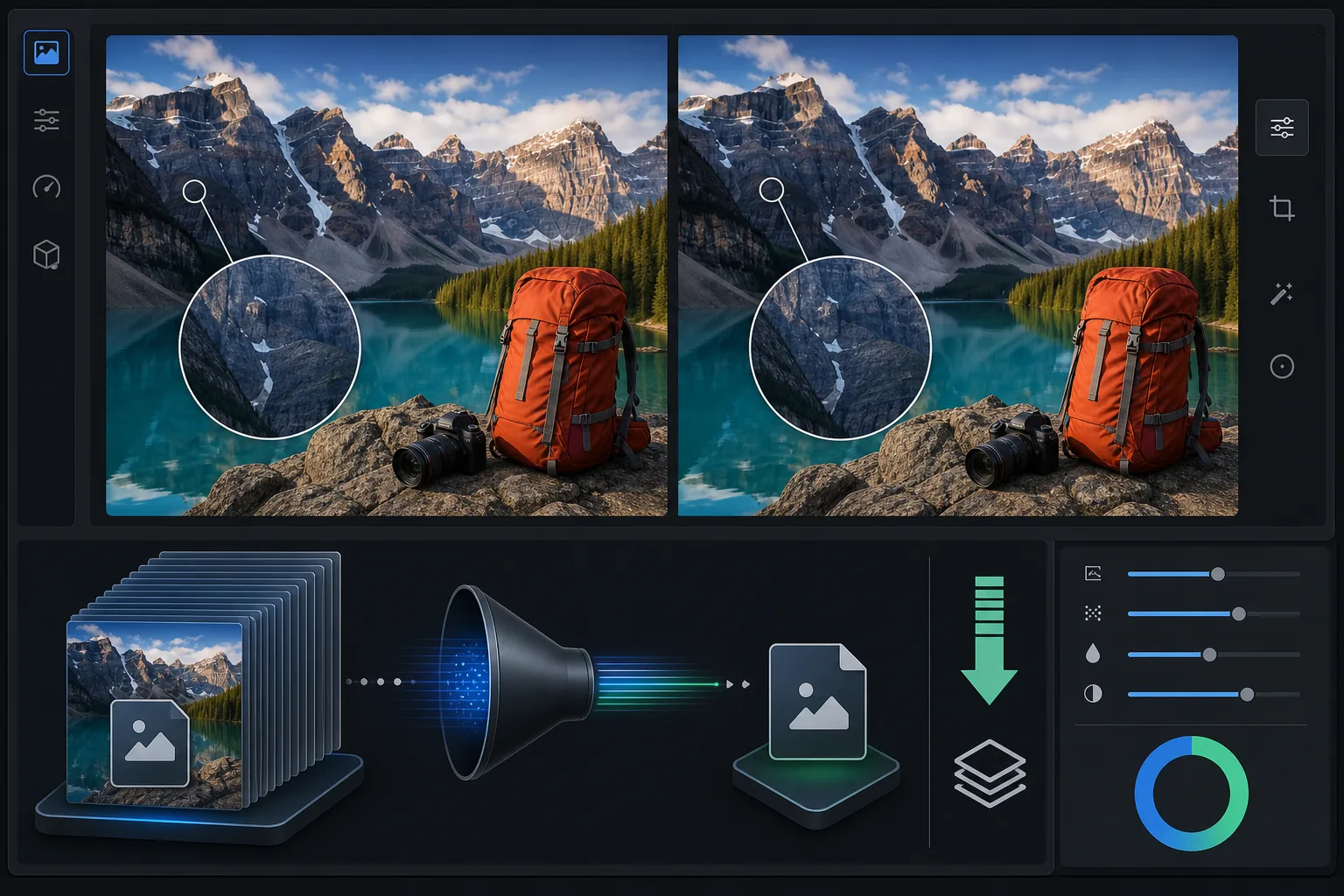
Tại sao nén hình ảnh lại quan trọng đối với hiệu suất web
Để nén ảnh mà không làm giảm chất lượng nhìn thấy được, hãy mở Magic Eraser trên web, iOS hoặc Android, tải lên ảnh JPEG, PNG hoặc WebP của bạn, chọn mức nén cân bằng và tải về tệp nhẹ hơn. Hoàn toàn miễn phí, không cần đăng ký. "Không giảm chất lượng" ở đây nghĩa là không giảm chất lượng về mặt thị giác — tệp trở nên nhỏ hơn nhiều nhờ loại bỏ những dữ liệu mà mắt bạn không thể nhận ra, nên ảnh trông y hệt ở kích thước xem thông thường dù không phải là bản sao giống hệt từng byte so với ảnh gốc. Chọn WebP để có tệp web nhỏ nhất, hoặc giữ JPEG để tương thích rộng nhất, và hãy lưu lại ảnh gốc nếu sau này bạn có thể cần chỉnh sửa lại. Hình ảnh là nội dung nặng nhất trên hầu hết các trang web — một bức ảnh không được tối ưu hóa có thể có dung lượng 5-10 MB, trong khi phiên bản được nén tốt của cùng một hình ảnh có kích thước 200-500 KB trông giống hệt mắt người. Các chỉ số quan trọng về trang web cốt lõi của Google bao gồm Thời gian hiển thị nội dung lớn nhất (LCP), đo lường tốc độ tải nội dung chính. Hình ảnh lớn, không nén sẽ ảnh hưởng trực tiếp đến điểm LCP và thứ hạng tìm kiếm. Dịch vụ email giới hạn tệp đính kèm ở mức 20-25 MB và các nền tảng truyền thông xã hội nén lại hình ảnh đã tải lên một cách mạnh mẽ - tải lên hình ảnh được tối ưu hóa trước giúp nền tảng ít bị suy giảm hơn. Tính năng nén thông minh sẽ loại bỏ dữ liệu mà mắt người không thể cảm nhận được (chi tiết tần số cao dưới ngưỡng nhận biết, dữ liệu màu dư thừa) trong khi vẫn duy trì chất lượng hình ảnh quan trọng.
Before you start
Nén hình ảnh theo ba bước
Start with tải hình ảnh lên. The result preview above and tips below use this guide's existing content; no separate before-and-after proof is assumed.
- 1
Tải hình ảnh lên
Mở Magic Eraser trên web, iOS hoặc Android. Tải lên hình ảnh bạn cần nén — ảnh cho trang web của bạn, tệp đính kèm email hoặc bộ hình ảnh cho mạng xã hội. Hỗ trợ JPEG, PNG và WebP. Công cụ hiển thị kích thước file gốc.
- 2
Chọn mức độ nén
Chọn mục tiêu: tối ưu hóa cho web (tệp nhỏ nhất, giảm chất lượng một chút), cân bằng (nén tốt mà không làm giảm chất lượng rõ ràng) hoặc tối thiểu (giảm nhỏ, bảo toàn chất lượng tối đa). Đối với hầu hết việc sử dụng web, cân bằng tạo ra tỷ lệ kích thước trên chất lượng tốt nhất.
- 3
Tải xuống hình ảnh nén
Tải xuống phiên bản nén. Công cụ này hiển thị kích thước tệp mới và mức giảm phần trăm. Một bức ảnh thông thường giảm từ 3-5 MB xuống 200-500 KB với độ nén cân bằng — giảm kích thước 80-90% mà không thấy sự khác biệt về chất lượng ở kích thước xem thông thường.
Tốt nhất cho
- Hình ảnh trang web cần tải nhanh để có điểm số Core Web Vitals và SEO tốt
- Tệp đính kèm email cần có dung lượng trong giới hạn 20-25 MB khi gửi nhiều ảnh
- Tải lên phương tiện truyền thông xã hội trong đó nén trước ngăn chặn việc nén lại nền tảng mạnh mẽ
- Hình ảnh sản phẩm thương mại điện tử cần chất lượng cao nhưng tốc độ tải nhanh
- Hình ảnh blog và bài viết trong đó tốc độ trang ảnh hưởng đến mức độ tương tác của người đọc và xếp hạng tìm kiếm
Lời khuyên để có kết quả tốt nhất
Đối với hình ảnh trên web, hãy nhắm mục tiêu 200-500 KB cho hình ảnh chính và 50-150 KB cho hình thu nhỏ và hình ảnh hỗ trợ. Định dạng WebP tạo ra các tệp nhỏ hơn 25-35% so với JPEG với chất lượng hình ảnh tương đương — hãy sử dụng WebP nếu trang web của bạn hỗ trợ nó. Đối với hình ảnh sẽ được xem ở kích thước nhỏ (hình thu nhỏ, nguồn cấp dữ liệu mạng xã hội), nén mạnh là phù hợp vì kích thước hiển thị nhỏ sẽ ẩn mọi thành phần lạ. Đối với hình ảnh sẽ được xem ở chế độ toàn màn hình hoặc được in, hãy sử dụng độ nén cân bằng hoặc tối thiểu. Nén sau khi tất cả các chỉnh sửa khác hoàn tất — nén trước rồi chỉnh sửa có thể khuếch đại các tạo phẩm nén. Để nén hàng loạt, hãy tải toàn bộ bộ ảnh của bạn lên và áp dụng cùng mức nén để có kích thước tệp nhất quán trên toàn bộ bộ ảnh.
Câu hỏi thường gặp
- Hình ảnh nén sẽ trông tệ hơn?
- Ở mức nén cân bằng, mắt người không nhìn thấy được sự khác biệt ở khoảng cách xem bình thường. Chỉ ở mức thu phóng cực cao hoặc nhìn trộm pixel, bạn mới có thể phát hiện ra những khác biệt tinh tế. Đối với việc sử dụng web và mạng xã hội, không có sự khác biệt rõ ràng về chất lượng.
- Tập tin sẽ nhỏ hơn bao nhiêu?
- Thông thường nhỏ hơn 70-90%. Ảnh 5 MB trở thành 300-500 KB khi nén cân bằng. Mức giảm chính xác phụ thuộc vào nội dung hình ảnh - ảnh chi tiết nén ít hơn hình ảnh đơn giản.
- Tôi nên sử dụng JPEG hay WebP?
- WebP tạo ra các tệp nhỏ hơn với chất lượng tương đương. Sử dụng WebP cho các trang web (được hỗ trợ bởi tất cả các trình duyệt hiện đại). Sử dụng JPEG để đính kèm và chia sẻ email (khả năng tương thích phổ quát).
- Nén có miễn phí không?
- Đúng. Tính năng nén hình ảnh có sẵn ở cấp độ miễn phí với giới hạn sử dụng hàng ngày. Premium loại bỏ giới hạn nén hàng loạt các bộ ảnh lớn.
- Đây là nén không mất dữ liệu thật sự, hay chỉ không mất chất lượng về mặt thị giác?
- Để tiết kiệm dung lượng đáng kể như vậy, đây là cách nén không mất chất lượng về mặt thị giác chứ không phải không mất dữ liệu về mặt toán học. Nén không mất dữ liệu thật sự (như PNG, hoặc WebP không mất dữ liệu) giữ lại từng điểm ảnh chính xác nhưng chỉ giảm dung lượng tệp ở mức khiêm tốn. Để đưa một ảnh 5 MB xuống còn vài trăm KB, công cụ sẽ loại bỏ những dữ liệu nằm dưới ngưỡng mà mắt bạn có thể cảm nhận — kết quả trông y hệt khi xem thông thường nhưng không khớp từng bit so với ảnh gốc. Nếu bạn cần một bản lưu trữ chính xác (ví dụ một tệp gốc mà bạn sẽ tiếp tục chỉnh sửa), hãy giữ ảnh gốc và chỉ dùng các phiên bản đã nén cho việc chia sẻ, đăng web và gửi email.