
Cách thêm đường viền vào ảnh
Đường viền được lựa chọn kỹ lưỡng sẽ biến một bức ảnh chụp nhanh thông thường thành một hình ảnh bóng bẩy, có chủ ý — cho dù đó là lề trắng rõ ràng để tạo tính nhất quán cho lưới Instagram, khung phim cổ điển mang tính thẩm mỹ cổ điển hay đường viền thương hiệu có logo của bạn. Công cụ thiết kế của Magic Eraser cho phép bạn thêm, tùy chỉnh và xuất đường viền trong vài giây.
Last updated
Thêm đường viền ngay bây giờ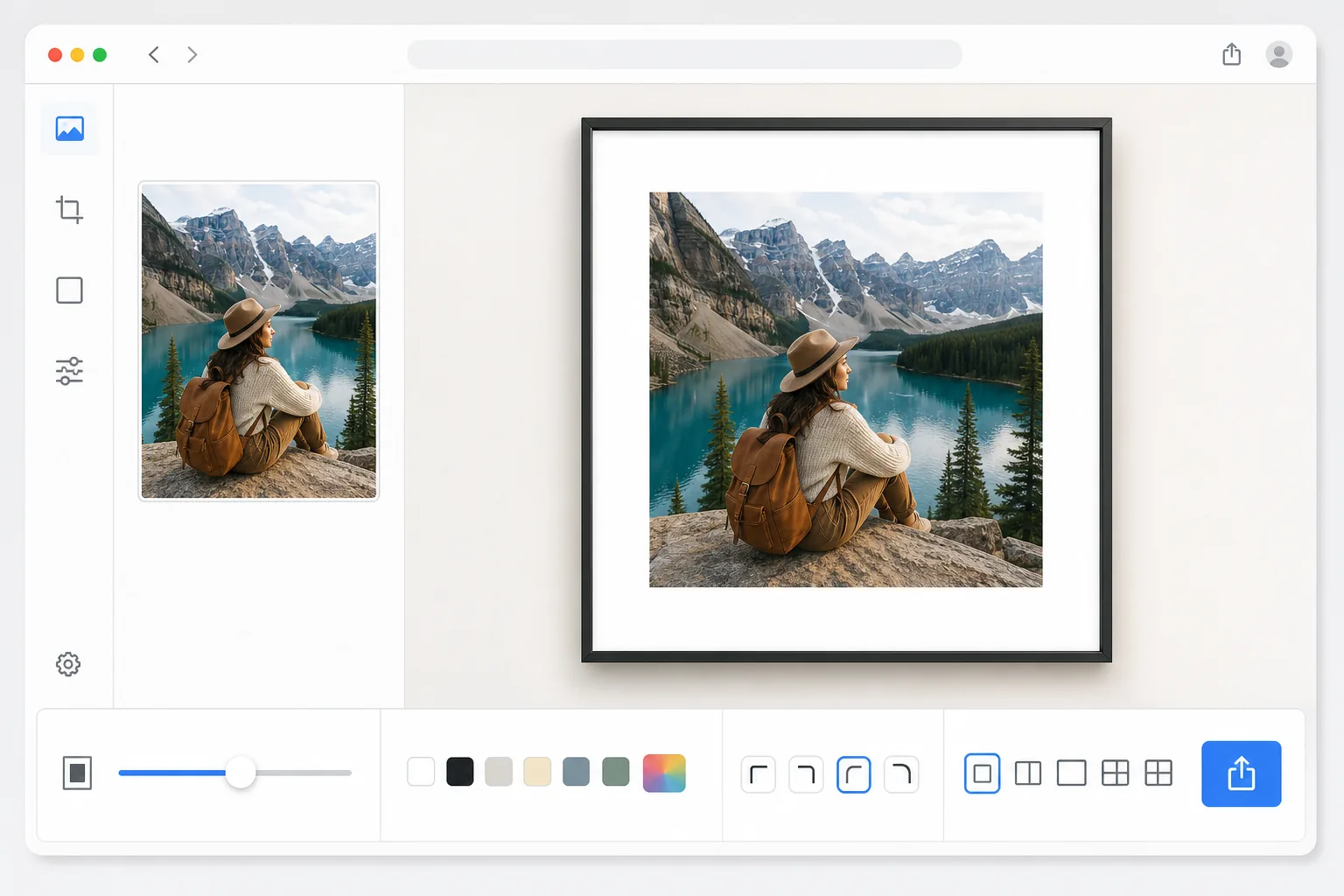
Cách thêm khung viền cho ảnh
Để thêm viền cho ảnh, hãy mở Magic Eraser trên web, iOS hoặc Android, chọn công cụ Design, tải ảnh lên và chọn một kiểu viền — thiết lập độ rộng, màu sắc và độ bo góc, rồi xuất ảnh. Hoàn toàn miễn phí, không cần đăng ký. Viền được thêm dưới dạng khoảng canvas bao quanh ảnh, nên ảnh gốc của bạn vẫn giữ nguyên độ phân giải đầy đủ và sắc nét đến từng pixel; không có gì bị thu nhỏ hay cắt xén. Dùng lề trắng cho lưới Instagram gọn gàng, khung đen cho phong cách phòng tranh, hoặc một màu thương hiệu, rồi lưu các thiết lập thành preset để tái sử dụng cho ảnh tiếp theo. Đường viền có tác dụng nhiều hơn là trang trí — chúng thu hút sự chú ý của người xem, tạo không gian trực quan dễ thở và thiết lập tính nhất quán cho thương hiệu. Trên Instagram, các đường viền đồng nhất giúp lưới của bạn trông có chọn lọc và chuyên nghiệp. Để in, các đường viền ngăn việc in từ cạnh này sang cạnh khác cắt vào đối tượng của bạn. Trong thương mại điện tử, ranh giới nhất quán giữa danh sách sản phẩm sẽ tạo ra một mặt tiền cửa hàng gắn kết. Thêm đường viền theo cách thủ công trong Photoshop có nghĩa là tính toán độ lệch pixel, tạo khung vẽ mới, căn giữa hình ảnh và đảm bảo tính nhất quán của màu sắc - công việc tẻ nhạt và có tỷ lệ kém khi bạn cần xử lý hàng chục hoặc hàng trăm hình ảnh. Công cụ thiết kế của Magic Eraser cung cấp các kiểu đường viền đặt trước và có thể tùy chỉnh, áp dụng ngay lập tức và xuất theo kích thước chính xác cho mọi nền tảng.
Before you start
Thêm đường viền trong ba bước
Start with tải ảnh lên. The result preview above and tips below use this guide's existing content; no separate before-and-after proof is assumed.
- 1
Tải ảnh lên
Mở Magic Eraser trên web, iOS hoặc Android và chọn công cụ Thiết kế. Tải lên ảnh bạn muốn đóng khung. Mọi định dạng đều hoạt động - JPEG, PNG, HEIC hoặc WebP. Công cụ này giữ nguyên độ phân giải gốc để hình ảnh có viền của bạn luôn sắc nét khi in hoặc hiển thị độ phân giải cao.
- 2
Chọn và tùy chỉnh đường viền
Duyệt thư viện đường viền hoặc bắt đầu với một khung trống. Điều chỉnh độ rộng đường viền, bán kính góc và màu sắc. Chọn từ các màu đồng nhất, độ dốc, hoa văn hoặc phần đệm trong suốt. Đặt tỷ lệ khung hình cho nền tảng mục tiêu của bạn — hình vuông cho Instagram, 9:16 cho Stories hoặc kích thước tùy chỉnh cho bản in. Xem trước kết quả trong thời gian thực khi bạn điều chỉnh.
- 3
Xuất ảnh có viền
Khi đường viền trông ổn, hãy xuất ở độ phân giải bạn cần. Chọn PNG cho đường viền trong suốt, JPEG cho đường viền đồng màu ở kích thước tệp nhỏ hơn hoặc WebP cho đầu ra được tối ưu hóa cho web. Lưu cài đặt đường viền của bạn làm giá trị đặt trước để áp dụng cùng một kiểu cho các ảnh trong tương lai chỉ bằng một lần nhấn.
Tốt nhất cho
- Những người sáng tạo nội dung trên Instagram muốn có tính thẩm mỹ dạng lưới nhất quán với đường viền màu trắng hoặc màu đồng nhất
- Chuẩn bị in trong đó lề ngăn không cho nội dung quan trọng bị cắt bớt trong khi in
- Người bán thương mại điện tử duy trì khung hình ảnh sản phẩm nhất quán trên danh sách
- Các nhà thiết kế thương hiệu thêm khung thương hiệu có logo và màu sắc thương hiệu vào ảnh tiếp thị
- Các nhiếp ảnh gia đám cưới và sự kiện cung cấp hình ảnh đóng khung cho khách hàng
Lời khuyên để có kết quả tốt nhất
Để có tính nhất quán của lưới Instagram, hãy chọn một kiểu đường viền và tỷ lệ khung hình rồi áp dụng nó trên tất cả các bài đăng — tính đồng nhất về mặt hình ảnh là điều làm cho lưới trông chuyên nghiệp. Đường viền màu trắng có tác dụng phổ biến và làm cho màu sắc của ảnh nổi bật, nhưng đường viền tối tạo cảm giác ấn tượng hơn, giống như phòng trưng bày hơn. Khi thêm đường viền để in, hãy bao gồm ít nhất một lề ngoài 3 mm ngoài đường cắt để tính đến khả năng chịu cắt. Đối với đường viền có thương hiệu, hãy giữ văn bản và logo nằm ngoài 80% bên trong của hình ảnh để tránh cạnh tranh với nội dung ảnh. Nếu bạn đang thêm đường viền để thay đổi kích thước ảnh theo tỷ lệ khung hình cụ thể (chẳng hạn như làm cho ảnh 4:3 vừa với hình vuông 1:1), hãy căn giữa ảnh và sử dụng màu nền bổ sung thay vì màu trắng thuần để tăng thêm sự thú vị về mặt hình ảnh.
Câu hỏi thường gặp
- Tôi có thể thêm các kích thước đường viền khác nhau cho các cạnh khác nhau không?
- Đúng. Công cụ thiết kế cho phép bạn điều khiển từng bên một cách độc lập — đường viền dưới rộng hơn để có giao diện Polaroid cổ điển, thậm chí cả lề để tạo khung ở giữa hoặc đường viền không đối xứng cho bố cục sáng tạo. Bạn cũng có thể đặt chiều rộng đồng đều bằng một thanh trượt duy nhất nếu bạn muốn các đường viền bằng nhau ở cả bốn cạnh.
- Đường viền có làm giảm chất lượng hình ảnh của tôi không?
- Không. Công cụ này thêm không gian canvas xung quanh ảnh của bạn thay vì thu nhỏ nó lại. Hình ảnh gốc của bạn vẫn giữ được độ phân giải và độ sắc nét đầy đủ. Kích thước tệp được xuất tăng lên để phù hợp với đường viền nhưng nội dung ảnh vẫn giống hệt từng pixel với ảnh gốc.
- Việc thêm đường viền có miễn phí không?
- Đúng. Công cụ thiết kế của Magic Eraser bao gồm các tính năng viền và khung ở cấp miễn phí với giới hạn sử dụng hàng ngày. Chọn từ các kiểu cài sẵn, tùy chỉnh màu sắc và độ rộng rồi xuất. Premium loại bỏ các giới hạn và mở khóa xử lý hàng loạt để viền hàng trăm hình ảnh cùng một lúc.
- Làm sao để thêm viền cho ảnh trên Android hoặc iPhone?
- Mở Magic Eraser trên bất kỳ trình duyệt di động nào hoặc ứng dụng iOS, Android, tải ảnh từ thư viện và mở công cụ Design. Chọn một kiểu viền, sau đó điều chỉnh độ rộng và màu sắc bằng ngón tay rồi xem trước trực tiếp. Xuất ảnh và ảnh đã có viền sẽ lưu thẳng về thư viện của bạn, sẵn sàng để đăng. Cách làm giống hệt phiên bản máy tính, và không cần cài ứng dụng nếu bạn dùng trình duyệt — rất tiện để đóng khung một bức ảnh ngay trước khi chia sẻ.
- Tôi có thể thêm viền để biến ảnh thành hình vuông mà không cắt xén không?
- Có — đây là một trong những lý do phổ biến nhất khiến người ta thêm viền. Thay vì cắt một bức ảnh ngang hay dọc để vừa khung vuông 1:1 của Instagram (làm mất một phần ảnh), hãy đặt canvas thành hình vuông và để viền lấp đầy khoảng trống còn lại. Toàn bộ bức ảnh vẫn hiển thị đầy đủ, nằm giữa khung. Viền trắng là lựa chọn kinh điển, nhưng một màu lấy mẫu từ chính bức ảnh thường trông có chủ đích hơn so với màu trắng thuần.