
Cách thêm nền vào ảnh
Thay thế phông nền nhàm chán bằng thứ gì đó tốt hơn — phông nền studio để chụp những bức ảnh chân dung chuyên nghiệp, một địa điểm tuyệt đẹp để chụp những bức chân dung sáng tạo hoặc phông nền có thương hiệu cho các tài liệu tiếp thị. Magic Eraser xử lý việc xóa và thay thế trong một quy trình làm việc.
Last updated
Thêm nền ngay bây giờ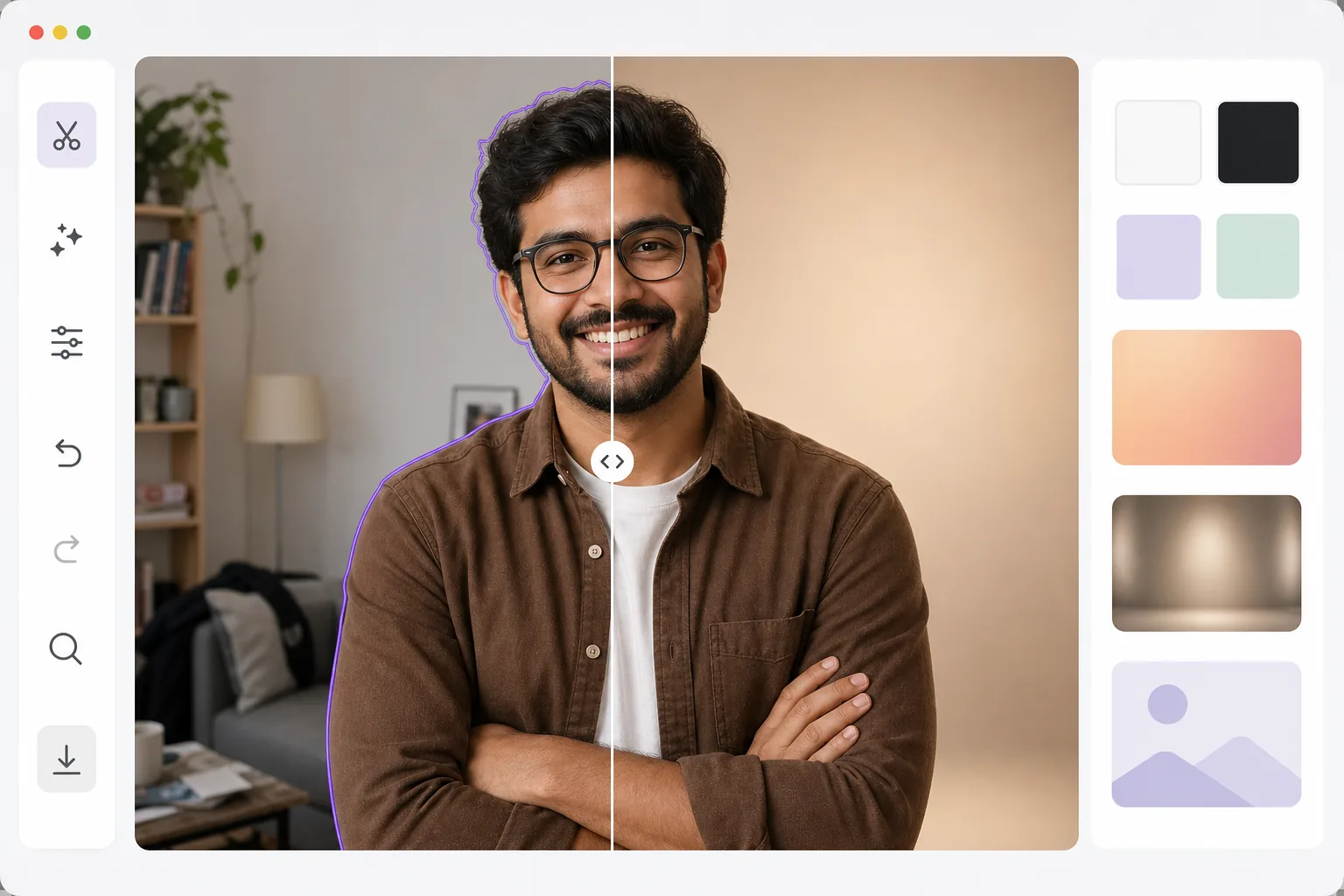
Cách thêm phông nền vào ảnh
Để thêm phông nền cho ảnh, hãy mở Magic Eraser trên web, iOS hoặc Android, tải ảnh lên, để AI xóa phông nền hiện tại, rồi đặt chủ thể lên nền mới — một màu trơn, một dải màu chuyển sắc, một phông nền studio, hoặc ảnh do chính bạn tải lên. Hoàn toàn miễn phí, không cần đăng ký. AI tách chủ thể với đường viền sắc nét (tóc, kính mắt, các chi tiết nhỏ), nên phần cắt ra nằm gọn trên nền mới thay vì lọt thỏm trong một khung trắng. Để có kết quả như thật, hãy chọn phông nền có hướng ánh sáng khớp với chủ thể và thêm một bóng đổ mềm dưới chân. Nền quyết định tâm trạng, bối cảnh và tính chuyên nghiệp của bất kỳ bức ảnh nào. Một sản phẩm trên nền trắng ghi 'thương mại điện tử'. Một bức ảnh chụp cận cảnh một văn phòng mờ có dòng chữ 'công ty'. Một bức chân dung dưới ánh hoàng hôn nói lên 'phong cách sống'. Tính năng thay thế nền cho phép bạn kiểm soát câu chuyện này sau khi chụp ảnh. Quá trình này bao gồm hai bước AI: thứ nhất, trích xuất đối tượng chính xác với tính năng bảo toàn cạnh; thứ hai, tổng hợp trên nền mới với nhiệt độ màu, hướng ánh sáng và vị trí bóng phù hợp. Kết quả sẽ trông giống như đối tượng thực sự được chụp trong môi trường đó — chứ không phải được dán lên trên.
Before you start
Thêm nền trong ba bước
Start with tải lên và xóa nền gốc. The result preview above and tips below use this guide's existing content; no separate before-and-after proof is assumed.
- 1
Tải lên và xóa nền gốc
Mở Magic Eraser trên web, iOS hoặc Android và chọn Background Eraser. Tải ảnh của bạn lên và để AI xóa nền hiện có. Đối tượng được trích xuất với các cạnh chính xác — tóc, kính và các chi tiết nhỏ được giữ nguyên.
- 2
Chọn hình nền mới của bạn
Chọn từ các màu đồng nhất (trắng, đen, tùy chỉnh), chuyển màu, phông nền studio cài sẵn hoặc tải lên hình ảnh của riêng bạn làm nền mới. Định vị và chia tỷ lệ đối tượng trên nền mới. Điều chỉnh crop để tạo khung cho bố cục.
- 3
Điều chỉnh và xuất
Tinh chỉnh tổ hợp: điều chỉnh độ sáng để phù hợp với ánh sáng nền, thêm bóng mờ để tạo nền và điều chỉnh độ mềm của cạnh để hòa trộn tự nhiên. Xuất ở độ phân giải mong muốn của bạn cho web, in hoặc phương tiện truyền thông xã hội.
Tốt nhất cho
- Tạo ảnh chụp cận cảnh chuyên nghiệp bằng cách thay thế phông nền ở nhà bằng phông nền studio
- Chụp ảnh sản phẩm thương mại điện tử với nền trắng hoặc có thương hiệu nhất quán
- Người sáng tạo nội dung trên mạng xã hội đặt mình vào môi trường sáng tạo hoặc đầy khát vọng
- Đội ngũ tiếp thị sản xuất hình ảnh chiến dịch với hình nền có thương hiệu
- Hình nền cuộc gọi video - tạo hình ảnh tĩnh chuyên nghiệp cho hồ sơ cuộc họp ảo
Lời khuyên để có kết quả tốt nhất
Khớp hướng ánh sáng giữa chủ thể và hậu cảnh — nếu chủ thể được chiếu sáng từ bên trái, hãy chọn hậu cảnh có ánh sáng tương tự. Ánh sáng không phù hợp là biểu hiện phổ biến nhất của các bức ảnh ghép. Thêm bóng đổ hoặc bóng nền tinh tế để neo chủ thể vào nền mới. Đối với những bức ảnh chụp cận cảnh chuyên nghiệp, màu sắc đồng nhất hoặc độ chuyển màu đơn giản luôn trông bóng bẩy hơn so với phông nền phong cảnh. Khi sử dụng hình nền tùy chỉnh, hãy làm mờ hình ảnh đó một chút (mô phỏng độ sâu trường ảnh nông) để giữ chủ thể làm tiêu điểm rõ ràng.
Câu hỏi thường gặp
- Tôi có thể sử dụng hình ảnh của chính mình làm nền không?
- Đúng. Tải lên bất kỳ hình ảnh nào làm nền thay thế. Công cụ này sẽ kết hợp đối tượng được trích xuất của bạn vào hình ảnh mới với tỷ lệ và vị trí thích hợp.
- Nó có phù hợp với ánh sáng giữa chủ thể và hậu cảnh không?
- Công cụ này duy trì ánh sáng ban đầu của đối tượng. Để có kết quả tự nhiên nhất, hãy chọn nền có hướng ánh sáng và nhiệt độ màu tương tự.
- Thay thế nền có miễn phí không?
- Đúng. Tính năng xóa và thay thế nền có sẵn ở cấp miễn phí với giới hạn sử dụng hàng ngày. Premium loại bỏ các giới hạn và thêm xử lý hàng loạt.
- Làm cách nào để thêm phông nền cho ảnh trên Android hoặc iPhone?
- Mở Magic Eraser trên trình duyệt di động bất kỳ hoặc ứng dụng iOS, Android, tải ảnh từ thư viện máy, rồi để AI xóa phông nền hiện tại. Sau đó chọn nền mới — một màu trơn, một phông nền có sẵn, hoặc một ảnh từ thư viện của bạn — rồi chụm hai ngón tay để chỉnh tỷ lệ và đặt vị trí chủ thể. Xuất ảnh và tấm ảnh hoàn thiện sẽ lưu thẳng về thư viện máy. Cách làm giống hệt phiên bản máy tính, và bạn không cần cài ứng dụng nếu dùng trình duyệt.
- Thêm phông nền và xuất file PNG trong suốt khác nhau thế nào?
- Xóa phông nền sẽ để lại chủ thể trên nền trong suốt — một file PNG không có gì phía sau, sẵn sàng để đưa vào một thiết kế. Thêm phông nền thì đi xa hơn một bước: đặt chủ thể lên một nền mới hiện rõ (một màu, dải màu chuyển sắc, hoặc ảnh) và xuất ra một tấm ảnh hoàn thiện, đã gộp lớp. Nếu bạn muốn một bản cắt ra để tái sử dụng ở nơi khác, hãy xuất file PNG trong suốt; còn nếu bạn muốn một tấm ảnh hoàn chỉnh trong bối cảnh mới, hãy thêm phông nền và xuất dưới dạng JPG hoặc PNG.