
AI Filter style
ИИ-фильтр для фото «Клён»
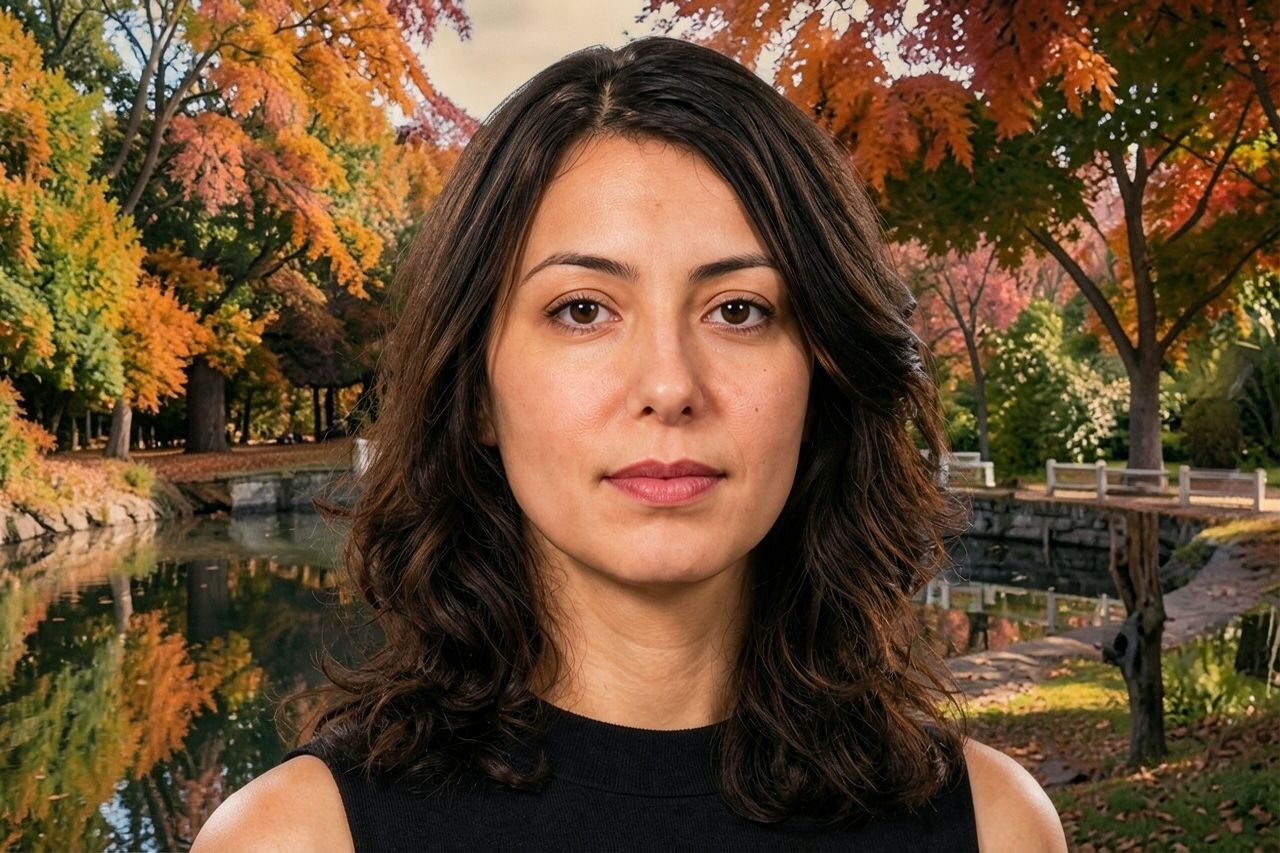
Примените ИИ-фильтр «Клён» к портретам, фото питомцев, товаров и путешествий, чтобы получить тёплую осеннюю обработку в янтарных, красных и золотистых тонах. Сравните предпросмотр, проверьте важные детали, затем обрежьте или очистите изображение перед экспортом.

Use case
Сезонные портреты, аватары и тёплые семейные фотографии.
Use case
Осенние изображения товаров, еды, путешествий и образа жизни.
Use case
Публикации и макеты кампаний с уютной красно-золотой палитрой.


Filter preview
Compare the original photo with the maple result
The example uses a generated source photo and the same filter API path as the app, so users can judge the visual treatment before uploading their own image.
More examples
Test the maple filter on different photo types
Compare portrait, product, and pet examples before opening the filter. Each result uses the same filter API path as the Magic Eraser app.


Portrait
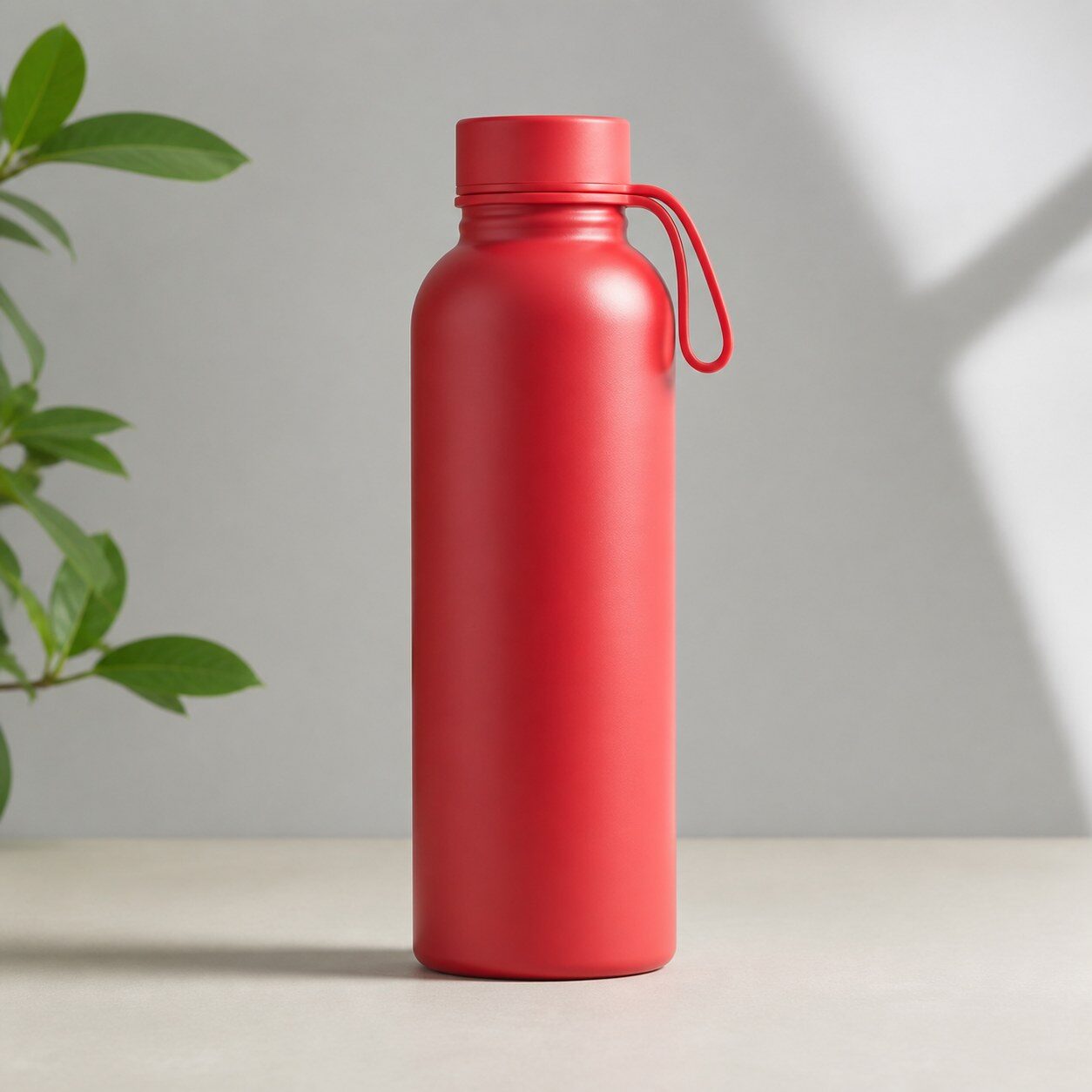
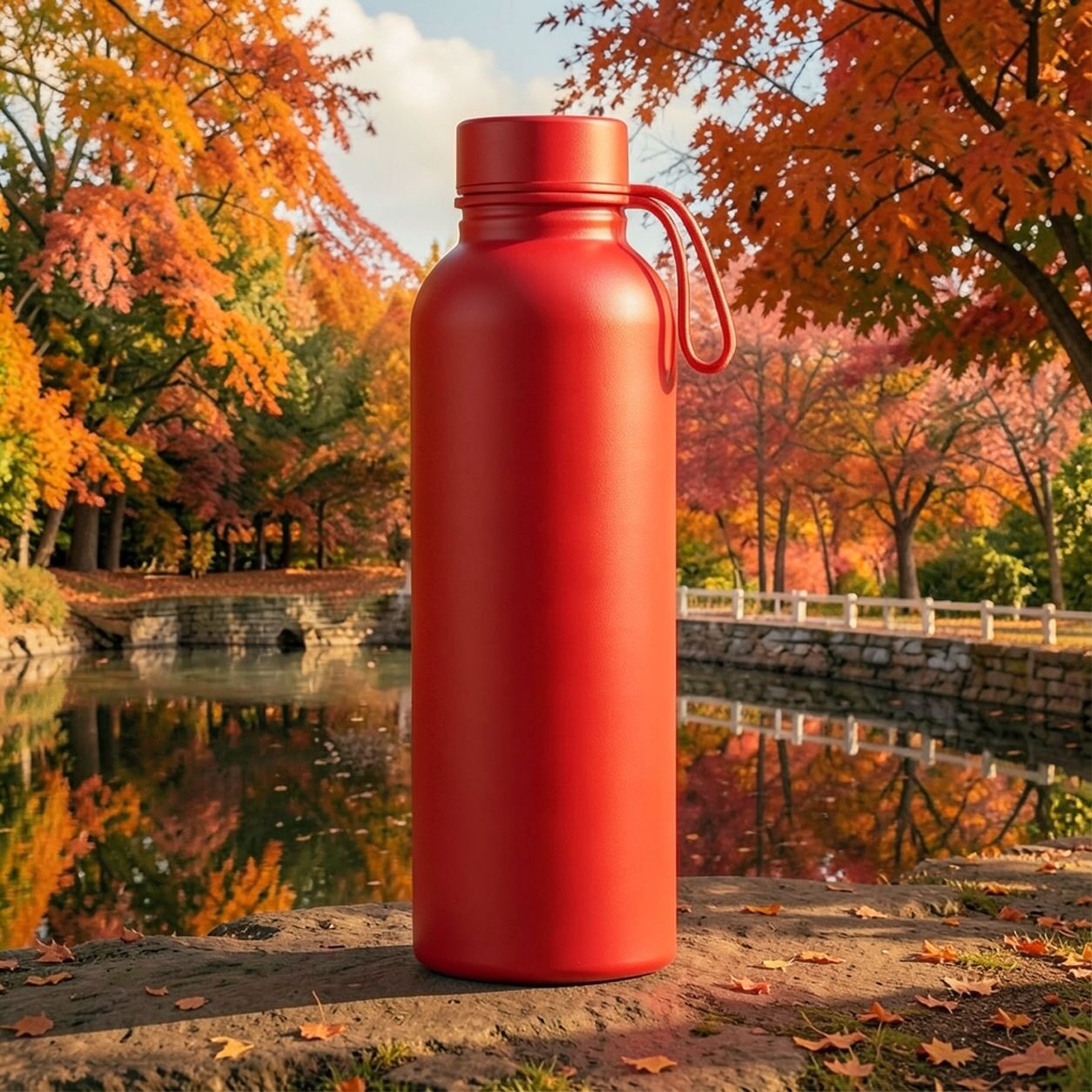
Product


Pet
Photo workflow
How to get a cleaner maple filter result
Выберите хорошо освещённое фото с одним чётким объектом и заметными контурами.
Откройте фильтр «Клён», загрузите фото и сравните предпросмотр с оригиналом.
Проверьте лица, этикетки и важные цвета, затем обрежьте кадр или удалите лишнее.
Best source photos
- Портреты, пары, питомцы и семейные фото.
- Еда, товары, путешествия и сцены на открытом воздухе.
- Изображения для тёплой осенней цветовой атмосферы.
Filter tips
- Нейтральные или уличные снимки дают больше пространства для тёплой обработки.
- Не используйте результат, если важны точный цвет товара или документальная достоверность.
- Простой фон сохраняет читаемость объекта при усилении янтарных и красных тонов.
Before upload checklist
- Use the largest clean version of the photo, not a compressed screenshot or reposted image.
- Crop loosely before filtering so the AI has enough room around the subject.
- Remove obvious distractions first if they sit directly on the face, product, or main subject.
- Check the result at the size where it will be used: profile image, feed post, story, thumbnail, or banner.
When this filter is a good fit
Choose the maple filter when the original photo already has a clear subject and the goal is a recognizable stylized version, not a fully new generated scene. It is strongest for social, creator, profile, event, and campaign images where mood matters more than documentary accuracy.
Use a different workflow when the image needs exact product color, legal documentation, medical accuracy, or unmodified identity details. In those cases, use cleanup, crop, enhancement, or background tools instead of a heavy creative filter.
Free browser tools after filtering
FAQ
What should I upload?
Use a clear photo with one main subject. Strong lighting and simple backgrounds usually make the AI filter easier to control.
Can I keep editing after the filter?
Yes. After applying the filter, use Magic Eraser to crop, clean distractions, refine backgrounds, and export the final image.
Is this filter selected automatically?
The CTA opens AI Filter with the maple style parameter, and the app falls back safely if the filter changes.