
AI Create style
ИИ-генератор типографических изображений
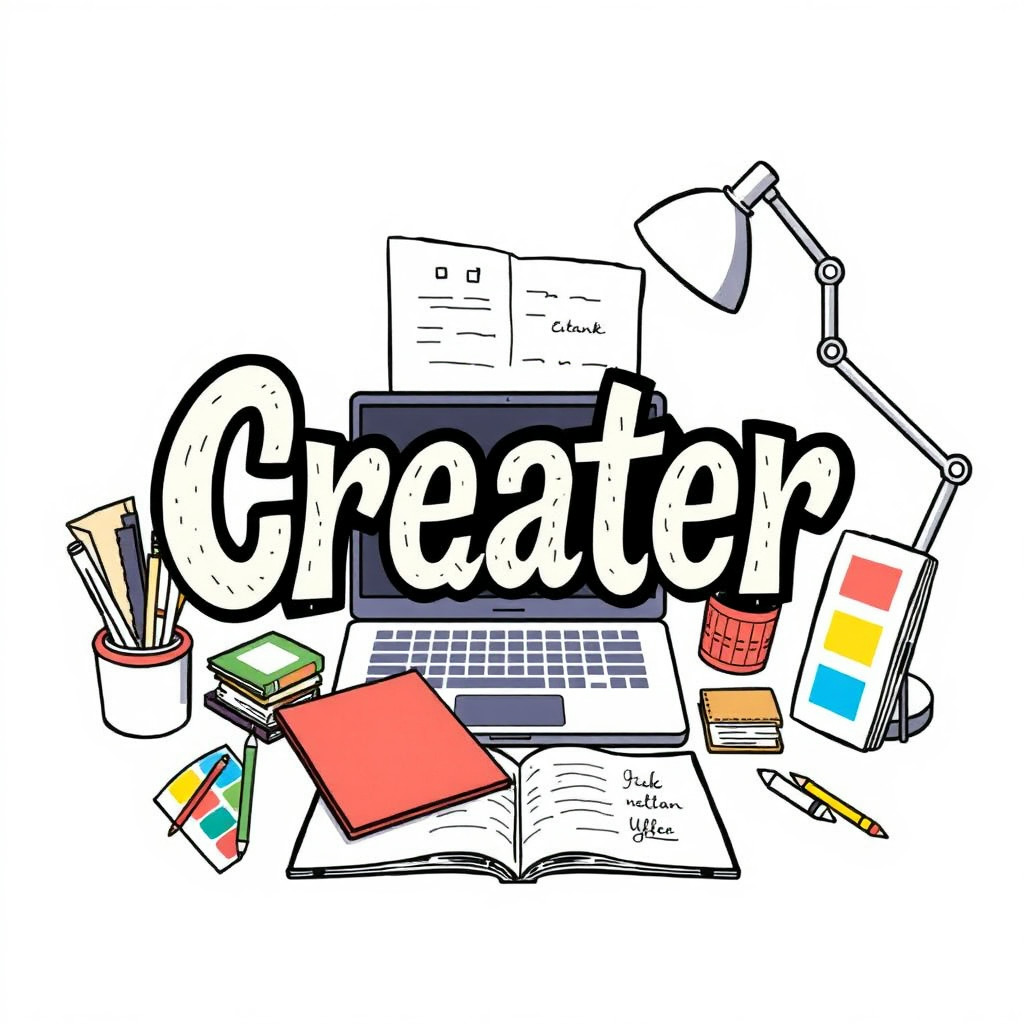
Создавайте визуальные концепции, где изображение строится вокруг формы букв, ритма макета и графической композиции. Используйте их для плакатов, цитат, обложек, мерча и кампаний, а точный итоговый текст добавляйте в редакторе.
Use case
Концепции плакатов и обложек с буквами в роли главного элемента.
Use case
Цитаты и публикации для соцсетей с выразительной типографикой.
Use case
Визуальные направления для мерча, мероприятий и кампаний.
Visual direction preview
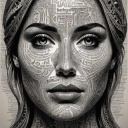
Use the style thumbnail as the creative target
The preview gives users a concrete reference for color, texture, edge detail, and mood before they open the generator. Pair it with the prompt starters below to keep the page useful instead of only decorative.
Generated examples
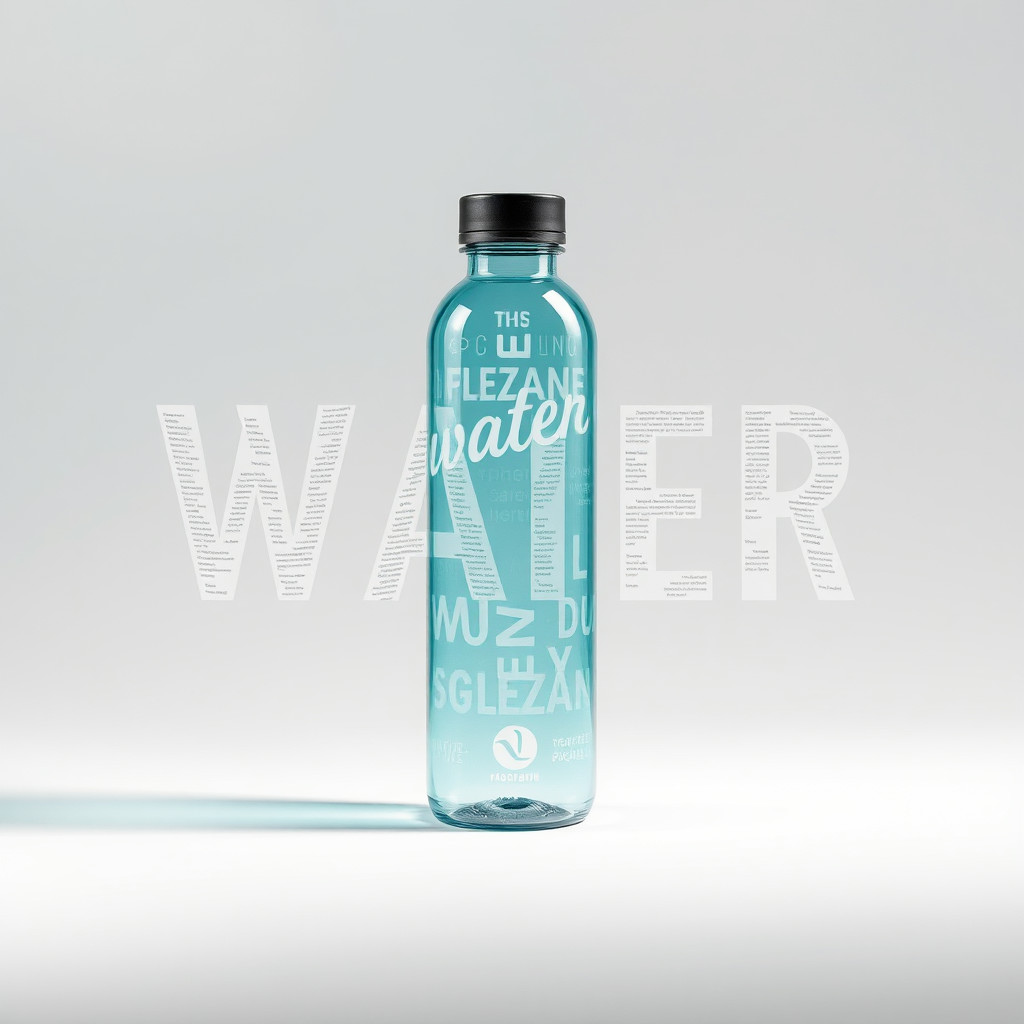
See the типографика style in real outputs
These examples were generated through the Magic Eraser AI Create API with the типографика style selected.
Prompt workflow
How to get a stronger типографика result
Начните с короткого слова или сообщения, затем задайте стиль букв, палитру, фон и композицию.
Создайте варианты и сравните форму букв, иерархию, контраст и свободное пространство.
Выберите лучшую композицию и перед публикацией замените сгенерированные буквы точным редактируемым текстом.
Prompt starters
- “Типографический плакат со словом FOCUS, жирные красные буквы без засечек, белый фон, легкая тень”
- “Редакционный макет о летних путешествиях, многослойные бумажные буквы, яркие цветовые блоки”
- “Хромированная типографика для музыкального плаката, темный фон, отражающие буквы, драматичный свет”
Style tips
- Считайте сгенерированные буквы визуальным элементом, а не точным финальным текстом.
- Короткие слова и простая композиция помогают сохранить ясное направление.
- Имена, даты, цены и логотипы добавляйте отдельно после генерации.
Output planning checklist
- Decide the final placement before prompting: square post, vertical story, product insert, poster, thumbnail, or wide banner.
- Keep one primary subject and one visual mood so the типографика style has a clear job.
- Describe the background as simple, detailed, bright, dark, studio, outdoor, or textured instead of leaving it open-ended.
- Generate variations first, then edit the selected image for crop, cleanup, and export size.
When to choose this style
Choose типографика when the image needs a clear creative direction before production: an ad concept, a social visual, a character idea, a packaging mood, or a fast design draft. Choose another style if the final asset must look like a camera photo, preserve exact product color, or include precise typography.
For commercial work, treat the generated image as a starting point. Review details, remove distracting artifacts, add exact text separately, and export the final size from the editor.
FAQ
Can I edit the generated image?
Yes. Generate the image, then continue with cleanup, crop, background, and export tools in Magic Eraser.
Should I include exact text?
Use AI Create for the visual direction. Add exact text later with editable design tools for cleaner spelling and layout.
Is this style selected automatically?
The CTA opens AI Create with the типографика style parameter, and the app falls back safely if the option changes.