
AI Create style
ИИ-генератор изображений в стиле витража
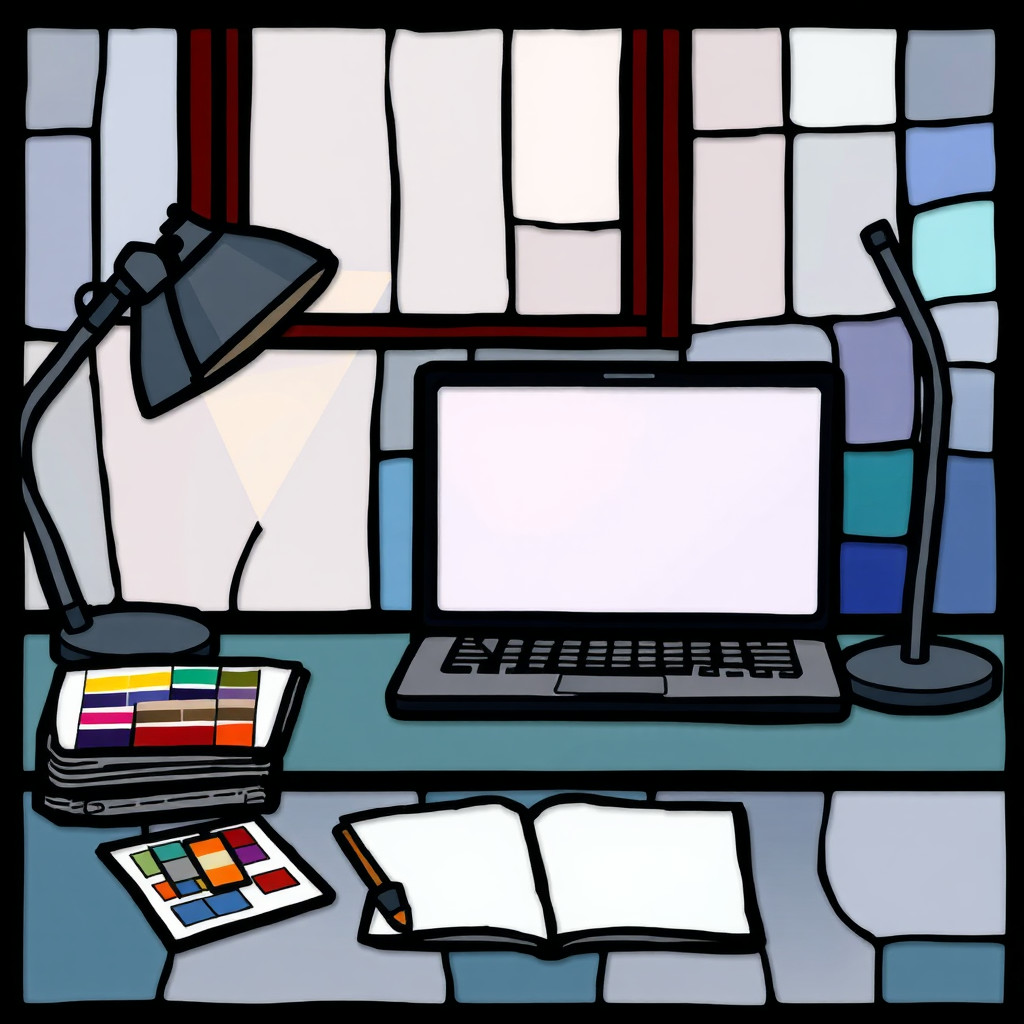
Создавайте по тексту изображения в стиле витража с полупрозрачными цветными фрагментами, темными переплетами и сияющим проходящим светом. Стиль подходит для плакатов, приглашений, иллюстраций и декора; укажите сюжет, палитру и детализацию.
Use case
Плакаты, приглашения и обложки с сиянием цветного стекла.
Use case
Иллюстрации, узоры и декор по мотивам витражных окон.
Use case
Материалы для соцсетей и товаров с выразительными цветовыми полями.
Visual direction preview
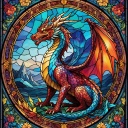
Use the style thumbnail as the creative target
The preview gives users a concrete reference for color, texture, edge detail, and mood before they open the generator. Pair it with the prompt starters below to keep the page useful instead of only decorative.
Generated examples
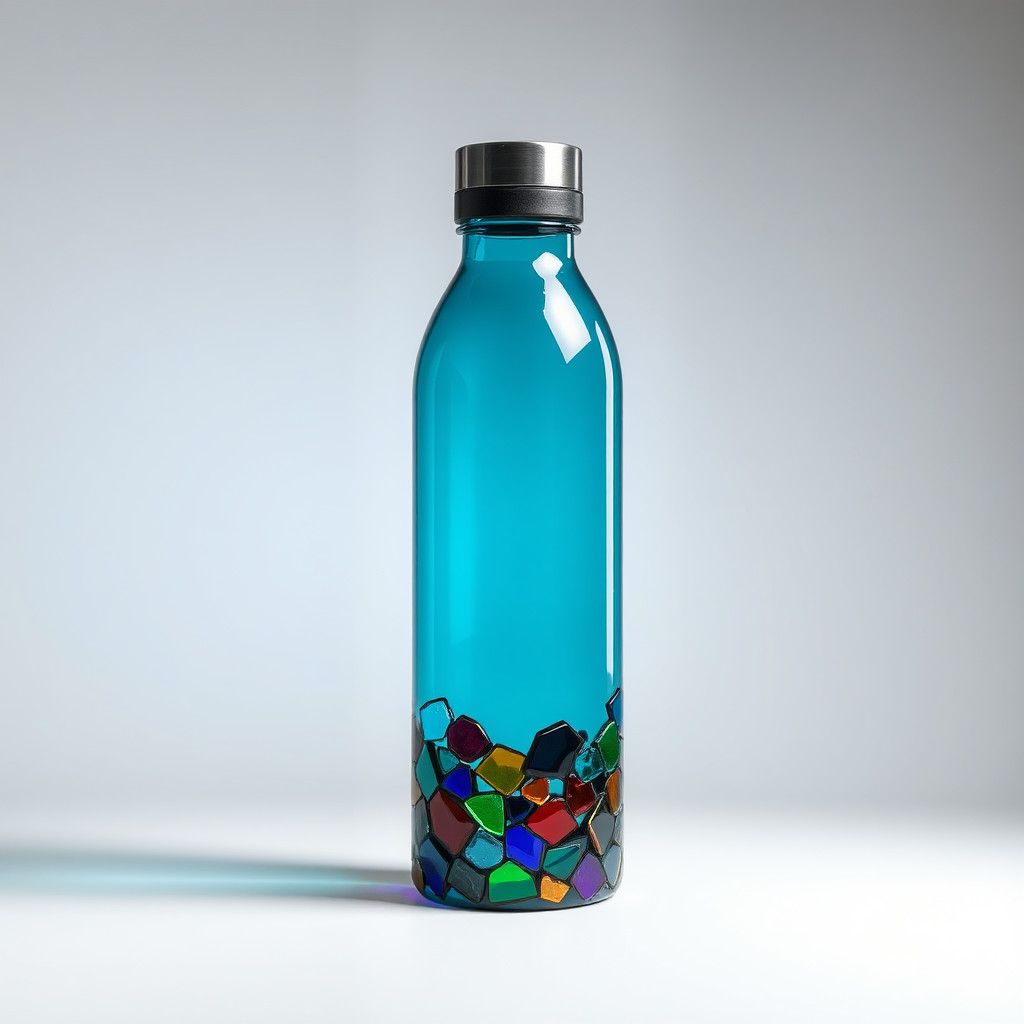
See the витраж style in real outputs
These examples were generated through the Magic Eraser AI Create API with the витраж style selected.
Prompt workflow
How to get a stronger витраж result
Опишите один главный объект, композицию и палитру.
Добавьте полупрозрачное стекло, темные свинцовые линии и проходящий свет.
Создайте варианты, выберите самый четкий, затем обрежьте и уберите лишнее.
Prompt starters
- “Витражный кит под водой, синие и бирюзовые фрагменты, темные свинцовые линии, проходящий свет”
- “Витражный плакат с подсолнухами, янтарный и зеленый, уравновешенная композиция”
- “Кот у витражного окна, радужный свет, простой фон”
Style tips
- Простые формы делают сегменты стекла разборчивее.
- Укажите источник света и основные цвета.
- Точный текст и логотипы добавляйте после генерации.
Output planning checklist
- Decide the final placement before prompting: square post, vertical story, product insert, poster, thumbnail, or wide banner.
- Keep one primary subject and one visual mood so the витраж style has a clear job.
- Describe the background as simple, detailed, bright, dark, studio, outdoor, or textured instead of leaving it open-ended.
- Generate variations first, then edit the selected image for crop, cleanup, and export size.
When to choose this style
Choose витраж when the image needs a clear creative direction before production: an ad concept, a social visual, a character idea, a packaging mood, or a fast design draft. Choose another style if the final asset must look like a camera photo, preserve exact product color, or include precise typography.
For commercial work, treat the generated image as a starting point. Review details, remove distracting artifacts, add exact text separately, and export the final size from the editor.
FAQ
Can I edit the generated image?
Yes. Generate the image, then continue with cleanup, crop, background, and export tools in Magic Eraser.
Should I include exact text?
Use AI Create for the visual direction. Add exact text later with editable design tools for cleaner spelling and layout.
Is this style selected automatically?
The CTA opens AI Create with the витраж style parameter, and the app falls back safely if the option changes.