
AI Create style
ИИ-генератор изображений в стиле пуантилизма
Создавайте по тексту изображения в духе пуантилизма из отдельных цветных точек, которые оптически смешиваются на расстоянии. Стиль подходит для портретов, пейзажей, плакатов и редакционных концепций; укажите объект, палитру, плотность точек и фон.

Use case
Художественные портреты, где свет и тень построены цветными точками.
Use case
Пейзажи и городские сцены с сияющим оптическим смешением цвета.
Use case
Плакаты, обложки и редакционные иллюстрации с заметной живописной фактурой.

Visual direction preview
Use the style thumbnail as the creative target
The preview gives users a concrete reference for color, texture, edge detail, and mood before they open the generator. Pair it with the prompt starters below to keep the page useful instead of only decorative.
Generated examples
See the пуантилизм style in real outputs
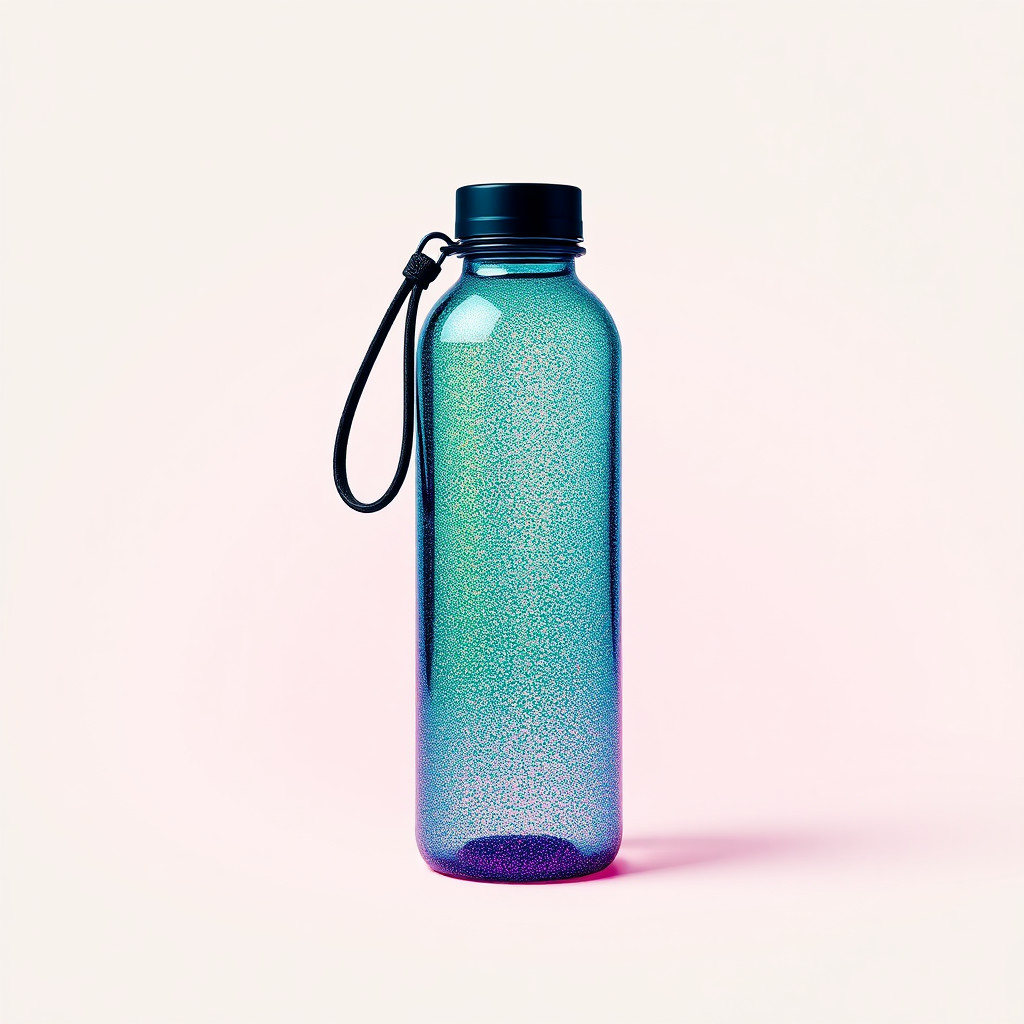
These examples were generated through the Magic Eraser AI Create API with the пуантилизм style selected.
Prompt workflow
How to get a stronger пуантилизм result
Выберите один главный объект и читаемую композицию.
Задайте два-три основных цвета, размер и плотность точек, а также тип фона.
Создайте варианты, проверьте их в крупном и малом размере и удалите лишние детали.
Prompt starters
- “Пуантилистический портрет оригинальной художницы, синие и оранжевые точки, кремовый фон”
- “Прибрежный пейзаж на закате, плотный пуантилизм, дополнительные цвета”
- “Пуантилистический плакат с красным велосипедом, много свободного пространства”
Style tips
- Используйте ясные формы: мелкие детали могут потеряться среди точек.
- Усильте контраст объекта и фона, чтобы сохранить контуры.
- Добавляйте точный текст и логотипы после генерации.
Output planning checklist
- Decide the final placement before prompting: square post, vertical story, product insert, poster, thumbnail, or wide banner.
- Keep one primary subject and one visual mood so the пуантилизм style has a clear job.
- Describe the background as simple, detailed, bright, dark, studio, outdoor, or textured instead of leaving it open-ended.
- Generate variations first, then edit the selected image for crop, cleanup, and export size.
When to choose this style
Choose пуантилизм when the image needs a clear creative direction before production: an ad concept, a social visual, a character idea, a packaging mood, or a fast design draft. Choose another style if the final asset must look like a camera photo, preserve exact product color, or include precise typography.
For commercial work, treat the generated image as a starting point. Review details, remove distracting artifacts, add exact text separately, and export the final size from the editor.
FAQ
Can I edit the generated image?
Yes. Generate the image, then continue with cleanup, crop, background, and export tools in Magic Eraser.
Should I include exact text?
Use AI Create for the visual direction. Add exact text later with editable design tools for cleaner spelling and layout.
Is this style selected automatically?
The CTA opens AI Create with the пуантилизм style parameter, and the app falls back safely if the option changes.