
Come rimuovere i graffi da una foto
Le vecchie foto di famiglia estratte dagli album spesso presentano graffi, pieghe e segni sulla superficie che attraversano volti e dettagli importanti. I negativi delle pellicole scansionate mostrano graffi lineari dovuti alla polvere nello scanner. L'intelligenza artificiale di Magic Eraser traccia e rimuove questi segni mentre ricostruisce il contenuto dell'immagine che hanno danneggiato.
Last updated
Rimuovi i graffi adesso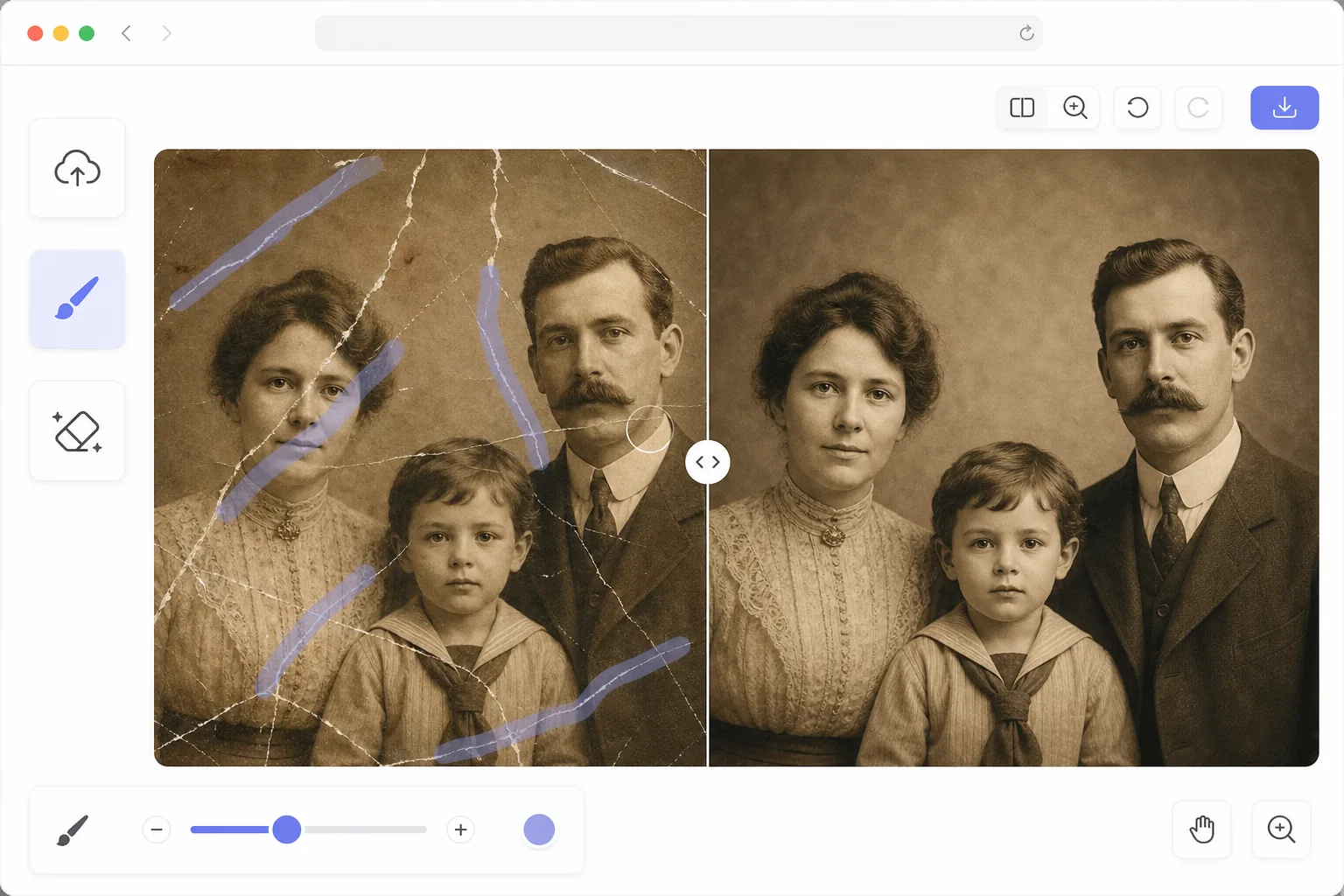
Perché i graffi sono noiosi da riparare a mano
Un graffio su una fotografia è un danno fisico: rimuove o sposta l'emulsione fotografica, lasciando una linea di dati dell'immagine mancanti. A differenza delle macchie di polvere (che sono difetti puntuali facilmente risolvibili con una correzione puntuale), i graffi sono lunghi percorsi lineari o curvi che attraversano trame, colori e soggetti diversi. Un singolo graffio su un viso potrebbe interessare pelle, capelli, occhi e sfondo, ciascuno dei quali richiede una ricostruzione diversa. La riparazione manuale implica la clonazione lungo l'intero percorso del graffio, il campionamento della texture originale appropriata per ciascuna sezione, la fusione della riparazione in diverse regioni tonali e la conservazione dei dettagli fini (ciglia, ciocche di capelli) interrotti dal graffio. Un singolo graffio lungo su una foto dettagliata può richiedere 15-30 minuti per essere riparato correttamente. L'intelligenza artificiale di Magic Eraser interpreta il graffio come un artefatto danneggiato separato dal contenuto dell'immagine, ne traccia il percorso completo e ricostruisce i dettagli sottostanti dal contesto circostante.
Before you start
Rimuovi i graffi in tre passaggi
Start with carica la foto scansionata. The result preview above and tips below use this guide's existing content; no separate before-and-after proof is assumed.
- 1
Carica la foto scansionata
Apri Magic Eraser sul Web, iOS o Android e carica la foto scansionata con graffi. Esegui la scansione alla massima risoluzione disponibile (300+ DPI) per ottenere i migliori risultati: una risoluzione più elevata fornisce all'IA più dettagli circostanti a cui fare riferimento durante la ricostruzione. Sono supportati i formati JPEG, PNG e TIFF.
- 2
Spazzola lungo ogni graffio
Usa lo strumento pennello per dipingere su ogni graffio, piega o segno di abrasione. Seguire il percorso del graffio con una larghezza del pennello che copra l'intero danno, compreso qualsiasi alone di spostamento su entrambi i lati. Per graffi profondi con frange colorate (comuni sulle stampe a colori), allargare leggermente il pennello oltre il danno visibile. Per graffi multipli, dipingili tutti prima di toccare Cancella per elaborare tutto in un unico passaggio.
- 3
Tocca Cancella e rivedi
L'intelligenza artificiale rimuove i graffi e ricostruisce l'immagine sottostante, adattando la struttura della pelle sui volti, continuando le ciocche di capelli durante la riparazione e fondendo le transizioni tonali in modo naturale. Zoom al 100% per ispezionare la riparazione lungo l'intero percorso del graffio. Per graffi molto profondi che lasciano texture residua, un secondo passaggio pulisce la traccia rimanente. Esporta alla massima risoluzione.
Meglio per
- Fotografie di famiglia scansionate con graffi superficiali dovuti alla manipolazione e alla conservazione dell'album
- Stampe vintage con danni superficiali dovuti all'età, inclusi graffi, pieghe e perdita di emulsione
- Scansioni negative di pellicole con graffi lineari dovuti a particelle di polvere nel meccanismo dello scanner
- Progetti di restauro fotografico in cui i graffi rappresentano il danno principale da riparare
- Collezioni di diapositive digitalizzate con graffi sulla superficie dovuti ad anni di manipolazione e proiezione
Suggerimenti per ottenere i migliori risultati
Scansiona foto graffiate a 600 DPI o superiore: la risoluzione extra cattura più dettagli circostanti a cui l'IA può fare riferimento durante la ricostruzione e rende il graffio stesso definito in modo più preciso affinché l'IA possa tracciarlo. Pulire il vetro dello scanner prima della scansione per distinguere i graffi delle foto dalla polvere dello scanner (le macchie di polvere appaiono nella stessa posizione su più scansioni, i graffi delle foto si spostano con la foto). Per le foto con dozzine di sottili graffi paralleli (comuni sui negativi conservati), spazzolare in modo ampio sull'intera regione graffiata anziché ricalcare ogni singolo graffio. I graffi bianchi o di colore chiaro su sfondi scuri sono il caso più semplice perché l'intelligenza artificiale ha un contrasto chiaro per rilevare il danno. Anche i graffi scuri sulle aree chiare funzionano bene, ma potrebbe essere necessario un pennello leggermente più largo per catturare eventuali scolorimenti circostanti.
Domande frequenti
- Può riparare pieghe e pieghe profonde?
- SÌ. Pieghe e pieghe sono strutturalmente simili ai graffi: danni lineari con dati immagine mancanti o spostati. Sfiora lungo la linea di piega e l'intelligenza artificiale ricostruisce il contenuto. Pieghe molto ampie (dove la piega creava un'ampia area danneggiata) potrebbero richiedere un pennello più largo e occasionalmente una seconda passata per un restauro completo.
- Funziona sia su foto a colori che in bianco e nero?
- SÌ. L'intelligenza artificiale gestisce sia foto a colori che in bianco e nero. I graffi colorati spesso appaiono come linee bianche o colorate a seconda del tipo di danno e l'IA ripristina il colore corretto nell'area riparata. I graffi in bianco e nero sono in genere linee bianche che l'intelligenza artificiale riempie con il tono di grigio e la trama appropriati.
- La rimozione dei graffi è gratuita?
- SÌ. Il livello gratuito di Magic Eraser include lo strumento pennello per la rimozione dei graffi con limiti di utilizzo giornaliero. Carica la tua foto scansionata, spazzola i graffi ed esporta l'immagine ripristinata. Premium rimuove i limiti e consente l'elaborazione batch per progetti di restauro fotografico di grandi dimensioni.