
AI Filter style
Filter tekstur foto AI
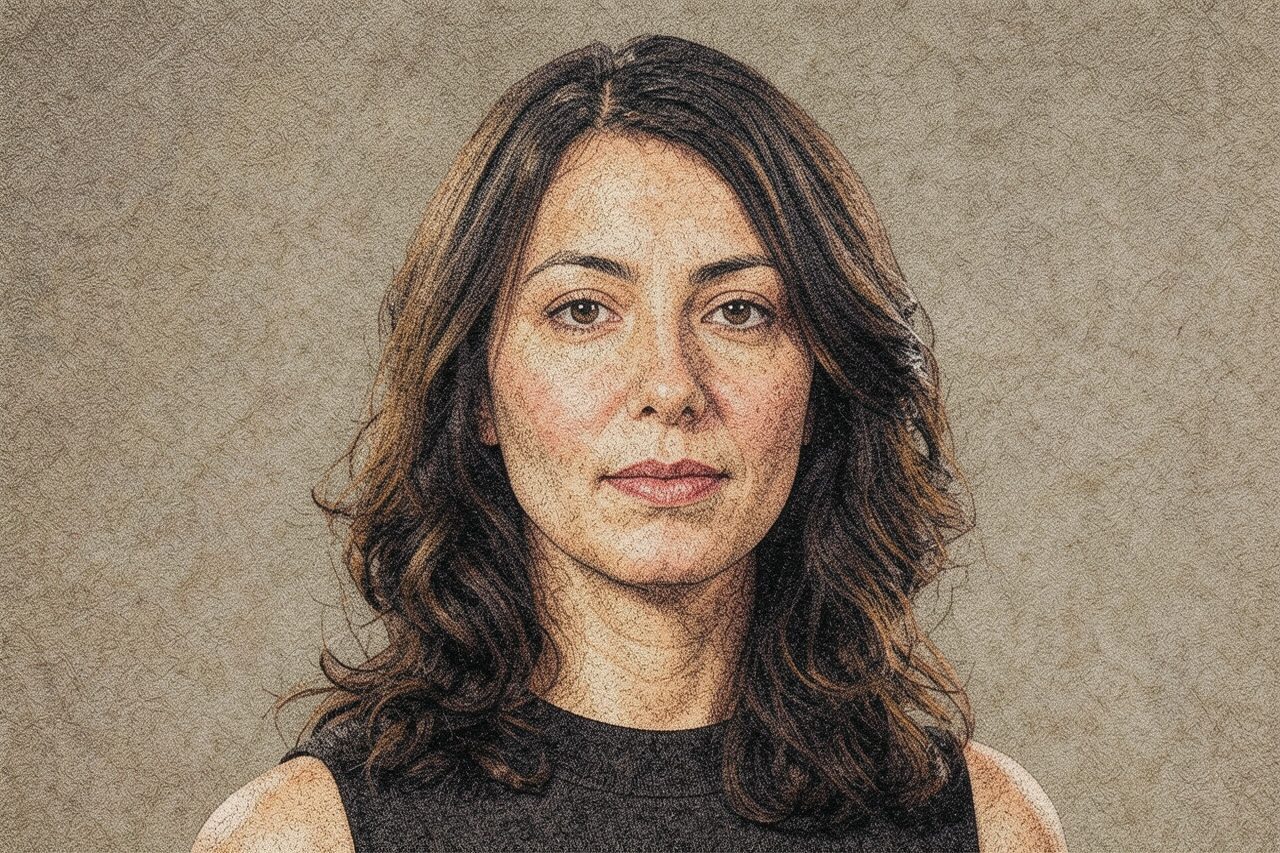
Tambahkan efek permukaan bertekstur pada foto sambil menjaga subjek utama tetap dikenali. Filter Tekstur cocok untuk potret, produk, hewan, perjalanan, dan konsep editorial; periksa wajah, tepi halus, teks, logo, dan warna produk karena hasilnya merupakan interpretasi kreatif.

Use case
Potret editorial, profil, dan posting dengan karakter permukaan.
Use case
Konsep produk dan kemasan yang mengutamakan gaya daripada warna akurat.
Use case
Foto hewan, perjalanan, dan gaya hidup dengan nuansa poster bertekstur.
Filter preview
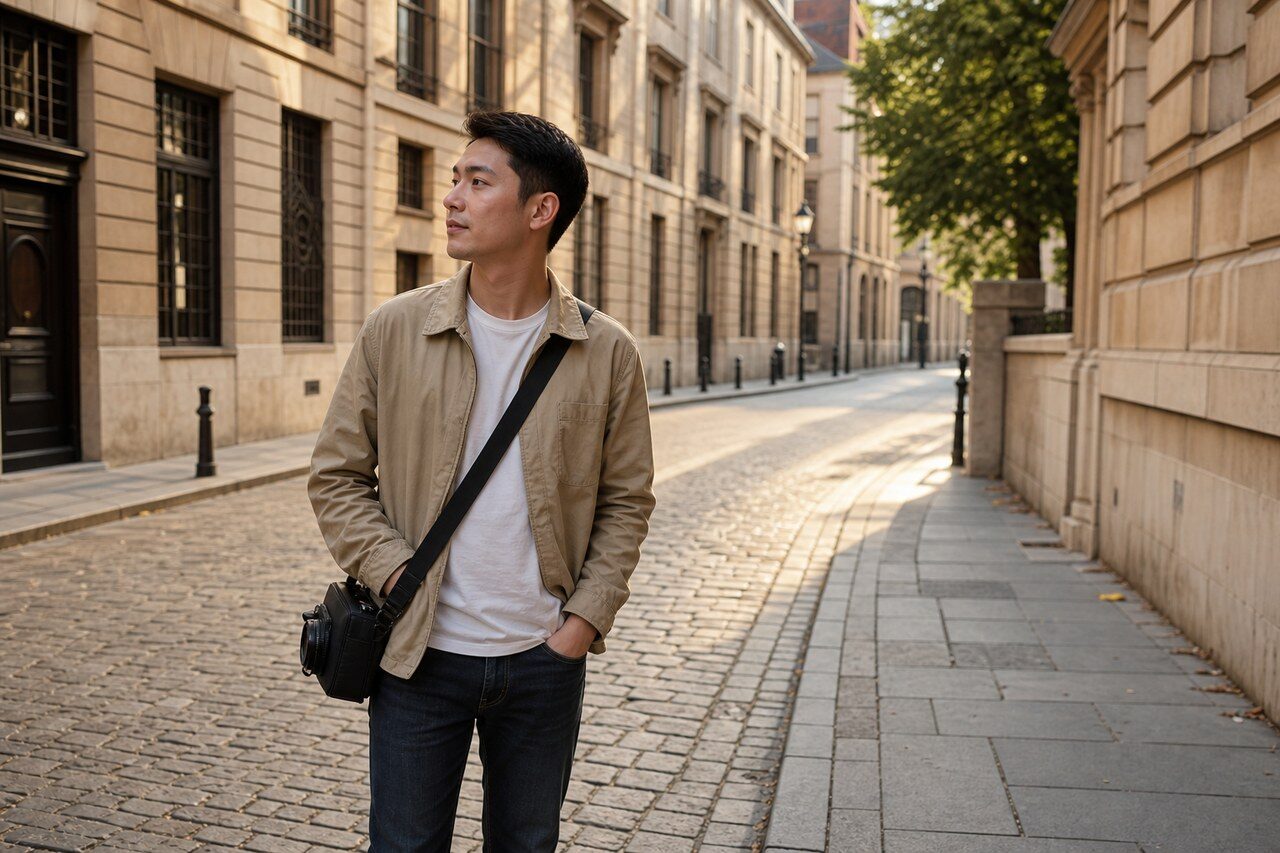
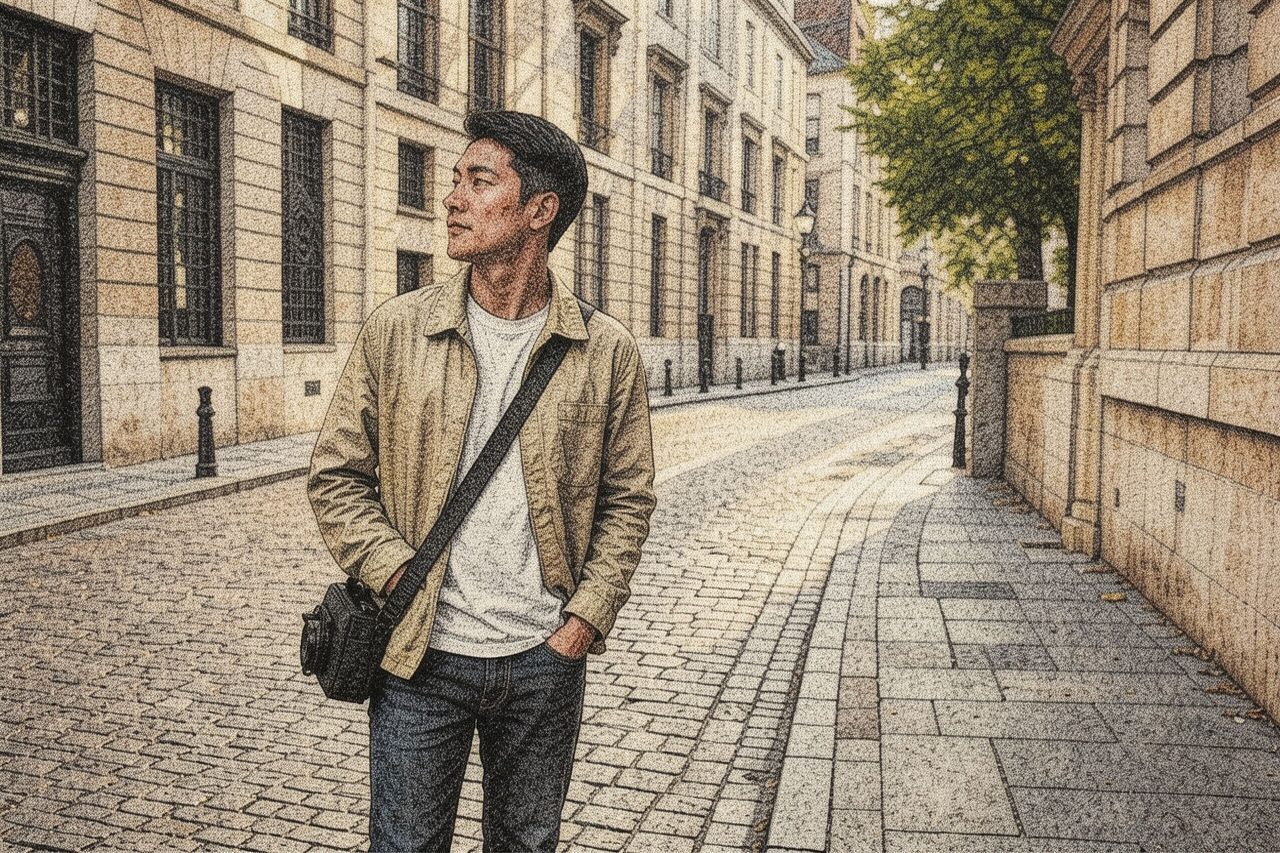
Compare the original photo with the texture result
The example uses a generated source photo and the same filter API path as the app, so users can judge the visual treatment before uploading their own image.
More examples
Test the texture filter on different photo types
Compare portrait, product, and pet examples before opening the filter. Each result uses the same filter API path as the Magic Eraser app.

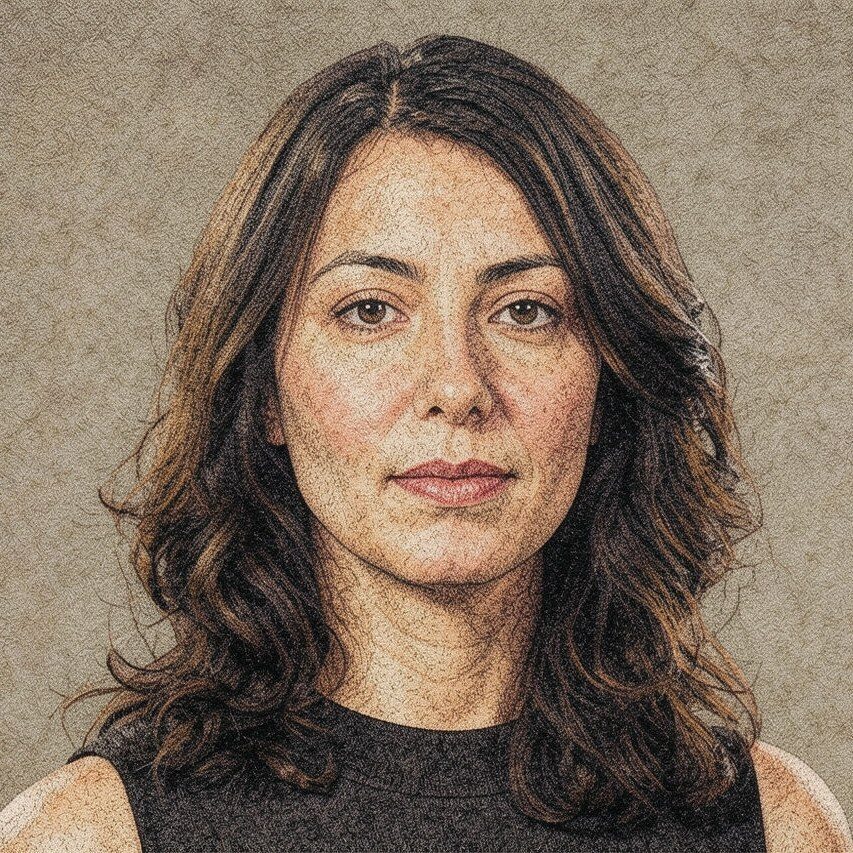
Portrait
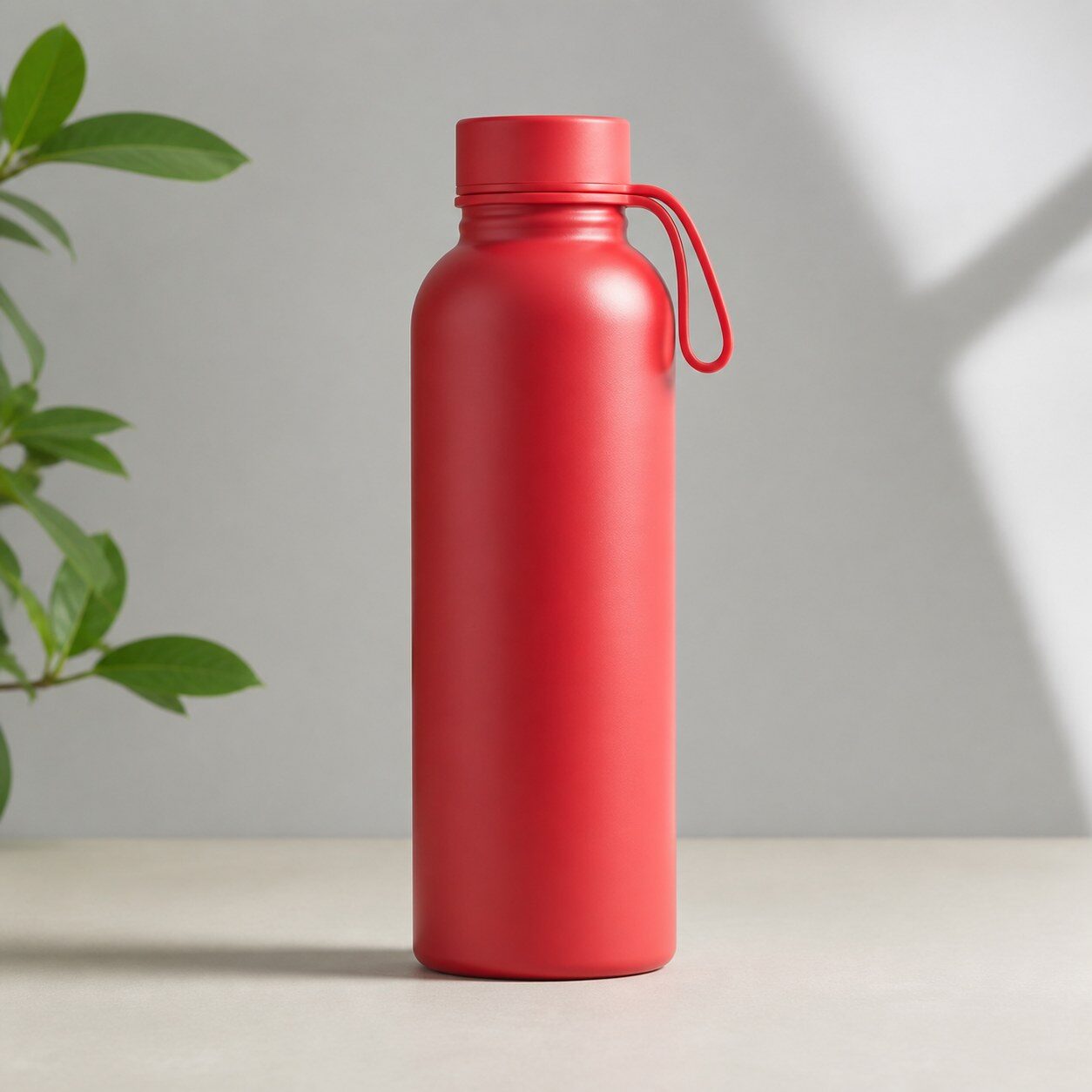
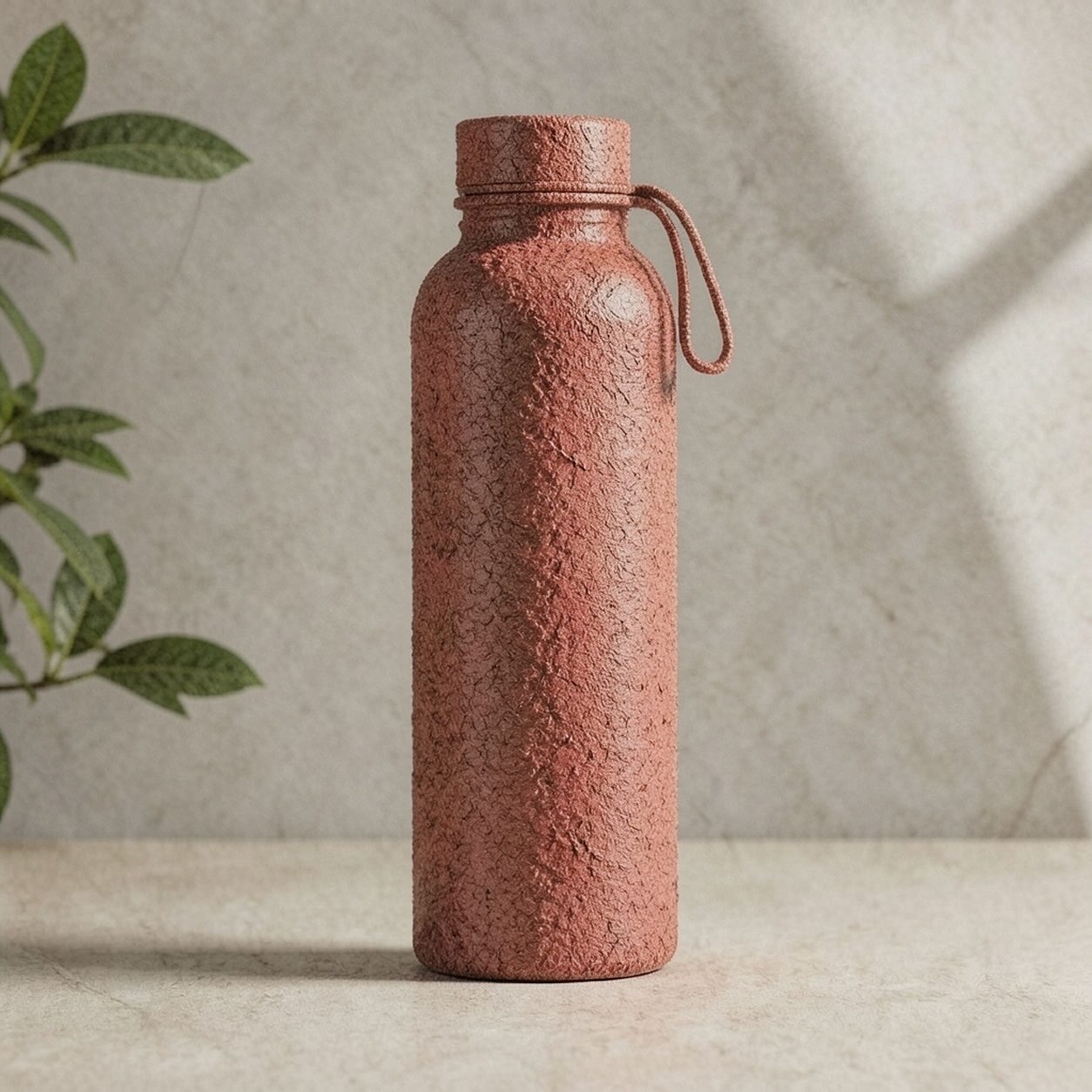
Product


Pet
Photo workflow
How to get a cleaner texture filter result
Pilih foto tajam dan terang dengan satu subjek serta latar sederhana.
Buka filter Tekstur, unggah foto, lalu periksa wajah, tepi, teks, dan detail penting.
Pangkas dan hapus tanda yang mengganggu sebelum menambahkan teks atau logo akurat secara terpisah.
Best source photos
- Potret dan foto setengah badan dengan pencahayaan baik.
- Produk sederhana tanpa tuntutan warna akurat.
- Hewan, arsitektur, perjalanan, dan gaya hidup dengan bentuk jelas.
Filter tips
- Siluet jelas dan latar bersih mencegah tekstur menutupi subjek.
- Hindari gambar terkompresi, wajah kecil, dan pola yang sudah ramai.
- Jangan gunakan bila warna, identitas, teks, atau detail dokumenter harus akurat.
Before upload checklist
- Use the largest clean version of the photo, not a compressed screenshot or reposted image.
- Crop loosely before filtering so the AI has enough room around the subject.
- Remove obvious distractions first if they sit directly on the face, product, or main subject.
- Check the result at the size where it will be used: profile image, feed post, story, thumbnail, or banner.
When this filter is a good fit
Choose the texture filter when the original photo already has a clear subject and the goal is a recognizable stylized version, not a fully new generated scene. It is strongest for social, creator, profile, event, and campaign images where mood matters more than documentary accuracy.
Use a different workflow when the image needs exact product color, legal documentation, medical accuracy, or unmodified identity details. In those cases, use cleanup, crop, enhancement, or background tools instead of a heavy creative filter.
Free browser tools after filtering
FAQ
What should I upload?
Use a clear photo with one main subject. Strong lighting and simple backgrounds usually make the AI filter easier to control.
Can I keep editing after the filter?
Yes. After applying the filter, use Magic Eraser to crop, clean distractions, refine backgrounds, and export the final image.
Is this filter selected automatically?
The CTA opens AI Filter with the texture style parameter, and the app falls back safely if the filter changes.