
Cara meningkatkan kualitas foto dengan AI
Foto buram dari kamera ponsel dalam cahaya redup, gambar beresolusi rendah yang diunduh dari web, hasil jepretan berisik dari pengaturan ISO tinggi, gambar lembut karena sedikit goyangan kamera — semuanya memiliki hasil yang sama: foto yang tidak tampak setajam dan sejelas pemandangan secara langsung. Magic Eraser AI Enhance meningkatkan resolusi, mempertajam detail, mengurangi noise, dan mengoreksi eksposur dalam sekali gerakan.
Last updated
Sempurnakan foto sekarang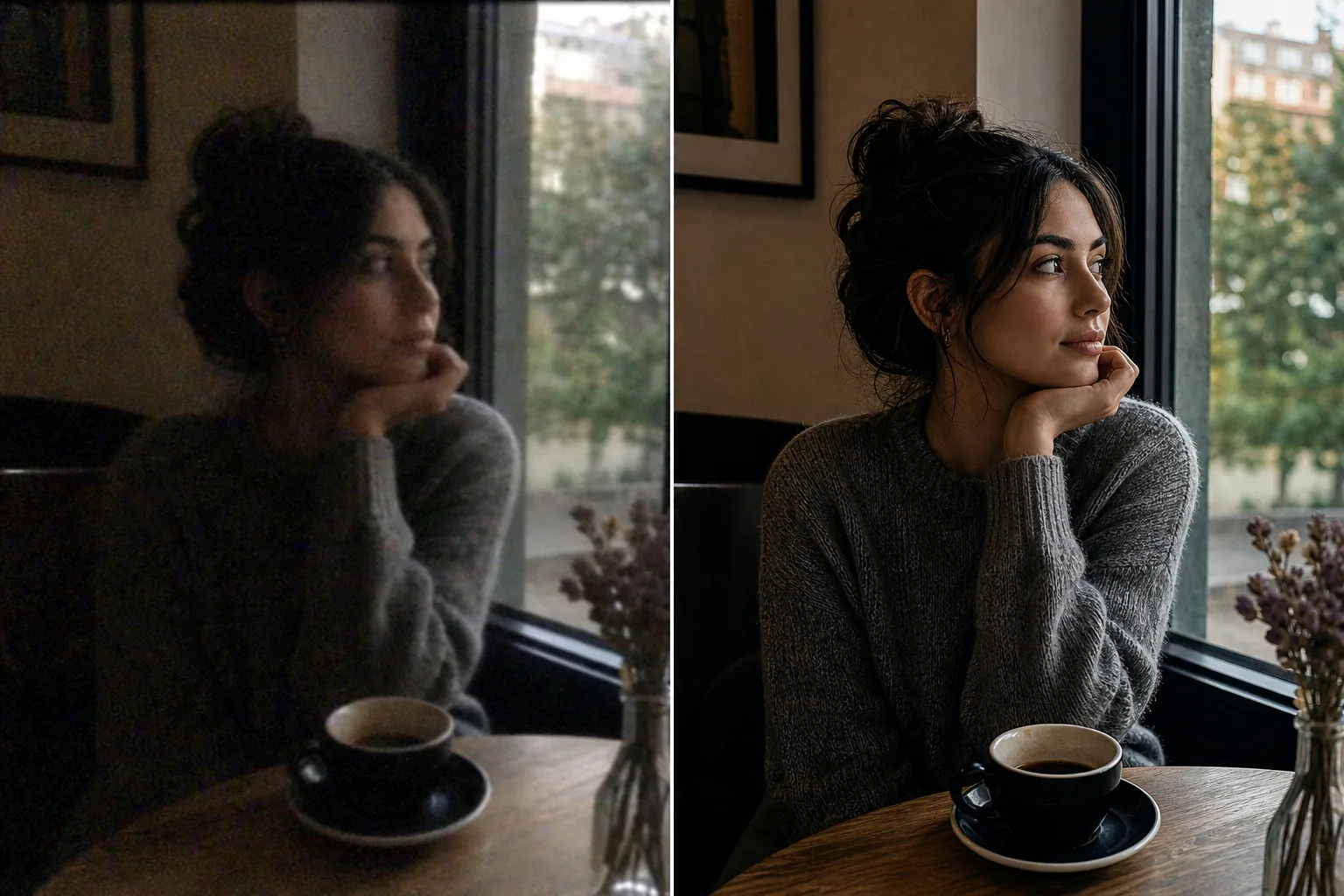
Apa yang sebenarnya dilakukan AI Enhancement pada sebuah foto
Untuk meningkatkan kualitas foto, buka Magic Eraser di web, iOS, atau Android, unggah fotomu, lalu terapkan AI Enhance — fitur ini menaikkan resolusi, menajamkan detail, mengurangi noise, dan memperbaiki pencahayaan sekaligus dalam satu proses. Gratis dan tanpa perlu daftar. Alih-alih sekadar meregangkan piksel yang ada, AI menghasilkan detail halus yang masuk akal (tekstur kulit, rambut, tepi teks) sesuai yang tersirat dari foto berkualitas rendah, sehingga hasilnya terlihat seperti diambil dengan kamera yang lebih baik. Makin bersih gambar awalnya, makin setia hasilnya; sumber yang sangat buram atau berukuran sangat kecil diperbaiki sebagai interpretasi terbaik, bukan dipulihkan persis seperti aslinya. Turunkan tingkat kekuatannya jika wajah atau tekstur halus mulai terlihat terlalu banyak diproses. Kualitas foto memiliki empat dimensi independen yang ditangani oleh AI Enhancement: resolusi (jumlah piksel — seberapa besar gambar dapat ditampilkan atau dicetak sebelum masing-masing piksel terlihat), ketajaman (definisi tepi — seberapa tajam tampilan transisi antar objek), noise (butiran acak atau bintik warna dari pembacaan sensor ISO tinggi dalam cahaya redup), dan eksposur/warna (kecerahan, kontras, dan akurasi warna). Penyempurnaan tradisional di Photoshop menangani masing-masing secara terpisah: Gambar > Ukuran Gambar untuk peningkatan (menggunakan interpolasi bikubik yang memperhalus daripada mempertajam), Unsharp Mask untuk mempertajam tepi, filter pengurangan noise, dan Level/Kurva untuk koreksi eksposur — empat penyesuaian terpisah yang berinteraksi satu sama lain (menajamkan memperkuat noise, pengurangan noise memperhalus detail, upscaling menyebarkan artefak yang ada ke lebih banyak piksel). AI Enhancement menangani keempatnya secara bersamaan karena model dilatih pada jutaan pasangan gambar berkualitas rendah/kualitas tinggi yang cocok dan mempelajari hubungan gabungan antara resolusi, ketajaman, noise, dan eksposur. Ini tidak hanya menginterpolasi piksel yang ada — ini menghasilkan detail halus yang masuk akal (tekstur kulit, tenunan kain, tepi dedaunan, kejernihan teks) yang tersirat dalam gambar asli berkualitas rendah tetapi tidak terkandung di dalamnya. Hasilnya adalah gambar yang tampak seperti diambil dengan kamera yang lebih baik dalam kondisi yang lebih baik, bukan gambar berkualitas rendah yang diregangkan dan difilter secara artifisial.
Before you start
Sempurnakan foto dalam tiga langkah
Start with unggah fotonya. The result preview above and tips below use this guide's existing content; no separate before-and-after proof is assumed.
- 1
Unggah fotonya
Buka Magic Eraser di web, iOS, atau Android. Lihat foto ponsel yang buram, gambar web beresolusi rendah, pengambilan gambar malam hari yang bising, pengambilan gambar dengan tangan yang lembut, atau gambar apa pun yang memerlukan peningkatan kualitas. Mendukung JPEG, PNG, HEIC, dan WebP. AI menangani gambar dari sumber mana pun – kamera ponsel, tangkapan layar, dokumen yang dipindai, gambar yang diunduh, potongan foto yang lebih besar.
- 2
Terapkan AI Enhance
Pilih AI Enhance. AI menganalisis gambar untuk semua masalah kualitas secara bersamaan: defisit resolusi, kelembutan, noise, underexposure, corak warna. Ini menerapkan koreksi secara bersamaan, bukan secara berurutan — peningkatan dan penajaman terjadi bersamaan sehingga detail baru terlihat tajam sejak awal, bukan diinterpolasi lalu dipertajam. Untuk gambar dengan masalah dominan tertentu (sangat bising namun memiliki resolusi memadai, tajam namun beresolusi sangat rendah), AI secara otomatis menimbang koreksinya terhadap kesenjangan kualitas primer.
- 3
Bandingkan dan ekspor
Gunakan perbandingan sebelum/sesudah untuk memverifikasi peningkatan. Periksa area yang paling penting: wajah (tekstur kulit dan kejernihan ekspresi), teks (jika ada yang terlihat), detail halus (tekstur kain, rambut, permukaan produk). Untuk gambar yang sangat terdegradasi (resolusi sangat rendah, noise yang banyak, keburaman yang signifikan), AI menghasilkan detail yang masuk akal dan terlihat alami namun mungkin tidak secara sempurna mereproduksi apa yang akan ditampilkan oleh gambar asli dengan kualitas lebih tinggi — hasilnya adalah gambar yang jauh lebih baik, bukan mesin waktu yang sempurna. Ekspor dengan resolusi penuh yang ditingkatkan.
Terbaik untuk
- Foto ponsel diambil dalam cahaya redup dimana noise dan kelembutan membuat gambar terlihat berbintik dan tidak jelas pada ukuran tampilan penuh
- Gambar beresolusi rendah dari unduhan web, tangkapan layar, atau lampiran email lama yang perlu dicetak atau ditampilkan dalam ukuran lebih besar
- Foto yang dipotong saat memperbesar bagian gambar yang lebih besar mengurangi resolusi efektif di bawah tingkat yang dapat digunakan
- Foto kamera digital lama dari ponsel cerdas awal dan sensor kamera saku (2-5 megapiksel) yang terlihat lembut pada tampilan resolusi tinggi modern
- Gambar media sosial yang perlu digunakan kembali dengan kualitas lebih tinggi untuk materi cetak, presentasi, atau pemasaran
- Dokumen dan foto yang dipindai yang resolusi pemindaiannya terlalu rendah untuk tujuan penggunaan
Kiat untuk hasil terbaik
Kualitas sumber menetapkan batas tertinggi untuk peningkatan kualitas. Foto yang sedikit lembut dengan eksposur yang baik akan ditingkatkan secara dramatis karena AI memiliki sinyal konten yang kuat untuk digunakan. Gambar yang sangat gelap, sangat bising, dan beresolusi sangat rendah meningkat secara signifikan tetapi tidak dapat mencapai tingkat yang sama karena sumber data terlalu terdegradasi untuk direkonstruksi sepenuhnya oleh AI. Untuk hasil terbaik: jika Anda dapat mengontrol pengambilan (ini adalah pengambilan foto Anda sendiri), eksposur dengan benar meskipun gambarnya lembut — informasi eksposur lebih sulit dipulihkan oleh AI daripada ketajaman. Untuk gambar yang tidak dapat Anda potret ulang: beberapa proses penyempurnaan tidak dapat ditumpuk dengan baik — satu proses akan mengekstrak sebagian besar kualitas yang dapat dipulihkan, dan menjalankannya lagi pada hasil yang ditingkatkan akan menghasilkan hasil yang semakin berkurang dengan potensi artefak. Untuk penyempurnaan batch (meningkatkan 50 foto produk, sekumpulan foto acara, album foto liburan), jalankan masing-masing hingga AI Enhance satu per satu — waktu pemrosesan adalah beberapa detik per gambar, sehingga penyempurnaan batch pada kumpulan besar memerlukan waktu beberapa menit, bukan jam. Untuk hasil cetak: resolusi yang ditingkatkan menentukan ukuran cetak maksimum pada kualitas fotografi (300 DPI). Foto ponsel yang ditingkatkan dari lebar 4000 piksel menjadi 8000 piksel dicetak dengan rapi pada lebar sekitar 26 inci — lebih dari cukup untuk sebagian besar ukuran bingkai.
Pertanyaan yang sering diajukan
- Apakah peningkatan foto AI gratis?
- Ya. Tingkat gratis Magic Eraser mencakup AI Enhance dengan batas penggunaan harian. Premium ($29,99/tahun) menghilangkan batasan dan memberikan peningkatan kualitas tertinggi dan resolusi ekspor.
- Bisakah AI memperbaiki foto yang sangat buram?
- Itu tergantung pada tingkat keburamannya. Kelembutan akibat goyangan tangan, kehilangan fokus otomatis, atau pengambilan gambar resolusi rendah dapat ditingkatkan dengan sangat baik — AI mempertajam bagian tepi, memulihkan tekstur, dan meningkatkan detail secara efektif. Keburaman gerakan berat (subjek bergerak cepat, kamera panning) atau pengaburan ekstrem (subjek jauh di luar kedalaman bidang) lebih sulit dilakukan karena konten gambar pada dasarnya tercoreng, bukan hanya lembut. AI meningkatkan hal ini secara nyata tetapi tidak dapat sepenuhnya merekonstruksi apa yang hilang.
- Seberapa besar resolusinya dapat ditingkatkan?
- AI Enhance biasanya ditingkatkan 2x-4x secara efektif, bergantung pada konten sumber. Gambar dengan lebar 1000 piksel ditingkatkan menjadi 2000-4000 piksel dengan AI yang menghasilkan detail tajam pada resolusi baru. Lebih dari 4x, AI menghasilkan lebih banyak konten daripada yang dapat dilestarikannya, dan hasilnya menjadi lebih spekulatif. Untuk sumber beresolusi sangat rendah (ikon, thumbnail), peningkatan 2x adalah hal yang realistis; untuk sumber resolusi sedang (foto ponsel), 4x memberikan hasil yang sangat baik.
- Apakah ini berfungsi pada foto malam hari yang bising?
- Ya. Kebisingan dari penangkapan ISO tinggi dalam cahaya rendah adalah salah satu target utama AI Enhance. AI memisahkan sinyal (konten gambar sebenarnya) dari noise (butiran acak dan bintik warna) dan merekonstruksi gambar bersih di bawahnya. Pengurangan dan penajaman noise terjadi secara bersamaan, sehingga hasil denoisasinya lebih tajam dibandingkan tampilan halus seperti yang dihasilkan oleh filter pengurangan noise tradisional.
- Bisakah saya menyempurnakan tangkapan layar atau gambar web?
- Ya. Tangkapan layar, gambar yang diunduh web, dan gambar terkompresi media sosial semuanya mendapat manfaat dari AI Enhance. AI menangani artefak kompresi JPEG (pola kotak-kotak dalam gradien, melingkari tepinya) sebagai jenis penurunan kualitas dan menguranginya selama peningkatan. Untuk tangkapan layar dengan banyak teks, peningkatan ini mempertajam tepi teks untuk meningkatkan keterbacaan.