
Supprimer les cônes de signalisation des photos
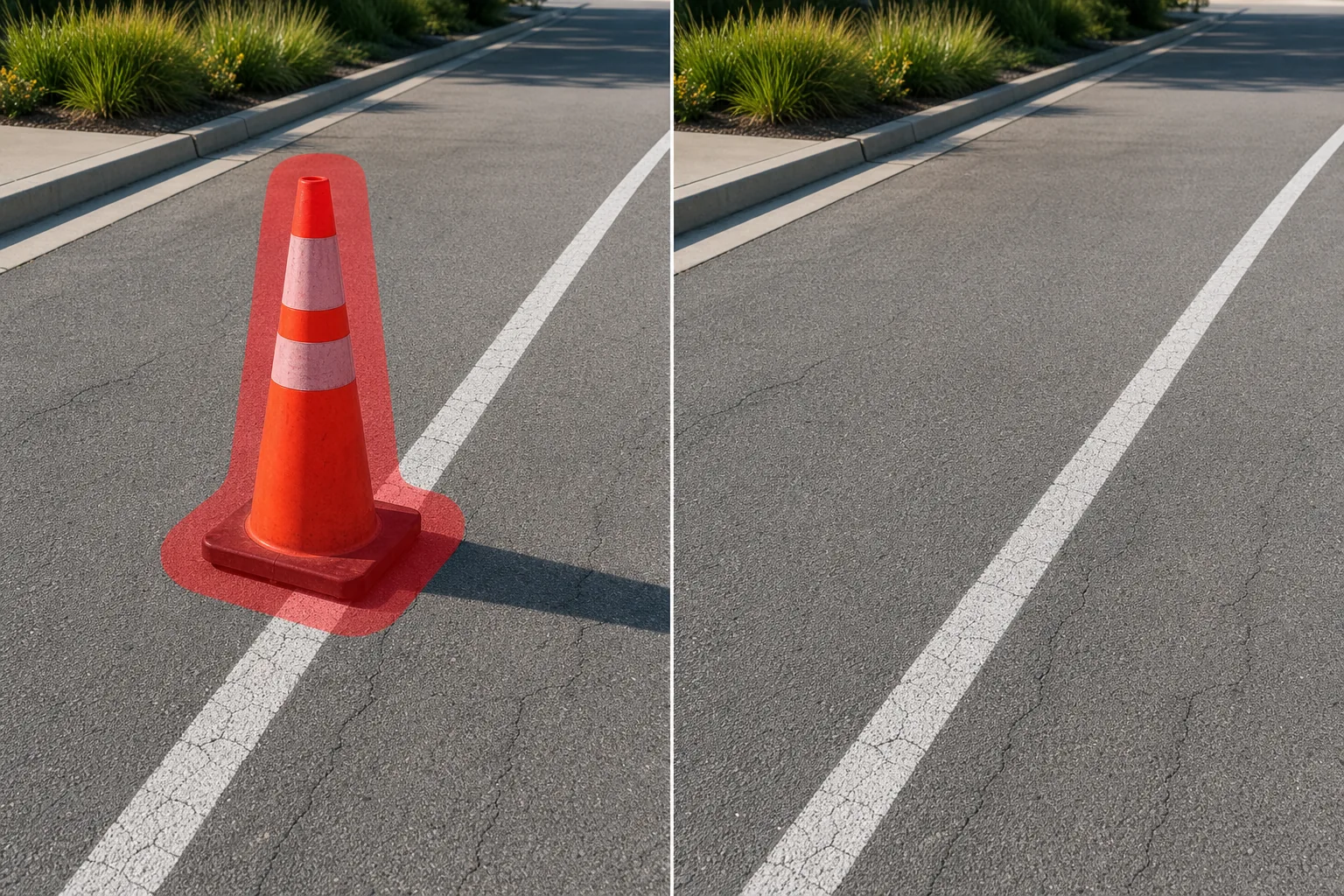
Effacez les cônes de signalisation orange, les pylônes, les poteaux de délinéation et les marqueurs de travaux routiers de la photographie de rue, de la couverture d'événements et des listes de propriétés. Magic Eraser supprime chaque cône et reconstruit l'asphalte, le béton, l'herbe ou les marquages des voies en dessous - pas de clonage manuel, pas d'artefacts de réparation.
Dernière mise à jour
Pourquoi les cônes de signalisation nuisent aux photos professionnelles de rue et d'événements
Les cônes de signalisation sont des dispositifs de sécurité temporaires, mais ils ont un impact visuel démesuré sur les photographies. Leur orange fluorescent vif est conçu pour attirer l'attention - c'est exactement pourquoi ils dominent toutes les compositions dans lesquelles ils apparaissent. Un seul cône au premier plan d'un extérieur immobilier détourne le regard du spectateur de la propriété. Une rangée de cônes bordant une rue lors d’un marathon ou d’un défilé transforme une scène autrement festive en zone de construction. Les photographes d'événements s'occupant des fermetures de routes, les vidéastes de mariage travaillant à proximité des itinéraires de détour et les photographes architecturaux documentant les nouveaux développements rencontrent tous des cônes qui n'ont jamais été censés être des éléments permanents dans le cadre. Les supprimer manuellement est trompeusement difficile : chaque cône repose sur une chaussée présentant des marquages au sol, des variations de texture, des fissures et des dégradés d'ombres. L'ombre du cône s'étend derrière lui et ses bandes réfléchissantes captent la lumière différemment selon l'heure de la journée. L'IA de Magic Eraser comprend ces contextes de surface. Il supprime le cône, son ombre et tous les artefacts de bandes réfléchissantes, puis remplit la zone avec une texture de chaussée continue qui correspond à la surface de la route environnante : les lignes de voie se reconnectent, le grain de l'asphalte reste cohérent et les bords des gouttières restent droits.
Supprimez les cônes de signalisation en trois étapes
- 1
Téléchargez votre photo
Ouvrez Magic Eraser sur le Web, iOS ou Android et téléchargez la scène de rue, la photo de l'événement ou l'extérieur de la propriété contenant des cônes de signalisation indésirables. N'importe quel format courant fonctionne : JPEG, PNG, HEIC ou WebP. Les images à plus haute résolution donnent à l’IA plus de détails sur la chaussée avec lesquels travailler pendant la reconstruction.
- 2
Badigeonner les cônes
Peignez chaque cône de signalisation, y compris la base et l'ombre qu'elle projette sur le sol. Pour une rangée de cônes reliés par du ruban adhésif, incluez les segments de ruban entre eux dans vos coups de pinceau. Si le cône se trouve sur un marquage de voie ou une bande de passage pour piétons, étendez votre sélection légèrement au-delà de la base du cône afin que l'IA puisse reconstruire le motif de ligne avec précision.
- 3
Effacer et exporter
Appuyez sur Effacer et les cônes disparaissent. Magic Eraser remplit chaque zone avec un revêtement assorti : la texture de l'asphalte, les joints de dilatation en béton, les lignes de voie peintes et les bords des gouttières s'écoulent tous en continu à l'endroit où se trouvait le cône. Effectuez un zoom avant pour vérifier que les zones d'ombre semblent nettes, puis exportez en pleine résolution pour votre liste, votre portfolio ou votre publication.
Idéal pour
- Plans extérieurs d'immeubles où des cônes de travaux routiers près du trottoir donnent l'impression que le quartier est en construction
- Photographie d'événements et de marathons où les cônes de marquage du parcours encombrent la composition
- Photos de mariage et de fiançailles prises à proximité des rues avec gestion temporaire du trafic
- Photographie architecturale de nouveaux développements encore entourés de balises de zones de construction
- Inscriptions de propriétés commerciales où les cônes de stationnement diminuent l’attrait extérieur
Conseils pour retirer proprement les cônes de signalisation
Les cônes de signalisation projettent de longues ombres effilées, en particulier à la lumière de la fin de l'après-midi, alors incluez toujours l'ombre complète dans la zone de votre pinceau. Pour les scènes comportant de nombreux cônes, effacez-les par groupes de trois à cinq plutôt que d'un seul coup ; cela permet à l'IA de générer des remplissages de chaussée plus précis pour chaque zone locale. Si les cônes sont reliés par une bande réfléchissante ou une chaîne, brossez le matériau de connexion en même temps que vous recouvrez les cônes afin qu'il ne reste aucun segment de bande flottante. Lorsque les cônes se trouvent sur des passages pour piétons peints ou des lignes de barre d'arrêt, l'IA étend le motif de peinture à travers la zone remplie, mais vérifie à nouveau que les angles des lignes restent cohérents - un deuxième passage rapide sur un ou deux cônes perfectionne généralement l'alignement. Pour les prises de vue nocturnes où les cônes sont dotés de bandes rétroréfléchissantes captant les phares, prévoyez une marge généreuse autour des points lumineux pour éviter de laisser des artefacts lumineux sur le trottoir.
Questions fréquemment posées
- Peut-il supprimer une rangée entière de cônes de signalisation à la fois ?
- Oui. Vous pouvez brosser une ligne complète d’un seul coup. Pour de meilleurs résultats avec de longues rangées (dix cônes ou plus), travaillez par segments de quatre à cinq cônes à la fois afin que l'IA puisse générer un remplissage de chaussée détaillé pour chaque section. Le marquage des voies et la texture de l’asphalte resteront cohérents d’un segment à l’autre.
- Le marquage des voies derrière le cône sera-t-il rétabli ?
- Magic Eraser reconnaît les marquages routiers courants : lignes centrales, lignes de bord, bandes de passage pour piétons, barres d'arrêt et flèches de virage. Lorsqu'il supprime un cône posé sur un marquage, il étend le motif de peinture à travers la zone remplie en utilisant les parties visibles de chaque côté comme référence. Vérifiez à nouveau les marquages complexes comme les flèches tournantes avec un zoom à 100 %.
- Est-ce qu'il gère aussi l'ombre du cône ?
- Incluez l'ombre dans la zone de votre pinceau et l'IA supprime à la fois le cône et son ombre en un seul passage. Si vous manquez l'ombre, vous pouvez effectuer un deuxième passage uniquement sur la région de l'ombre. Les ombres des cônes sur le béton de couleur claire sont plus visibles que sur l'asphalte foncé, alors faites particulièrement attention aux surfaces des trottoirs et des parkings.
- L'utilisation est-elle gratuite ?
- Oui. Le niveau gratuit de Magic Eraser couvre la suppression des cônes de signalisation avec des limites d'utilisation quotidiennes. Premium (29,99 $/an) débloque des modifications illimitées et des exportations à plus haute résolution pour les flux de travail de photographie professionnelle d'événements et d'immobilier.