
Comment supprimer des fils d'une photo
Des fils téléphoniques, des câbles électriques et des lignes électriques sillonnent votre photo du ciel par ailleurs parfaite ? Magic Eraser supprime les fils proprement, reconstruisant le ciel, les nuages et les détails de construction derrière eux.
Last updated
Retirez les fils maintenant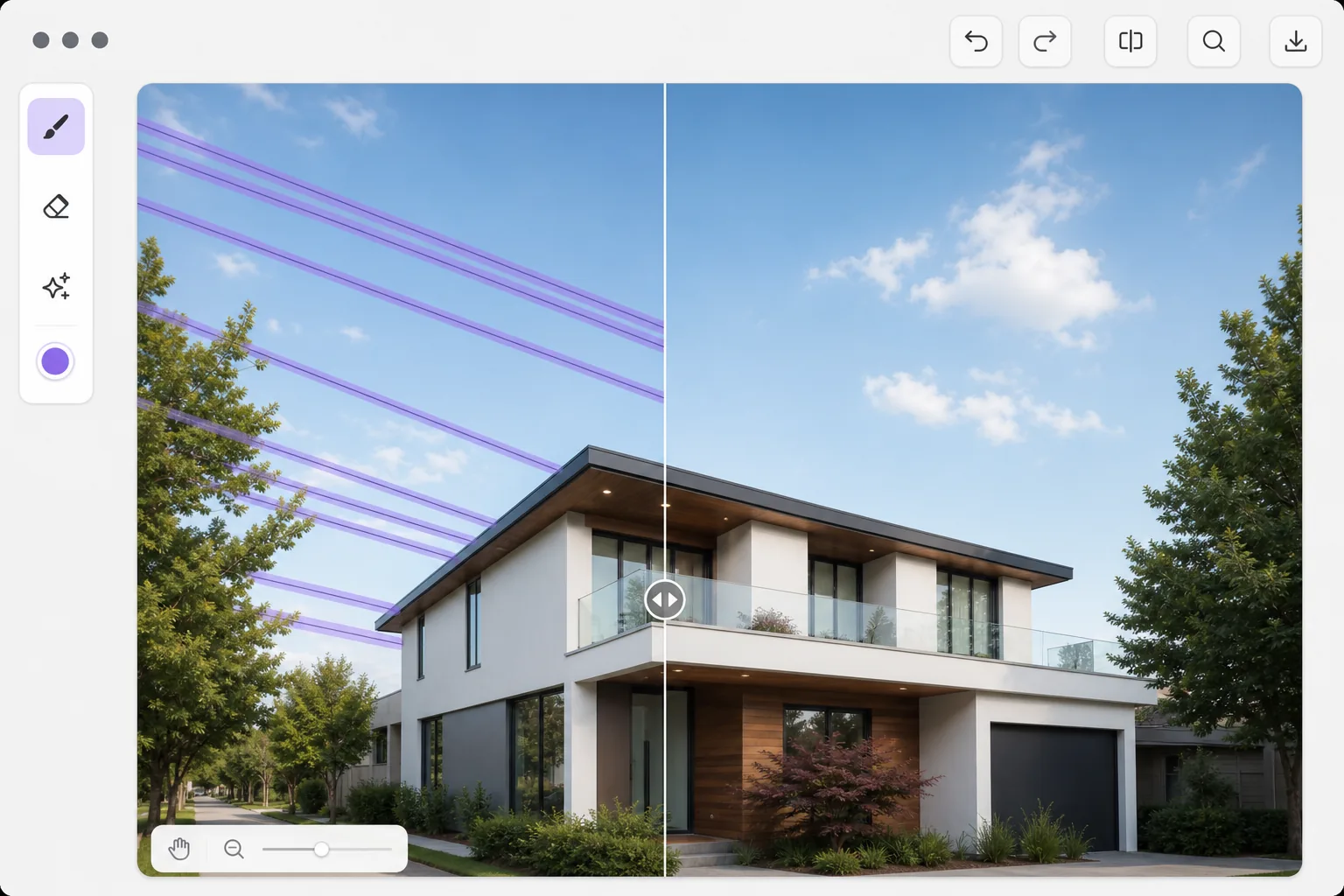
Les fils sont partout, aussi bien sur les photos urbaines que rurales
Les lignes électriques, les câbles téléphoniques, les fils Ethernet et les haubans font partie des polluants visuels les plus persistants en photographie. Ils apparaissent dans presque tous les paysages urbains, dans de nombreuses scènes rurales et même dans des plans architecturaux soigneusement composés. Étant donné que les fils sont fins et couvrent tout le cadre, ils traversent plusieurs textures (ciel, nuages, bâtiments, arbres), ce qui rend leur retrait manuel fastidieux. L'estampage par clonage le long d'un fil nécessite un travail précis et crée facilement des artefacts de motifs répétitifs. La suppression des fils par l'IA comprend qu'un fil est un élément linéaire continu traversant plusieurs arrière-plans et remplit chaque segment avec la texture d'arrière-plan correcte : ciel bleu, détail des nuages, façade du bâtiment ou canopée des arbres.
Before you start
Retirez les fils en trois étapes
Start with téléchargez la photo. The result preview above and tips below use this guide's existing content; no separate before-and-after proof is assumed.
- 1
Téléchargez la photo
Ouvrez Magic Eraser sur le Web, iOS ou Android. Téléchargez la photo avec les fils que vous souhaitez supprimer. L'outil fonctionne avec n'importe quelle image où des fils sont visibles, des lignes téléphoniques fines aux câbles industriels épais.
- 2
Brossez le long des fils
Utilisez une brosse fine et suivez chaque fil d'un bord à l'autre du cadre. La brosse doit seulement être légèrement plus large que le fil lui-même. Pour plusieurs fils parallèles, utilisez une brosse plus large pour les couvrir tous en un seul passage.
- 3
Revoir la reconstruction du ciel et de l'arrière-plan
L'IA remplit chaque chemin de fil avec l'arrière-plan approprié : ciel dégradé, texture de nuage, détails de bâtiment ou feuillage. Vérifiez les zones où les fils traversent des arrière-plans complexes (comme les bords des bâtiments ou les branches d'arbres) pour plus de précision. Exportez la photo propre.
Idéal pour
- Photographes paysagistes supprimant les lignes électriques des vues panoramiques et des horizons
- Photographes immobiliers nettoyant des photos de propriétés extérieures avec câblage visible
- Photographes d'architecture qui ont besoin de profils de bâtiment propres, sans encombrement de câbles
- Photographes de voyage supprimant l'encombrement visuel des photos de monuments et de paysages urbains
- Photographes par drone nettoyant des vues aériennes traversées par des lignes de transmission électrique
Conseils pour de meilleurs résultats
Utilisez le pinceau le plus fin qui recouvre le fil : une marge excessive signifie que l'IA reconstruit plus d'arrière-plan que nécessaire, augmentant ainsi le risque d'artefacts visibles. Pour les fils sur un ciel dégradé, l’IA poursuit le dégradé de manière transparente. Pour les fils passant devant des bâtiments, zoomez pour vérifier que les lignes architecturales (fenêtres, bordures, moulures) sont correctement reconstituées. Supprimez un jeu de fils parallèles à la fois plutôt que d'essayer de sélectionner chaque fil simultanément. Les poteaux et les pylônes aux intersections de câbles peuvent être retirés séparément en tant qu'objets ordinaires.
Questions fréquemment posées
- Peut-il supprimer des fils très fins sur des arrière-plans complexes ?
- Oui. Les fils fins contre le ciel constituent le cas le plus simple. Les fils traversant des bâtiments, des arbres et des arrière-plans détaillés fonctionnent également bien : l'IA reconstruit la texture appropriée pour chaque segment du chemin du fil.
- Qu’en est-il des poteaux électriques aux extrémités des fils ?
- Les poteaux et les pylônes sont des objets distincts. Après avoir retiré les fils, vous pouvez éventuellement brosser les poteaux pour les retirer également. L'IA les traite comme une suppression d'objet standard.
- Le retrait des fils est-il gratuit ?
- Oui. Les fonctionnalités de suppression d'objets sont disponibles dans le niveau gratuit avec des limites d'utilisation quotidiennes. Premium supprime les limites du traitement par lots des ensembles de photos de paysage et d'immobilier.