
Remove an Emoji From an iPhone Photo
Découvrez comment Supprimer un emoji sur iPhone avec Magic Eraser. Guide simple étape par étape avec un outil IA gratuit. Fonctionne sur le web, iOS et Android.
Last updated
Essayer maintenant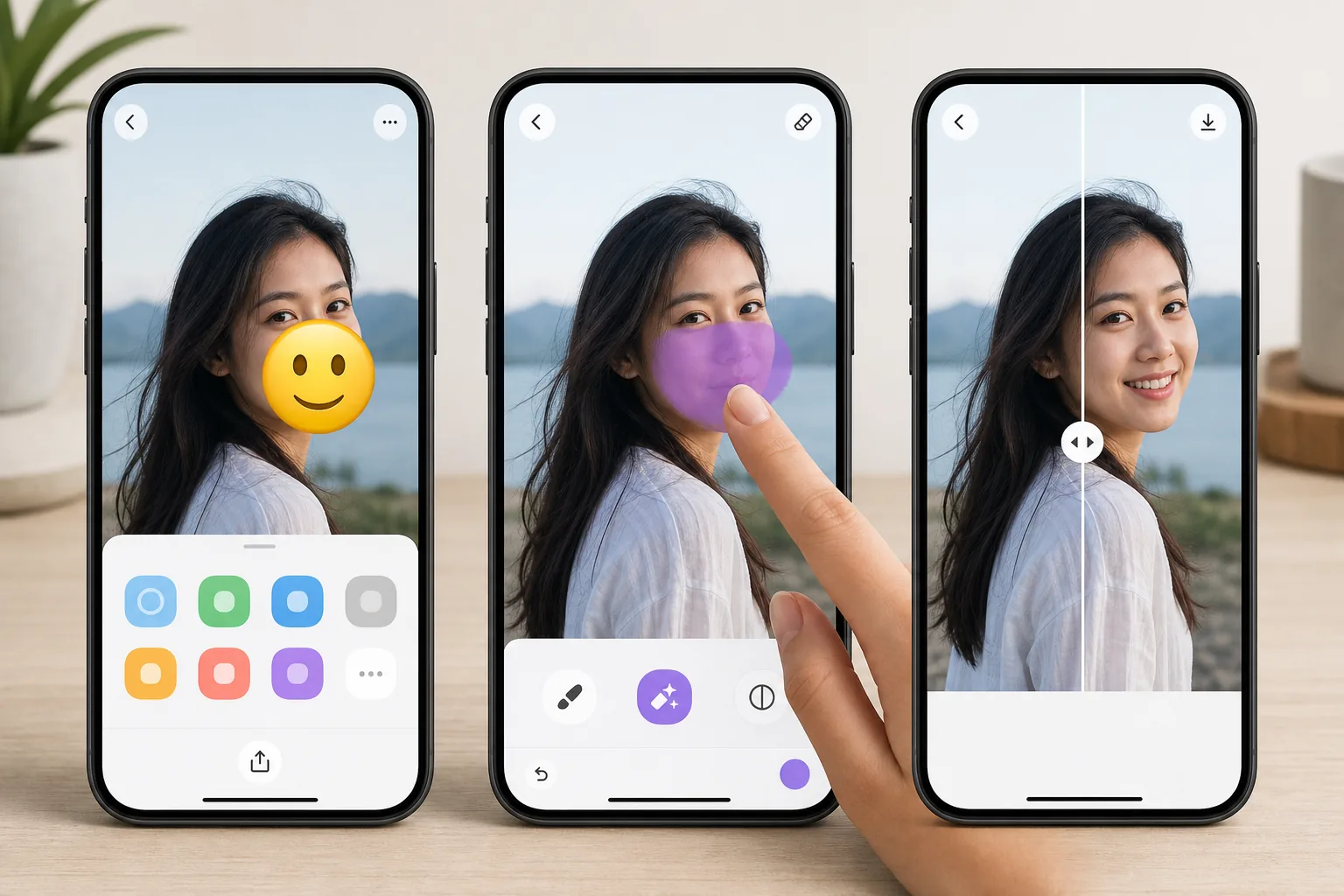
Erase emojis without leaving your iPhone avec Magic Eraser
Emojis pile up on iPhone photos fast — a sticker you slapped on in Messages, a 😂 added in Markup, or a face cover someone dropped over a shot before AirDropping it to you. Once it is saved to your camera roll, that emoji is baked into the pixels, and iOS gives you no built-in way to peel it back off. Magic Eraser fixes that on-device. You open the photo in the iOS Photos app, send it to Magic Eraser through the standard share sheet (or the Magic Eraser app), brush over the emoji, and the AI inpainting reconstructs a plausible version of whatever was behind it. To be clear: the AI synthesizes a believable fill based on the surrounding texture — sky, wall, skin, grass — it does not recover the literal original pixels or reveal a hidden face. The result lands back in your Photos library at full resolution, free, and with no watermark on the free tier.
Before you start
Instructions étape par étape
Start with téléchargez la photo. The result preview above and tips below use this guide's existing content; no separate before-and-after proof is assumed.
- 1
Téléchargez la photo
Ouvrez Magic Eraser sur le web, iOS ou Android. Glissez-déposez votre photo JPEG, PNG, HEIC ou WebP. Aucun compte nécessaire pour commencer.
- 2
Sélectionnez l'outil et la zone
Choisissez l'outil approprié et marquez la zone à traiter. L'IA analyse et applique automatiquement les modifications en quelques secondes.
- 3
Téléchargez le résultat
Prévisualisez le résultat et téléchargez la photo éditée. Exportez en PNG ou JPEG haute qualité.
Idéal pour
- Wiping a 😂 or 🔥 sticker you added in iMessage or Markup off a saved photo
- Clearing an emoji face-cover someone placed before AirDropping a picture to you
- Cleaning up a screenshot where an emoji landed over the part you actually wanted
- Prepping a camera-roll shot for posting after removing a playful sticker
- Removing an emoji from a downloaded or received iPhone photo without a Mac or laptop
Conseils pour de meilleurs résultats
Brush slightly past the emoji's edges — sticker outlines and soft shadows extend a few pixels beyond the visible art, and missing them leaves a faint halo. Emojis sitting on flat backgrounds (a clear sky, a solid-color wall, blurred bokeh) reconstruct almost invisibly; ones plastered over a face, fine text, or busy patterns are harder, since the AI is inventing a plausible fill rather than restoring true detail. If the first pass looks slightly soft, zoom in on your iPhone and re-brush just the rough area instead of redoing the whole thing. Always keep the original in Photos until you are happy — iOS makes duplicating a shot easy, so edit the copy.
Questions fréquentes
- La fonction Supprimer un emoji sur iPhone est-elle gratuite ?
- Oui, Magic Eraser permet de Supprimer un emoji sur iPhone gratuitement avec des limites quotidiennes. Passez au plan Pro pour un traitement illimité et des exports haute résolution.
- Combien de temps faut-il pour Supprimer un emoji sur iPhone ?
- Quelques secondes seulement. L'IA de Magic Eraser traite les photos rapidement — la plupart des résultats sont disponibles immédiatement après le téléchargement.
- Puis-je l'utiliser sur mon téléphone ?
- Oui, Magic Eraser fonctionne sur iOS, Android et tous les navigateurs web. Vous pouvez passer d'un appareil à l'autre librement.
- La qualité de l'image est-elle préservée ?
- Non, Magic Eraser préserve la qualité originale de la photo. L'IA traite intelligemment pour conserver les détails et la netteté.