
Remove the Background in GIMP — or Do It in 1 Click
Découvrez comment Remove the Background in GIMP — or Do It in 1 Click avec Magic Eraser. Guide simple étape par étape avec un outil IA gratuit. Fonctionne sur le web, iOS et Android.
Last updated
Essayer maintenant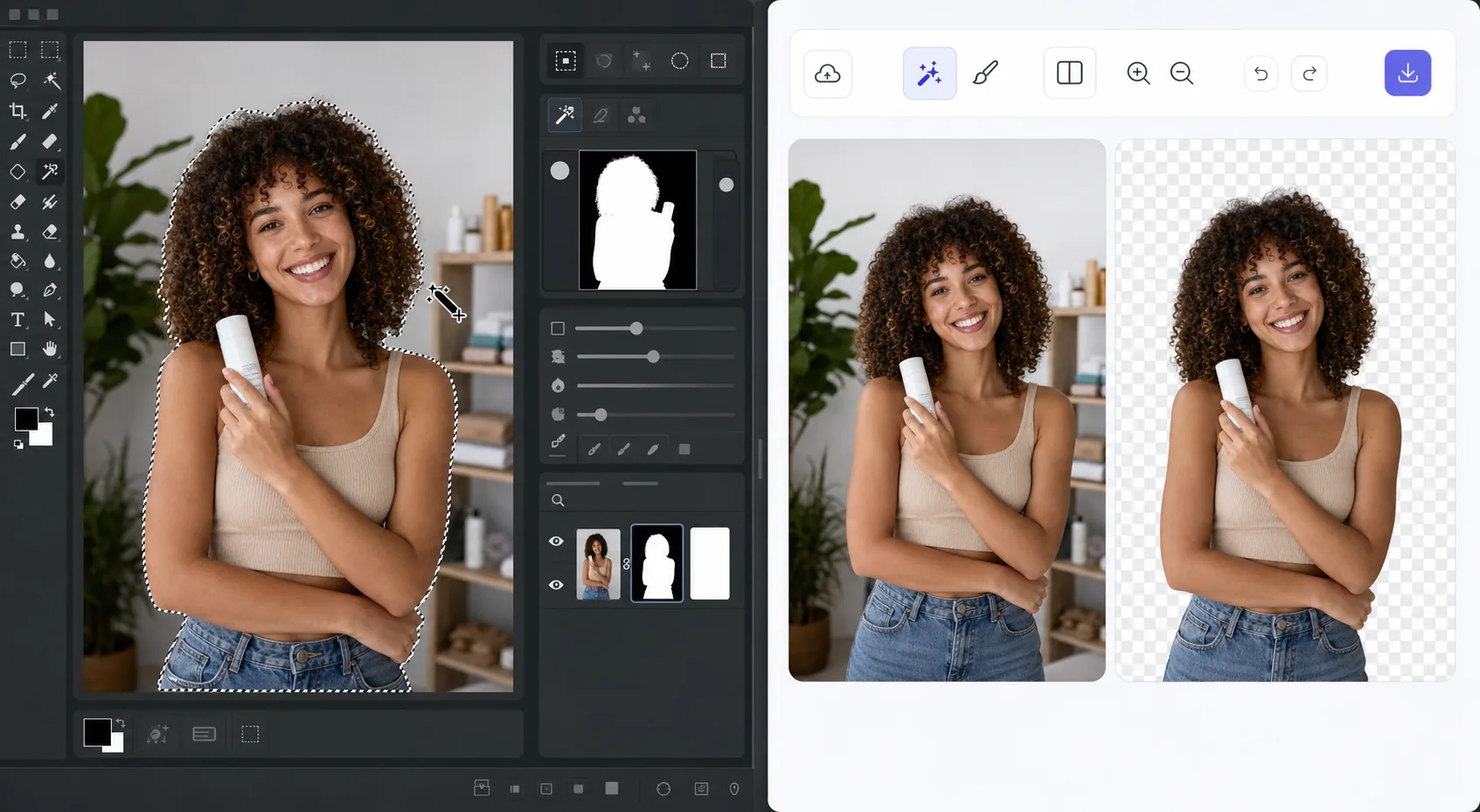
The GIMP method works — it just takes time avec Magic Eraser
GIMP is a genuinely capable, free, open-source desktop editor, and removing a background in it is a well-trodden workflow. The usual route: open your image, add an alpha channel, then use the Fuzzy Select (magic wand) or Select by Color tool to grab the background. For clean, high-contrast edges you can often select and delete in a few clicks. For hair, fur, or busy backgrounds, you switch to a layer mask, paint with black to hide and white to reveal, and refine the edge by hand at high zoom. It's powerful and precise — but it's a learn-the-tools, manual process, and it lives on your desktop. If you just need a clean cutout fast, there's a shorter path that needs no install and runs on phone or browser.
Before you start
Instructions étape par étape
Start with téléchargez la photo. The result preview above and tips below use this guide's existing content; no separate before-and-after proof is assumed.
- 1
Téléchargez la photo
Ouvrez Magic Eraser sur le web, iOS ou Android. Glissez-déposez votre photo JPEG, PNG, HEIC ou WebP. Aucun compte nécessaire pour commencer.
- 2
Sélectionnez l'outil et la zone
Choisissez l'outil approprié et marquez la zone à traiter. L'IA analyse et applique automatiquement les modifications en quelques secondes.
- 3
Téléchargez le résultat
Prévisualisez le résultat et téléchargez la photo éditée. Exportez en PNG ou JPEG haute qualité.
Idéal pour
- Product photos that need a clean white or transparent background for a store listing
- Profile pictures and headshots where you want the subject isolated fast
- Anyone without GIMP installed who needs a cutout right now in the browser
- Mobile editing on iOS or Android with no desktop software at hand
- Batch social and marketing images where per-image manual masking isn't worth the time
Conseils pour de meilleurs résultats
Use whichever path fits the task. For maximum pixel-level control — compositing, tricky semi-transparent edges, or work you want to keep fully local and offline — GIMP's layer masks reward the effort and cost nothing. For speed and convenience on a clean subject, Magic Eraser's 1-click removal gets you there without the learning curve or the install. A useful workflow: get the fast cutout in Magic Eraser, then open it in GIMP only if you need fine compositing afterward.
Questions fréquentes
- La fonction Remove the Background in GIMP — or Do It in 1 Click est-elle gratuite ?
- Oui, Magic Eraser permet de Remove the Background in GIMP — or Do It in 1 Click gratuitement avec des limites quotidiennes. Passez au plan Pro pour un traitement illimité et des exports haute résolution.
- Combien de temps faut-il pour Remove the Background in GIMP — or Do It in 1 Click ?
- Quelques secondes seulement. L'IA de Magic Eraser traite les photos rapidement — la plupart des résultats sont disponibles immédiatement après le téléchargement.
- Puis-je l'utiliser sur mon téléphone ?
- Oui, Magic Eraser fonctionne sur iOS, Android et tous les navigateurs web. Vous pouvez passer d'un appareil à l'autre librement.
- La qualité de l'image est-elle préservée ?
- Non, Magic Eraser préserve la qualité originale de la photo. L'IA traite intelligemment pour conserver les détails et la netteté.