
Remove the Background in GIMP — or Do It in 1 Click
Aprende cómo Remove the Background in GIMP — or Do It in 1 Click con Magic Eraser. Guía simple paso a paso con herramienta IA gratuita. Funciona en web, iOS y Android.
Last updated
Probar ahora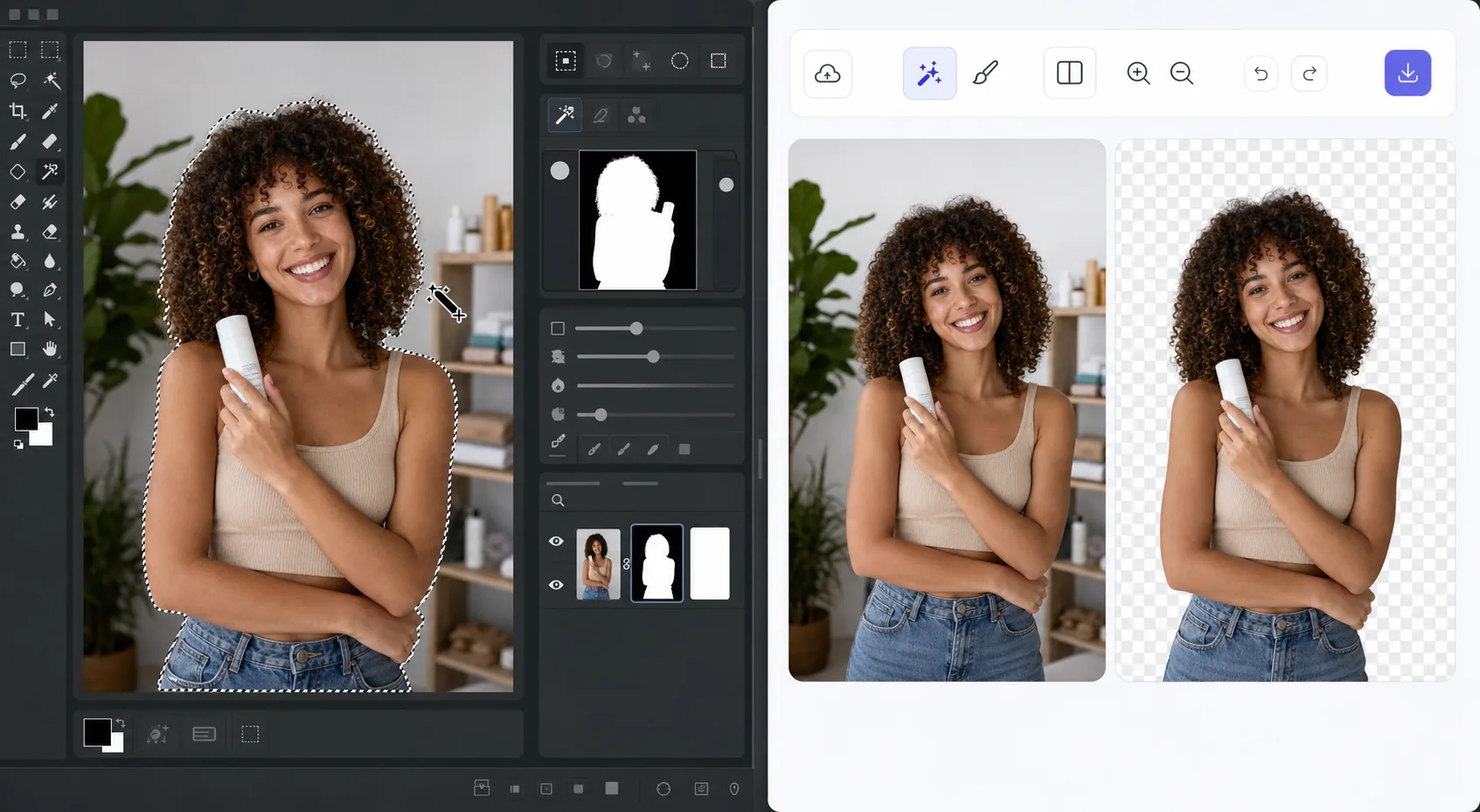
The GIMP method works — it just takes time con Magic Eraser
GIMP is a genuinely capable, free, open-source desktop editor, and removing a background in it is a well-trodden workflow. The usual route: open your image, add an alpha channel, then use the Fuzzy Select (magic wand) or Select by Color tool to grab the background. For clean, high-contrast edges you can often select and delete in a few clicks. For hair, fur, or busy backgrounds, you switch to a layer mask, paint with black to hide and white to reveal, and refine the edge by hand at high zoom. It's powerful and precise — but it's a learn-the-tools, manual process, and it lives on your desktop. If you just need a clean cutout fast, there's a shorter path that needs no install and runs on phone or browser.
Before you start
Instrucciones paso a paso
Start with sube la foto. The result preview above and tips below use this guide's existing content; no separate before-and-after proof is assumed.
- 1
Sube la foto
Abre Magic Eraser en web, iOS o Android. Arrastra y suelta tu foto JPEG, PNG, HEIC o WebP. No necesitas cuenta para empezar.
- 2
Selecciona la herramienta y el área
Elige la herramienta adecuada y marca el área a procesar. La IA analiza y aplica los cambios automáticamente en segundos.
- 3
Descarga el resultado
Previsualiza el resultado y descarga la foto editada. Exporta en PNG o JPEG de alta calidad.
Ideal para
- Product photos that need a clean white or transparent background for a store listing
- Profile pictures and headshots where you want the subject isolated fast
- Anyone without GIMP installed who needs a cutout right now in the browser
- Mobile editing on iOS or Android with no desktop software at hand
- Batch social and marketing images where per-image manual masking isn't worth the time
Consejos para mejores resultados
Use whichever path fits the task. For maximum pixel-level control — compositing, tricky semi-transparent edges, or work you want to keep fully local and offline — GIMP's layer masks reward the effort and cost nothing. For speed and convenience on a clean subject, Magic Eraser's 1-click removal gets you there without the learning curve or the install. A useful workflow: get the fast cutout in Magic Eraser, then open it in GIMP only if you need fine compositing afterward.
Preguntas frecuentes
- ¿La función Remove the Background in GIMP — or Do It in 1 Click es gratuita?
- Sí, Magic Eraser permite Remove the Background in GIMP — or Do It in 1 Click gratis con límites diarios. Actualiza a Pro para procesamiento ilimitado y exportaciones de alta resolución.
- ¿Cuánto tiempo tarda Remove the Background in GIMP — or Do It in 1 Click?
- Solo unos segundos. La IA de Magic Eraser procesa fotos rápidamente — la mayoría de los resultados están disponibles inmediatamente.
- ¿Puedo usarlo en el móvil?
- Sí, Magic Eraser funciona en iOS, Android y todos los navegadores web. Puedes alternar entre dispositivos libremente.
- ¿Se pierde calidad de imagen?
- No, Magic Eraser mantiene la calidad original de la foto. La IA procesa de forma inteligente para conservar detalles y nitidez.