
Cómo ampliar una imagen con IA
¿Recortado demasiado ajustado, relación de aspecto incorrecta o simplemente necesita más espacio? La pintura exterior con IA extiende su foto más allá de sus límites originales, generando contenido nuevo que coincide perfectamente con la escena existente.
Last updated
Ampliar imagen ahora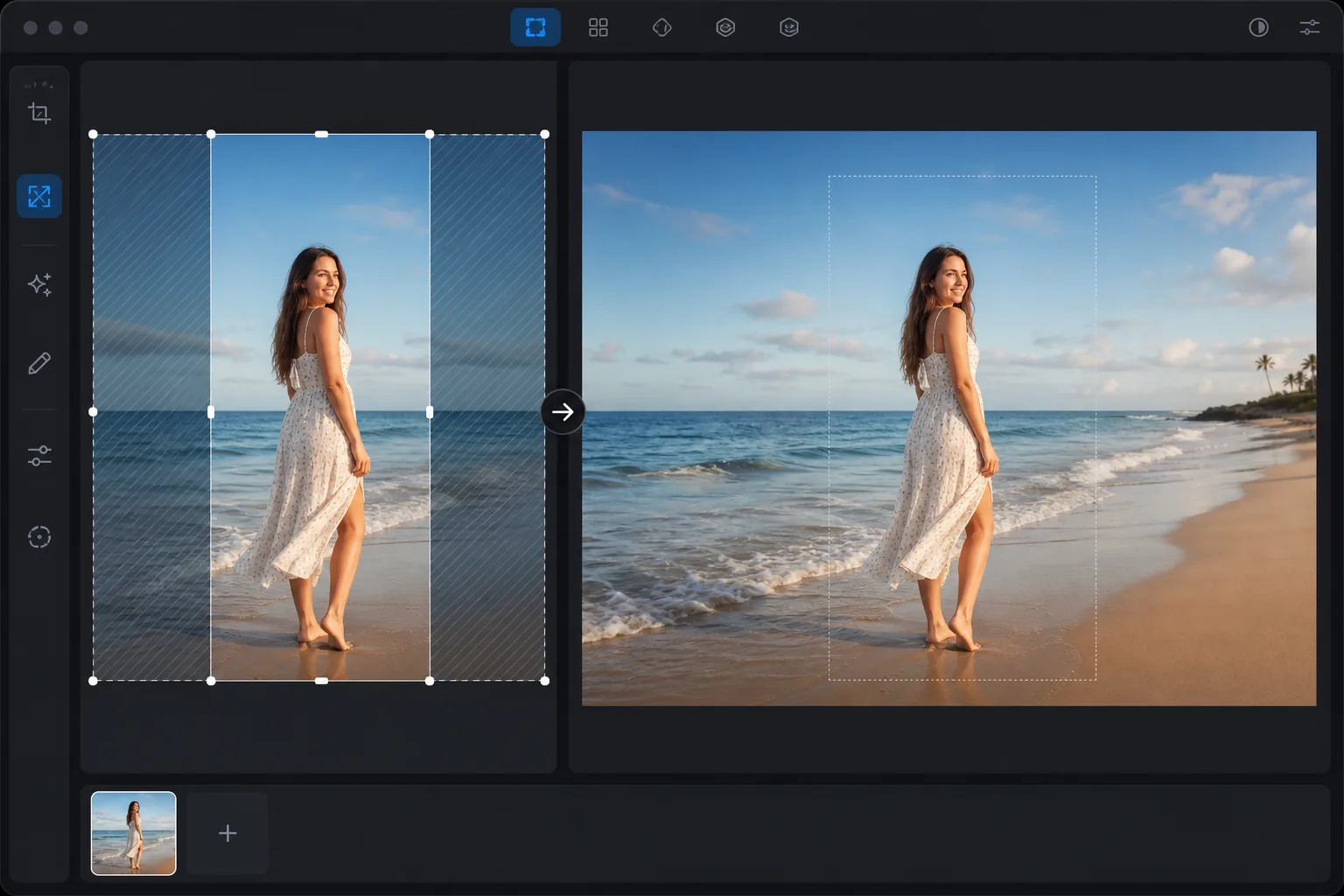
¿Qué hace la pintura artificial?
Para ampliar una imagen con IA, abre Magic Eraser en la web, iOS o Android, sube tu foto, arrastra el lienzo hacia afuera por los bordes que quieras expandir (o elige una nueva relación de aspecto) y deja que la IA genere la nueva zona con outpainting. Es gratis y sin registro. La parte ampliada se genera: se inventa para encajar con la escena, no se recupera de algo que estuviera realmente ahí, así que funciona mejor en bordes abiertos o repetitivos como cielo, agua, césped o paredes lisas. Amplía en pasos moderados en lugar de dar un salto enorme de una vez, y mantén las ampliaciones lejos de caras o texto cerca del borde, donde el detalle inventado se nota más fácilmente. La pintura exterior de IA (también llamada expansión generativa o recorte) agrega contenido nuevo más allá de los bordes de una imagen existente. A diferencia de la simple extensión del lienzo (que agrega espacio en blanco), la pintura exterior de IA genera contenido contextualmente apropiado: si el borde de su foto muestra el cielo, la IA extiende el cielo con nubes y colores coincidentes. Si el borde muestra una habitación, la IA genera una continuación plausible de la habitación. Esto es útil cuando una foto se recortó demasiado, cuando necesita cambiar las proporciones de aspecto (de retrato a paisaje o viceversa), cuando una plataforma de redes sociales requiere dimensiones que su original no coincide o cuando simplemente desea más espacio para respirar alrededor del sujeto. La IA analiza el contenido en cada borde y genera una extensión natural que parece como si la foto fuera tomada originalmente con un campo de visión más amplio.
Before you start
Ampliar una imagen en tres pasos
Start with sube la imagen. The result preview above and tips below use this guide's existing content; no separate before-and-after proof is assumed.
- 1
Sube la imagen
Abra Magic Eraser en la web, iOS o Android. Sube la foto que quieras ampliar. Cualquier tipo de imagen funciona: retratos, paisajes, fotografías de productos, contenido de redes sociales. Compatible con JPEG, PNG, HEIC y WebP.
- 2
Elija la dirección y el tamaño de la expansión.
Seleccione qué bordes extender: superior, inferior, izquierda, derecha o todos los lados. Establezca la cantidad de expansión: cuánto contenido nuevo agregar. Para convertir la relación de aspecto (de retrato a paisaje), extienda los lados. Para agregar espacio superior sobre un retrato muy recortado, extienda la parte superior.
- 3
Generar y revisar
La IA genera contenido nuevo en cada borde extendido, coincidiendo con la iluminación, la paleta de colores, la perspectiva y el contenido de la escena existente. Verifique la transición donde el contenido original se encuentra con el contenido generado; debería ser perfecta. Revise el contenido generado para verificar su precisión y coherencia. Exporte con la nueva resolución más grande.
Lo mejor para
- Conversión de fotografías de retrato a paisaje (o viceversa) para diferentes requisitos de plataforma
- Agregar espacio para respirar alrededor de un sujeto muy recortado para una mejor composición
- Ajustar fotografías a dimensiones específicas de las redes sociales sin recortar (cuadrado de Instagram, portada de Facebook, encabezado de Twitter)
- Ampliar fondos para imágenes de pancartas o héroes que necesitan más espacio horizontal
- Crear efectos panorámicos a partir de fotografías estándar extendiendo ambos lados
Consejos para obtener mejores resultados
La IA produce las mejores extensiones cuando el contenido del borde es predecible: el cielo, el césped, el agua, las paredes y las superficies simples se extienden de forma natural porque el patrón es consistente y la IA puede generar contenido coincidente. Las escenas complejas en el borde (multitudes, arquitectura detallada, texto) son más difíciles porque la IA debe inventar contenido plausible. Para obtener mejores resultados en retratos, extienda el fondo en lugar del sujeto: extienda el cielo arriba o la habitación alrededor de la persona, manteniendo el sujeto completamente dentro del área de la imagen original. Las extensiones pequeñas (10-25% del tamaño original) producen resultados más convincentes que las grandes (50%+) porque la IA tiene más referencias en relación con lo que necesita generar. Para extensiones muy grandes, haga varias pasadas más pequeñas.
Preguntas frecuentes
- ¿Pintar es lo mismo que desrecortar?
- Sí. Pintar, recortar y expandir generativamente se refieren a la misma capacidad de IA: agregar contenido nuevo más allá de los bordes de la imagen original. Magic Eraser lo llama extensión de imagen.
- ¿Puedo extenderme en una sola dirección?
- Sí. Extienda cualquier combinación de bordes: solo la parte superior, solo los lados o los cuatro bordes. Elija según lo que necesite: más cielo (arriba), fondo más amplio (laterales) o más primer plano (abajo).
- ¿El área extendida coincide con el original?
- Sí. La IA genera contenido que coincide con la iluminación, la temperatura del color, la perspectiva y el estilo del contenido de la imagen original. La transición entre las áreas originales y generadas es perfecta cuando el contenido del borde es consistente.
- ¿La extensión de imagen es gratuita?
- Sí. La extensión de imágenes AI está disponible en el nivel gratuito con límites de uso diario. Premium elimina límites y permite extensiones más grandes.
- ¿Hasta dónde puedo ampliar antes de que deje de parecer real?
- No hay un límite fijo, pero la calidad baja cuanto más añades, porque cada píxel nuevo se inventa en lugar de fotografiarse. Una ampliación pequeña o moderada (suficiente para cambiar la relación de aspecto o dar algo de aire) suele quedar perfecta. Duplicar el lienzo o más es donde tienden a aparecer patrones inventados, objetos repetidos o geometrías raras, sobre todo en escenas con mucho detalle. Si necesitas un cambio grande, amplía en varias pasadas más pequeñas y revisa cada una, y apóyate en bordes con contenido simple (cielo, agua, suelo), donde la IA tiene la zona más predecible para rellenar.