
كيفية إزالة الخلفية من التوقيع
قم بتحويل صورة توقيعك المكتوب بخط اليد إلى صورة شفافة ونظيفة تتراكب بشكل مثالي على المستندات الرقمية والعقود وتذييلات البريد الإلكتروني ورؤوس الرسائل. Magic Eraser يزيل خلفية الورق مع الحفاظ على كل تفاصيل الرسم.
Last updated
جعل التوقيع شفافا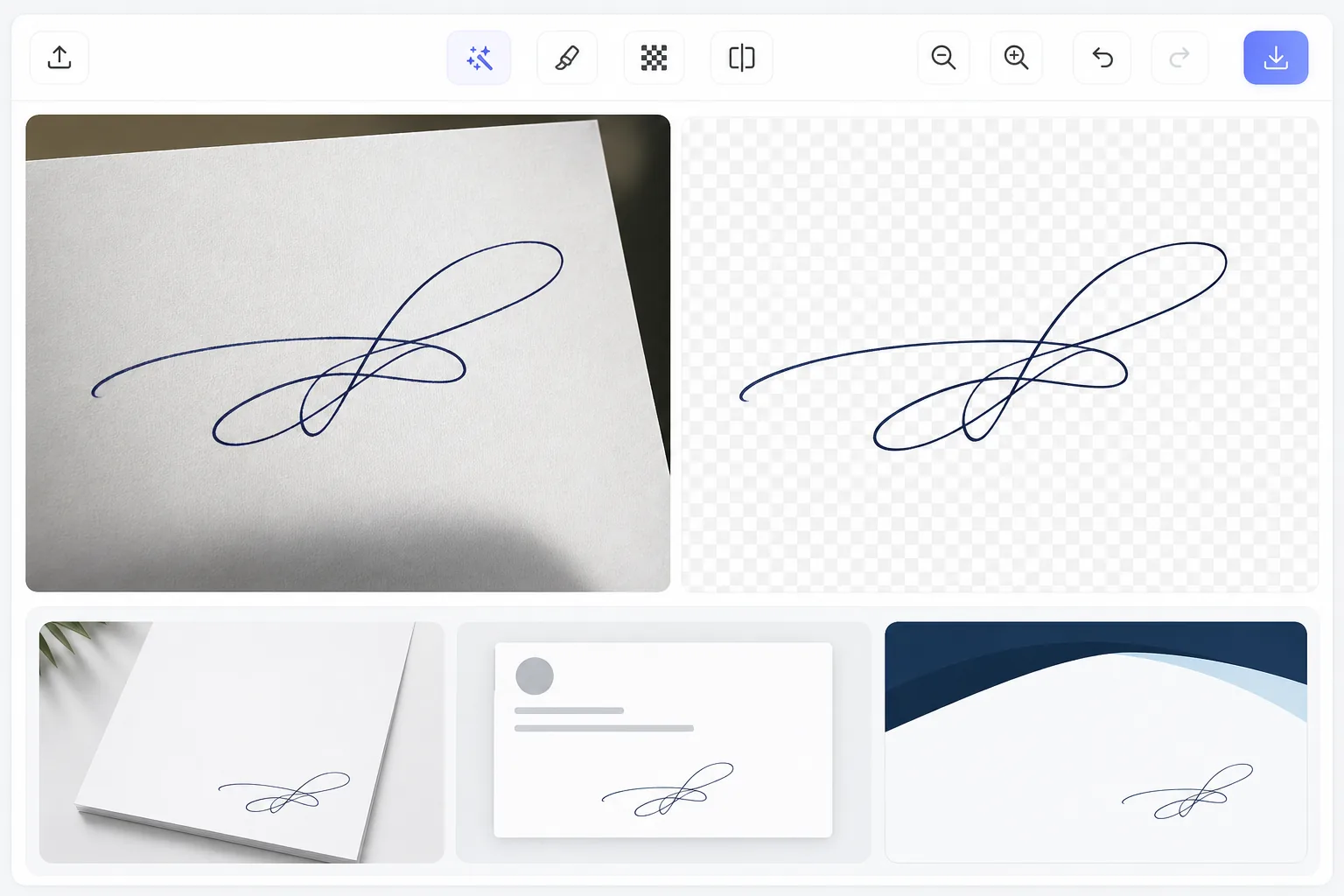
كيفية إزالة الخلفية من التوقيع
لإزالة الخلفية من التوقيع، وقّع باسمك على ورقة بيضاء، ثم صوّره أو امسحه ضوئيًا، وافتح Magic Eraser على الويب أو iOS أو Android، وارفع الصورة، ثم صدّرها بصيغة PNG — يفصل الذكاء الاصطناعي خطوط الحبر عن الورق ويترك توقيعًا بخلفية شفافة يندمج بسلاسة فوق أي مستند. الأداة مجانية وبدون تسجيل. تحافظ على الطابع الطبيعي لخط يدك — الخطوط النازلة السميكة، والخطوط الرفيعة الدقيقة، ولون الحبر الأصلي — والنتيجة قابلة لإعادة الاستخدام، فتقوم بذلك مرة واحدة فقط. استخدم توقيعك الخاص على ورق ساطع بقلم داكن للحصول على أنظف فصل ممكن. في العالم الرقمي الأول، لا تزال بحاجة إلى التوقيع المكتوب بخط اليد على العقود والمستندات القانونية والمراسلات الشخصية. يؤدي مسح توقيعك ضوئيًا أو تصويره إلى إنتاج صورة بخلفية ورقية بيضاء تُنشئ كتلة مستطيلة قبيحة عند وضعها على مستندات ذات خلفيات ملونة أو علامات مائية أو تصميمات ذات رأسية. توقيع شفاف يتراكب بشكل نظيف على أي سطح. يتطلب إنشاء واحدة بشكل تقليدي عمل تحديد دقيق في Photoshop - باستخدام تحديد نطاق الألوان، وتعديلات المستويات، ومعالجة قناة ألفا لعزل ضغطات الحبر عن الورق. تقوم إزالة الخلفية بالذكاء الاصطناعي بذلك تلقائيًا، مما يؤدي إلى فهم الفرق بين الحبر والورق في كل بكسل.
Before you start
اجعل التوقيع شفافًا في ثلاث خطوات
Start with التقاط التوقيع الخاص بك. The result preview above and tips below use this guide's existing content; no separate before-and-after proof is assumed.
- 1
التقاط التوقيع الخاص بك
قم بتوقيع اسمك على ورق أبيض باستخدام قلم داكن (الحبر الأسود على الورق الأبيض يعطي أفضل تباين). التقط صورة واضحة أو قم بمسحها ضوئيًا. جيد، حتى الإضاءة بدون ظلال عبر الورقة تنتج أفضل النتائج. قم بتحميل الصورة إلى أداة Magic Eraser Background Eraser.
- 2
قم بإزالة الخلفية الورقية
يحدد الذكاء الاصطناعي ضغطات الحبر ويزيل خلفية الورق. فهو يتعامل مع سماكة الحبر المتفاوتة، وتغيرات الضغط، وحتى التوقيعات الباهتة قليلاً. تحافظ النتيجة على الطابع الأصيل لكتابتك اليدوية - خطوط سميكة وخطوط رفيعة وتغيرات الضغط الطبيعية.
- 3
تصدير بصيغة PNG شفافة
تصدير بصيغة PNG للحفاظ على الشفافية. التوقيع جاهز الآن للتراكب على أي مستند. احفظه للاستخدام المتكرر – ما عليك سوى القيام بهذه العملية مرة واحدة فقط. قم بتغيير الحجم حسب الحاجة دون فقدان الجودة باستخدام ترقية الذكاء الاصطناعي إذا كانت الصورة المصدر صغيرة.
الأفضل ل
- المحترفون الذين يحتاجون إلى توقيع العقود والمستندات رقميًا
- إنشاء تذييلات توقيع البريد الإلكتروني بالتوقيعات المكتوبة بخط اليد
- يقوم المصممون بإعداد الترويسات وقوالب المستندات ذات العلامات التجارية
- يقوم المؤلفون والفنانون بإنشاء طوابع التوقيع للأعمال الفنية الرقمية
- المهنيين القانونيين الذين يحتاجون إلى صور توقيع نظيفة لملفات المحكمة
نصائح للحصول على أفضل النتائج
استخدم قلمًا غامقًا - تنتج الأقلام ذات الرأس الرفيع خطوطًا رفيعة يصعب فصلها بشكل نظيف عن نسيج الورق. قم بالتوقيع على ورق أبيض ساطع تحت إضاءة متساوية لزيادة التباين إلى أقصى حد. تجنب سقوط الظلال عبر التوقيع. إذا كان توقيعك بالحبر الأزرق، فإن النتيجة تعمل بشكل مثالي - حيث يحافظ الذكاء الاصطناعي على لون الحبر الأصلي. للحصول على أفضل النتائج، قم بالمسح الضوئي بدقة تزيد عن 300 نقطة في البوصة بدلاً من التصوير الفوتوغرافي. بمجرد حصولك على توقيع PNG شفاف، احفظه في موقع ثابت (محرك أقراص سحابي، مسودة بريد إلكتروني) بحيث يمكن الوصول إليه دائمًا عندما تحتاج إلى توقيع مستند رقمي.
الأسئلة المتداولة
- هل يحافظ على لون الحبر؟
- نعم. يبقى الحبر الأزرق أزرقًا، والأسود يظل أسودًا، ويتم الحفاظ على أي لون آخر تمامًا كما تم التقاطه. يقوم الذكاء الاصطناعي بإزالة الخلفية الورقية فقط، ويترك خطوط الحبر بلونها الأصلي وعتامةها سليمة.
- هل التوقيع الرقمي الذي تم إنشاؤه بهذه الطريقة صالح من الناحية القانونية؟
- في معظم الولايات القضائية، يتم قبول صورة التوقيع المكتوب بخط اليد المطبق على مستند رقمي في مستندات الأعمال الروتينية. بالنسبة للعقود الملزمة قانونًا، تحقق من متطلباتك المحلية - تتطلب بعض السياقات شهادات رقمية أو منصات للتوقيع الإلكتروني للحصول على الصلاحية القانونية الكاملة.
- هل إزالة خلفية التوقيع مجانية؟
- نعم. تتوفر إزالة الخلفية في الطبقة المجانية مع حدود الاستخدام اليومي. يؤدي تحويل واحد إلى إنشاء ملف توقيع قابل لإعادة الاستخدام، لذلك يحتاج معظم المستخدمين إلى القيام بذلك مرة واحدة فقط.
- كيف أجعل توقيعي شفافًا على هاتفي؟
- وقّع على ورقة بيضاء، ثم افتح Magic Eraser في أي متصفح على هاتفك أو في تطبيق iOS أو Android، وصوّر التوقيع أو ارفعه من معرض الصور. اختر أداة إزالة الخلفية، ودع الذكاء الاصطناعي يزيل الورق، ثم صدّر بصيغة PNG — يُحفظ التوقيع الشفاف على جهازك جاهزًا لإدراجه في عقد أو تذييل بريد إلكتروني أو ورق رسمي. يعمل بنفس طريقة نسخة سطح المكتب، دون الحاجة إلى تثبيت أي تطبيق إذا استخدمت المتصفح؛ وللحصول على أوضح التقاط، املأ الإطار بالتوقيع في إضاءة متساوية.
- هل يمكنني الحصول على توقيع نظيف من صورة بالهاتف بدلًا من الماسح الضوئي؟
- نعم. صورة الهاتف تفي بالغرض ما دامت الإضاءة متساوية ولا توجد ظلال على الورقة — فالذكاء الاصطناعي يفصل الحبر عن الورق في الحالتين. يمنحك المسح الضوئي بدقة 300 نقطة لكل بوصة أو أكثر أوضح الحواف، لكن صورة جيدة الإضاءة لتوقيعك الخاص على ورق أبيض ساطع تكفي عادةً. صوّر من الأعلى مباشرةً لتجنّب الانحراف، وإذا جاءت الصورة صغيرة، استخدم تحسين الدقة بالذكاء الاصطناعي بعد ذلك ليبقى التوقيع حادًا عند تغيير حجمه.