
كيفية توسيع الصورة خارج حدودها
هل التسديد ضيق جدًا وتحتاج إلى مزيد من الإرتفاع؟ هل لديك صورة ذات اتجاه عمودي ويجب أن تكون أفقية لشعار موقع الويب؟ يعمل الذكاء الاصطناعي الموسع لـ Magic Eraser على توسيع حدود الصورة في أي اتجاه - مما يؤدي إلى إنشاء مشهد يستمر بشكل منطقي خارج الإطار الأصلي، ويتوافق مع نمط المحتوى الحالي وإضاءةه ومنظوره.
Last updated
قم بتوسيع الصورة الآن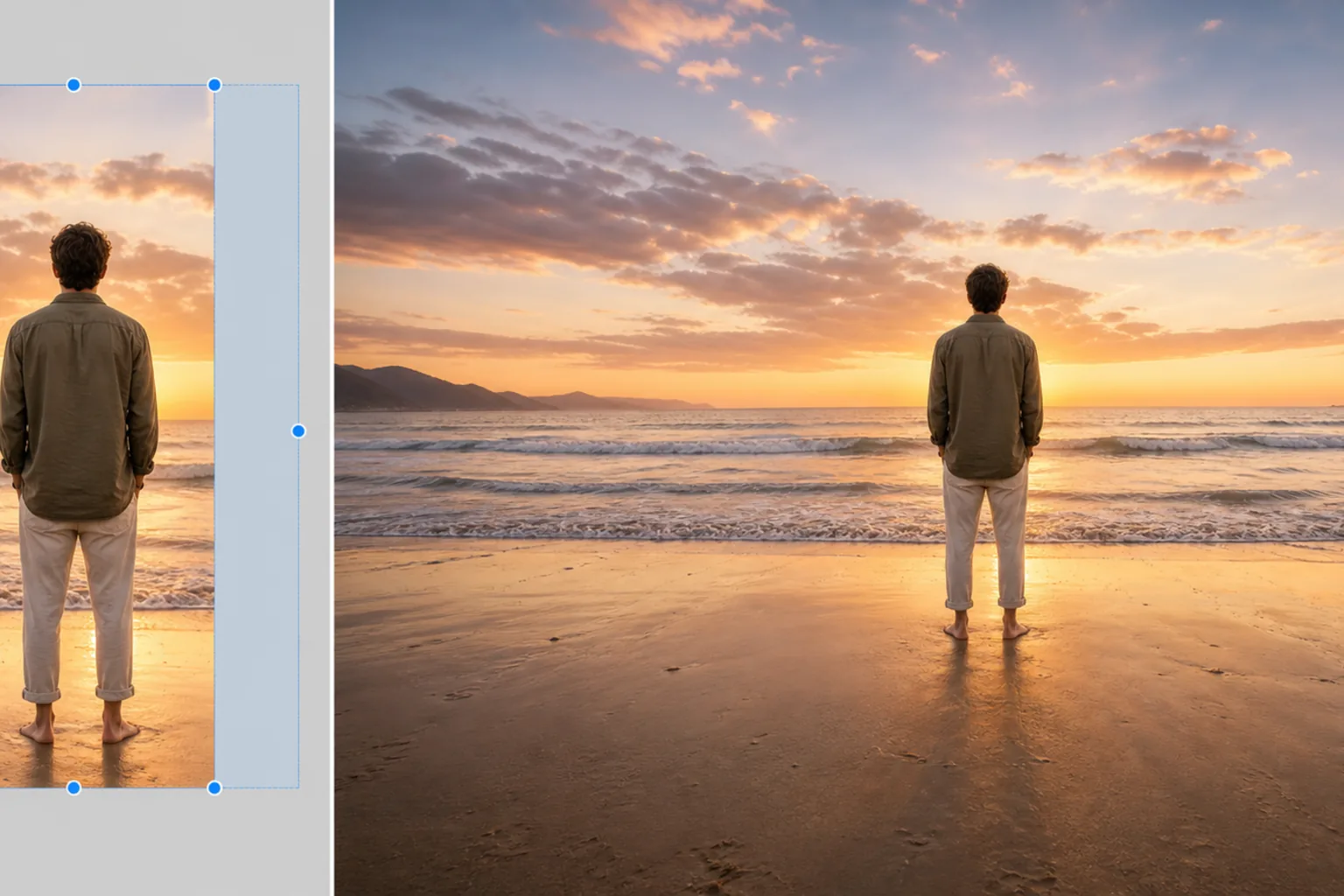
كيفية توسيع صورة إلى ما هو أبعد من حدودها
لتوسيع صورة، افتح Magic Eraser على الويب أو iOS أو Android، واختر AI Expand، ثم ارفع الصورة، واسحب حواف لوحة الصورة للخارج في أي اتجاه، ودع الذكاء الاصطناعي يملأ المساحة الجديدة — فهو يكمل المشهد إلى ما بعد الإطار الأصلي، ويطابق الأسلوب والإضاءة والمنظور لتبدو الصورة وكأنها التُقطت بعدسة أوسع. إنها أداة مجانية بلا تسجيل. استخدمها لتحويل صورة عمودية إلى بانر أفقي، أو لإضافة مساحة فوق الرأس في قصاصة ضيقة، أو لإلغاء القص وإظهار المزيد حول الموضوع. تعمل الأداة انطلاقًا من الحواف الموجودة، لذا تمتد المحيطات البسيطة مثل السماء أو الجدار العادي بأكثر شكل مقنع. يعد عدم تطابق نسبة العرض إلى الارتفاع إحدى أكثر مشكلات ما بعد الإنتاج شيوعًا. يجب أن تكون الصورة الملتقطة بالهاتف بنسبة عرض إلى ارتفاع 4:3 16:9 لصورة مصغرة على YouTube أو شعار بطل موقع الويب. تحتاج الصورة التي تم اقتصاصها بإحكام لـ Instagram إلى عرض إضافي لصورة غلاف Facebook. تحتاج صورة المنتج المتمركزة في الإطار إلى مساحة إضافية للتنفس لتراكب النص في التصميم التسويقي. الحلول التقليدية كلها عبارة عن تنازلات: يؤدي اقتصاص المحتوى الحالي إلى النسبة الجديدة إلى فقدان جزء من الصورة، كما يؤدي تمديدها إلى تشويهها، كما أن إضافة حدود بلون خالص تبدو غير مكتملة. يعمل الذكاء الاصطناعي Expand على حل هذه المشكلة من خلال إنشاء استمرار للمشهد - توسيع السماء أو جدار الخلفية أو سطح الطاولة أو المناظر الطبيعية أو أي شيء يحيط بالموضوع - بنفس النمط ولوحة الألوان واتجاه الإضاءة والمنظور الأصلي. والنتيجة هي لوحة قماشية أكبر تبدو كما لو أن الصورة تم التقاطها باستخدام عدسة أوسع أو مسافة أكبر. يتعامل الذكاء الاصطناعي مع كل من الامتدادات البسيطة (استمرار السماء الزرقاء، وتمديد جدار عادي) والامتدادات المعقدة (توليد أوراق الشجر الإضافية في مشهد الغابة، وتوسيع حشد من الناس في حدث ما، واستمرار التفاصيل المعمارية على واجهة المبنى). القيد الرئيسي هو أن التوسيع يعمل إلى الخارج من الحواف الموجودة - فهو ينشئ ما قد يكون منطقيًا مجاورًا للمحتوى الحالي، وليس محتوى جديدًا اعتباطيًا لا علاقة له بالمشهد.
Before you start
قم بتوسيع الصورة في ثلاث خطوات
Start with قم بتحميل الصورة. The result preview above and tips below use this guide's existing content; no separate before-and-after proof is assumed.
- 1
قم بتحميل الصورة
افتح Magic Eraser على الويب أو iOS أو Android. قم بإسقاط الصورة التي تحتاج إلى مساحة أكبر من القماش - الصورة المصغرة على YouTube التي تحتاج إلى 16:9 من أصل 4:3، أو صورة الرأس التي تحتاج إلى مساحة للتنفس أعلاه، أو صورة المنتج التي تحتاج إلى مساحة للنص، أو أي صورة يكون الإطار الأصلي فيها ضيقًا جدًا. دعم JPEG، PNG، HEIC، وWebP.
- 2
اختر اتجاه التوسع والمبلغ
حدد AI Expand واسحب حواف اللوحة القماشية للخارج في الاتجاه الذي تريده - أعلى أو أسفل أو يسار أو يمين أو أي مجموعة. لتحويل نسبة العرض إلى الارتفاع (عمودي إلى أفقي، ومربع إلى 16:9)، قم بتعيين الأبعاد المستهدفة مباشرة. يقوم الذكاء الاصطناعي بمعاينة منطقة الإنشاء حتى تتمكن من معرفة مقدار المحتوى الجديد الذي سيتم إنشاؤه قبل الالتزام. للتوسيع المتماثل (مساحة متساوية على كلا الجانبين)، قم بتوسيط المحتوى الأصلي ثم قم بتوسيعه بالتساوي.
- 3
توليد وصقل
انقر لتوليد. يعمل الذكاء الاصطناعي على توسيع المشهد من خلال تحليل المحتوى عند كل حافة وإنشاء استمرارية معقولة - تدرجات السماء، وأنسجة الأرض، وأسطح الجدران، وأنماط أوراق الشجر، والعناصر المحيطة التي تتطابق مع الصورة الحالية. تحقق من منطقة الانتقال حيث يلتقي المحتوى الأصلي بالمحتوى الذي تم إنشاؤه - بالنسبة للصور المضاءة جيدًا ذات الحواف المتسقة، يكون التماس غير مرئي. بالنسبة للحواف المعقدة (الأهداف المقطوعة جزئيًا بالإطار الأصلي، وأنماط الاتجاه القوية)، فإن تمرير التحسين السريع يسهل أي انتقال مرئي. تصدير بدقة كاملة.
الأفضل ل
- الصور المصغرة على YouTube حيث تحتاج الصورة المصدر بنسبة 4:3 أو 1:1 إلى ملء إطار بنسبة 16:9 دون اقتصاص الموضوع
- لافتات بطل موقع الويب وصور الغلاف حيث تتطلب نسب العرض إلى الارتفاع البانورامية مساحة أفقية أكبر مما توفره الصورة الأصلية
- تكييف تنسيق الوسائط الاجتماعية حيث تحتاج صورة واحدة إلى العمل عبر Instagram (1:1، 4:5)، وFacebook (غلاف 16:9)، وTwitter (رأس 2:1)، وPinterest (2:3)
- التصميمات التسويقية حيث تحتاج صور المنتج إلى مساحة محيطة للعناوين الرئيسية ونسخة الجسم وأزرار الحث على اتخاذ إجراء
- لقطات الرأس والصور الشخصية حيث كان المحصول الأصلي ضيقًا جدًا ويحتاج الهدف إلى مساحة أكبر للتنفس في الأعلى أو على الجانبين
- تغيير حجم الطباعة حيث تحتاج الصورة إلى ملء حجم إطار أكبر (5x7 إلى 8x10، 8x10 إلى 11x14) دون فقدان المحتوى بسبب الاقتصاص
نصائح للحصول على أفضل النتائج
يحدد محتوى الحافة جودة التوليد. تتوسع الحواف ذات المحتوى البسيط والمتكرر (السماء، الجدران الصلبة، العشب، الماء، الرمال) بسلاسة لأن الذكاء الاصطناعي لديه مرجع نمط واضح. تنتج الحواف ذات المحتوى المعقد والفريد (وجه مقطوع جزئيًا بالإطار، أو مبنى به هندسة تفصيلية مستمرة خارج الشاشة، أو نص أو لافتات على الحدود) توسعات معقولة ولكن أقل دقة - يولد الذكاء الاصطناعي استمرارًا معقولاً ولكن لا يمكنه معرفة بالضبط ما كان خارج الإطار الأصلي. للحصول على أفضل النتائج مع الأهداف التي تم اقتصاصها بدقة: قم بالتوسيع في الاتجاهات التي يكون فيها محتوى الحافة أبسط (عادةً أعلى وإلى الجوانب، حيث السماء والخلفية)، وتجنب توقع أن يقوم الذكاء الاصطناعي بإنشاء أجزاء غير مرئية من الأهداف المعقدة (باقي جسد شخص ما مقطوع عند الخصر، وتفاصيل معمارية ليس لها مرجع). بالنسبة لتحويل نسبة العرض إلى الارتفاع دفعة واحدة (تحويل 30 منشورًا على Instagram إلى صور مصغرة على YouTube)، يتعامل الذكاء الاصطناعي مع كل صورة بشكل مستقل - أنماط الحواف المتسقة (إضاءة مماثلة وتعقيد خلفية مماثل) عبر دفعة تنتج جودة توسعة متسقة. يكون التوليد محددًا لنفس المدخلات والإعدادات، لذا ستحصل على نتائج قابلة للتكرار إذا كنت بحاجة إلى إعادة التصدير.
الأسئلة المتداولة
- هل توسيع الذكاء الاصطناعي مجاني؟
- AI Expand متاح في خطة Premium الخاصة بـ Magic Eraser (29.99 دولارًا سنويًا)، والتي تتضمن وصولاً غير محدود إلى جميع أدوات الذكاء الاصطناعي بما في ذلك التوسيع والتعبئة والإنشاء والتصديرات عالية الدقة.
- إلى أي مدى يمكنني توسيع الصورة؟
- يمكنك توسيع ما يصل إلى ضعف الأبعاد الأصلية تقريبًا في أي اتجاه. تؤدي التوسعات الأصغر (25-50% من اللوحات الإضافية) إلى الحصول على نتائج أكثر سلاسة نظرًا لأن الجزء الأكبر من الصورة النهائية هو محتوى أصلي. تعمل التوسعات الكبيرة جدًا (مضاعفة اللوحة القماشية) بشكل أفضل عندما يكون محتوى الحافة بسيطًا ومتكررًا (سماء، ماء، خلفيات صلبة).
- هل ستبدو المنطقة الموسعة مختلفة عن المنطقة الأصلية؟
- يطابق الذكاء الاصطناعي النمط والإضاءة ولوحة الألوان وأنماط الملمس للمحتوى الموجود. بالنسبة لمحتوى الحافة البسيط (تدرجات السماء، والجدران البسيطة، والعشب)، لا يمكن تمييز التوسيع بصريًا عن الأصل. بالنسبة للمشاهد المعقدة ذات التفاصيل الفريدة، يكون التوسيع معقولًا ولكن تم إنشاؤه - قد تلاحظ العين المدربة عند التكبير الكامل تفاصيل نسيج مختلفة قليلاً في المنطقة التي تم إنشاؤها مقارنة بالأصل.
- هل يمكنني التوسع في اتجاهات متعددة في وقت واحد؟
- نعم. اسحب أي مجموعة من الحواف إلى الخارج - الجزء العلوي والجوانب لتحويلها أفقيًا، أو جميع الحواف الأربعة للحصول على لوحة قماشية أكبر مع توسيط الموضوع، أو جانب واحد إذا كنت تحتاج فقط إلى مساحة أكبر في اتجاه واحد.
- هل يعمل على تحويل الصور الشخصية إلى أفقية؟
- نعم، هذه إحدى حالات الاستخدام الأكثر شيوعًا. تضيف الصورة الشخصية (4:5 أو 9:16) الموسعة إلى الوضع الأفقي (16:9 أو 3:2) محتوى على كلا الجانبين. يعمل الذكاء الاصطناعي على توسيع كل ما كان موجودًا على الحواف اليسرى واليمنى للنسخة الأصلية، مثل السماء، ومشهد الخلفية، والغرفة الداخلية، والخلفية البسيطة. يبقى الموضوع في المنتصف وغير مشوه في الصورة النهائية.