
Remove a Watermark in Adobe Photoshop — or Skip Straight to 1-Click
学习如何使用 Magic Eraser Remove a Watermark in Adobe Photoshop — or Skip Straight to 1-Click。免费 AI 工具的简单分步指南。支持网页、iOS 和 Android。
Last updated
立即尝试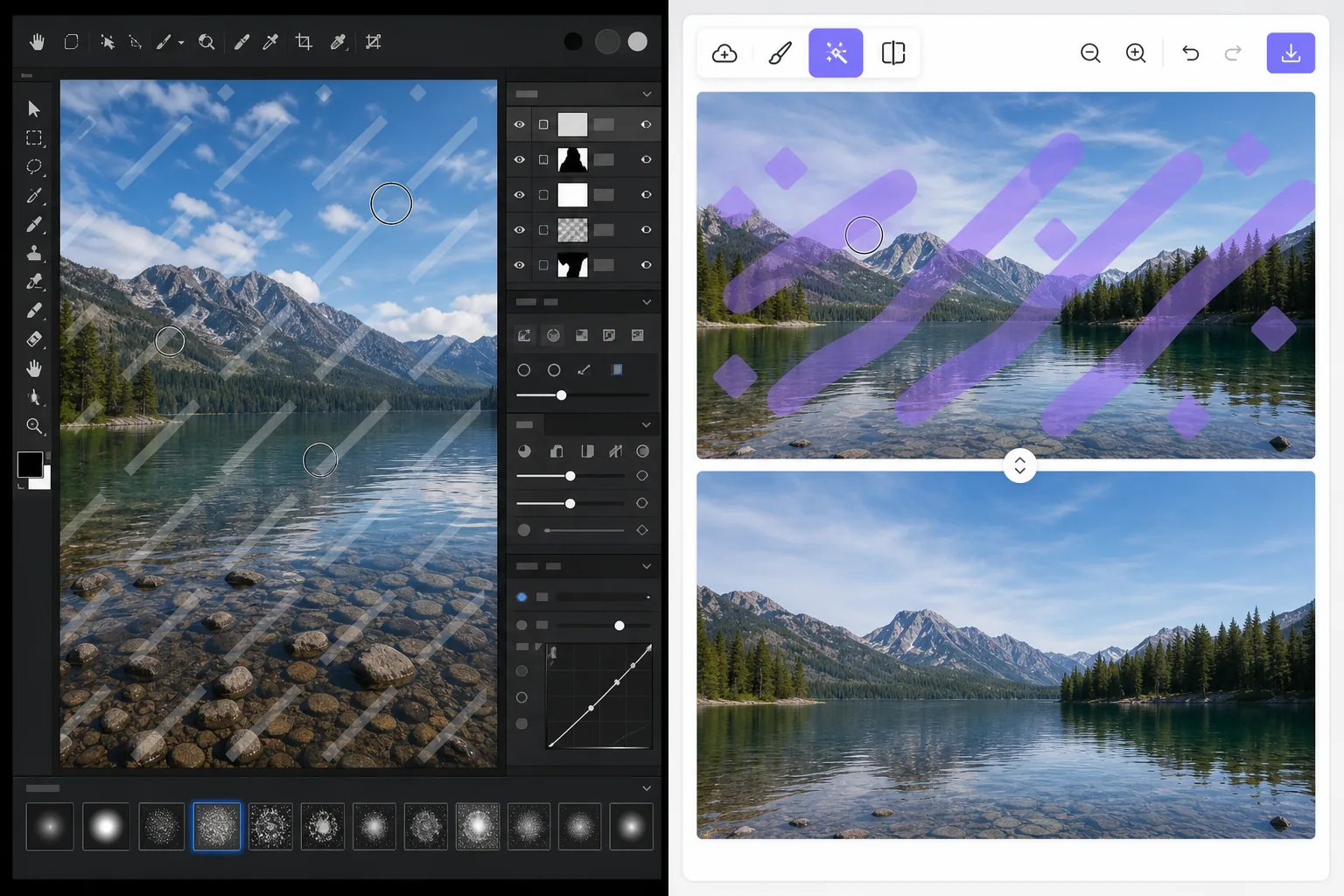
Two ways to remove a watermark — Magic Eraser
Searching for how to remove a watermark in Adobe Photoshop usually lands you on a clone-and-heal tutorial. That method is real and it works: Photoshop is a professional-grade editor with precise Clone Stamp, Healing Brush, and Content-Aware Fill tools that give you pixel-level control. The catch is time and skill. You select the watermark, sample clean pixels, brush carefully, and often repeat across complex backgrounds. For a single quick fix that is a lot of steps. Magic Eraser takes the same goal and compresses it to one click. You brush over the watermark and AI inpainting reconstructs a plausible fill for the area. Honest caveat: it does not recover the literal pixels hidden underneath — no tool can — it generates a believable replacement. For most photos that result is clean enough to use immediately, with no install, no subscription, and no learning curve.
Before you start
分步教程
Start with 上传照片. The result preview above and tips below use this guide's existing content; no separate before-and-after proof is assumed.
- 1
上传照片
在网页、iOS 或 Android 上打开 Magic Eraser。拖放您的 JPEG、PNG、HEIC 或 WebP 照片。无需账户即可开始。
- 2
选择工具和区域
选择合适的工具并标记需要处理的区域。AI 会自动分析并在几秒内应用更改。
- 3
下载结果
预览结果并下载编辑后的照片。导出为高质量 PNG 或 JPEG 格式。
最适合
- Quick one-off fixes where firing up Adobe Photoshop is overkill
- People without a Photoshop subscription or editing experience
- Removing watermarks on your own photos from a phone (iOS/Android) or browser
- Batch-style cleanups where speed matters more than pixel-perfect retouching
- Anyone who finds clone/heal tutorials too fiddly or time-consuming
获得最佳效果的技巧
Only remove watermarks from images you own or are licensed to edit. Watermarks often mark copyrighted or paid-license work, and stripping them from images you do not have rights to can violate copyright and terms of use. When in doubt, license the image or get permission first. For best results on busy backgrounds, brush a little wider than the watermark so the AI has clean surrounding context to reconstruct from.
常见问题
- Remove a Watermark in Adobe Photoshop — or Skip Straight to 1-Click功能是免费的吗?
- 是的,Magic Eraser 允许您在每日免费额度内Remove a Watermark in Adobe Photoshop — or Skip Straight to 1-Click。升级到 Pro 可获得无限处理和高分辨率导出。
- Remove a Watermark in Adobe Photoshop — or Skip Straight to 1-Click需要多长时间?
- 只需几秒钟。Magic Eraser 的 AI 快速处理照片——大多数结果在上传后立即可用。
- 可以在手机上使用吗?
- 是的,Magic Eraser 可在 iOS、Android 和所有网页浏览器上使用。您可以在设备间自由切换。
- 图片质量会下降吗?
- 不会,Magic Eraser 保持原始照片质量。AI 智能处理以保留细节和清晰度。