
如何去除照片上的纹身
需要专业用途的无纹身肖像版本,或者想要预览没有墨水时的样子? Magic Eraser 去除纹身,同时重建自然皮肤纹理、色调和光线。
Last updated
立即去除纹身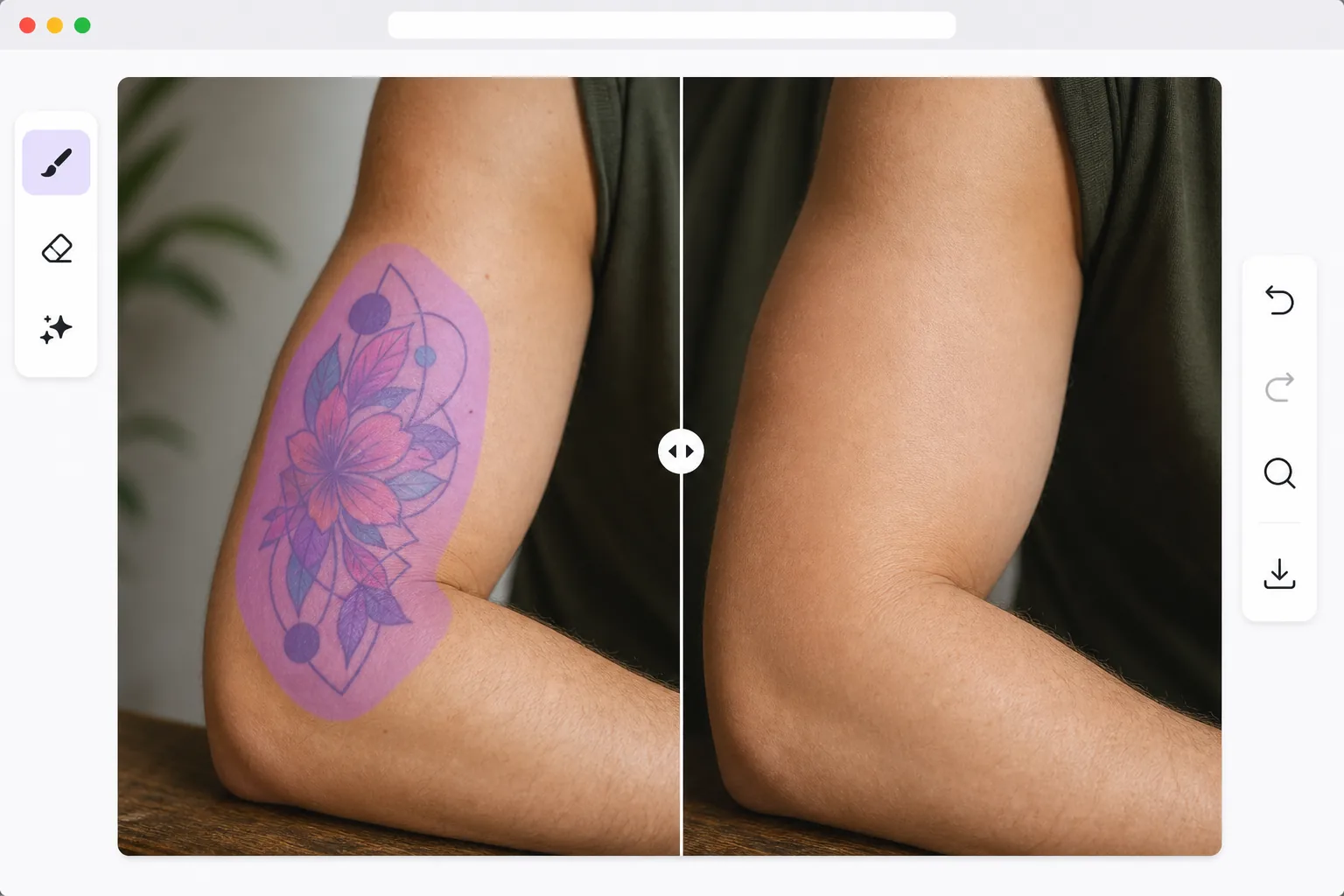
AI去除纹身如何重建自然皮肤
想从照片里去掉纹身,只需在网页版、iOS 或 Android 上打开 Magic Eraser,上传图片,用画笔涂抹整个纹身以及周围一小圈干净的皮肤,然后点击 Erase。AI 会用重建出的皮肤替换掉墨迹,并与周围的肤色、毛孔和光线相匹配,让这块区域看起来像本来就裸露的皮肤,而不是生硬涂盖的色块。完全免费,无需注册。它只修改照片本身,并不能真正去除皮肤上的纹身,因此适用于作品集照片、正式肖像,或预览去掉纹身后的样子。处理大面积图案时分区域来做,效果最自然。 照片中的纹身去除比简单的物体去除更加细致。纹身遵循皮肤的轮廓,墨水与肤色、光反射和肌肉轮廓相互作用。简单地在平坦肤色的纹身上绘画看起来显然是人造的。人工智能驱动的去除将皮肤理解为三维表面:它重建毛孔、毛囊、微妙的静脉图案以及如果没有纹身就会存在的自然颜色变化。结果与周围皮肤的色调、纹理和光线相匹配——产生的结果看起来就像这个人从未有过纹身。
Before you start
三步去除纹身
Start with 上传照片. The result preview above and tips below use this guide's existing content; no separate before-and-after proof is assumed.
- 1
上传照片
在 Web、iOS 或 Android 上打开 Magic Eraser。上传肖像或身体照片。人工智能可以处理任何尺寸、颜色和复杂程度的纹身——从小手腕设计到全袖纹身。
- 2
刷在纹身上
使用画笔工具完全覆盖纹身。紧密遵循纹身边界,但包括一小部分干净的皮肤,以便人工智能可以无缝匹配周围的色调和纹理。
- 3
审查皮肤重建和导出
人工智能会用与周围区域相匹配的自然皮肤替换纹身。检查肌肉轮廓、皮肤褶皱和灯光过渡是否看起来连续。以全分辨率导出干净的肖像。
最适合
- 模特需要无纹身的作品集照片来进行选角和试镜
- 专业人士在不适合纹身的地方创作正式肖像
- 人们在去除纹身之前预览自己的样子
- 摄影师为客户提供去除纹身修饰服务
- 社交媒体用户为不同受众创建照片的替代版本
获得最佳结果的技巧
光线充足的照片会产生最佳效果,因为人工智能需要了解皮肤的自然颜色和纹理。对于大型纹身(全袖、后背),请分段处理,而不是一次选择整个区域 - 这为人工智能提供了每个部分更多的周围环境。浅色皮肤上的深色纹身最容易,因为对比度使边界检测变得简单。晒黑的皮肤上的彩色纹身需要更仔细地刷边缘。移除后,放大以验证重建的皮肤纹理是否与周围区域的毛孔图案和头发相匹配。
常见问题
- 可以去除彩色纹身吗?
- 是的。人工智能可以处理黑色墨水、彩色纹身、水彩风格,甚至紫外线/黑光纹身。每种类型都被替换为与周围区域相匹配的重建皮肤。
- 它适用于全袖纹身吗?
- 是的,尽管分段处理对于大纹身来说效果最好。从边缘开始并向内工作,以便 AI 始终在附近拥有干净的皮肤环境。
- 去除纹身是免费的吗?
- 是的。免费套餐提供对象删除功能,但有每日使用限制。 Premium 消除了批处理的限制。
- 在 Android 或 iPhone 上怎么去掉照片里的纹身?
- 在任意手机浏览器中打开 Magic Eraser,或使用 iOS、Android 应用,从相册里载入照片,双指捏合放大,这样就能精确描出纹身轮廓。用手指涂抹整个图案以及周围一小圈干净的皮肤,然后点击 Erase。AI 会直接在手机上重建下方的皮肤,并把处理好的图片保存回相册。它的用法和桌面版完全一样,如果使用浏览器,还不需要安装任何应用。
- 这真的能去除皮肤上的真实纹身吗?
- 不能。Magic Eraser 是一款照片编辑工具,它修改的是图片的像素,让纹身不再出现在那张照片里。它和现实中的纹身去除毫无关系——真正去纹身是一种医疗操作(激光治疗),需要由持证的专业人士完成。当你想要一张没有纹身的照片时就用它,比如制作选角作品集、拍正式证件照,或者在预约真正去纹身之前先预览一下去掉纹身后的样子。