
Remove Screen Glare From Photos
学习如何使用 Magic Eraser Remove Screen Glare From Photos。免费 AI 工具的简单分步指南。支持网页、iOS 和 Android。
Last updated
立即尝试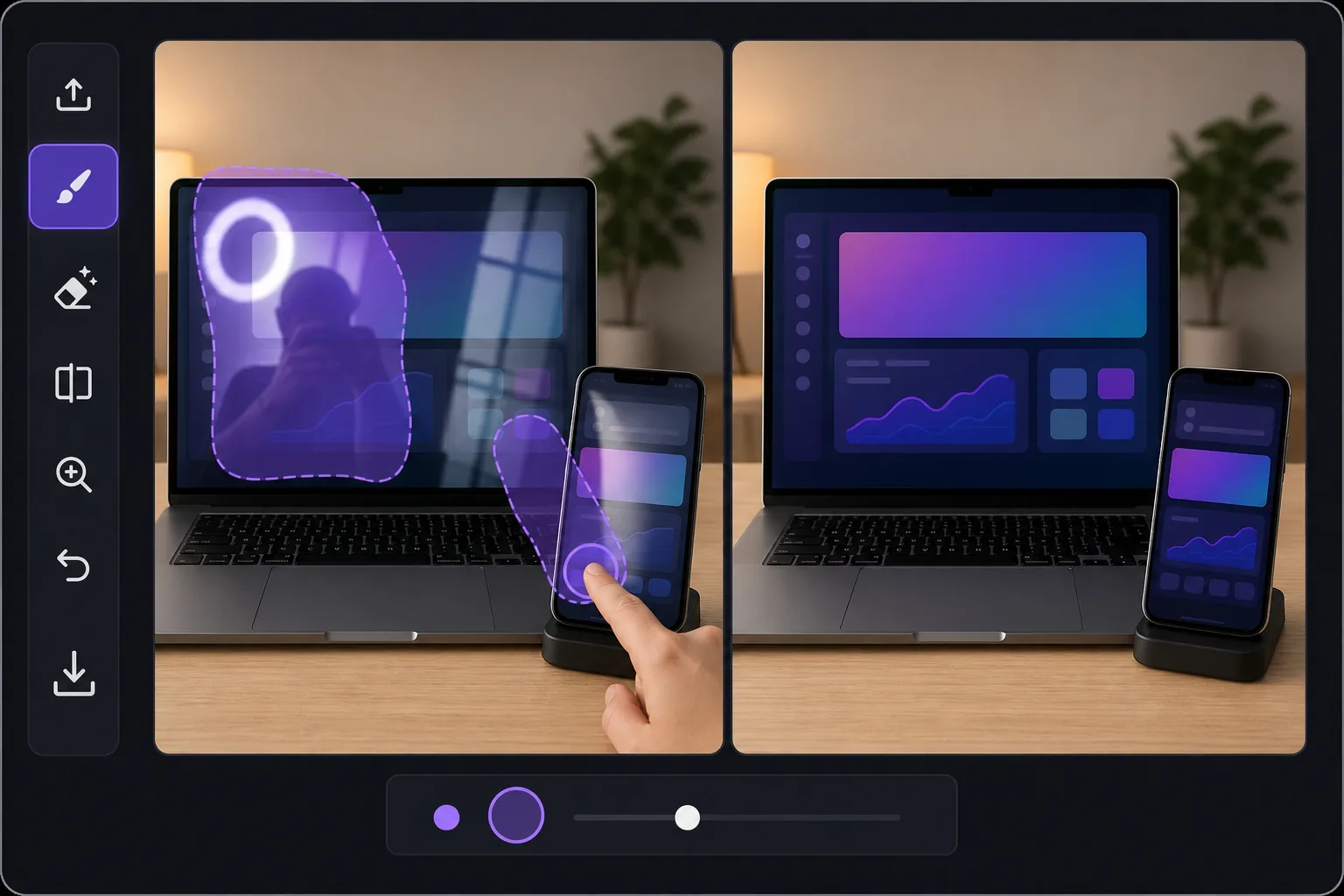
Why screen glare is harder than ordinary glare — Magic Eraser
Glare on a glossy display is a special problem. Phones, laptops, tablets, monitors and TVs are mirrors when they are dark, and they blow out to pure white when light hits them at the wrong angle. In product shots and how-to tutorials, that hotspot or reflection sits directly over the UI, the app screen, or the thing you are trying to show — so a viewer can't read the interface or see the demo. Reshooting means re-staging the device, dimming lights, and chasing the reflection around the room. Magic Eraser skips all of that. Brush over the bright streak, the reflected window, or even your own silhouette caught in the screen, and the AI removes it. Because this is inpainting, it does not recover the literal pixels that were hidden under the glare — it synthesizes a plausible, glare-free continuation of the surrounding screen, bezel and on-screen content. For a uniform wallpaper, a solid app background, or a simple gradient that looks seamless. For dense, specific UI text buried under a full white-out, treat it as a believable clean-up rather than a perfect copy of what was there.
Before you start
分步教程
Start with 上传照片. The result preview above and tips below use this guide's existing content; no separate before-and-after proof is assumed.
- 1
上传照片
在网页、iOS 或 Android 上打开 Magic Eraser。拖放您的 JPEG、PNG、HEIC 或 WebP 照片。无需账户即可开始。
- 2
选择工具和区域
选择合适的工具并标记需要处理的区域。AI 会自动分析并在几秒内应用更改。
- 3
下载结果
预览结果并下载编辑后的照片。导出为高质量 PNG 或 JPEG 格式。
最适合
- Product photos of phones and tablets where a window or ring light hotspot covers the app on screen
- Laptop and monitor shots for how-to tutorials, with overhead-light glare washing out the interface
- TV and smart-display listings where reflections of the room hide what's playing
- Removing your own silhouette or camera caught reflected in a dark, glossy screen
- E-commerce and marketplace device listings that need a clean, glare-free display to look trustworthy
获得最佳效果的技巧
Work in zoomed-in passes rather than one big stroke — small, accurate brushing over the glare protects the surrounding UI and bezel. If a reflection has soft edges, include the faint halo around the hotspot so no gray smear is left behind. For partially blown-out screens, erase the glare first, then judge what's left: if real content survives at the edges, the AI blends it convincingly; if the whole screen is white, expect a believable synthesized fill, not the exact original interface. When the screen shows simple, repeating content (a solid color, wallpaper or plain background), results look near-flawless. For critical UI text or a chart you must show accurately, the cleanest route is to erase glare on a re-shot, dimmer image — and let Magic Eraser handle the residual shine.
常见问题
- Remove Screen Glare From Photos功能是免费的吗?
- 是的,Magic Eraser 允许您在每日免费额度内Remove Screen Glare From Photos。升级到 Pro 可获得无限处理和高分辨率导出。
- Remove Screen Glare From Photos需要多长时间?
- 只需几秒钟。Magic Eraser 的 AI 快速处理照片——大多数结果在上传后立即可用。
- 可以在手机上使用吗?
- 是的,Magic Eraser 可在 iOS、Android 和所有网页浏览器上使用。您可以在设备间自由切换。
- 图片质量会下降吗?
- 不会,Magic Eraser 保持原始照片质量。AI 智能处理以保留细节和清晰度。