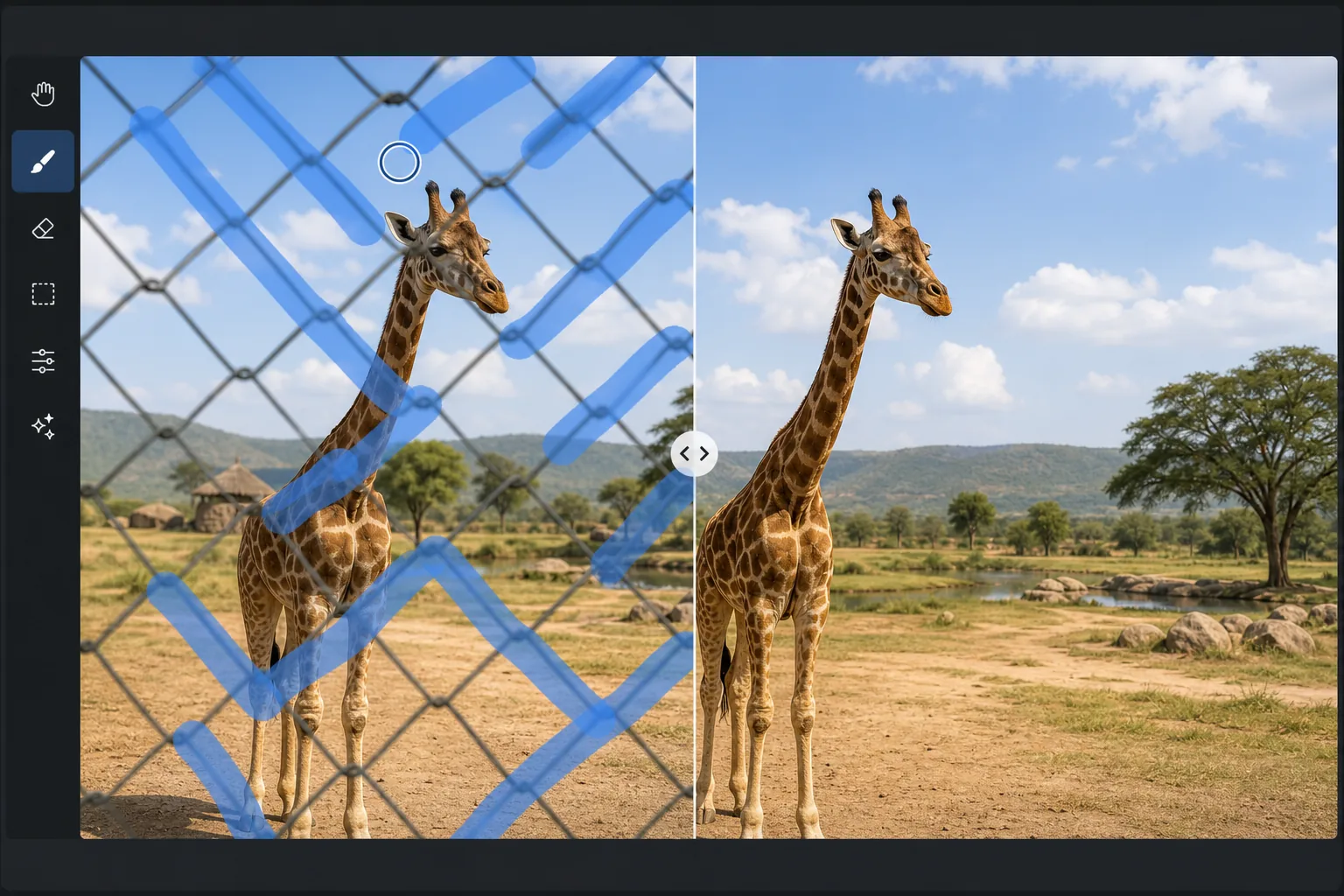
How to remove a fence from a photo
Zoo enclosure fences, chain-link barriers at sports events, garden fences blocking landscape views — fences create a grid of thin lines across your image that obscure the subject. Magic Eraser's AI removes the fence pattern and reconstructs the scene behind it.
Last updated
立即尝试Why fences are particularly challenging to remove — Magic Eraser
Fences are one of the hardest objects to remove from photos because they create a repeating pattern of thin lines that cross over and partially obscure every part of the background. Unlike a single object (a person, a sign) that covers a localized area, a fence creates hundreds of small occlusions spread across the entire image. Each intersection between fence wire and background requires the AI to reconstruct a tiny area of the hidden scene. Chain-link fences are the most common challenge — the diamond pattern covers the entire frame, with every cell showing a small fragment of the scene behind it. The AI uses these visible fragments to reconstruct the complete scene, effectively 'seeing through' the fence to recreate what's behind it.
分步教程
- 1
Upload the photo
Open Magic Eraser on web, iOS, or Android. Upload the photo shot through a fence — a zoo animal behind chain-link, a sports event through a barrier, a landscape partially blocked by a garden or property fence. JPEG, PNG, HEIC, and WebP supported.
- 2
Brush over the fence areas
Paint over the visible fence wires and bars. For chain-link fences, brush over the fence pattern across the frame. For simpler fences (vertical bars, horizontal rails), brush each bar or rail individually. The AI needs to know which elements are fence and which are subject.
- 3
Tap Erase and review
The AI removes the fence pattern and fills each gap with the scene content from adjacent visible areas. The result shows the subject or landscape as if the fence were never there. Check for any residual fence artifacts (especially at intersections) and refine with a second pass. Export at full resolution.
最适合
- Zoo photography where chain-link or wire mesh enclosures cover the animal
- Sports photography shot through chain-link backstops or protective barriers
- Landscape photography where property fences or garden barriers block the view
- Travel photography where fences around historic sites prevent clean shots
- Wildlife photography shot through wildlife refuge barriers or observation blinds
获得最佳效果的技巧
For chain-link fences, the AI works best when the fence is out of focus — shooting with a wide aperture (f/2.8 or wider) and placing the camera close to the fence blurs the chain-link, making it partially transparent and easier for the AI to see through. If the fence is in sharp focus, the AI still handles it but needs more careful brushing. For simple bar fences (vertical iron bars, horizontal rails), brush each element individually for the cleanest results. For photos where the fence covers only part of the image, brush just the fenced area rather than the entire frame. Multiple passes may be needed for dense fence patterns — the first pass removes the main structure, and a second pass catches any remaining thin wires or intersection artifacts.
常见问题
- Can it remove a chain-link fence?
- Yes. Chain-link fences are the most common use case. The AI analyzes the diamond pattern and reconstructs the scene behind each cell of the mesh, producing a clean view of the animal, field, or landscape behind the fence.
- Does the camera need to be close to the fence?
- Closer is better. When the camera is close to the fence, the fence is out of focus and partially transparent, giving the AI more visible background data to work with. Sharp, in-focus fences are harder but still manageable.
- Can it handle a fence over a moving subject?
- Yes. For animals behind zoo fences or athletes behind barriers, the AI reconstructs the subject behind the fence pattern. Sharp photos produce better results — motion blur in the subject adds complexity.
- Is fence removal free?
- Yes. Magic Eraser's free tier includes the brush tool for fence removal with daily usage limits. Premium removes limits for processing multiple zoo or event photos.