
Fotoğraftan arka plan nesnesi kaldırma
Magic Eraser ile fotoğraflarınızdan arka plan nesnesi birkaç saniyede kaldırın. Yapay zeka arka planı otomatik olarak yeniden oluşturur. iOS, Android ve web'de ücretsiz.
Son güncelleme
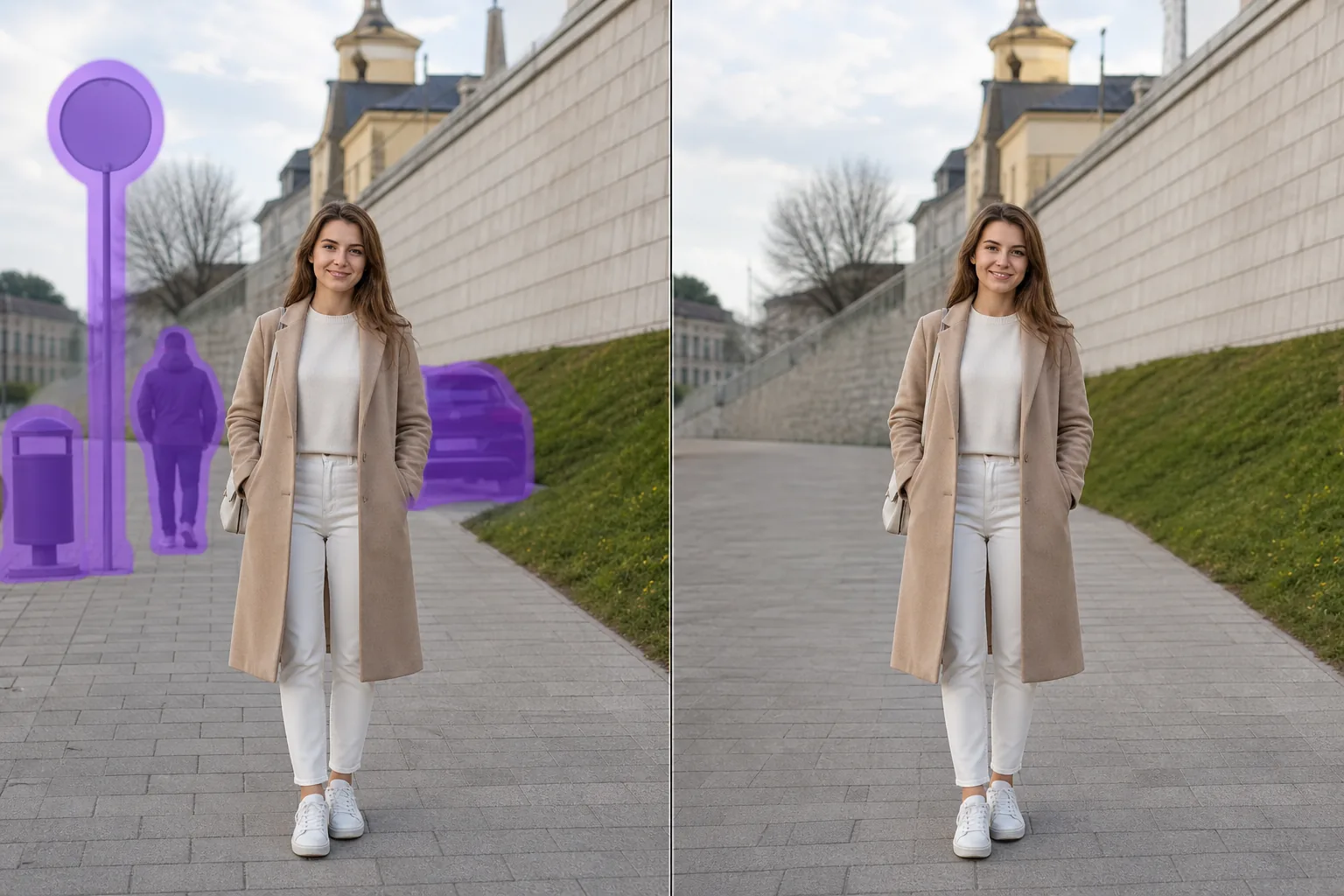
AI ile arka plan nesnesi kaldırma nasıl çalışır
Magic Eraser ile fotoğraflarınızdan arka plan nesnesi birkaç saniyede kaldırın. Yapay zeka arka planı otomatik olarak yeniden oluşturur. iOS, Android ve web'de ücretsiz. Web, iOS veya Android'de Magic Eraser'ı açın ve kaldırmak istediğiniz arka plan nesnesi bulunan fotoğrafı yükleyin. JPEG, PNG ve WebP desteklenir. Kaldırmak istediğiniz arka plan nesnesi üzerini fırça ile boyayın. Nesneden biraz daha geniş fırça kullanmak AI'nın daha temiz kenarlar oluşturmasını sağlar. AI birkaç saniyede arka planı yeniden oluşturur. Sonucu kontrol edin, gerekirse rötuş fırçasıyla düzeltin, ardından tam çözünürlükte dışa aktarın.
Adım adım talimatlar
- 1
Fotoğrafınızı yükleyin
Web, iOS veya Android'de Magic Eraser'ı açın ve kaldırmak istediğiniz arka plan nesnesi bulunan fotoğrafı yükleyin. JPEG, PNG ve WebP desteklenir.
- 2
Alanın üzerini boyayın
Kaldırmak istediğiniz arka plan nesnesi üzerini fırça ile boyayın. Nesneden biraz daha geniş fırça kullanmak AI'nın daha temiz kenarlar oluşturmasını sağlar.
- 3
Silin ve indirin
AI birkaç saniyede arka planı yeniden oluşturur. Sonucu kontrol edin, gerekirse rötuş fırçasıyla düzeltin, ardından tam çözünürlükte dışa aktarın.
En uygun
- Web, iOS veya Android'de Magic Eraser'ı açın ve kaldırmak istediğiniz arka plan nesnesi bulunan fotoğrafı yükleyin. JPEG, PNG ve WebP desteklenir.
- Kaldırmak istediğiniz arka plan nesnesi üzerini fırça ile boyayın. Nesneden biraz daha geniş fırça kullanmak AI'nın daha temiz kenarlar oluşturmasını sağlar.
- AI birkaç saniyede arka planı yeniden oluşturur. Sonucu kontrol edin, gerekirse rötuş fırçasıyla düzeltin, ardından tam çözünürlükte dışa aktarın.
- Fotoğraftan arka plan nesnesi kaldırmak ücretsiz mi?
- arka plan nesnesi kaldırmak ne kadar sürer?
- Cep telefonunda çalışır mı?
- Görüntü kalitesi korunur mu?
Önemli notlar
Genellikle sadece birkaç saniye. AI boyanan alanı işler ve arka planı neredeyse anında yeniden oluşturur. Hayır. AI fotoğrafınızın orijinal çözünürlüğünü ve kalitesini korur. Yeniden oluşturulan alan çevredeki aydınlatma, renk ve dokuyla eşleşir.
Sıkça sorulan sorular
- Fotoğraftan arka plan nesnesi kaldırmak ücretsiz mi?
- Evet. Magic Eraser'ın ücretsiz planı günlük kullanım limitleriyle arka plan nesnesi kaldırmayı içerir. Premium ($29,99/yıl) limitleri kaldırır ve yüksek çözünürlüklü dışa aktarım sağlar.
- arka plan nesnesi kaldırmak ne kadar sürer?
- Genellikle sadece birkaç saniye. AI boyanan alanı işler ve arka planı neredeyse anında yeniden oluşturur.
- Cep telefonunda çalışır mı?
- Evet. Magic Eraser iOS, Android ve web tarayıcılarda çalışır. Herhangi bir cihazdan arka plan nesnesi kaldırabilirsiniz.
- Görüntü kalitesi korunur mu?
- Hayır. AI fotoğrafınızın orijinal çözünürlüğünü ve kalitesini korur. Yeniden oluşturulan alan çevredeki aydınlatma, renk ve dokuyla eşleşir.