
Fotoğraflardan kabloları çıkarın
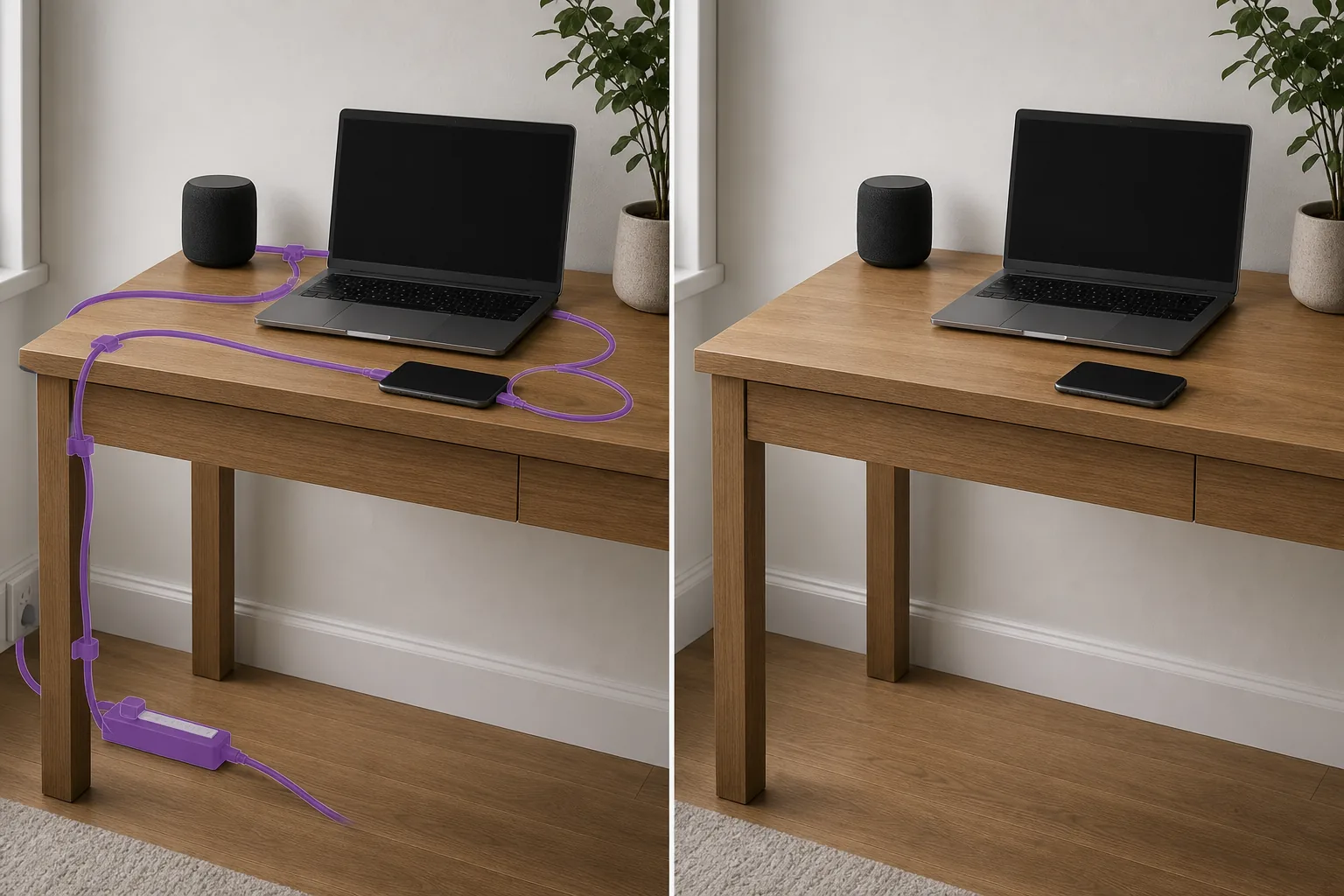
Ürün fotoğraflarından, iç tasarım çekimlerinden, yaşam tarzı görsellerinden ve masa kurulumlarından şarj kablolarını, uzatma kablolarını, USB kablolarını, HDMI kablolarını ve kablo karmaşasını silin. Magic Eraser kabloyu çıkarır ve masanın yüzeyini, zemini, duvarı veya tezgahı yeniden yapılandırarak editoryal ve e-ticaret fotoğrafçılığının gerektirdiği temiz, minimalist görünümü üretir.
Son güncelleme
Görünür kablolar neden ürün ve iç mekan fotoğraflarını bozar?
Kablolar, ürün ve iç mekan fotoğrafçılığında en yaygın görsel karmaşadır. Masanın üzerinden geçen bir şarj kablosunun olduğu bir dizüstü bilgisayar inceleme fotoğrafı, süpürgelik boyunca uzanan uzatma kablolarının olduğu bir iç tasarım çekimi, kompozisyonu kesen bir telefon şarj cihazının bulunduğu düz bir yaşam tarzı çekimi - bu ayrıntılar, ürün ve mekan satan temiz estetiği baltalıyor. Fiziksel kablo yönetimi (yönlendirme, gizleme, bantlama) kurulum süresi gerektirir ve mevcut fotoğraf arşivleri için imkansızdır. Magic Eraser kabloları dijital olarak kaldırır: kablo yolunu fırçalayın ve AI, altındaki masayı, zemini, duvarı veya kumaş yüzeyini yeniden yapılandırır. Araç, karmaşık dokulardaki ince kablolar ve birden fazla kablonun birlikte çalıştığı demetlenmiş kablolar da dahil olmak üzere, her arka plandaki her renkteki kabloları yönetir.
Kabloları üç adımda çıkarın
- 1
Fotoğrafınızı yükleyin
Web, iOS veya Android'de Magic Eraser uygulamasını açın ve ürün fotoğrafını, iç mekan çekimini, masa düzenini veya görünür kabloları içeren yaşam tarzı görselini yükleyin. Tüm standart resim formatları kabul edilir.
- 2
Kablo yolu boyunca fırçalayın
Fırçayı kablo boyunca uçtan uca takip edin, kablonun tüm genişliğini ve her iki tarafta küçük bir kenar boşluğunu kaplayın. Demet halindeki kablolar için (birden fazla kablonun birlikte çalıştığı), demetin tamamını fırçalayın. Nesnelerin üzerinden geçen kablolar için görünen kablo parçasını fırçalayın; yapay zeka, her arka plan yüzeyini bağımsız olarak yeniden oluşturur.
- 3
Sil ve doğrula
Sil'e dokunduğunuzda yapay zeka kabloyu kaldırırken alttaki yüzeyi (ahşap masa dokusu, halı dokusu, duvar boyası, tezgah malzemesi) yeniden oluşturur. Kalan artefaktları kontrol etmek için kablo yolunu %100 yakınlaştırmada izleyin. Bir kablo birden fazla yüzeyden geçiyorsa (masadan zemine), her geçişin doğal olarak karışması gerekir. Ürün listeleri, portföy kullanımı veya editoryal yayın için dışa aktarın.
Şunun için en iyisi:
- Çekimde şarj kablolarının ve güç kablolarının göründüğü ürün fotoğrafı
- Görünür uzatma kabloları ve anahtarlı uzatma kabloları içeren iç tasarım portföy fotoğrafları
- İncelemeler, sosyal medya ve editoryal özellikler için masa kurulumu ve çalışma alanı fotoğrafları
- Süpürgelikler ve eğlence merkezleri boyunca görünür kablolar bulunan gayrimenkul iç fotoğrafları
- Şarj kablolarının kompozisyonu kestiği yaşam tarzı düz döşeme fotoğrafçılığı
- Temiz, dikkat dağıtmayan bir sunuma ihtiyaç duyan e-ticaret ürün görselleri
- Teknik inceleme fotoğrafları ve kutu açma içeriği, masanın üzerinde kablo karmaşası var
- Pratik aydınlatma kablolarının çerçevede görülebildiği stüdyo ve set fotoğrafçılığı
Kabloyu temiz bir şekilde çıkarmak için ipuçları
Kablolar, çeşitli arka planlara sahip ince doğrusal nesnelerdir ve bu da onları yapay zekanın kaldırılması için teknik açıdan basit hale getirir. Asıl zorluk, birden fazla farklı yüzeyden geçen kablolardır; masadan masa ayağına, zeminden yukarıya ve duvardan yukarıya uzanan bir kablo dört farklı dokudan geçer. En temiz sonuçları elde etmek için her yüzey parçasını ayrı ayrı işleyin veya tek harekette tüm kabloyu fırçalayıp her geçiş noktasını kontrol edin. Beyaz yüzeylerdeki beyaz kabloları yakınlaştırarak yapay zekanın tüm kablo yolunu tanımlamasını sağlayın. Karanlık yüzeylerdeki siyah kablolar da aynı zorluğu ortaya koyuyor. Ürün fotoğraflarından kabloları çıkarırken, ürünün normalde kablonun görünür şekilde mi (dizüstü bilgisayar + şarj cihazı) yoksa gizli mi (stüdyo ürünü çekimi) gönderildiğini göz önünde bulundurun. Editoryal ve reklam normları yayına göre değişir. Kablo yönetim aksesuarları (klipsler, kanallar, cırt cırtlı bağlar) da görünür durumdaysa çıkarılabilir; kablonun kendisi gibi üzerlerini fırçalayın.
Sık sorulan sorular
- Ürün fotoğraflarından kabloları çıkarmak ücretsiz mi?
- Evet. Magic Eraser'nin ücretsiz kullanımı, günlük kullanım limitleriyle kabloların çıkarılmasını kapsar. Ürün fotoğrafçıları ve incelemeciler, sınırsız kullanım ve daha yüksek çözünürlüklü dışa aktarmalar için Premium'dan (yılda 29,99 ABD doları) yararlanır.
- Bunun kabloları çıkarmaktan farkı nedir?
- Kablolar aracı, gökyüzü arka planlarına karşı havai elektrik hatlarına ve elektrik kablolarına odaklanır. Kablo aracı, masa, zemin ve duvar gibi yüzeylere oturan iç mekan kablolarını (şarj kabloları, uzatma kabloları, USB kabloları, HDMI kabloları) hedef alır. Her ikisi de aynı yapay zekayı kullanıyor ancak farklı kullanım durumlarını hedefliyor.
- Karışık kablo demetlerini kaldırabilir mi?
- Evet. Tüm demetin üzerini fırçaladığınızda AI tüm görünür kabloları kaldırarak alttaki yüzeyi yeniden oluşturur. Çok yoğun kablo kümelerinde (TV eğlence merkezinin arkasında, masanın altında), en temiz sonuçları elde etmek için alanı bölümler halinde işleyin.
- Kısmen nesnelerin arkasına gizlenmiş kablolara ne dersiniz?
- Kablonun yalnızca görünür kısımlarını fırçalayın. Yapay zeka, açıkta kalan kablo parçasını kaldırır ve yüzeyi yeniden oluşturur. Kablonun bir nesnenin (masa ayağı, monitör standı) arkasında kaybolduğu durumda, nesne sağlam kalır ve kablo yokmuş gibi görünür.