
Magic Eraser + Photoshop: Hızlı Temizleme, Derin Düzenleme
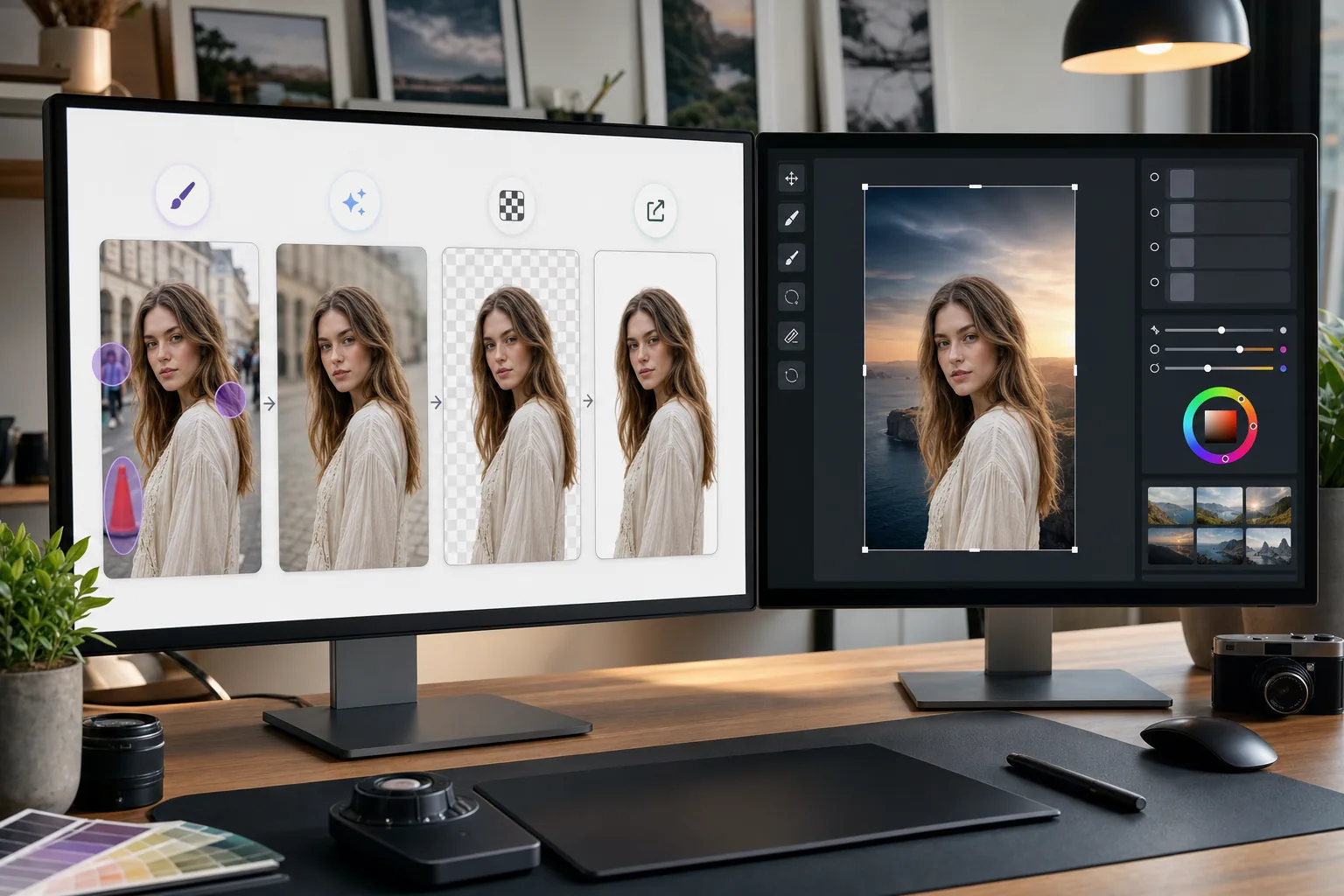
Photoshop, ayrıntılı görüntü düzenlemeye yönelik endüstri standardıdır. Magic Eraser hızlı temizleme görevlerini (arka planların kaldırılması, nesnelerin silinmesi ve boşlukların yapay zeka ile doldurulması) yerine getirir; böylece doğrudan Photoshop'taki ince işlere geçebilirsiniz.
Hakkında Adobe Photoshop
Adobe Photoshop, dünya çapında fotoğrafçılar, tasarımcılar ve dijital sanatçılar tarafından kullanılan profesyonel görüntü düzenleme yazılımıdır. Birleştirme, rötuşlama, Color correction ve piksel düzeyinde düzenleme için gelişmiş araçlar sağlar.
Faydalar
Ayrıntılı düzenlemeden önce daha hızlı temizleme
Basit görevlere Photoshop'un klon damgası veya iyileştirme fırçasıyla zaman harcamak yerine, istenmeyen nesneleri ve dikkat dağıtıcı şeyleri Magic Eraser ile saniyeler içinde kaldırın.
Tek tıklamayla arka planı kaldırma
Magic Eraser'ün yapay zeka destekli arka plan kaldırma özelliğiyle nesneleri anında izole edin. Birleştirme ve gelişmiş maskeleme için şeffaf PNG'yi Photoshop'a aktarın.
Eksik alanlar için yapay zeka destekli dolgu
Nesneleri kaldırdıktan sonra alanları akıllıca yeniden oluşturmak için Magic Eraser'ün yapay zeka dolgusunu kullanın. Sonuçlar Photoshop iyileştirmesi için temiz bir başlangıç noktası sağlar.
Basit görevler için erişilebilir alternatif
Her görüntünün Photoshop'un tam gücüne ihtiyacı yoktur. Hızlı düzeltmeler için tarayıcıda Magic Eraser kullanın ve Photoshop'u gelişmiş araç seti gerektiren işler için ayırın.
Magic Eraser Photoshop ile Nasıl Kullanılır
Magic Eraser'e yükle
Tarayıcınızda Magic Eraser dosyasını açın ve Photoshop düzenlemesinden önce ilk temizliğin yapılması gereken görüntüyü yükleyin.
Hızlı temizleme gerçekleştirin
Photoshop'ta daha uzun sürecek basit düzenlemeleri gerçekleştirmek için arka planları kaldırın, istenmeyen nesneleri silin veya yapay zeka dolgusunu kullanın.
Tam kalitede dışa aktar
Temizlenen görüntüyü şeffaflığı korumak için PNG olarak veya şeffaf olmayan görüntüler için yüksek kaliteli JPEG olarak indirin.
Ayrıntılı çalışma için Photoshop'ta açın
İşlenen görüntüyü Photoshop'a aktarın ve gelişmiş düzenleme, rötuşlama, birleştirme veya renk derecelendirme işlemlerine devam edin.
Sıkça Sorulan Sorular
Magic Eraser, Photoshop ile doğrudan entegre olur mu?
+
Hayır. Bu sayfa bir Photoshop eklentisini veya doğrudan entegrasyonu değil, dosyaları elle dışa ve içe aktarma iş akışını anlatır. Görseli Magic Eraser’da düzenleyin, PNG veya JPEG olarak indirin ve ardından dosyayı Photoshop’ta açın.
Zaten Photoshop'um varsa neden Magic Eraser kullanayım?
+
Magic Eraser basit temizleme görevlerini Photoshop'u başlatmadan saniyeler içinde gerçekleştirir. Arka planı kaldırma, nesne silme ve temel temizleme işlemleri daha hızlıdır ve Photoshop'u gerçekten gerektiren işler için kullanmanıza olanak tanır.
Magic Eraser Photoshop'un yerini mi alıyor?
+
Hayır. Magic Eraser, hızlı, yapay zeka odaklı görevleri yerine getirerek Photoshop'u tamamlar. Photoshop, ayrıntılı rötuşlama, birleştirme, renkli çalışma ve piksel düzeyinde düzenleme için vazgeçilmez olmaya devam ediyor.
İki araç arasında hangi dosya formatları çalışır?
+
Magic Eraser'den PNG (saydamlıkla) veya yüksek kaliteli JPEG olarak dışa aktarın. Her iki format da tam kalite korunarak doğrudan Photoshop'a aktarılır.
Magic Eraser'ün arka planı kaldırma işlemi Photoshop'unki kadar doğru mu?
+
Çoğu konu için, Magic Eraser'ün AI arka planını kaldırma özelliği, tek tıklamayla temiz sonuçlar üretir. İncecik saçlar gibi son derece ince ayrıntılara sahip görüntüler için Photoshop'ta kenarları daha da hassaslaştırmak isteyebilirsiniz.
Magic Eraser'ü PSD dosyasında kullanabilir miyim?
+
Magic Eraser JPEG, PNG ve WebP gibi standart görüntü formatlarıyla çalışır. Düzleştirilmiş bir görüntüyü Photoshop'tan dışa aktarın, Magic Eraser ile işleyin ve ardından PSD projenize geri getirin.
Photoshop iş akışınızı hızlandırın
Ayrıntılı Photoshop düzenlemeye dalmadan önce hızlı arka plan kaldırma, nesne silme ve yapay zeka dolgusu için Magic Eraser'ü ücretsiz deneyin.
Magic Eraser'ü ücretsiz deneyinİlgili kullanım alanları
Profesyonellerin bu araçları gerçek iş akışlarında nasıl kullandığını görün.
Kişisel eşyalar, park edilmiş araçlar veya inşaat ekipmanlarıyla dolu ilan fotoğrafları alıcıları uzaklaştırabilir. Magic Eraser, emlak fotoğraflarınızı anında temizlemek için yapay zeka kullanır — Photoshop becerisi gerektirmez.
Bulanık arka planlar ve dağınık ürün çekimleri her gün size satış kaybettiriyor. Magic Eraser, saniyeler içinde temiz, profesyonel ürün görselleri oluşturmanıza yardımcı olur — Photoshop becerisi gerekmez. Sadece yükleyin, dikkat dağıtıcı öğeleri silin ve güvenle listeleyin.
Yabancılar seyahat fotoğraflarınızı mı mahvediyor? Dağınık arka planlar selfie'lerinizi mi bozuyor? Photoshop'ta saatlerce vakit kaybetmeyi bırakın. Magic Eraser dikkat dağıtıcıları kaldırır, dağınık çekimleri temizler ve fotoğraflarınızı her platform formatına uyacak şekilde genişletir — hepsi tek dokunuşla.
İlgili karşılaştırmalar
Magic Eraser'ın benzer araçlarla karşılaştırmasını görün.
TouchRetouch, nesneleri ve kusurları kaldırmak için popüler, ücretli bir mobil uygulamadır. Magic Eraser ise kurulum gerektirmeden her cihazda ücretsiz yapay zeka destekli düzenleme sunar. Özellikler, fiyatlandırma ve kullanım kolaylığı açısından nasıl karşılaştırıldıklarını görün.
Cleanup.pictures, hizli nesne kaldirma icin ucretsiz bir web aracidir. Magic Eraser, 8 AI destekli duzenleme araci, mobil uygulamalar ve gelismis isleme ile daha da ileri gider. Ikisinin nasil karsilastirildigini gorun.
remove.bg, güçlü bir API ile Photoshop ve Figma entegrasyonları sunan, arka plan kaldırma alanında pazar lideridir. Magic Eraser ise nesne kaldırmadan üretken doldurmaya, yapay zeka iyileştirmeden tasarıma kadar sekiz yapay zeka destekli düzenleme aracıyla daha ileri gider — hepsi tek bir düzenleyicide.
Farklı güçlü yönlere sahip iki güçlü yapay zeka fotoğraf düzenleyici. Magic Eraser daha geniş bir üretken yapay zeka araç seti sunarken, Photoroom e-ticaret ürün fotoğrafçılığı ve toplu işlemede üstündür. Hangisinin iş akışınıza uyduğunu görün.
İlgili makaleler
Bu konuyla ilgili ipuçları, rehberler ve eğitimler.
Magic Eraser ile fotoğraflardan nesneleri, kişileri, metinleri ve dikkat dağıtan öğeleri kaldırıp daha temiz AI düzenleme sonuçları almayı öğrenin.
Yapay zekâ ile saniyeler içinde fotoğraflardan insanları kaldırmayı öğrenin. Seyahat, emlak ve ürün fotoğrafları için kılavuz.
Yapay zekâ ile kendi fotoğraflarınızdan filigranları kaldırmaya yönelik adım adım kılavuz. Ne zaman uygun olduğu, en iyi teknikler ve Magic Eraser'ın bunu nasıl yaptığı.
Diğer entegrasyonlar
Magic Eraser ile çalışan daha fazla platform keşfedin.