
ลบวัตถุออกจากรูปภาพ
ลบวัตถุออกจากรูปภาพของคุณภายในไม่กี่วินาทีด้วย Magic Eraser AI สร้างพื้นหลังใหม่โดยอัตโนมัติ ใช้ฟรีบน iOS, Android และเว็บ
อัปเดตล่าสุด
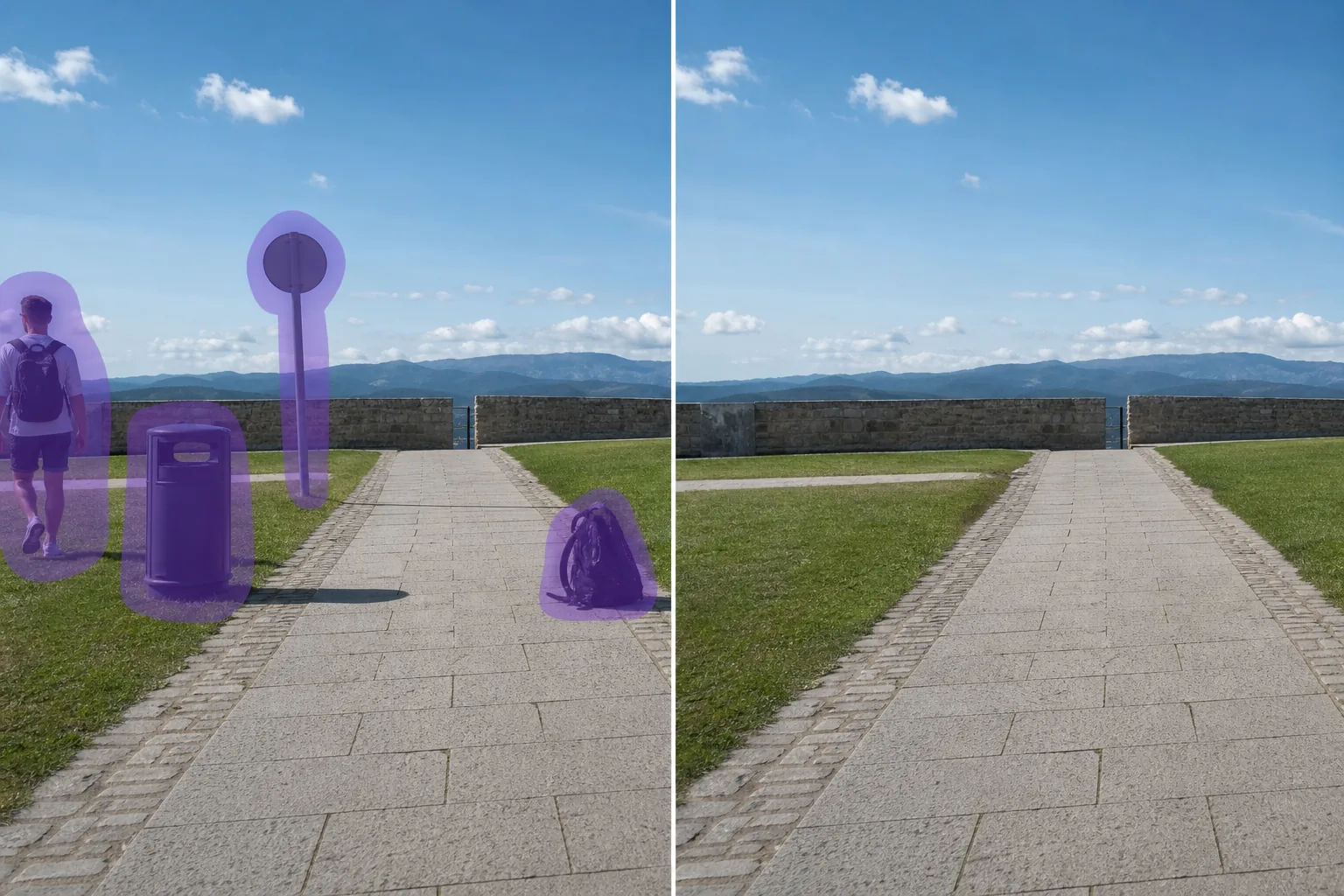
AI ลบวัตถุทำงานอย่างไร
ลบวัตถุออกจากรูปภาพของคุณภายในไม่กี่วินาทีด้วย Magic Eraser AI สร้างพื้นหลังใหม่โดยอัตโนมัติ ใช้ฟรีบน iOS, Android และเว็บ เปิด Magic Eraser บนเว็บ, iOS หรือ Android แล้วอัปโหลดรูปภาพที่มีวัตถุที่คุณต้องการลบ รองรับ JPEG, PNG และ WebP ใช้แปรงทาทับวัตถุที่ต้องการลบ ทาให้กว้างกว่าวัตถุเล็กน้อยเพื่อให้ AI ทำขอบได้สะอาดขึ้น AI สร้างพื้นหลังใหม่ภายในไม่กี่วินาที ตรวจสอบผลลัพธ์ แก้ไขเพิ่มเติมหากต้องการ แล้วส่งออกที่ความละเอียดเต็ม
ขั้นตอนการใช้งาน
- 1
อัปโหลดรูปภาพ
เปิด Magic Eraser บนเว็บ, iOS หรือ Android แล้วอัปโหลดรูปภาพที่มีวัตถุที่คุณต้องการลบ รองรับ JPEG, PNG และ WebP
- 2
แปรงทับบริเวณที่ต้องการ
ใช้แปรงทาทับวัตถุที่ต้องการลบ ทาให้กว้างกว่าวัตถุเล็กน้อยเพื่อให้ AI ทำขอบได้สะอาดขึ้น
- 3
ลบและดาวน์โหลด
AI สร้างพื้นหลังใหม่ภายในไม่กี่วินาที ตรวจสอบผลลัพธ์ แก้ไขเพิ่มเติมหากต้องการ แล้วส่งออกที่ความละเอียดเต็ม
เหมาะสำหรับ
- เปิด Magic Eraser บนเว็บ, iOS หรือ Android แล้วอัปโหลดรูปภาพที่มีวัตถุที่คุณต้องการลบ รองรับ JPEG, PNG และ WebP
- ใช้แปรงทาทับวัตถุที่ต้องการลบ ทาให้กว้างกว่าวัตถุเล็กน้อยเพื่อให้ AI ทำขอบได้สะอาดขึ้น
- AI สร้างพื้นหลังใหม่ภายในไม่กี่วินาที ตรวจสอบผลลัพธ์ แก้ไขเพิ่มเติมหากต้องการ แล้วส่งออกที่ความละเอียดเต็ม
- ลบวัตถุออกจากรูปภาพฟรีไหม?
- ลบวัตถุใช้เวลานานแค่ไหน?
- ใช้งานบนมือถือได้ไหม?
- คุณภาพรูปภาพยังคงเดิมไหม?
หมายเหตุสำคัญ
โดยปกติเพียงไม่กี่วินาที AI ประมวลผลบริเวณที่ทาแล้วสร้างพื้นหลังใหม่เกือบจะทันที ไม่ AI รักษาความละเอียดและคุณภาพดั้งเดิมของรูปภาพ พื้นที่ที่สร้างใหม่จะสอดคล้องกับแสง สี และพื้นผิวโดยรอบ
คำถามที่พบบ่อย
- ลบวัตถุออกจากรูปภาพฟรีไหม?
- ใช่ แพลนฟรีของ Magic Eraser รวมการลบวัตถุพร้อมข้อจำกัดการใช้งานรายวัน Premium ($29.99/ปี) ปลดล็อกข้อจำกัดและเปิดใช้งานการส่งออกความละเอียดสูง
- ลบวัตถุใช้เวลานานแค่ไหน?
- โดยปกติเพียงไม่กี่วินาที AI ประมวลผลบริเวณที่ทาแล้วสร้างพื้นหลังใหม่เกือบจะทันที
- ใช้งานบนมือถือได้ไหม?
- ใช่ Magic Eraser ใช้งานได้บน iOS, Android และเว็บเบราว์เซอร์ คุณสามารถลบวัตถุจากอุปกรณ์ใดก็ได้
- คุณภาพรูปภาพยังคงเดิมไหม?
- ไม่ AI รักษาความละเอียดและคุณภาพดั้งเดิมของรูปภาพ พื้นที่ที่สร้างใหม่จะสอดคล้องกับแสง สี และพื้นผิวโดยรอบ