
Remove Screen Glare From Photos
เรียนรู้วิธีRemove Screen Glare From Photosด้วย Magic Eraser คำแนะนำทีละขั้นตอนง่ายๆ ด้วยเครื่องมือ AI ฟรี ใช้ได้บนเว็บ, iOS และ Android
Last updated
ลองใช้เลย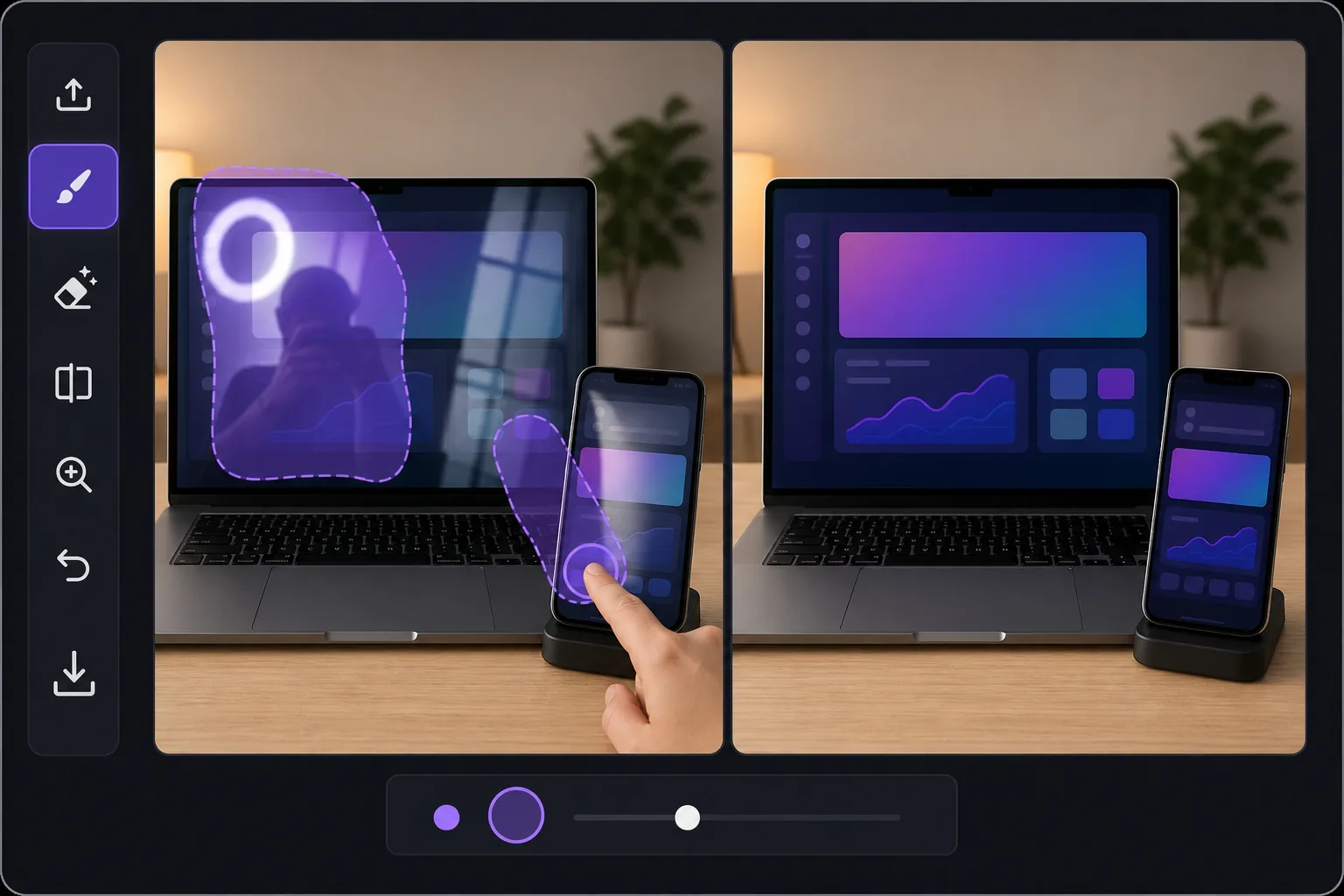
Why screen glare is harder than ordinary glare — Magic Eraser
Glare on a glossy display is a special problem. Phones, laptops, tablets, monitors and TVs are mirrors when they are dark, and they blow out to pure white when light hits them at the wrong angle. In product shots and how-to tutorials, that hotspot or reflection sits directly over the UI, the app screen, or the thing you are trying to show — so a viewer can't read the interface or see the demo. Reshooting means re-staging the device, dimming lights, and chasing the reflection around the room. Magic Eraser skips all of that. Brush over the bright streak, the reflected window, or even your own silhouette caught in the screen, and the AI removes it. Because this is inpainting, it does not recover the literal pixels that were hidden under the glare — it synthesizes a plausible, glare-free continuation of the surrounding screen, bezel and on-screen content. For a uniform wallpaper, a solid app background, or a simple gradient that looks seamless. For dense, specific UI text buried under a full white-out, treat it as a believable clean-up rather than a perfect copy of what was there.
Before you start
ขั้นตอนการใช้งาน
Start with อัปโหลดรูป. The result preview above and tips below use this guide's existing content; no separate before-and-after proof is assumed.
- 1
อัปโหลดรูป
เปิด Magic Eraser บนเว็บ, iOS หรือ Android ลากและวางรูป JPEG, PNG, HEIC หรือ WebP ไม่ต้องสร้างบัญชี
- 2
เลือกเครื่องมือและพื้นที่
เลือกเครื่องมือที่เหมาะสมและทำเครื่องหมายพื้นที่ที่ต้องการ AI จะวิเคราะห์และใช้การเปลี่ยนแปลงโดยอัตโนมัติภายในไม่กี่วินาที
- 3
ดาวน์โหลดผลลัพธ์
ดูตัวอย่างผลลัพธ์และดาวน์โหลดรูปที่แก้ไขแล้ว ส่งออกเป็น PNG หรือ JPEG คุณภาพสูง
เหมาะสำหรับ
- Product photos of phones and tablets where a window or ring light hotspot covers the app on screen
- Laptop and monitor shots for how-to tutorials, with overhead-light glare washing out the interface
- TV and smart-display listings where reflections of the room hide what's playing
- Removing your own silhouette or camera caught reflected in a dark, glossy screen
- E-commerce and marketplace device listings that need a clean, glare-free display to look trustworthy
เคล็ดลับเพื่อผลลัพธ์ที่ดีที่สุด
Work in zoomed-in passes rather than one big stroke — small, accurate brushing over the glare protects the surrounding UI and bezel. If a reflection has soft edges, include the faint halo around the hotspot so no gray smear is left behind. For partially blown-out screens, erase the glare first, then judge what's left: if real content survives at the edges, the AI blends it convincingly; if the whole screen is white, expect a believable synthesized fill, not the exact original interface. When the screen shows simple, repeating content (a solid color, wallpaper or plain background), results look near-flawless. For critical UI text or a chart you must show accurately, the cleanest route is to erase glare on a re-shot, dimmer image — and let Magic Eraser handle the residual shine.
คำถามที่พบบ่อย
- ฟีเจอร์Remove Screen Glare From Photosใช้ฟรีไหม?
- ใช่ Magic Eraser ให้คุณRemove Screen Glare From Photosฟรีภายในโควตาประจำวัน อัปเกรดเป็น Pro สำหรับการประมวลผลไม่จำกัดและส่งออกความละเอียดสูง
- Remove Screen Glare From Photosใช้เวลานานเท่าไหร่?
- แค่ไม่กี่วินาที AI ของ Magic Eraser ประมวลผลรูปอย่างรวดเร็ว ผลลัพธ์ส่วนใหญ่พร้อมใช้งานทันทีหลังอัปโหลด
- ใช้บนมือถือได้ไหม?
- ใช่ Magic Eraser ใช้ได้บน iOS, Android และเบราว์เซอร์ทุกชนิด สลับระหว่างอุปกรณ์ได้อย่างอิสระ
- คุณภาพภาพจะลดลงไหม?
- ไม่ Magic Eraser รักษาคุณภาพรูปต้นฉบับ AI ประมวลผลอย่างชาญฉลาดเพื่อรักษารายละเอียดและความคมชัด