
Remove an Object From a Photo, Free and Online
เรียนรู้วิธีRemove an Object From a Photo, Free and Onlineด้วย Magic Eraser คำแนะนำทีละขั้นตอนง่ายๆ ด้วยเครื่องมือ AI ฟรี ใช้ได้บนเว็บ, iOS และ Android
Last updated
ลองใช้เลย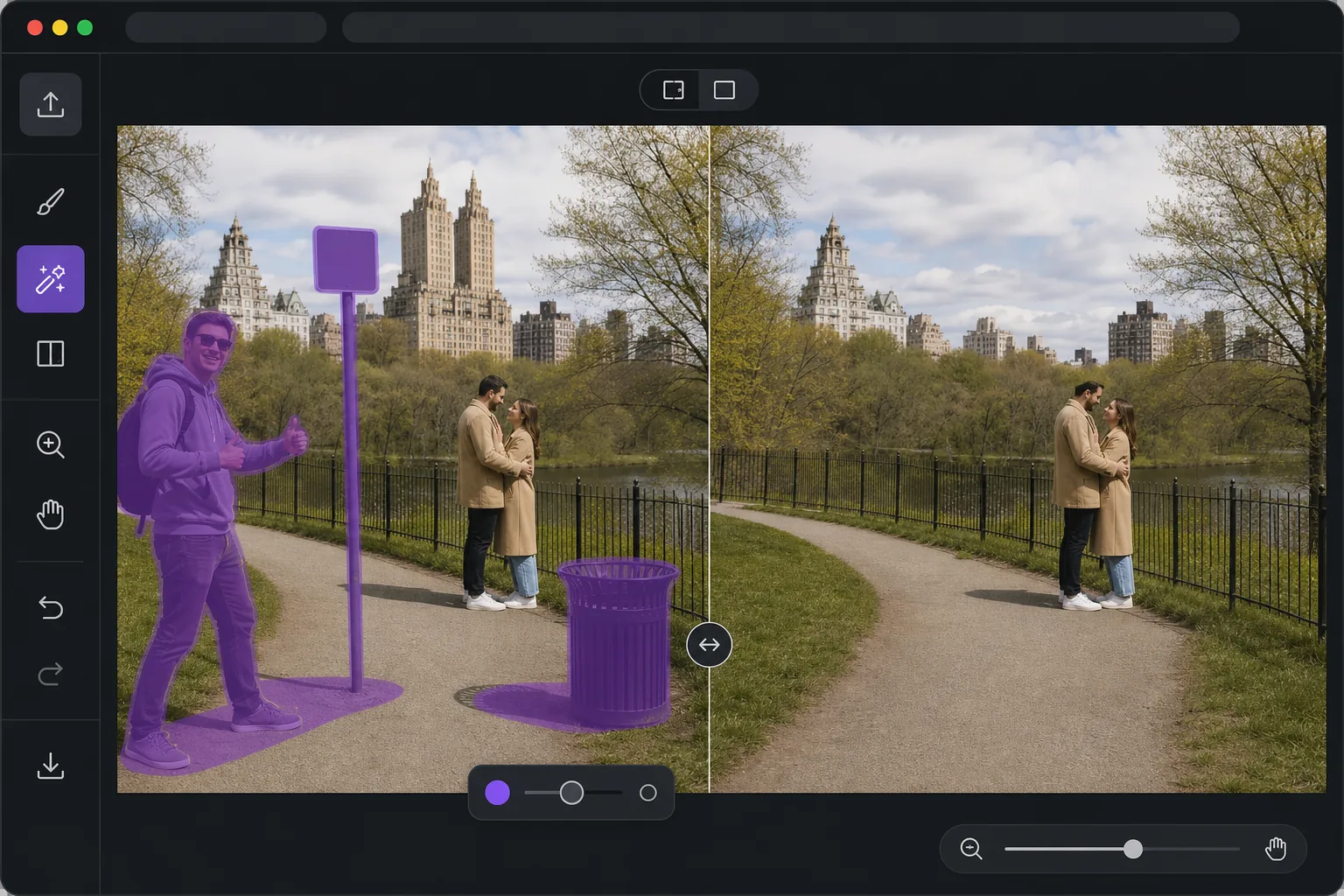
Open the editor, then remove it. — Magic Eraser
When you want one object gone from a photo, the last thing you need is desktop software, a complex editor, or a forced paid trial before you can see a result. Magic Eraser runs entirely in your browser, so there is nothing to install. Use your limited free edits, brush over the thing you want gone, and AI inpainting reconstructs a plausible background where it used to be — fences, sky, grass, walls — so the gap blends in instead of leaving a hole. Free exports are saved without a watermark, which means the photo you download is the photo you keep. The whole loop is built for speed: open the page, paint over the object, preview the fill, and save. No menus to learn and no layers to manage; limited free edits are available before you choose any paid plan. If you just need a clean shot fast, this is the shortest path from messy photo to finished image.
Before you start
ขั้นตอนการใช้งาน
Start with อัปโหลดรูป. The result preview above and tips below use this guide's existing content; no separate before-and-after proof is assumed.
- 1
อัปโหลดรูป
เปิด Magic Eraser บนเว็บ, iOS หรือ Android ลากและวางรูป JPEG, PNG, HEIC หรือ WebP ไม่ต้องสร้างบัญชี
- 2
เลือกเครื่องมือและพื้นที่
เลือกเครื่องมือที่เหมาะสมและทำเครื่องหมายพื้นที่ที่ต้องการ AI จะวิเคราะห์และใช้การเปลี่ยนแปลงโดยอัตโนมัติภายในไม่กี่วินาที
- 3
ดาวน์โหลดผลลัพธ์
ดูตัวอย่างผลลัพธ์และดาวน์โหลดรูปที่แก้ไขแล้ว ส่งออกเป็น PNG หรือ JPEG คุณภาพสูง
เหมาะสำหรับ
- Removing a photobomber or stranger before you post in the next minute
- Cleaning up a listing or product shot without opening desktop software
- Editing on a phone or borrowed computer where you can't install apps
- One-off fixes where installing software is not worth it
- Quick social posts that need a clean image with no watermark
เคล็ดลับเพื่อผลลัพธ์ที่ดีที่สุด
Brush slightly past the edges of the object so the AI has room to blend, rather than tracing it tightly. Objects sitting against simple, repeating backgrounds — sky, water, grass, plain walls — reconstruct most convincingly. For larger or more complex removals, work in passes: erase the main object first, then brush over any leftover shadow or reflection it left behind. If a fill looks off, undo and reselect with a slightly different brush area; small changes to your selection often produce a noticeably better blend.
คำถามที่พบบ่อย
- ฟีเจอร์Remove an Object From a Photo, Free and Onlineใช้ฟรีไหม?
- ใช่ Magic Eraser ให้คุณRemove an Object From a Photo, Free and Onlineฟรีภายในโควตาประจำวัน อัปเกรดเป็น Pro สำหรับการประมวลผลไม่จำกัดและส่งออกความละเอียดสูง
- Remove an Object From a Photo, Free and Onlineใช้เวลานานเท่าไหร่?
- แค่ไม่กี่วินาที AI ของ Magic Eraser ประมวลผลรูปอย่างรวดเร็ว ผลลัพธ์ส่วนใหญ่พร้อมใช้งานทันทีหลังอัปโหลด
- ใช้บนมือถือได้ไหม?
- ใช่ Magic Eraser ใช้ได้บน iOS, Android และเบราว์เซอร์ทุกชนิด สลับระหว่างอุปกรณ์ได้อย่างอิสระ
- คุณภาพภาพจะลดลงไหม?
- ไม่ Magic Eraser รักษาคุณภาพรูปต้นฉบับ AI ประมวลผลอย่างชาญฉลาดเพื่อรักษารายละเอียดและความคมชัด