
Remove an Emoji From an iPhone Photo
เรียนรู้วิธีลบอิโมจิบน iPhoneด้วย Magic Eraser คำแนะนำทีละขั้นตอนง่ายๆ ด้วยเครื่องมือ AI ฟรี ใช้ได้บนเว็บ, iOS และ Android
Last updated
ลองใช้เลย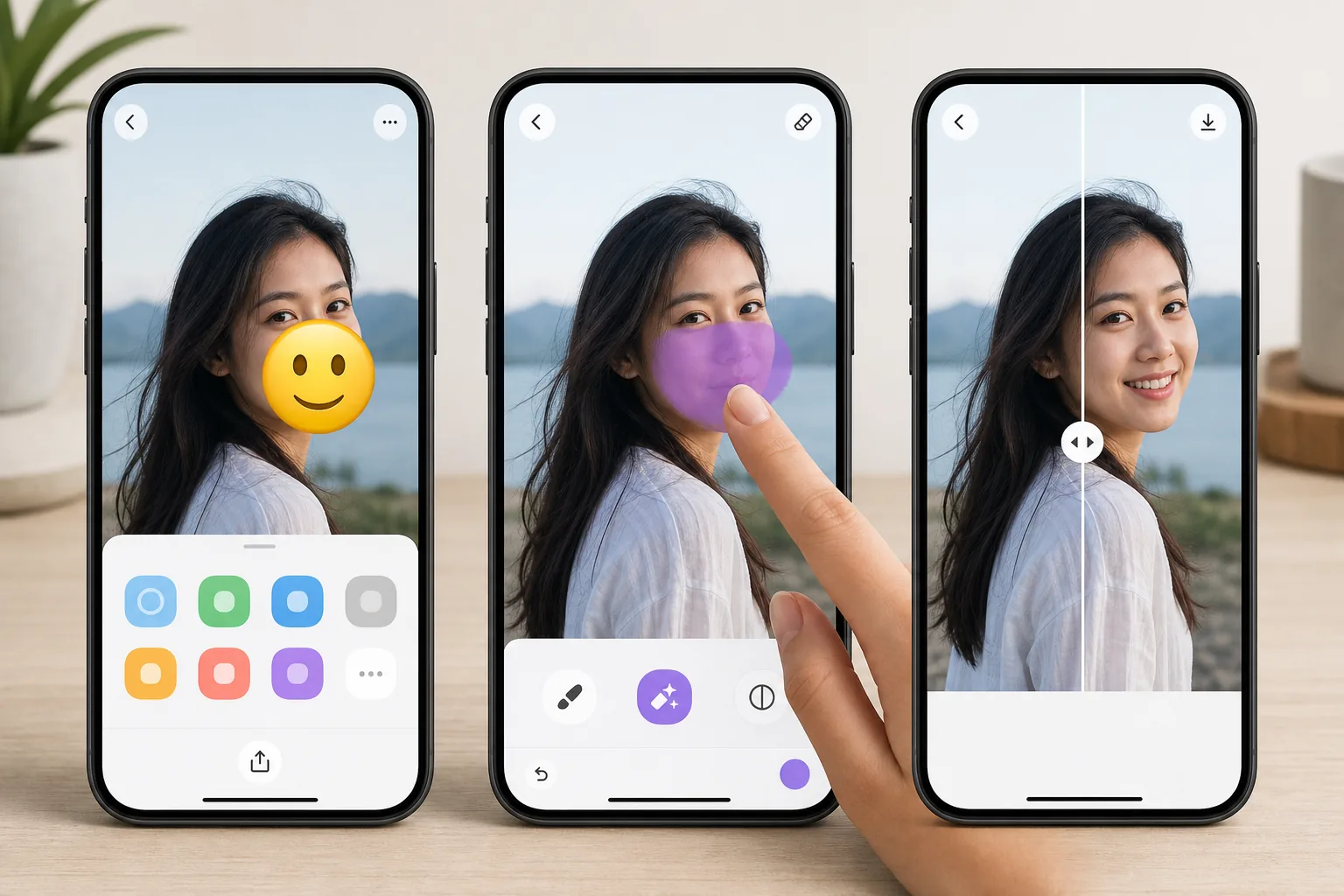
Erase emojis without leaving your iPhone — Magic Eraser
Emojis pile up on iPhone photos fast — a sticker you slapped on in Messages, a 😂 added in Markup, or a face cover someone dropped over a shot before AirDropping it to you. Once it is saved to your camera roll, that emoji is baked into the pixels, and iOS gives you no built-in way to peel it back off. Magic Eraser fixes that on-device. You open the photo in the iOS Photos app, send it to Magic Eraser through the standard share sheet (or the Magic Eraser app), brush over the emoji, and the AI inpainting reconstructs a plausible version of whatever was behind it. To be clear: the AI synthesizes a believable fill based on the surrounding texture — sky, wall, skin, grass — it does not recover the literal original pixels or reveal a hidden face. The result lands back in your Photos library at full resolution, free, and with no watermark on the free tier.
Before you start
ขั้นตอนการใช้งาน
Start with อัปโหลดรูป. The result preview above and tips below use this guide's existing content; no separate before-and-after proof is assumed.
- 1
อัปโหลดรูป
เปิด Magic Eraser บนเว็บ, iOS หรือ Android ลากและวางรูป JPEG, PNG, HEIC หรือ WebP ไม่ต้องสร้างบัญชี
- 2
เลือกเครื่องมือและพื้นที่
เลือกเครื่องมือที่เหมาะสมและทำเครื่องหมายพื้นที่ที่ต้องการ AI จะวิเคราะห์และใช้การเปลี่ยนแปลงโดยอัตโนมัติภายในไม่กี่วินาที
- 3
ดาวน์โหลดผลลัพธ์
ดูตัวอย่างผลลัพธ์และดาวน์โหลดรูปที่แก้ไขแล้ว ส่งออกเป็น PNG หรือ JPEG คุณภาพสูง
เหมาะสำหรับ
- Wiping a 😂 or 🔥 sticker you added in iMessage or Markup off a saved photo
- Clearing an emoji face-cover someone placed before AirDropping a picture to you
- Cleaning up a screenshot where an emoji landed over the part you actually wanted
- Prepping a camera-roll shot for posting after removing a playful sticker
- Removing an emoji from a downloaded or received iPhone photo without a Mac or laptop
เคล็ดลับเพื่อผลลัพธ์ที่ดีที่สุด
Brush slightly past the emoji's edges — sticker outlines and soft shadows extend a few pixels beyond the visible art, and missing them leaves a faint halo. Emojis sitting on flat backgrounds (a clear sky, a solid-color wall, blurred bokeh) reconstruct almost invisibly; ones plastered over a face, fine text, or busy patterns are harder, since the AI is inventing a plausible fill rather than restoring true detail. If the first pass looks slightly soft, zoom in on your iPhone and re-brush just the rough area instead of redoing the whole thing. Always keep the original in Photos until you are happy — iOS makes duplicating a shot easy, so edit the copy.
คำถามที่พบบ่อย
- ฟีเจอร์ลบอิโมจิบน iPhoneใช้ฟรีไหม?
- ใช่ Magic Eraser ให้คุณลบอิโมจิบน iPhoneฟรีภายในโควตาประจำวัน อัปเกรดเป็น Pro สำหรับการประมวลผลไม่จำกัดและส่งออกความละเอียดสูง
- ลบอิโมจิบน iPhoneใช้เวลานานเท่าไหร่?
- แค่ไม่กี่วินาที AI ของ Magic Eraser ประมวลผลรูปอย่างรวดเร็ว ผลลัพธ์ส่วนใหญ่พร้อมใช้งานทันทีหลังอัปโหลด
- ใช้บนมือถือได้ไหม?
- ใช่ Magic Eraser ใช้ได้บน iOS, Android และเบราว์เซอร์ทุกชนิด สลับระหว่างอุปกรณ์ได้อย่างอิสระ
- คุณภาพภาพจะลดลงไหม?
- ไม่ Magic Eraser รักษาคุณภาพรูปต้นฉบับ AI ประมวลผลอย่างชาญฉลาดเพื่อรักษารายละเอียดและความคมชัด