
Remover um objeto de fundo de uma foto
Remova um objeto de fundo das suas fotos em segundos com o Magic Eraser. A IA reconstrói automaticamente o fundo. Grátis no iOS, Android e na web.
Última atualização
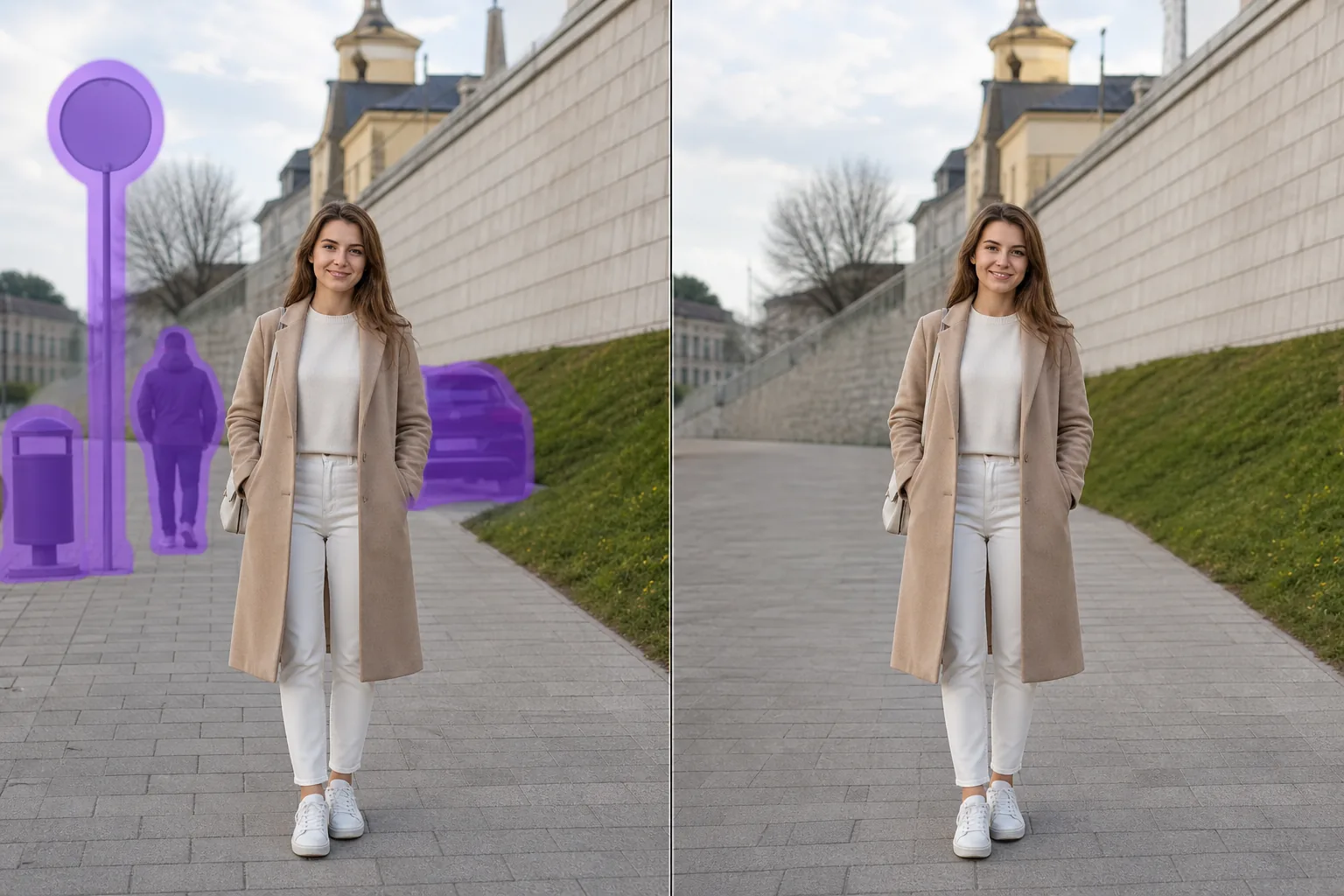
Como funciona a remoção de um objeto de fundo por IA
Remova um objeto de fundo das suas fotos em segundos com o Magic Eraser. A IA reconstrói automaticamente o fundo. Grátis no iOS, Android e na web. Abra o Magic Eraser na web, iOS ou Android e envie a foto com um objeto de fundo que deseja remover. Compatível com JPEG, PNG e WebP. Pinte sobre um objeto de fundo que deseja remover. Use um pincel ligeiramente maior que o objeto para que a IA crie bordas mais limpas. A IA reconstrói o fundo em segundos. Verifique o resultado, retoque se necessário e exporte em resolução total.
Instruções passo a passo
- 1
Envie sua foto
Abra o Magic Eraser na web, iOS ou Android e envie a foto com um objeto de fundo que deseja remover. Compatível com JPEG, PNG e WebP.
- 2
Pinte sobre a área
Pinte sobre um objeto de fundo que deseja remover. Use um pincel ligeiramente maior que o objeto para que a IA crie bordas mais limpas.
- 3
Apague e baixe
A IA reconstrói o fundo em segundos. Verifique o resultado, retoque se necessário e exporte em resolução total.
Ideal para
- Abra o Magic Eraser na web, iOS ou Android e envie a foto com um objeto de fundo que deseja remover. Compatível com JPEG, PNG e WebP.
- Pinte sobre um objeto de fundo que deseja remover. Use um pincel ligeiramente maior que o objeto para que a IA crie bordas mais limpas.
- A IA reconstrói o fundo em segundos. Verifique o resultado, retoque se necessário e exporte em resolução total.
- É grátis remover um objeto de fundo de uma foto?
- Quanto tempo leva para remover um objeto de fundo?
- Funciona no celular?
- A qualidade da imagem é preservada?
Notas importantes
Normalmente apenas alguns segundos. A IA processa a área pintada e reconstrói o fundo quase instantaneamente. Não. A IA preserva a resolução e qualidade originais da sua foto. A área reconstruída combina com a iluminação, cor e textura do entorno.
Perguntas frequentes
- É grátis remover um objeto de fundo de uma foto?
- Sim. O plano grátis do Magic Eraser inclui a remoção de um objeto de fundo com limites diários de uso. O Premium (US$ 29,99/ano) remove os limites e desbloqueia exportações em alta resolução.
- Quanto tempo leva para remover um objeto de fundo?
- Normalmente apenas alguns segundos. A IA processa a área pintada e reconstrói o fundo quase instantaneamente.
- Funciona no celular?
- Sim. O Magic Eraser funciona no iOS, Android e navegadores web. Você pode remover um objeto de fundo de qualquer dispositivo.
- A qualidade da imagem é preservada?
- Não. A IA preserva a resolução e qualidade originais da sua foto. A área reconstruída combina com a iluminação, cor e textura do entorno.