
Como remover um objeto de uma foto
Uma lata de lixo em uma foto de paisagem perfeita, um estranho andando no fundo de um retrato de família, um fio de energia atravessando um pôr do sol, o logotipo de uma marca em um produto que você está revendendo – objetos indesejados em fotos são universais. O pincel AI de Magic Eraser permite pintar sobre qualquer objeto e a IA o remove, preenchendo a área com a aparência do fundo se o objeto nunca existisse.
Last updated
Remover um objeto agora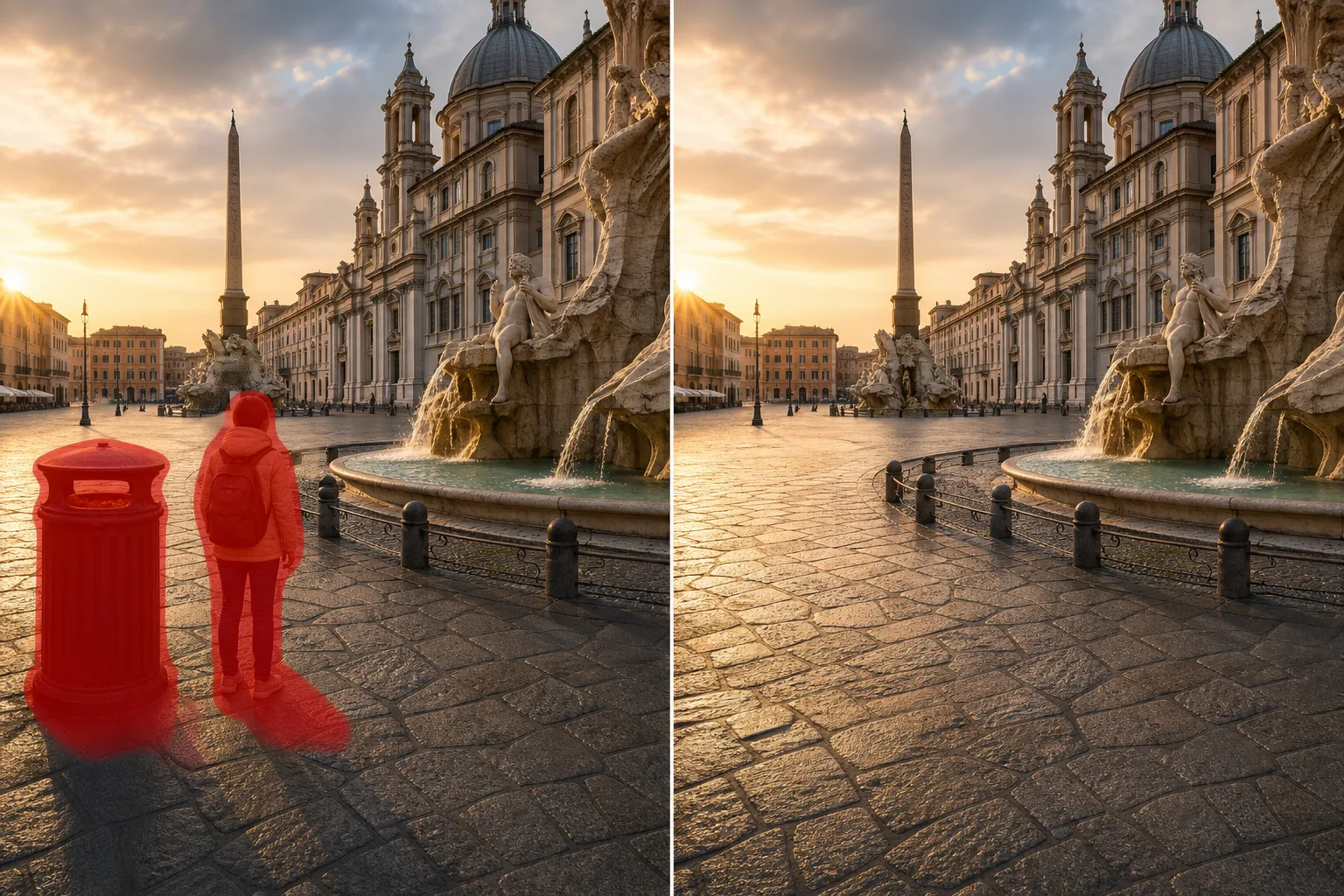
Como remover um objeto de uma foto
Para remover um objeto de uma foto, abra o Magic Eraser na web, no iOS ou no Android, envie a imagem, pinte sobre o objeto indesejado e toque em Apagar. A IA deduz o que há por trás dele a partir do contexto ao redor — textura, perspetiva, cor e iluminação — e reconstrói a área em segundos. É grátis e sem cadastro. Ele elimina pessoas que aparecem por acaso, carros estacionados, placas, fios elétricos, poeira e elementos que poluem as bordas em fotos de viagem, imóveis e produtos. Para vários objetos, pinte todos antes de apagar. Cada foto contém elementos que o fotógrafo não pretendia incluir. A fotografia de rua captura pedestres andando pela composição no momento errado. As fotos de viagens incluem outros turistas, andaimes de construção, carros estacionados e sinalização que atrapalham a visão pretendida. As fotos de listagens de imóveis mostram pertences pessoais, cabos de alimentação, interruptores de luz e danos nas paredes que o vendedor deseja minimizar. A fotografia do produto captura reflexos, partículas de poeira, cabos de fundo e desordem nas bordas da superfície de fotografia. A fotografia do evento inclui sinais de saída, equipamento de áudio, instalações de catering e infraestrutura do local que desviam a atenção da história visual do evento. Em cada caso, o tema e a composição são fortes, mas elementos secundários competem pela atenção do espectador. A solução tradicional – carimbo de clone ou preenchimento com reconhecimento de conteúdo do Photoshop – requer a seleção da área indesejada, a escolha de uma região de origem e a iteração até que o preenchimento se misture de forma convincente com a textura, perspectiva e iluminação circundantes. Para casos simples (um objeto pequeno em um fundo liso), isso leva de 2 a 5 minutos. Para casos complexos (uma pessoa parada em frente a uma parede texturizada com linhas de perspectiva, um carro em uma superfície de estrada padronizada), são necessários de 15 a 30 minutos de trabalho manual cuidadoso. Magic Eraser substitui isso por um fluxo de trabalho de pincelar e apagar: pinte sobre o objeto indesejado e a IA infere o que está por trás dele a partir do contexto circundante - combinando textura, linhas de perspectiva, gradientes de cores e direção de iluminação automaticamente.
Before you start
Remova um objeto em três etapas
Start with carregue a foto. The result preview above and tips below use this guide's existing content; no separate before-and-after proof is assumed.
- 1
Carregue a foto
Abra Magic Eraser na web, iOS ou Android. Coloque a foto com o objeto indesejado - a paisagem com a lata de lixo, o retrato com o estranho ao fundo, o produto fotografado com bordas desordenadas, o anúncio do imóvel com itens pessoais. Formatos JPEG, PNG, HEIC e WebP suportados.
- 2
Pincele sobre o objeto indesejado
Pinte sobre o objeto que deseja remover. Cubra todo o objeto mais uma margem fina para capturar sua sombra, reflexo e quaisquer artefatos de limite. Para objetos que projetam sombras visíveis (uma pessoa projetando uma sombra na calçada, um poste projetando uma sombra em uma parede), inclua a sombra na área do pincel — se o objeto desaparecer, mas sua sombra permanecer, o resultado não parecerá natural. Para vários objetos indesejados na mesma foto, escove cada um deles individualmente em uma única sessão. Dimensione o pincel para combinar com o objeto: um pincel apertado para itens pequenos, como uma tomada elétrica, e um pincel mais largo, para objetos maiores, como um carro estacionado.
- 3
Toque em Apagar e verifique o resultado
A IA remove o objeto e reconstrói a área atrás dele – combinando a textura circundante (grama, parede, céu, estrada, chão), perspectiva (linhas convergentes, gradiente de profundidade) e iluminação (direção da sombra, nível de luz ambiente). Aumente o zoom na área preenchida para verificar a integração perfeita com o conteúdo ao redor. Para reconstruções complexas onde o objeto removido era grande e ficava na frente de conteúdo de fundo variado, uma segunda passagem rápida com um pincel menor refina quaisquer artefatos de transição visíveis. Exporte em resolução máxima.
Melhor para
- Fotografia de viagens e paisagens onde turistas, placas, veículos, equipamentos de construção e infraestrutura desorganizam composições que de outra forma seriam imaculadas
- Fotos de listagens de imóveis onde pertences pessoais, danos nas paredes, cabos de alimentação e problemas cosméticos precisam ser removidos antes da publicação
- Fotografia de produtos em que a desordem do fundo, os reflexos, a poeira e os artefatos nas bordas prejudicam o produto que está sendo exibido
- Fotografia de retratos e de família onde estranhos, sinalização e distrações visuais competem com os sujeitos pela atenção
- Fotografia de eventos onde a infraestrutura do local (sinais de saída, equipamento de áudio, configurações de catering) é visível nas fotos da cerimônia e da recepção
- Conteúdo de mídia social em que um único elemento indesejado (um logotipo de marca, um transeunte, uma lixeira) impede que uma foto excelente seja postada
Dicas para melhores resultados
A qualidade da remoção de objetos depende da complexidade do que está por trás do objeto. Objetos em fundos simples e repetidos (céu, paredes lisas, grama, areia, água) são removidos com resultados invisíveis porque a IA tem uma referência de textura clara para preencher. Objetos diante de fundos complexos e únicos (um rosto, detalhe arquitetônico, uma multidão de outras pessoas) produzem bons resultados, mas a reconstrução é generativa — a IA é preenchida com conteúdo plausível que combina com o estilo da área circundante sem saber exatamente o que estava por trás do objeto removido. Para obter melhores resultados: escove o objeto, sua sombra e quaisquer artefatos de contato com o solo (onde os pés de uma pessoa encontram o solo, onde os pneus de um carro entram em contato com a estrada). Remova um objeto de cada vez, em vez de varrer uma grande área com vários objetos. A IA produz preenchimentos mais limpos quando cada remoção tem um contexto circundante claro. Para objetos que tocam o objeto (uma mão no ombro de alguém que você deseja remover), escove com cuidado para evitar afetar a borda do objeto — a IA respeita tudo o que você não escova. Se a remoção de um objeto deixar uma costura tênue ou uma textura ligeiramente diferente na área preenchida, uma segunda passagem de pincel direcionada apenas sobre a costura a limpará.
Perguntas frequentes
- A remoção de objetos é gratuita?
- Sim. O nível gratuito do Magic Eraser inclui a ferramenta pincelar e apagar com limites de uso diário. Premium (US$ 29,99/ano) elimina limites e permite exportações de alta resolução.
- Posso remover uma pessoa de uma foto de grupo?
- Sim. Passe o pincel sobre a pessoa que você deseja remover, incluindo a sombra e o contato com o solo. A IA preenche o espaço com o fundo que estava atrás deles. Isso funciona melhor quando a pessoa está separada das outras no grupo por uma lacuna visível — se duas pessoas estão sobrepostas ou se tocando, remover uma pode afetar a borda da outra, o que você pode corrigir com um passe de refinamento.
- Qual o tamanho de um objeto que a IA pode remover?
- Não há limite rígido de tamanho, mas a qualidade da reconstrução se correlaciona com a quantidade de imagem que o objeto removido cobre. Objetos que cobrem 5-15% da área da imagem são removidos de forma limpa. Objetos que cobrem mais de 30% exigem que mais da imagem final seja gerada por IA em vez de original, e os resultados dependem da complexidade do plano de fundo – um objeto grande em um plano de fundo simples preenche bem, enquanto um objeto grande em um plano de fundo complexo produz resultados razoáveis, mas mais aproximados.
- Funciona em fotos de telefone?
- Sim. Os aplicativos iOS e Android de Magic Eraser executam a mesma IA de remoção de objetos que a versão web. Você pode remover objetos das fotos do seu telefone imediatamente após tirá-las – sem necessidade de transferi-los para um computador.
- A área editada ficará visível?
- Para casos de uso típicos (objetos de tamanho moderado em fundos razoavelmente consistentes), a área preenchida é visualmente indistinguível do conteúdo circundante em tamanhos de visualização normais. No zoom máximo, um olho treinado pode notar detalhes de textura ligeiramente diferentes na área reconstruída. Para mídia social, exibição na web e tamanhos de impressão padrão, a edição é invisível.
- Posso remover vários objetos indesejados de uma foto de uma só vez?
- Sim. Pinte sobre cada objeto que quer eliminar — algumas pessoas que aparecem por acaso, uma placa e uma lixeira juntas — antes de tocar em Apagar, e a IA reconstrói cada área em uma única passagem. Para objetos com fundos muito diferentes, pode ficar mais limpo fazê-los em algumas passagens e revisar cada uma, mas, para limpar a poluição visual em geral, marcar tudo de uma vez é o mais rápido.
- Como removo algo de uma imagem no Android ou no iPhone?
- Abra o Magic Eraser em qualquer navegador móvel ou no app de iOS ou Android, carregue a imagem do seu rolo da câmera e dê um zoom com os dedos sobre o objeto. Pinte sobre ele com o dedo e toque em Apagar. Dar zoom permite cobrir o objeto com precisão sem pintar sobre o que você quer manter. O resultado é igual ao da versão para desktop e é salvo diretamente nas suas fotos.