
객체 제거
사진에서 텍스트 제거하기
Magic Eraser로 사진에서 텍스트을(를) 몇 초 만에 제거하세요. AI가 자동으로 배경을 복원합니다. iOS, Android, 웹에서 무료로 사용 가능.
마지막 업데이트
1천만+ 사용자스토어 평균 평점 4.8
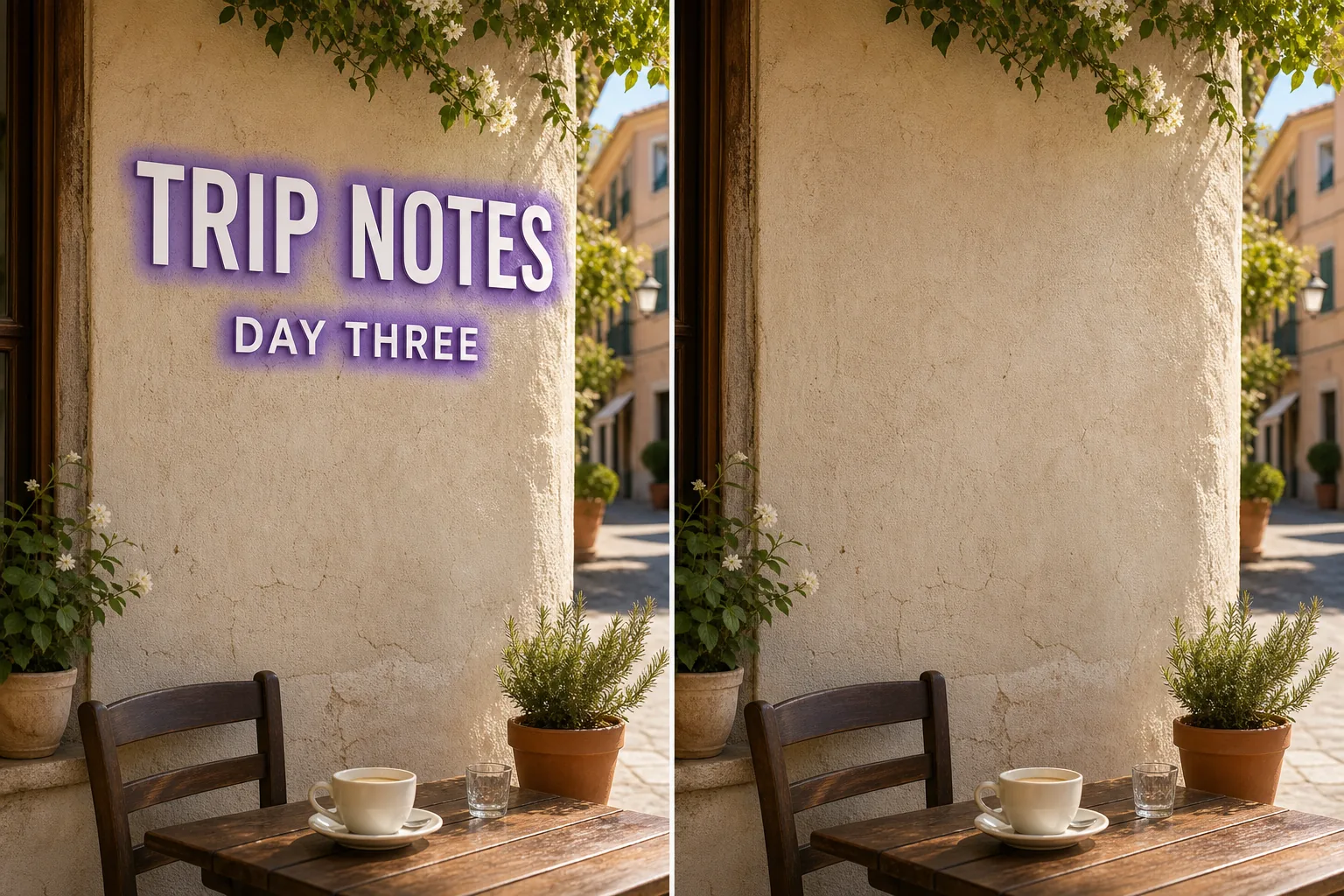
AI 텍스트 제거 작동 방식
Magic Eraser로 사진에서 텍스트을(를) 몇 초 만에 제거하세요. AI가 자동으로 배경을 복원합니다. iOS, Android, 웹에서 무료로 사용 가능. 웹, iOS 또는 Android에서 Magic Eraser를 열고 텍스트이(가) 있는 사진을 업로드하세요. JPEG, PNG, WebP를 지원합니다. 제거하려는 텍스트 위에 브러시로 칠하세요. 대상보다 약간 넓게 칠하면 AI가 더 깨끗한 테두리를 만듭니다. AI가 몇 초 만에 배경을 복원합니다. 결과를 확인하고 필요시 터치업 브러시로 수정한 후 원본 해상도로 내보내세요.
단계별 안내
- 1
사진 업로드
웹, iOS 또는 Android에서 Magic Eraser를 열고 텍스트이(가) 있는 사진을 업로드하세요. JPEG, PNG, WebP를 지원합니다.
- 2
영역 위에 브러시
제거하려는 텍스트 위에 브러시로 칠하세요. 대상보다 약간 넓게 칠하면 AI가 더 깨끗한 테두리를 만듭니다.
- 3
지우기 및 다운로드
AI가 몇 초 만에 배경을 복원합니다. 결과를 확인하고 필요시 터치업 브러시로 수정한 후 원본 해상도로 내보내세요.
추천 대상
- 웹, iOS 또는 Android에서 Magic Eraser를 열고 텍스트이(가) 있는 사진을 업로드하세요. JPEG, PNG, WebP를 지원합니다.
- 제거하려는 텍스트 위에 브러시로 칠하세요. 대상보다 약간 넓게 칠하면 AI가 더 깨끗한 테두리를 만듭니다.
- AI가 몇 초 만에 배경을 복원합니다. 결과를 확인하고 필요시 터치업 브러시로 수정한 후 원본 해상도로 내보내세요.
- 사진에서 텍스트을(를) 무료로 제거할 수 있나요?
- 텍스트 제거에 얼마나 걸리나요?
- 모바일에서도 작동하나요?
- 이미지 품질이 유지되나요?
참고 사항
보통 몇 초면 됩니다. AI가 칠한 영역을 처리하고 배경을 거의 즉시 복원합니다. 아니요. AI가 사진의 원래 해상도와 품질을 유지합니다. 복원된 영역은 주변 조명, 색상, 텍스처와 일치합니다.
자주 묻는 질문
- 사진에서 텍스트을(를) 무료로 제거할 수 있나요?
- 네. Magic Eraser 무료 플랜으로 일일 사용 한도 내에서 텍스트 제거가 가능합니다. Premium($29.99/년) 업그레이드 시 한도가 해제되고 고해상도 내보내기가 가능합니다.
- 텍스트 제거에 얼마나 걸리나요?
- 보통 몇 초면 됩니다. AI가 칠한 영역을 처리하고 배경을 거의 즉시 복원합니다.
- 모바일에서도 작동하나요?
- 네. Magic Eraser는 iOS, Android, 웹 브라우저에서 작동합니다. 어떤 기기에서든 텍스트을(를) 제거할 수 있습니다.
- 이미지 품질이 유지되나요?
- 아니요. AI가 사진의 원래 해상도와 품질을 유지합니다. 복원된 영역은 주변 조명, 색상, 텍스처와 일치합니다.