Skip to content
객체 제거

사진에서 물체 제거하기

Magic Eraser로 사진에서 물체을(를) 몇 초 만에 제거하세요. AI가 자동으로 배경을 복원합니다. iOS, Android, 웹에서 무료로 사용 가능.

Last updated

지금 사용해보기
10M+ users4.9 App Store ratingPhotos processed on-device — never stored
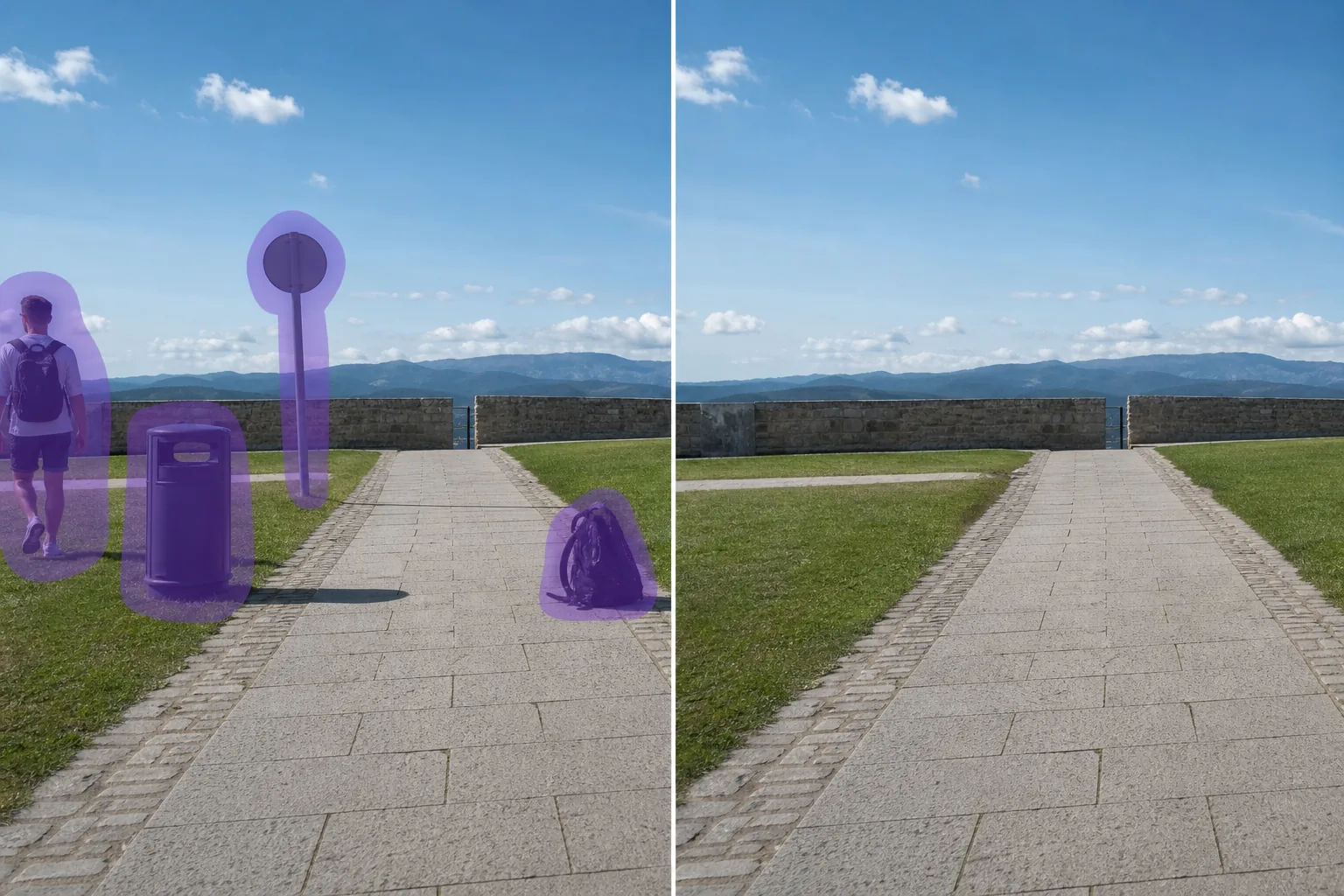
Photo before removing object with Magic Eraser
Before
Photo after removing object with Magic Eraser
After

AI 물체 제거 작동 방식

Most photos don't have one obvious flaw — they have a little of everything. A travel shot with a stranger walking through it and a bin in the corner. A new-listing photo with a car in the driveway and a recycling tote by the gate. A portrait with an exit sign hovering over someone's shoulder. This is the catch-all page for all of it: instead of hunting for the exact tool for each thing, you point one AI eraser at whatever doesn't belong. Magic Eraser uses AI inpainting — you mark the object, and the model synthesizes a believable reconstruction of what was likely behind it, matching the surrounding light, color, and texture. It's important to be clear about what that means: the tool does not recover the literal hidden pixels (the camera never saw them). It generates a plausible fill based on the rest of the frame. For everyday subjects — pavement, grass, sky, walls, water — that fill is usually convincing enough that no one can tell. If your object falls into a common category, there's often a dedicated page tuned for it (people, cars, text and signs, watermarks, glare, and more), but this general eraser handles the long tail of one-off objects that don't fit a neat label.

단계별 안내

  1. 1

    사진 업로드

    웹, iOS 또는 Android에서 Magic Eraser를 열고 물체이(가) 있는 사진을 업로드하세요. JPEG, PNG, WebP를 지원합니다.

  2. 2

    영역 위에 브러시

    제거하려는 물체 위에 브러시로 칠하세요. 대상보다 약간 넓게 칠하면 AI가 더 깨끗한 테두리를 만듭니다.

  3. 3

    지우기 및 다운로드

    AI가 몇 초 만에 배경을 복원합니다. 결과를 확인하고 필요시 터치업 브러시로 수정한 후 원본 해상도로 내보내세요.

추천 대상

참고 사항

Because this is AI inpainting, the eraser fills the gap with a synthesized reconstruction, not the real pixels that were hidden behind the object — the camera never captured them. The quality of that fill depends mostly on what's around the object. When the background is simple or repeating — sky, grass, pavement, water, a plain wall — the rebuild is usually seamless and no one can tell anything was removed. It gets harder when the object sits in front of something detailed or structured: a face, repeating tile or brick, text on a sign, or a complex pattern the model has to invent. There you may see slight smudging, a soft patch, or a guess that doesn't quite line up. Two habits help most. First, work in smaller passes for big or layered objects so the model has more reference pixels each time. Second, use the touch-up brush on any seams instead of redoing the whole erase. Large objects that take up most of the frame, or objects in front of clear text, are the cases most likely to need a manual cleanup pass. And for high-stakes uses — news, evidence, legal, or insurance photos — don't alter the image; keep AI removal to personal photos, listings, and creative work, and disclose edits where a platform or MLS requires it.

자주 묻는 질문

사진에서 물체을(를) 무료로 제거할 수 있나요?
네. Magic Eraser 무료 플랜으로 일일 사용 한도 내에서 물체 제거가 가능합니다. Premium($29.99/년) 업그레이드 시 한도가 해제되고 고해상도 내보내기가 가능합니다.
물체 제거에 얼마나 걸리나요?
보통 몇 초면 됩니다. AI가 칠한 영역을 처리하고 배경을 거의 즉시 복원합니다.
모바일에서도 작동하나요?
네. Magic Eraser는 iOS, Android, 웹 브라우저에서 작동합니다. 어떤 기기에서든 물체을(를) 제거할 수 있습니다.
이미지 품질이 유지되나요?
아니요. AI가 사진의 원래 해상도와 품질을 유지합니다. 복원된 영역은 주변 조명, 색상, 텍스처와 일치합니다.