
How to remove a price sticker from a photo
Magic Eraser로 How to remove a price sticker from a photo하는 방법을 알아보세요. 무료 AI 도구를 사용한 간단한 단계별 가이드. 웹, iOS, Android에서 사용 가능.
Last updated
지금 사용해보기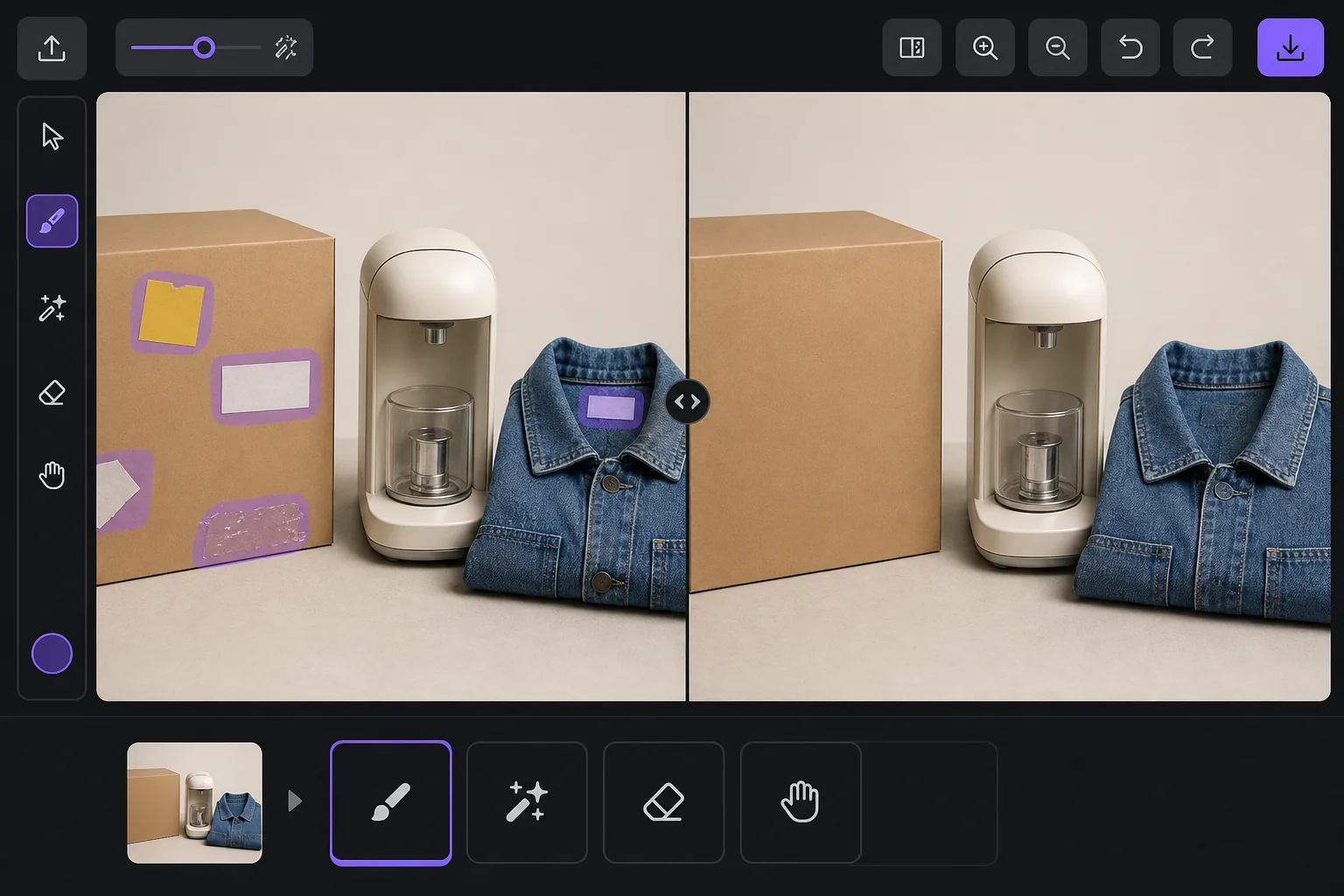
Why a visible price sticker hurts your resale listing — Magic Eraser
A price tag in a listing photo quietly works against you. Buyers see the original retail or clearance price and anchor their offer below it, so a leftover $4.99 yellow sticker can cost you more than five dollars in negotiation. It also signals the item came from a closeout bin or was already returned once, which lowers perceived condition even when the product is genuinely good. And some platforms care: marketplaces and their image guidelines generally want a clean product shot, and a barcode or store tag clutters the main image where buyers decide in a half-second whether to tap. Peeling a sticker off physically often leaves adhesive residue, a torn label, or a faded rectangle where the box was protected from light — so the photo problem survives the physical one. Removing it in the photo is the faster fix. A price sticker is rendered onto the image pixels just like any other object, so it replaces whatever box art, fabric, or surface sat behind it. Magic Eraser's AI brushes the sticker away and generates a plausible reconstruction of that hidden area from the surrounding pixels. Be clear on what that means: over a flat colored box or a plain surface the result is usually seamless, but the AI is synthesizing what was likely there, not recovering literal hidden detail — so printed text or a logo that sat entirely under the sticker is invented, not restored.
Before you start
단계별 안내
Start with 사진 업로드. The result preview above and tips below use this guide's existing content; no separate before-and-after proof is assumed.
- 1
사진 업로드
웹, iOS 또는 Android에서 Magic Eraser를 여세요. JPEG, PNG, HEIC, WebP 사진을 드래그 앤 드롭하세요. 계정 없이 시작 가능.
- 2
도구와 영역 선택
적절한 도구를 선택하고 처리할 영역을 지정하세요. AI가 자동으로 분석하고 몇 초 안에 변경 사항을 적용합니다.
- 3
결과 다운로드
결과를 미리 보고 편집된 사진을 다운로드하세요. 고품질 PNG 또는 JPEG로 내보내기 가능.
추천 대상
- eBay and Facebook Marketplace sellers cleaning price tags off secondhand items before listing
- Resellers and thrift flippers removing clearance and markdown stickers that anchor buyers low
- Hiding barcode and store-inventory labels stuck to product boxes and packaging
- Removing price gun tags and plastic fasteners from clothing and accessory photos
- Erasing adhesive residue or the faded outline left after a sticker was peeled off by hand
최상의 결과를 위한 팁
Whenever you can, peel the sticker off the real item and photograph the actual surface — a true photo always beats a reconstruction, and it spares you any question about whether the listing image is accurate. Use the eraser for what's left behind: adhesive gunk, a torn corner, or the sun-faded rectangle a long-stuck tag protected. Keep your edits honest about the product itself. Removing a price tag or barcode is fine, but don't erase genuine flaws a buyer needs to see — scratches, stains, or damage belong in the listing, and most marketplaces treat a doctored condition photo as grounds for a return or a policy strike. Reconstruction quality tracks the background: a sticker on a flat single-color box vanishes cleanly, while one sitting across detailed printed artwork, a logo, or a model number is the hardest case, because the AI has to guess at text it can't see. If part of the hidden label is still visible elsewhere on the item, photograph that angle instead. Finally, shoot a little wider than the sticker so there's plenty of surrounding surface for the AI to sample from — tightly cropped tags leave it less to work with.
자주 묻는 질문
- How to remove a price sticker from a photo 기능은 무료인가요?
- 네, Magic Eraser는 일일 무료 한도 내에서 How to remove a price sticker from a photo이(가) 가능합니다. Pro로 업그레이드하면 무제한 처리와 고해상도 내보내기가 가능합니다.
- How to remove a price sticker from a photo은(는) 얼마나 걸리나요?
- 몇 초면 됩니다. Magic Eraser의 AI는 사진을 빠르게 처리하며, 대부분 업로드 직후 결과를 확인할 수 있습니다.
- 모바일에서도 사용할 수 있나요?
- 네, Magic Eraser는 iOS, Android 및 모든 웹 브라우저에서 사용 가능합니다. 기기 간 자유롭게 전환할 수 있습니다.
- 이미지 품질이 저하되나요?
- 아니요, Magic Eraser는 원본 사진 품질을 유지합니다. AI가 세부 사항과 선명도를 보존하면서 스마트하게 처리합니다.