
Remove an Emoji From an iPhone Photo
Magic Eraser로 iPhone에서 이모지 제거하는 방법을 알아보세요. 무료 AI 도구를 사용한 간단한 단계별 가이드. 웹, iOS, Android에서 사용 가능.
Last updated
지금 사용해보기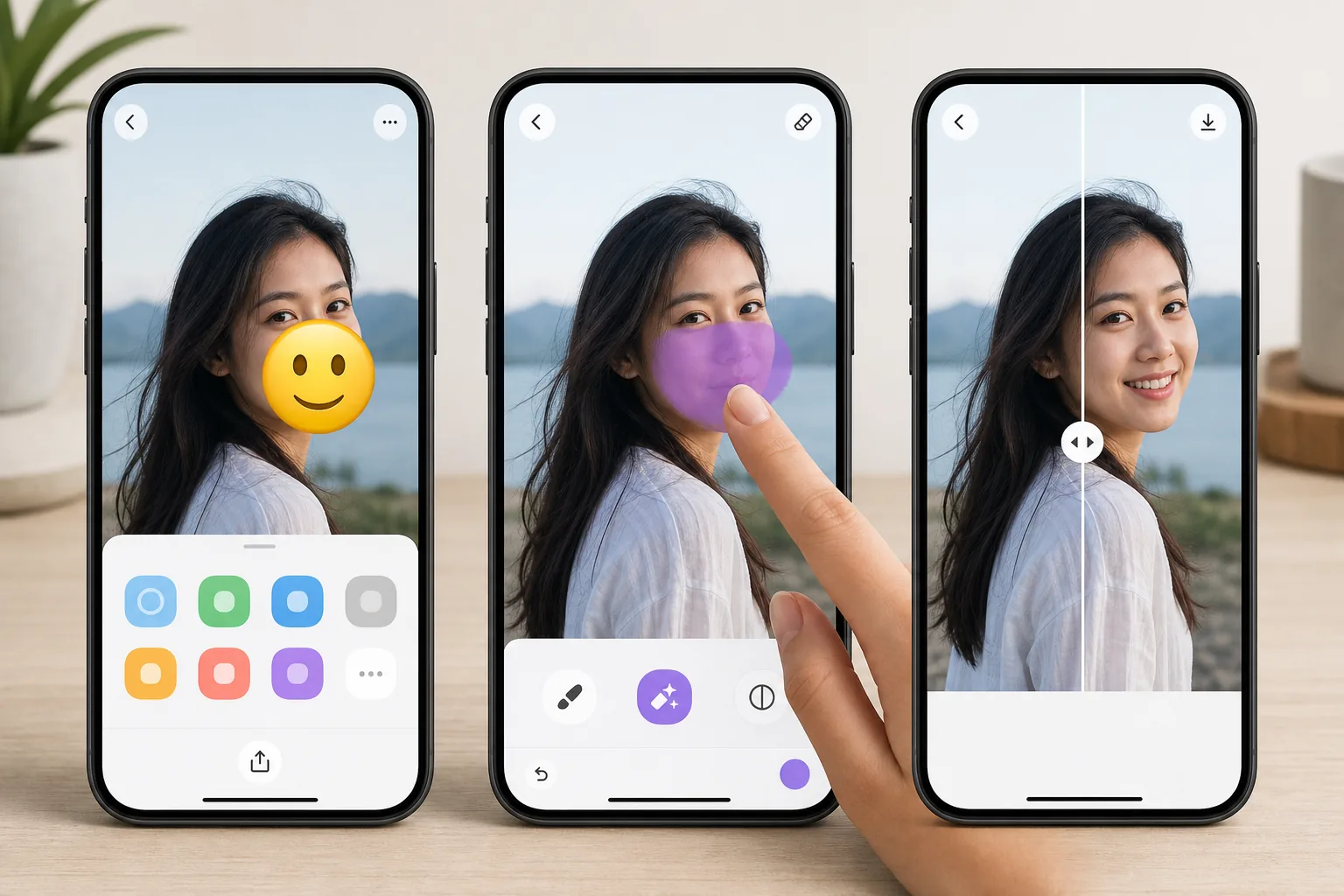
Erase emojis without leaving your iPhone — Magic Eraser
Emojis pile up on iPhone photos fast — a sticker you slapped on in Messages, a 😂 added in Markup, or a face cover someone dropped over a shot before AirDropping it to you. Once it is saved to your camera roll, that emoji is baked into the pixels, and iOS gives you no built-in way to peel it back off. Magic Eraser fixes that on-device. You open the photo in the iOS Photos app, send it to Magic Eraser through the standard share sheet (or the Magic Eraser app), brush over the emoji, and the AI inpainting reconstructs a plausible version of whatever was behind it. To be clear: the AI synthesizes a believable fill based on the surrounding texture — sky, wall, skin, grass — it does not recover the literal original pixels or reveal a hidden face. The result lands back in your Photos library at full resolution, free, and with no watermark on the free tier.
Before you start
단계별 안내
Start with 사진 업로드. The result preview above and tips below use this guide's existing content; no separate before-and-after proof is assumed.
- 1
사진 업로드
웹, iOS 또는 Android에서 Magic Eraser를 여세요. JPEG, PNG, HEIC, WebP 사진을 드래그 앤 드롭하세요. 계정 없이 시작 가능.
- 2
도구와 영역 선택
적절한 도구를 선택하고 처리할 영역을 지정하세요. AI가 자동으로 분석하고 몇 초 안에 변경 사항을 적용합니다.
- 3
결과 다운로드
결과를 미리 보고 편집된 사진을 다운로드하세요. 고품질 PNG 또는 JPEG로 내보내기 가능.
추천 대상
- Wiping a 😂 or 🔥 sticker you added in iMessage or Markup off a saved photo
- Clearing an emoji face-cover someone placed before AirDropping a picture to you
- Cleaning up a screenshot where an emoji landed over the part you actually wanted
- Prepping a camera-roll shot for posting after removing a playful sticker
- Removing an emoji from a downloaded or received iPhone photo without a Mac or laptop
최상의 결과를 위한 팁
Brush slightly past the emoji's edges — sticker outlines and soft shadows extend a few pixels beyond the visible art, and missing them leaves a faint halo. Emojis sitting on flat backgrounds (a clear sky, a solid-color wall, blurred bokeh) reconstruct almost invisibly; ones plastered over a face, fine text, or busy patterns are harder, since the AI is inventing a plausible fill rather than restoring true detail. If the first pass looks slightly soft, zoom in on your iPhone and re-brush just the rough area instead of redoing the whole thing. Always keep the original in Photos until you are happy — iOS makes duplicating a shot easy, so edit the copy.
자주 묻는 질문
- iPhone에서 이모지 제거 기능은 무료인가요?
- 네, Magic Eraser는 일일 무료 한도 내에서 iPhone에서 이모지 제거이(가) 가능합니다. Pro로 업그레이드하면 무제한 처리와 고해상도 내보내기가 가능합니다.
- iPhone에서 이모지 제거은(는) 얼마나 걸리나요?
- 몇 초면 됩니다. Magic Eraser의 AI는 사진을 빠르게 처리하며, 대부분 업로드 직후 결과를 확인할 수 있습니다.
- 모바일에서도 사용할 수 있나요?
- 네, Magic Eraser는 iOS, Android 및 모든 웹 브라우저에서 사용 가능합니다. 기기 간 자유롭게 전환할 수 있습니다.
- 이미지 품질이 저하되나요?
- 아니요, Magic Eraser는 원본 사진 품질을 유지합니다. AI가 세부 사항과 선명도를 보존하면서 스마트하게 처리합니다.