
AI로 이미지를 확장하는 방법
너무 촘촘하게 잘렸거나, 화면 비율이 잘못되었거나, 공간이 더 필요합니까? AI 아웃페인팅은 사진을 원본 경계 너머로 확장하여 기존 장면과 완벽하게 일치하는 새로운 콘텐츠를 생성합니다.
Last updated
지금 이미지 확장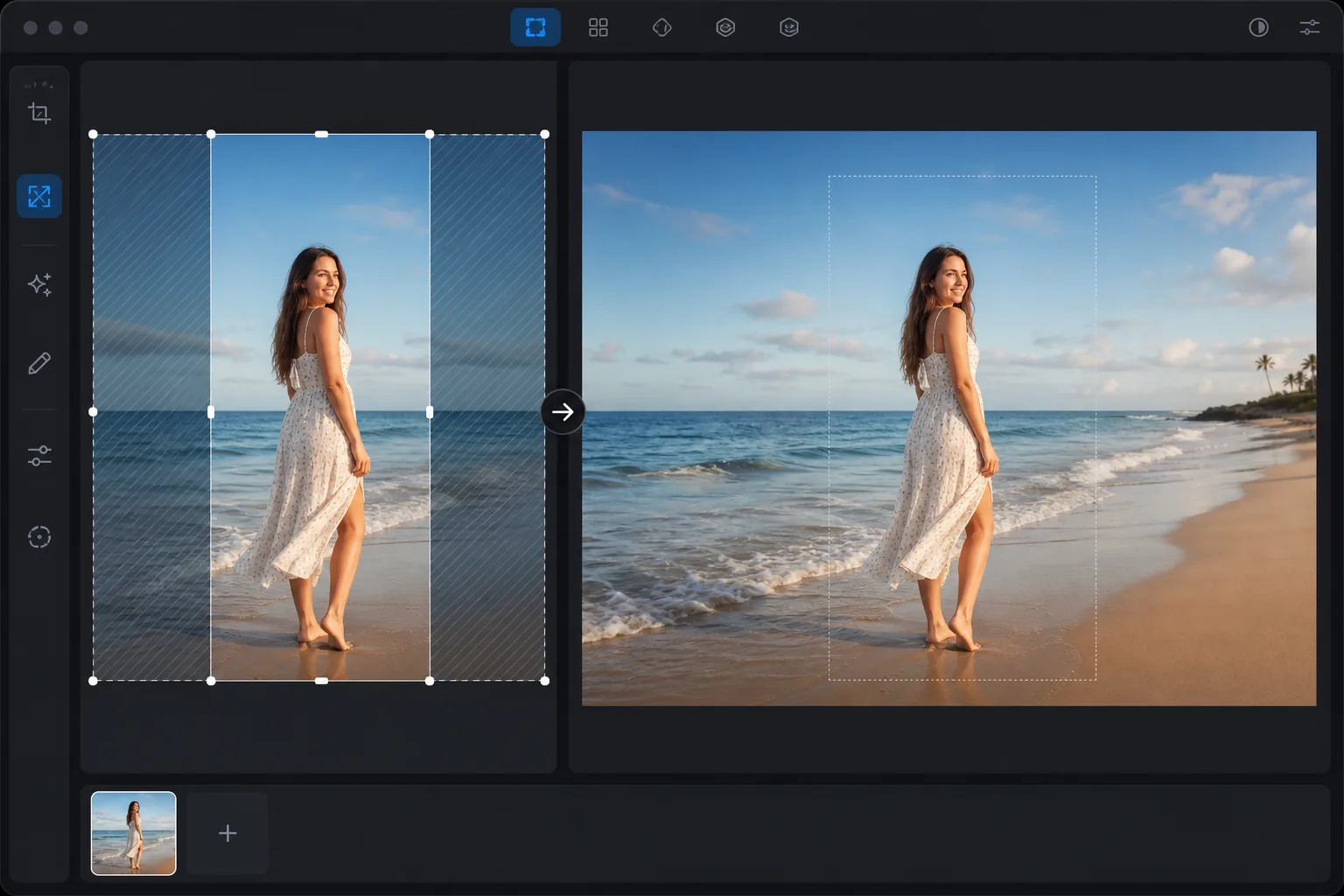
AI 아웃페인팅이 하는 일
AI로 이미지를 확장하려면 웹, iOS, Android에서 Magic Eraser를 열고 사진을 업로드한 다음, 늘리고 싶은 가장자리 쪽으로 캔버스를 바깥으로 드래그하거나(또는 새 화면 비율을 선택하고) AI가 새 영역을 아웃페인팅하도록 두면 됩니다. 가입 없이 무료로 사용할 수 있어요. 확장된 부분은 실제로 거기 있던 것을 되살리는 게 아니라 장면에 맞춰 AI가 새로 만들어내는 것이라서, 하늘, 물, 잔디, 단색 벽처럼 트여 있거나 반복되는 가장자리에서 가장 잘 작동합니다. 한 번에 크게 늘리기보다는 조금씩 단계적으로 확장하고, 만들어낸 디테일이 더 쉽게 눈에 띄는 얼굴이나 가장자리 근처의 텍스트와는 확장 영역을 떨어뜨려 두세요. AI 아웃페인팅(생성 확장 또는 자르기 해제라고도 함)은 기존 이미지 가장자리 너머에 새로운 콘텐츠를 추가합니다. 단순한 캔버스 확장(빈 공간 추가)과 달리 AI 아웃페인팅은 상황에 맞게 적절한 콘텐츠를 생성합니다. 즉, 사진 가장자리에 하늘이 표시되면 AI는 일치하는 구름과 색상으로 하늘을 확장합니다. 가장자리에 방이 표시되면 AI는 그럴듯한 방 연속을 생성합니다. 이는 사진이 너무 촘촘하게 잘렸을 때, 종횡비를 변경해야 할 때(세로에서 가로로 또는 그 반대로), 소셜 미디어 플랫폼에서 원본과 일치하지 않는 크기를 요구하거나, 단순히 피사체 주변에 더 많은 여유 공간을 원하는 경우에 유용합니다. AI는 각 가장자리의 콘텐츠를 분석하고 사진이 원래 더 넓은 시야에서 촬영된 것처럼 보이는 자연스러운 확장을 생성합니다.
Before you start
세 단계로 이미지 확장
Start with 이미지 업로드. The result preview above and tips below use this guide's existing content; no separate before-and-after proof is assumed.
- 1
이미지 업로드
웹, iOS 또는 Android에서 Magic Eraser을(를) 엽니다. 연장하고 싶은 사진을 업로드하세요. 인물 사진, 풍경 사진, 제품 사진, 소셜 미디어 콘텐츠 등 모든 이미지 유형이 가능합니다. JPEG, PNG, HEIC 및 WebP가 지원됩니다.
- 2
확장 방향 및 크기 선택
확장할 모서리를 위쪽, 아래쪽, 왼쪽, 오른쪽 또는 모든 측면 중에서 선택합니다. 확장량(추가할 새 콘텐츠의 양)을 설정합니다. 종횡비 변환(세로에서 가로로)의 경우 측면을 확장합니다. 꽉 자른 인물 사진 위에 머리 공간을 추가하려면 상단을 확장하세요.
- 3
생성 및 검토
AI는 확장된 각 가장자리에서 기존 장면의 조명, 색상 팔레트, 원근 및 콘텐츠와 일치하는 새로운 콘텐츠를 생성합니다. 원본 콘텐츠가 생성된 콘텐츠와 만나는 전환을 확인하세요. 원활해야 합니다. 정확성과 일관성을 위해 생성된 콘텐츠를 검토합니다. 새롭고 더 큰 해상도로 내보냅니다.
다음에 가장 적합
- 다양한 플랫폼 요구 사항에 맞게 인물 사진을 가로 사진으로(또는 그 반대로) 변환
- 더 나은 구도를 위해 촘촘하게 자른 피사체 주변에 숨 쉴 공간을 추가합니다.
- 자르지 않고 특정 소셜 미디어 크기에 사진 맞추기(인스타그램 광장, 페이스북 커버, 트위터 헤더)
- 더 많은 수평 공간이 필요한 배너 또는 히어로 이미지의 배경 확장
- 양면을 확장하여 표준 사진에서 파노라마 효과 만들기
최상의 결과를 위한 팁
AI는 가장자리 콘텐츠가 예측 가능할 때 최상의 확장을 생성합니다. 하늘, 잔디, 물, 벽 및 단순한 표면은 패턴이 일관되고 AI가 일치하는 콘텐츠를 생성할 수 있기 때문에 자연스럽게 확장됩니다. 가장자리의 복잡한 장면(군중, 상세한 건축물, 텍스트)은 AI가 그럴듯한 콘텐츠를 만들어내야 하기 때문에 더 어렵습니다. 인물 사진에서 최상의 결과를 얻으려면 피사체보다는 배경을 확장하십시오. 즉, 사람 위의 하늘이나 공간을 확장하여 피사체를 원본 이미지 영역 내에 완전히 유지하십시오. 작은 확장(원래 크기의 10-25%)은 큰 확장(50%+)보다 더 설득력 있는 결과를 생성합니다. 왜냐하면 AI가 생성해야 하는 것과 관련된 참조가 더 많기 때문입니다. 매우 큰 확장의 경우 여러 개의 작은 패스를 수행하십시오.
자주 묻는 질문
- 외부 페인팅은 자르기와 동일합니까?
- 예. 아웃페인팅, 자르기 취소 및 생성 확장은 모두 동일한 AI 기능을 참조합니다. 즉, 원본 이미지 경계 너머에 새 콘텐츠를 추가합니다. Magic Eraser에서는 이를 이미지 확장이라고 부릅니다.
- 한 방향으로만 연장할 수 있나요?
- 예. 상단만, 측면만 또는 4개의 가장자리 모두 등 가장자리 조합을 확장합니다. 더 많은 하늘(위), 더 넓은 배경(측면), 더 많은 전경(아래) 등 필요한 사항에 따라 선택하세요.
- 확장된 영역이 원본과 일치합니까?
- 예. AI는 원본 이미지의 조명, 색온도, 원근감, 콘텐츠 스타일에 맞는 콘텐츠를 생성합니다. 가장자리 내용이 일관되면 원본 영역과 생성된 영역 사이의 전환이 원활해집니다.
- 이미지 확장은 무료인가요?
- 예. AI 이미지 확장은 일일 사용량 제한이 있는 무료 계층에서 사용할 수 있습니다. 프리미엄은 제한을 제거하고 더 큰 확장을 허용합니다.
- 어디까지 확장해야 어색해 보이지 않을까요?
- 명확한 한계가 있는 건 아니지만, 더 많이 추가할수록 품질은 떨어집니다. 새로 생기는 픽셀은 촬영된 게 아니라 전부 AI가 만들어낸 것이기 때문이에요. 화면 비율을 바꾸거나 약간의 여백을 더하는 정도의 작거나 적당한 확장은 보통 자연스럽게 이어집니다. 캔버스를 두 배 이상으로 늘리는 순간부터 만들어낸 패턴, 반복되는 사물, 어색한 형태가 나타나기 쉬운데, 특히 복잡한 장면에서 그렇습니다. 크게 바꿔야 한다면 여러 번에 걸쳐 조금씩 나눠 확장하고 매번 결과를 확인하세요. 그리고 하늘, 물, 바닥처럼 내용이 단순한 가장자리를 활용하면 AI가 채워야 할 영역이 가장 예측 가능해집니다.