
AI Filter style
AIタイポグラフィ写真フィルター
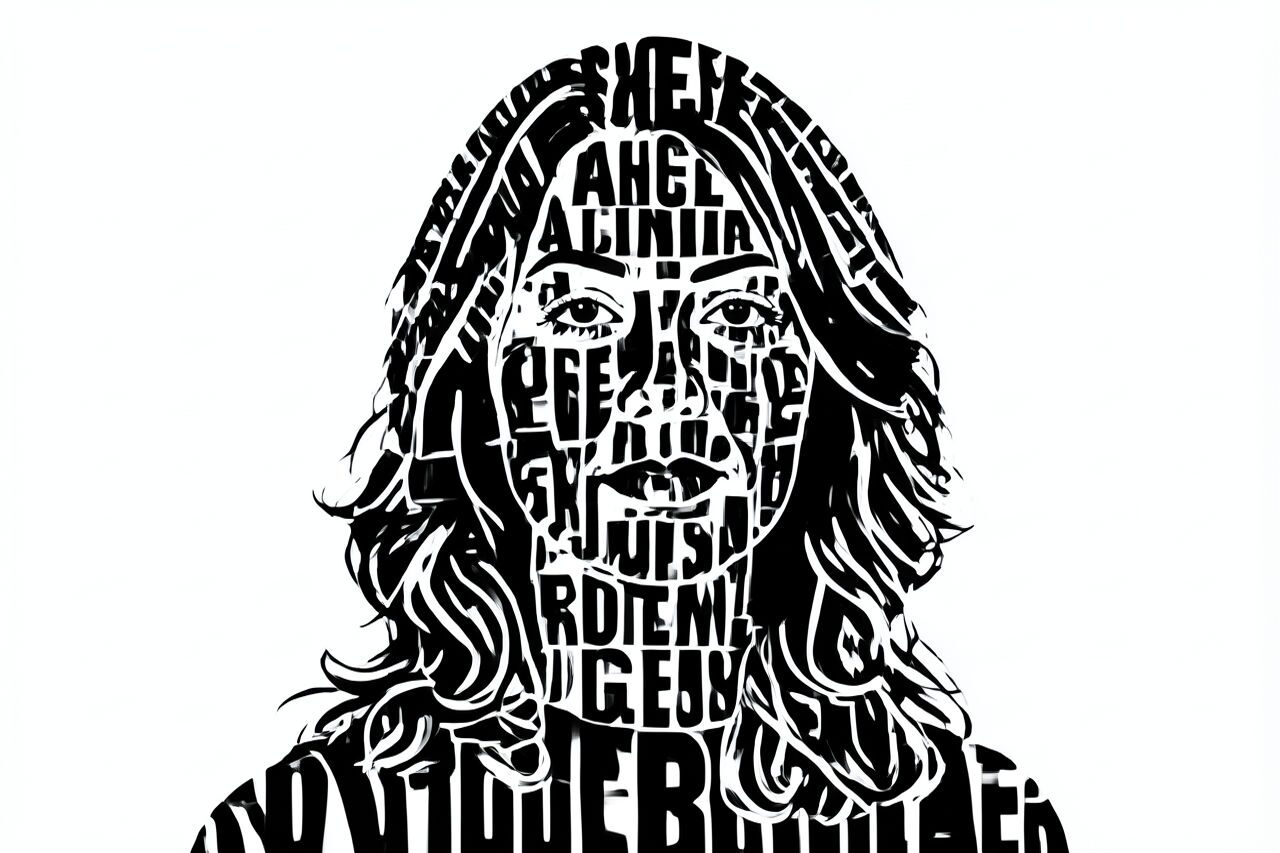
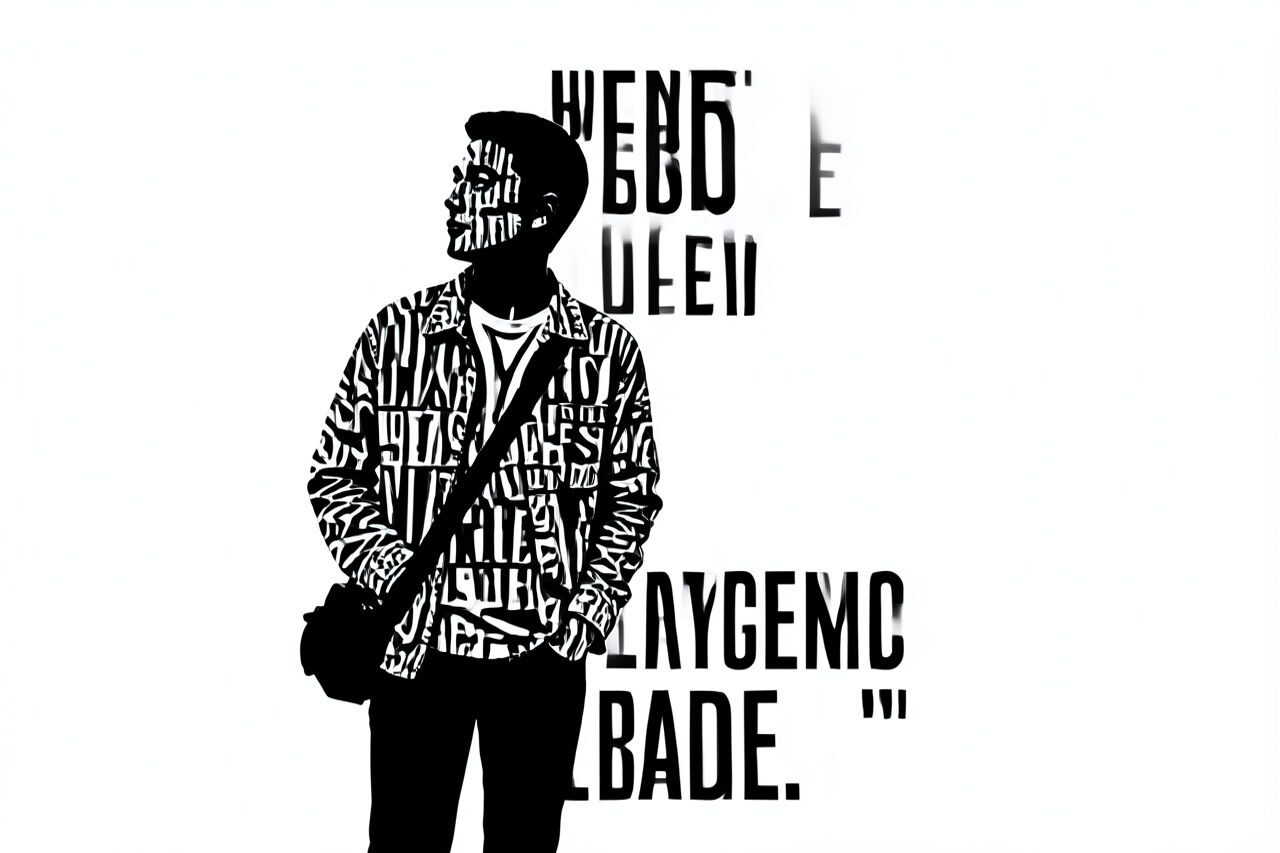
主役を見分けやすく保ちながら、写真を文字中心の構成に変換します。ポスター、カバー、SNS画像、キャンペーン案に使えます。生成された文字は視覚要素として扱い、正確な文言は編集可能なテキストツールで追加してください。
Use case
人物や物を主役にしたポスターやカバーの案。
Use case
表情豊かな字形と大胆なレイアウトのSNS画像やキャンペーン案。
Use case
写真と文字表現を組み合わせたアルバム、イベント、グッズの方向性。
Filter preview
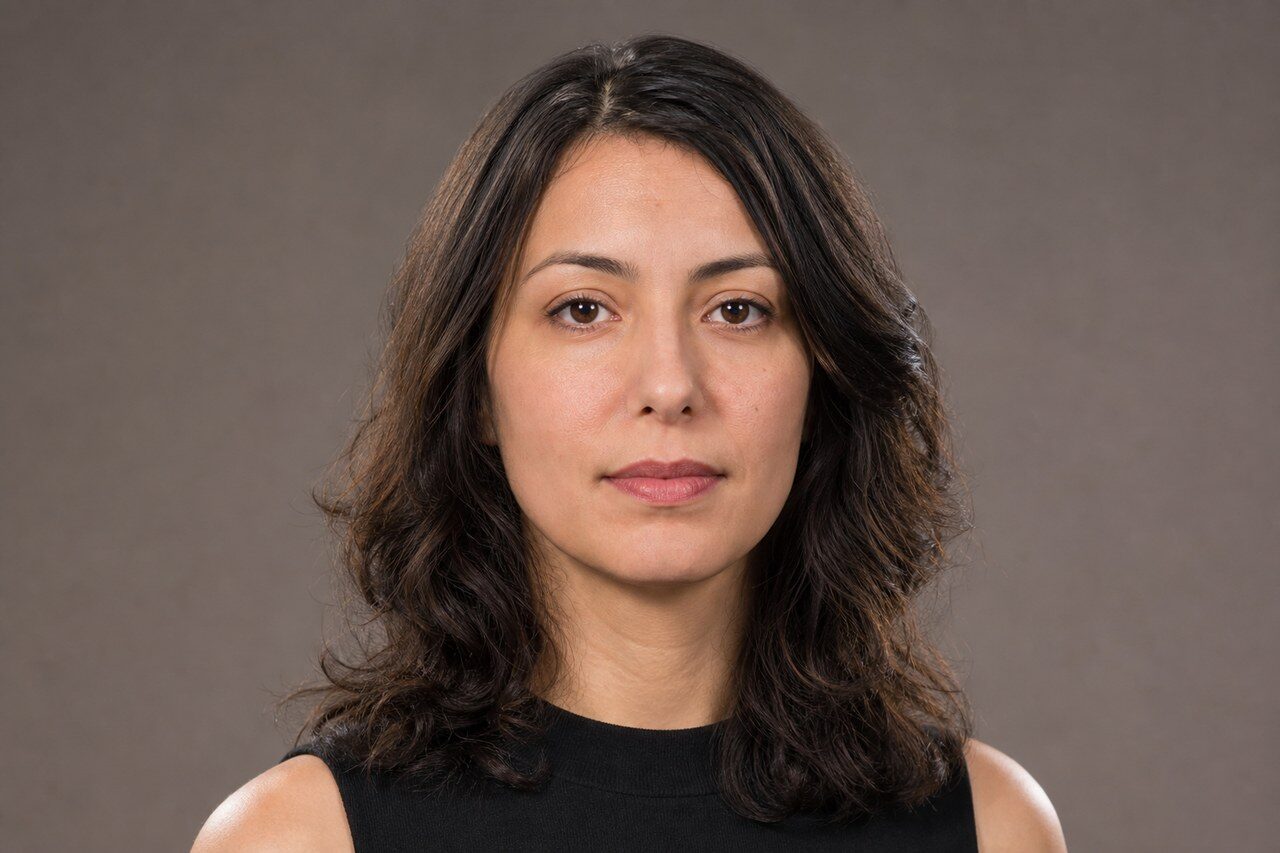
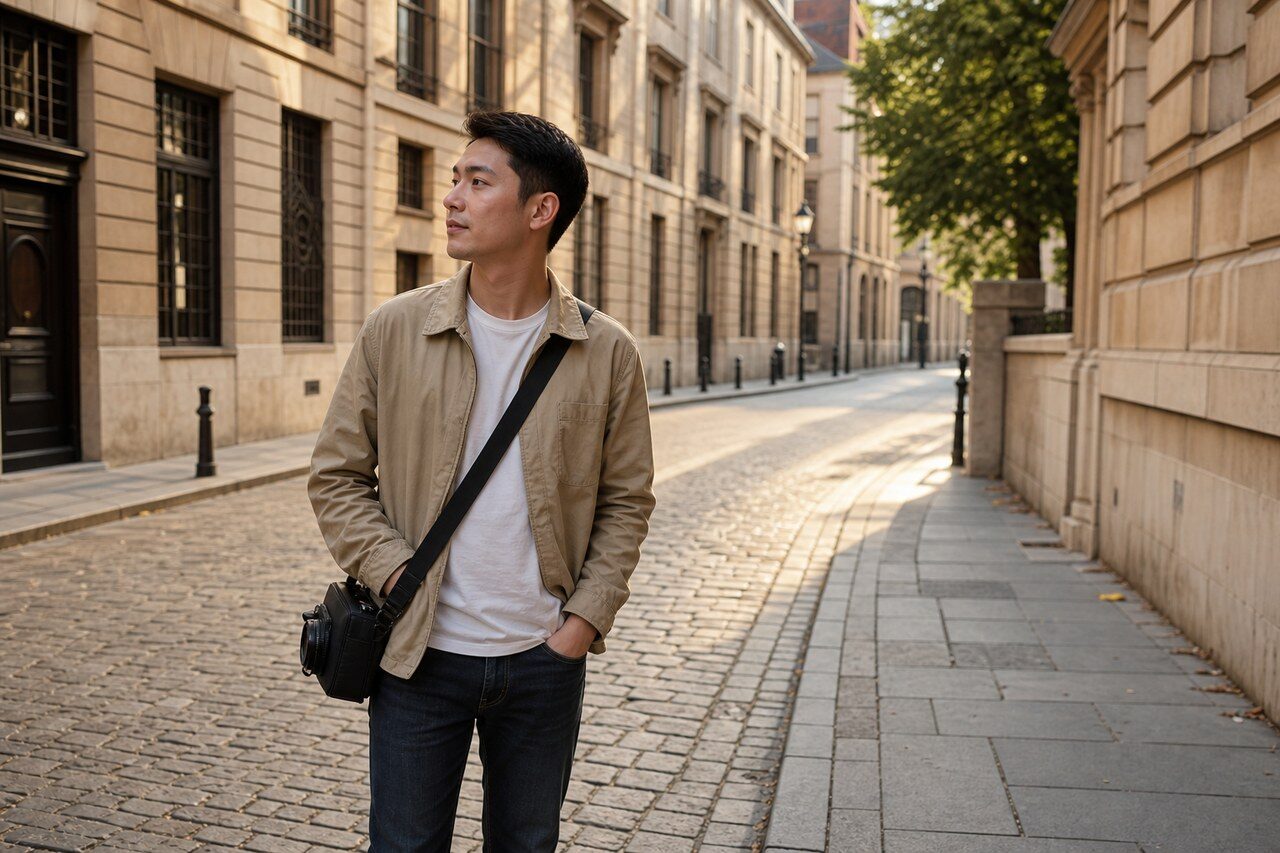
Compare the original photo with the typographic result
The example uses a generated source photo and the same filter API path as the app, so users can judge the visual treatment before uploading their own image.
More examples
Test the typographic filter on different photo types
Compare portrait, product, and pet examples before opening the filter. Each result uses the same filter API path as the Magic Eraser app.

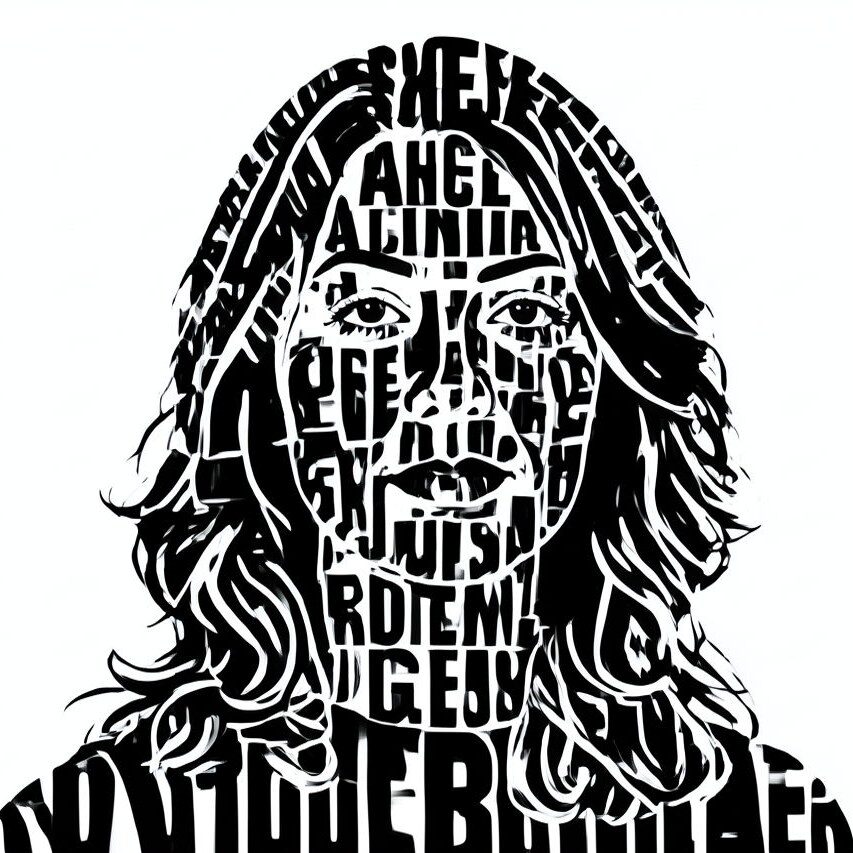
Portrait
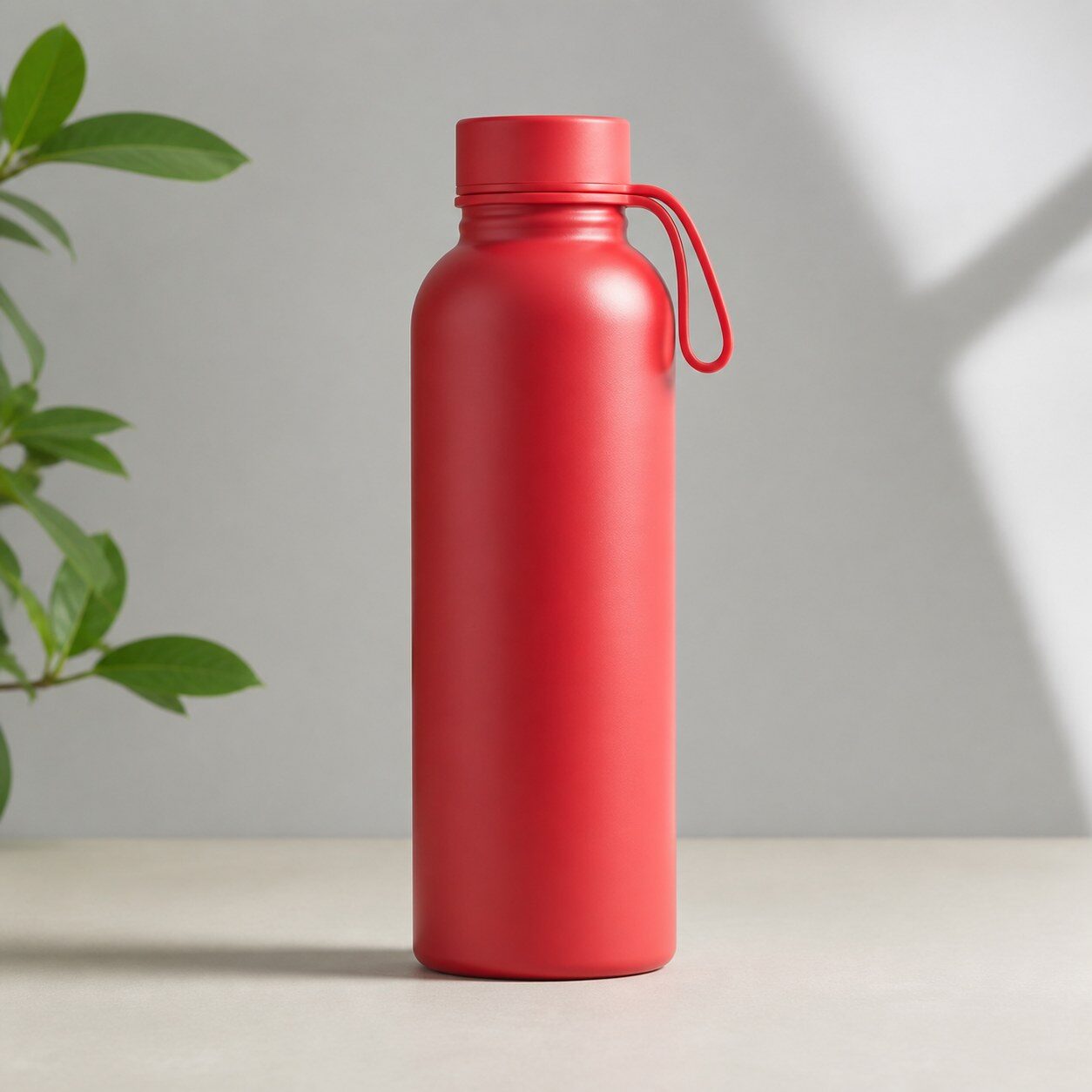
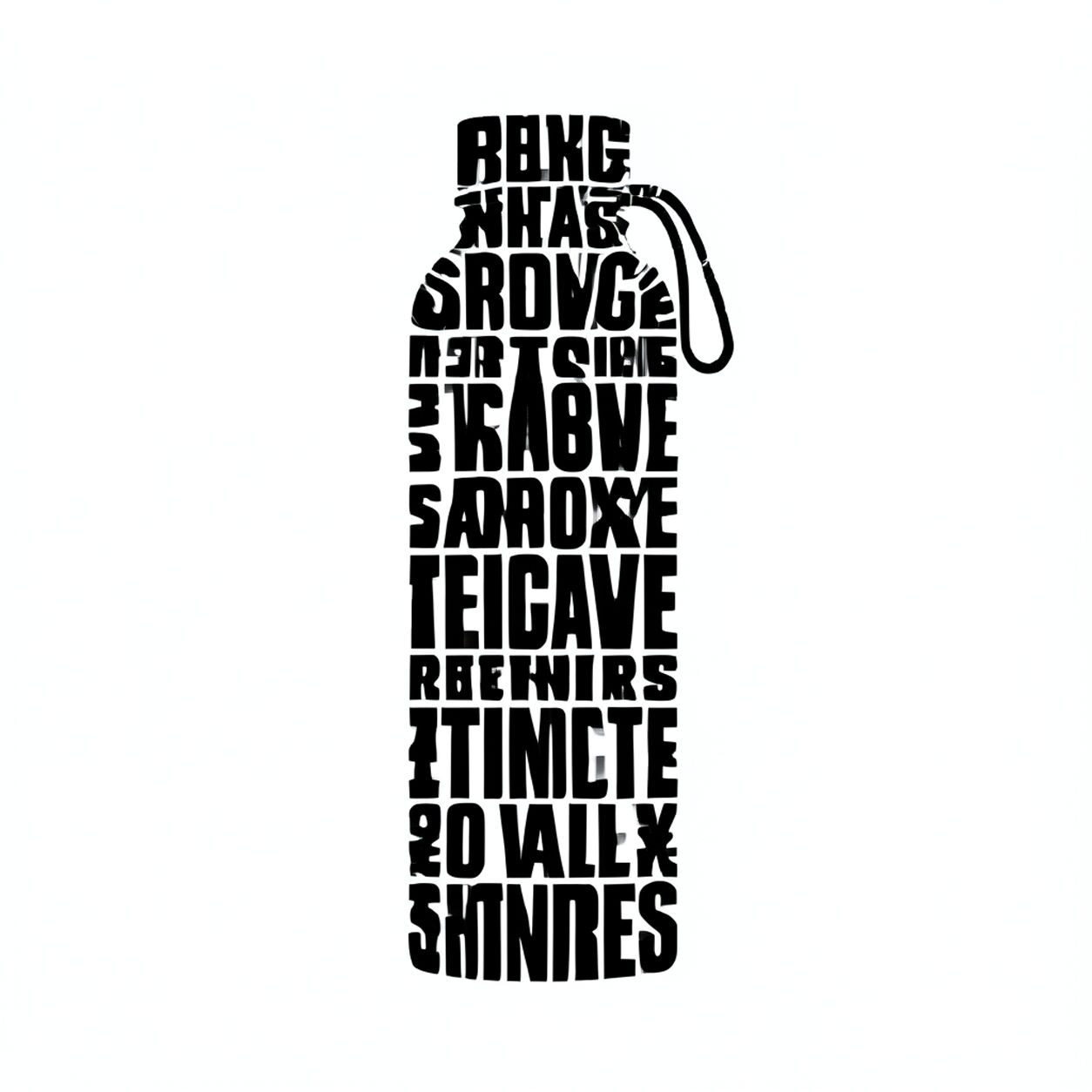
Product

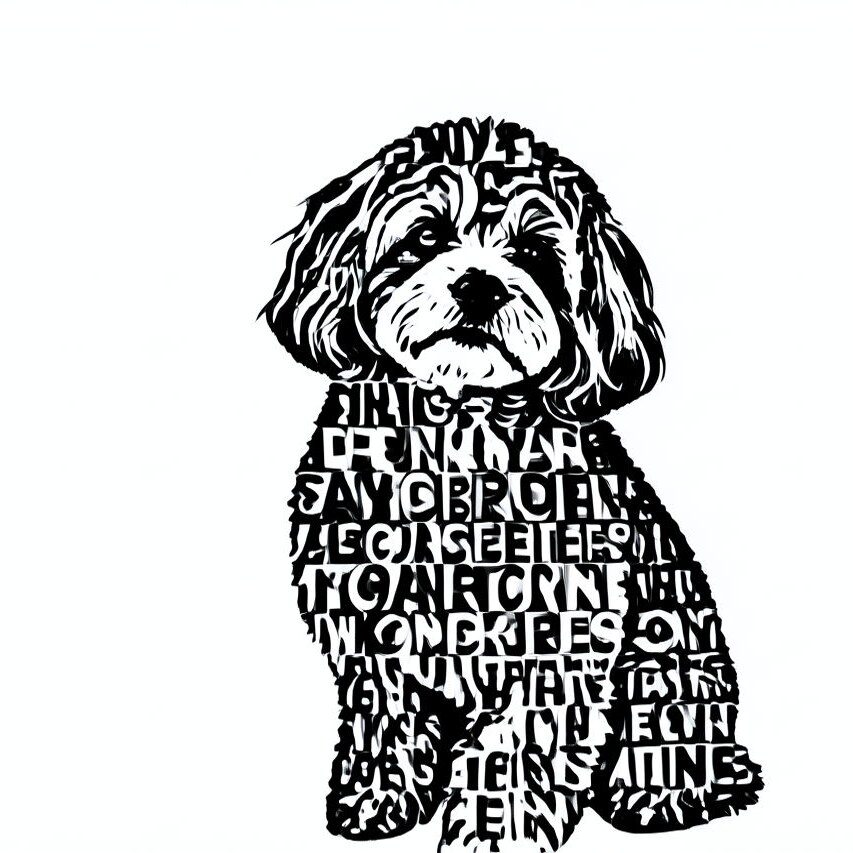
Pet
Photo workflow
How to get a cleaner typographic filter result
主役が一つで、周囲がすっきりした鮮明な写真を選びます。
フィルターを開いて写真をアップロードし、被写体、字形、構図を確認します。
切り抜きや不要部分の除去を行い、公開前に生成文字を正確な編集可能テキストへ置き換えます。
Best source photos
- 背景から被写体が明確に分かれたポートレートやプロフィール写真。
- シンプルな背景の商品や物の写真。
- ポスター配置用の余白がある日常・イベント写真。
Filter tips
- 名前、日付、価格など正確さが必要な文言に生成文字を使わないでください。
- 背景がシンプルだと文字風の形を読み取りやすくできます。
- 書き出す前に顔、手、ロゴ、細部を確認してください。
Before upload checklist
- Use the largest clean version of the photo, not a compressed screenshot or reposted image.
- Crop loosely before filtering so the AI has enough room around the subject.
- Remove obvious distractions first if they sit directly on the face, product, or main subject.
- Check the result at the size where it will be used: profile image, feed post, story, thumbnail, or banner.
When this filter is a good fit
Choose the typographic filter when the original photo already has a clear subject and the goal is a recognizable stylized version, not a fully new generated scene. It is strongest for social, creator, profile, event, and campaign images where mood matters more than documentary accuracy.
Use a different workflow when the image needs exact product color, legal documentation, medical accuracy, or unmodified identity details. In those cases, use cleanup, crop, enhancement, or background tools instead of a heavy creative filter.
Free browser tools after filtering
FAQ
What should I upload?
Use a clear photo with one main subject. Strong lighting and simple backgrounds usually make the AI filter easier to control.
Can I keep editing after the filter?
Yes. After applying the filter, use Magic Eraser to crop, clean distractions, refine backgrounds, and export the final image.
Is this filter selected automatically?
The CTA opens AI Filter with the typographic style parameter, and the app falls back safely if the filter changes.