
AI Filter style
AIテクスチャ写真フィルター
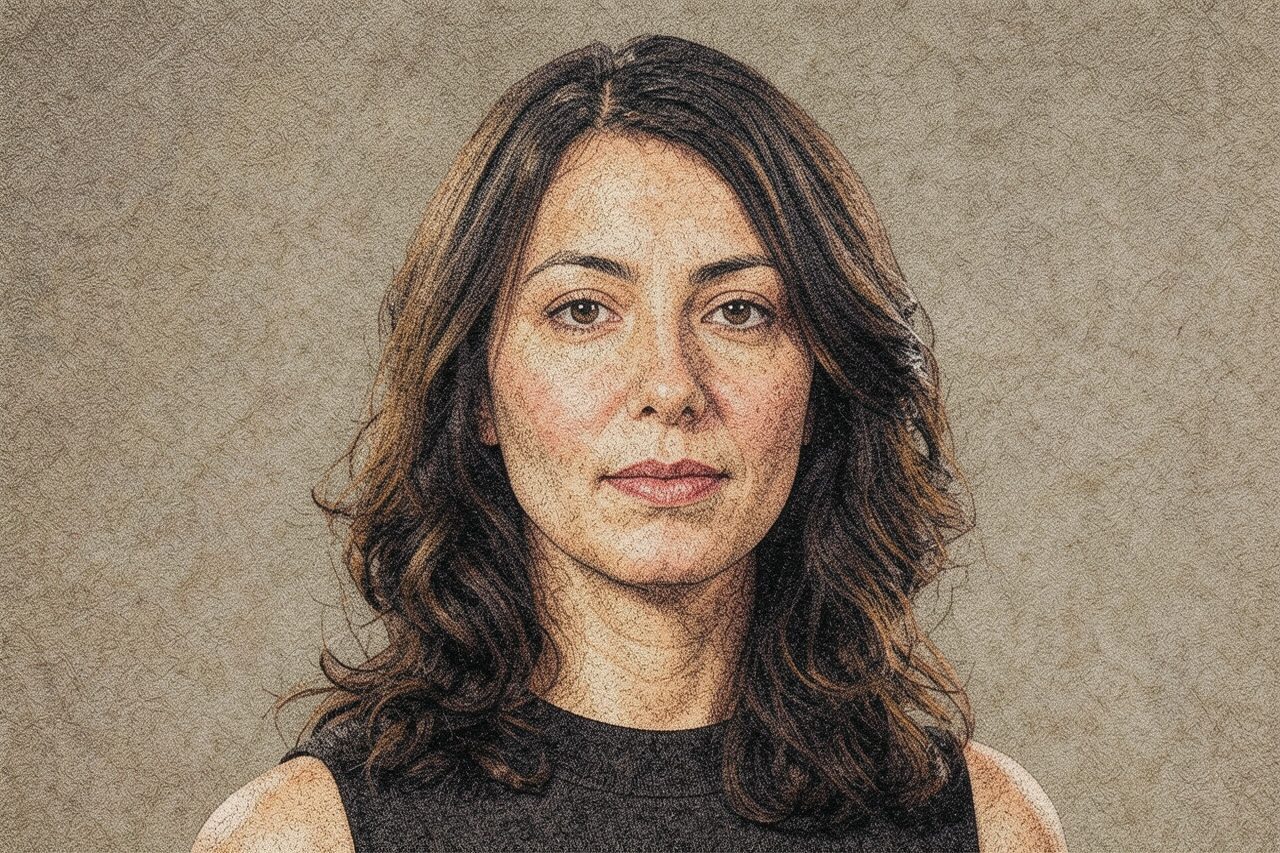
主役を認識できる状態に保ちながら、写真に質感のある表面表現を加えます。ポートレート、商品、ペット、旅行写真、編集ビジュアルに適しています。創作的な変換のため、顔、細い輪郭、文字、ロゴ、正確な商品色を確認してください。

Use case
表面感を加えた編集ポートレート、プロフィール画像、SNS投稿。
Use case
厳密な色より芸術的な仕上がりを重視する商品・パッケージ案。
Use case
触感的なポスター調にしたいペット、旅行、日常写真。
Filter preview
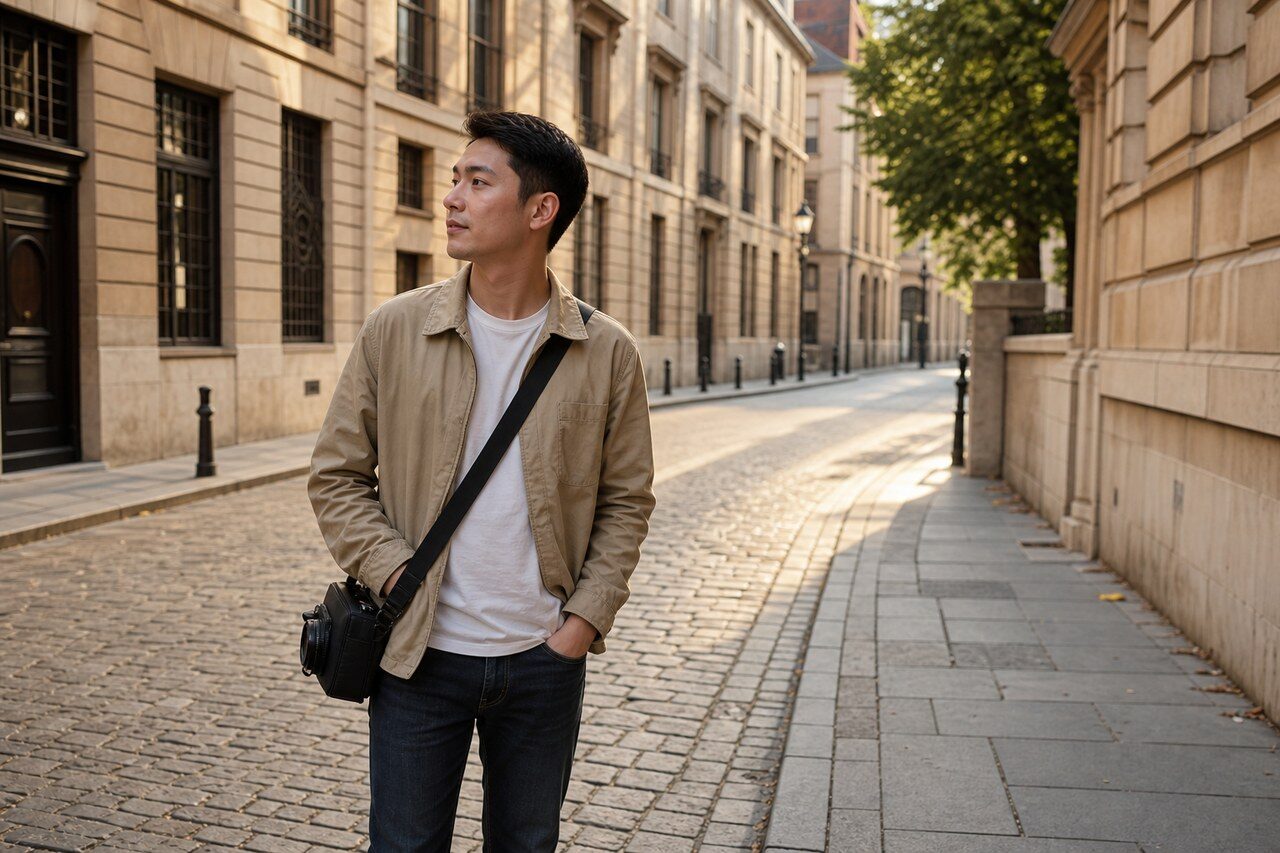
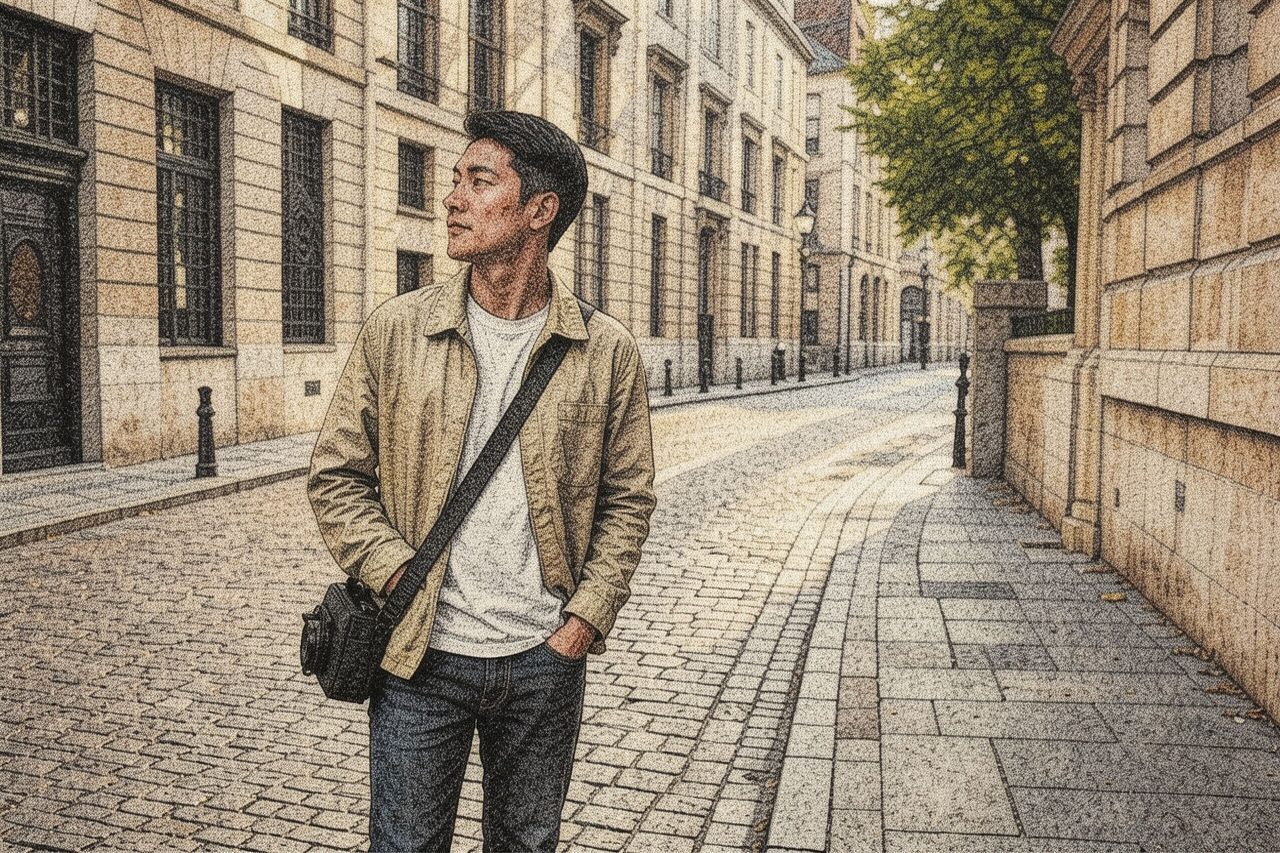
Compare the original photo with the texture result
The example uses a generated source photo and the same filter API path as the app, so users can judge the visual treatment before uploading their own image.
More examples
Test the texture filter on different photo types
Compare portrait, product, and pet examples before opening the filter. Each result uses the same filter API path as the Magic Eraser app.

Portrait
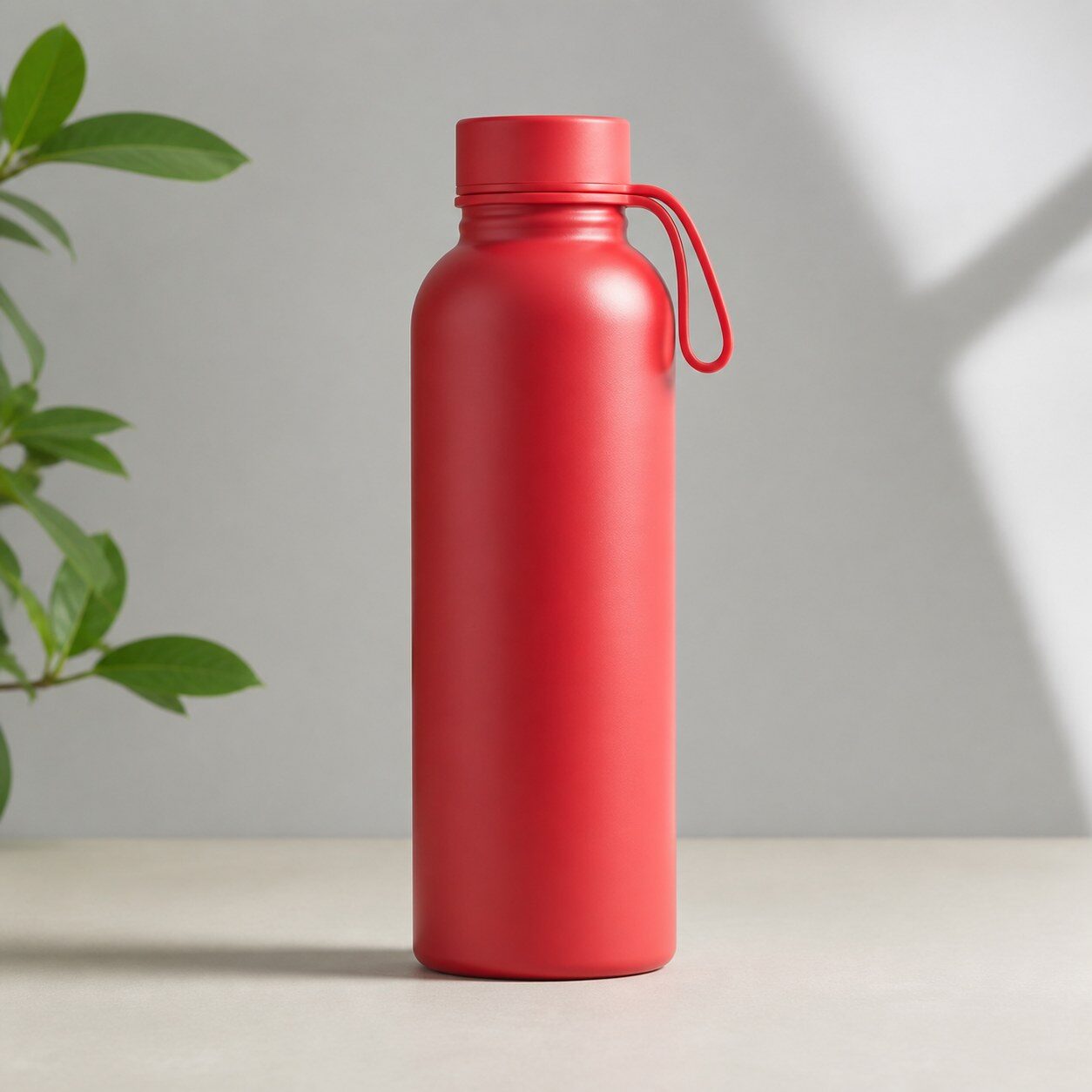
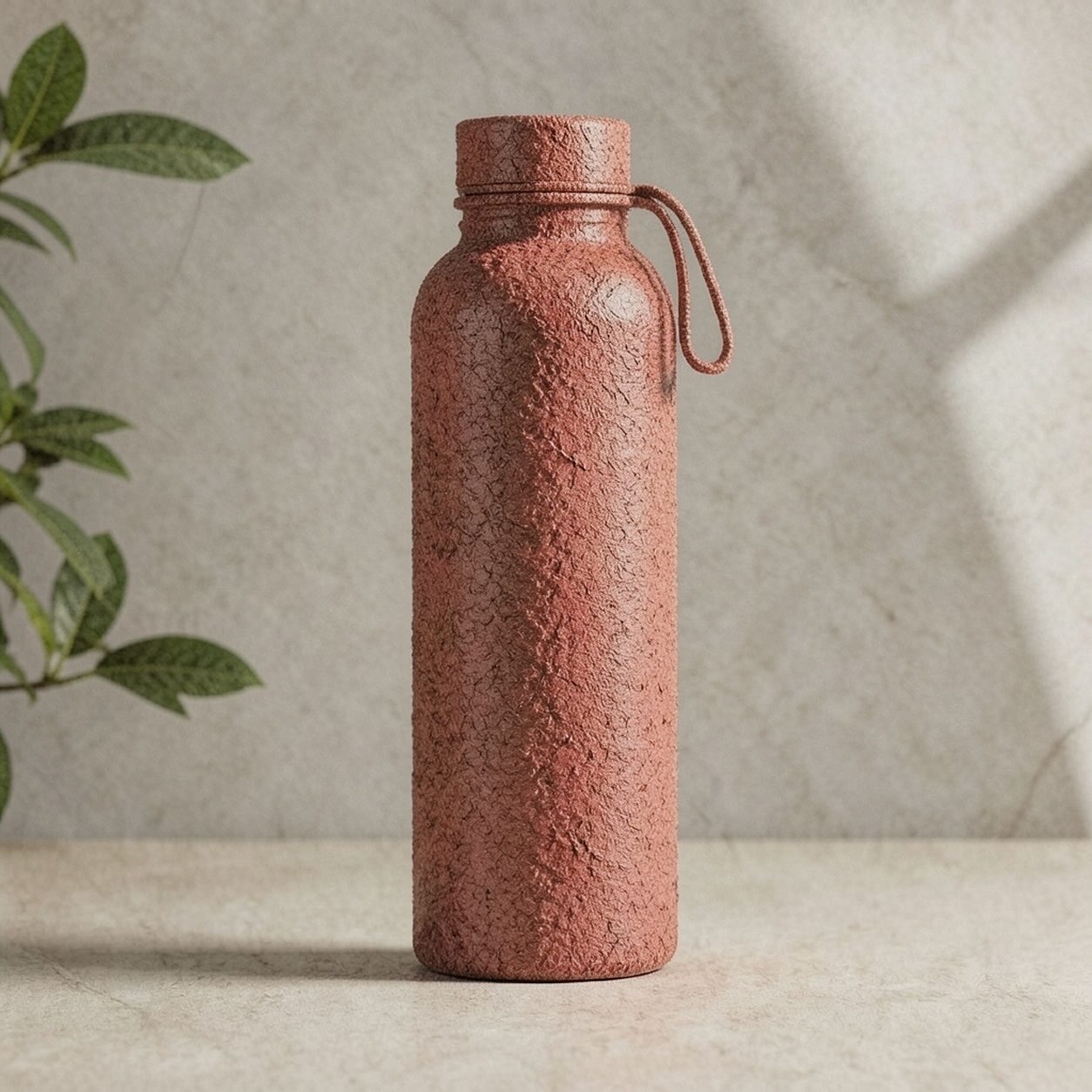
Product


Pet
Photo workflow
How to get a cleaner texture filter result
主役が一つで背景がシンプルな、鮮明で明るい写真を選びます。
テクスチャフィルターを開いて写真をアップロードし、顔、輪郭、文字、重要な細部を確認します。
不要な模様を除去して切り抜き、正確な文字やロゴは後から追加します。
Best source photos
- 明るいポートレートや上半身写真。
- 厳密な色を求めないシンプルな商品・物撮り。
- 形が明瞭なペット、建築、旅行、日常写真。
Filter tips
- 明瞭なシルエットと整理された背景なら質感が主役を隠しにくくなります。
- 圧縮画像、小さな顔、もともと複雑な柄は避けます。
- 色、本人性、文字、記録上の細部の正確さが必要な用途には使わないでください。
Before upload checklist
- Use the largest clean version of the photo, not a compressed screenshot or reposted image.
- Crop loosely before filtering so the AI has enough room around the subject.
- Remove obvious distractions first if they sit directly on the face, product, or main subject.
- Check the result at the size where it will be used: profile image, feed post, story, thumbnail, or banner.
When this filter is a good fit
Choose the texture filter when the original photo already has a clear subject and the goal is a recognizable stylized version, not a fully new generated scene. It is strongest for social, creator, profile, event, and campaign images where mood matters more than documentary accuracy.
Use a different workflow when the image needs exact product color, legal documentation, medical accuracy, or unmodified identity details. In those cases, use cleanup, crop, enhancement, or background tools instead of a heavy creative filter.
Free browser tools after filtering
FAQ
What should I upload?
Use a clear photo with one main subject. Strong lighting and simple backgrounds usually make the AI filter easier to control.
Can I keep editing after the filter?
Yes. After applying the filter, use Magic Eraser to crop, clean distractions, refine backgrounds, and export the final image.
Is this filter selected automatically?
The CTA opens AI Filter with the texture style parameter, and the app falls back safely if the filter changes.