
AI Filter style
メープルAI写真フィルター
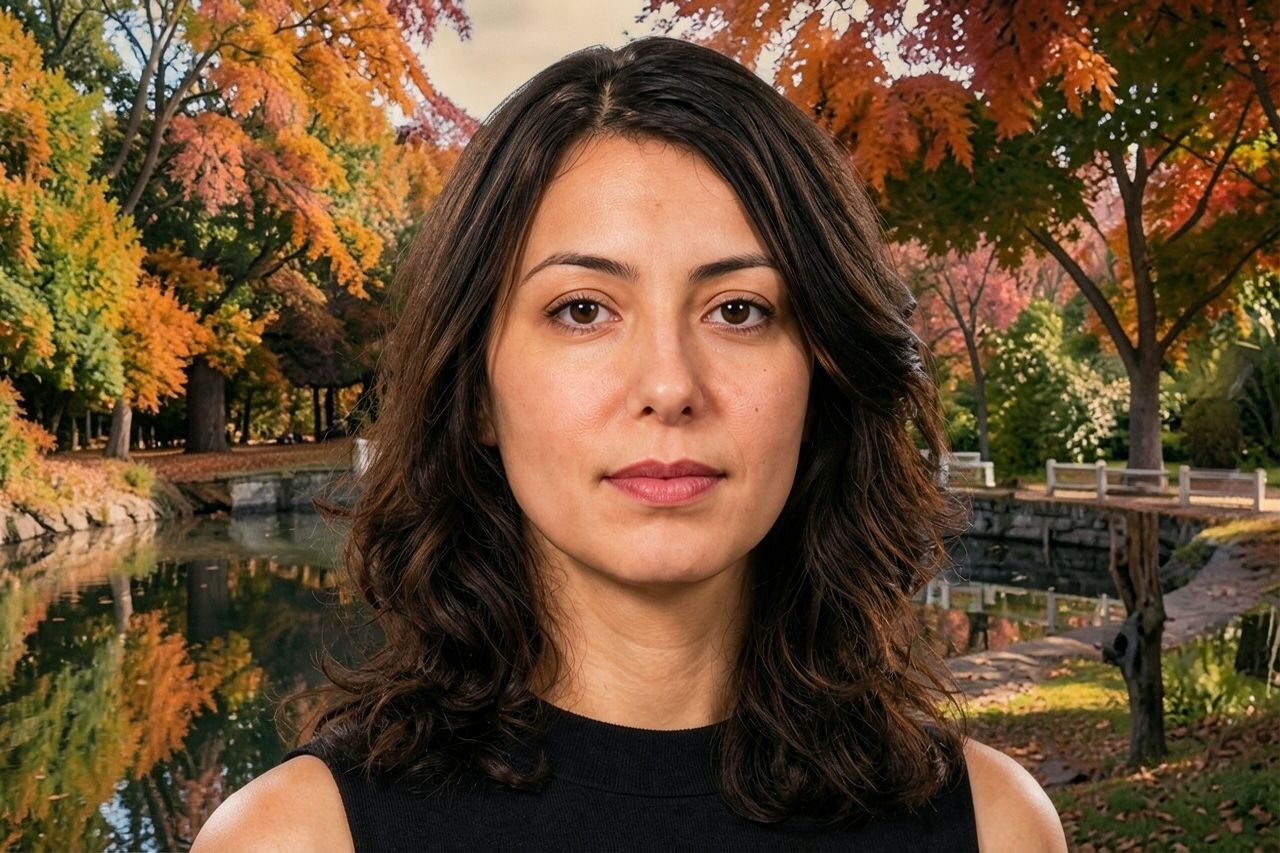
メープルAI写真フィルターで、ポートレート、ペット、商品、旅行写真をアンバー、赤、ゴールドを基調とした温かな秋の雰囲気に仕上げます。変化をプレビューし、重要な細部を確認してから、書き出し前に切り抜きや修正を行えます。

Use case
季節感のあるポートレート、プロフィール画像、家族写真。
Use case
秋をテーマにした商品、料理、旅行、ライフスタイル画像。
Use case
温かな赤と金色の配色が必要なSNS投稿やキャンペーン案。
Filter preview
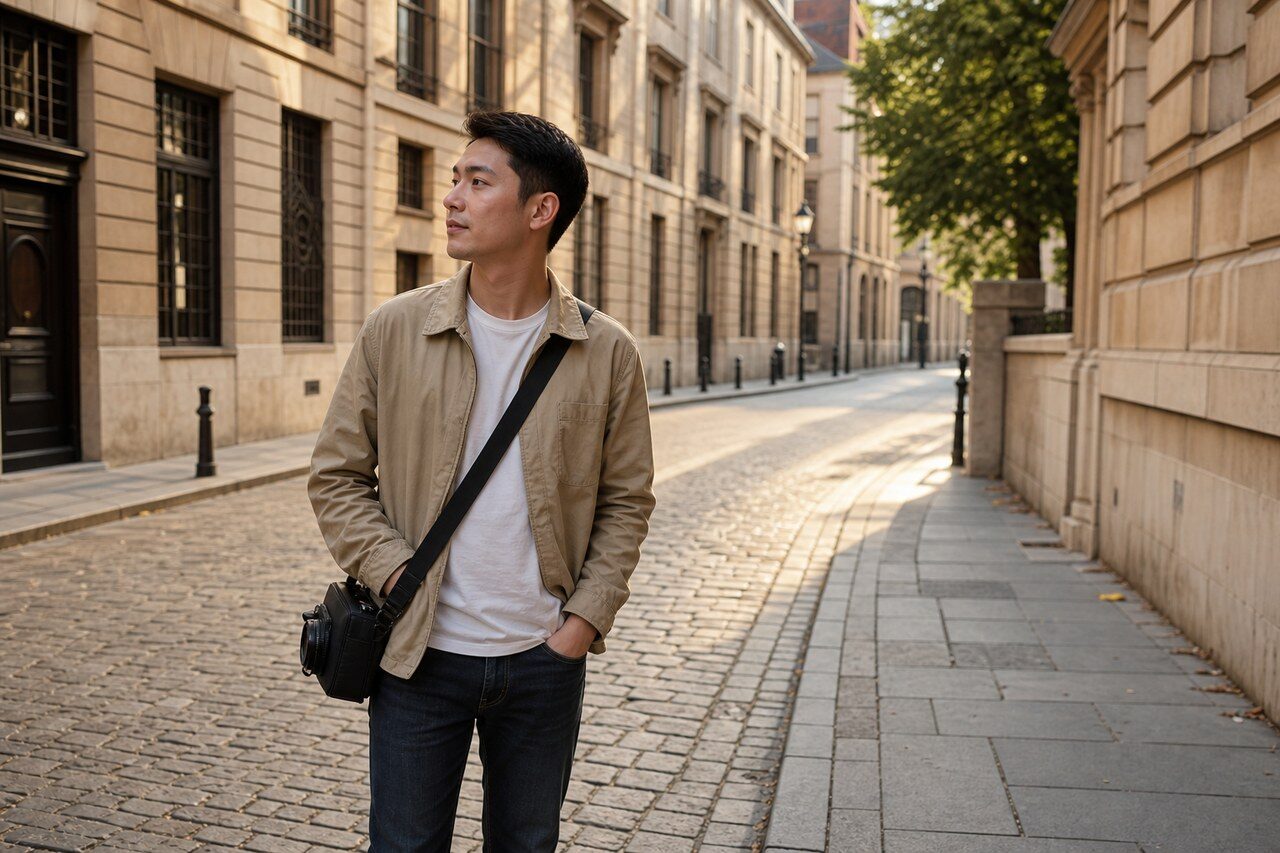
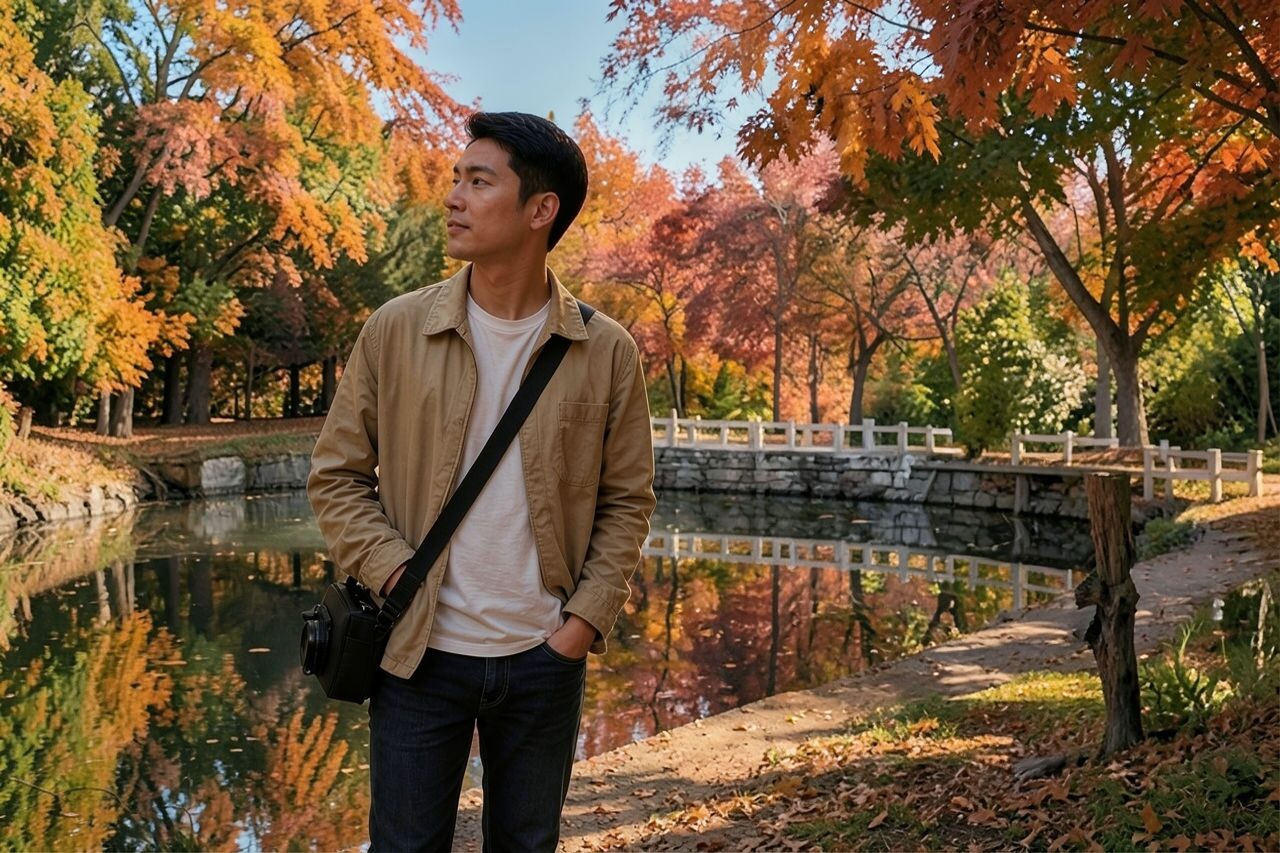
Compare the original photo with the maple result
The example uses a generated source photo and the same filter API path as the app, so users can judge the visual treatment before uploading their own image.
More examples
Test the maple filter on different photo types
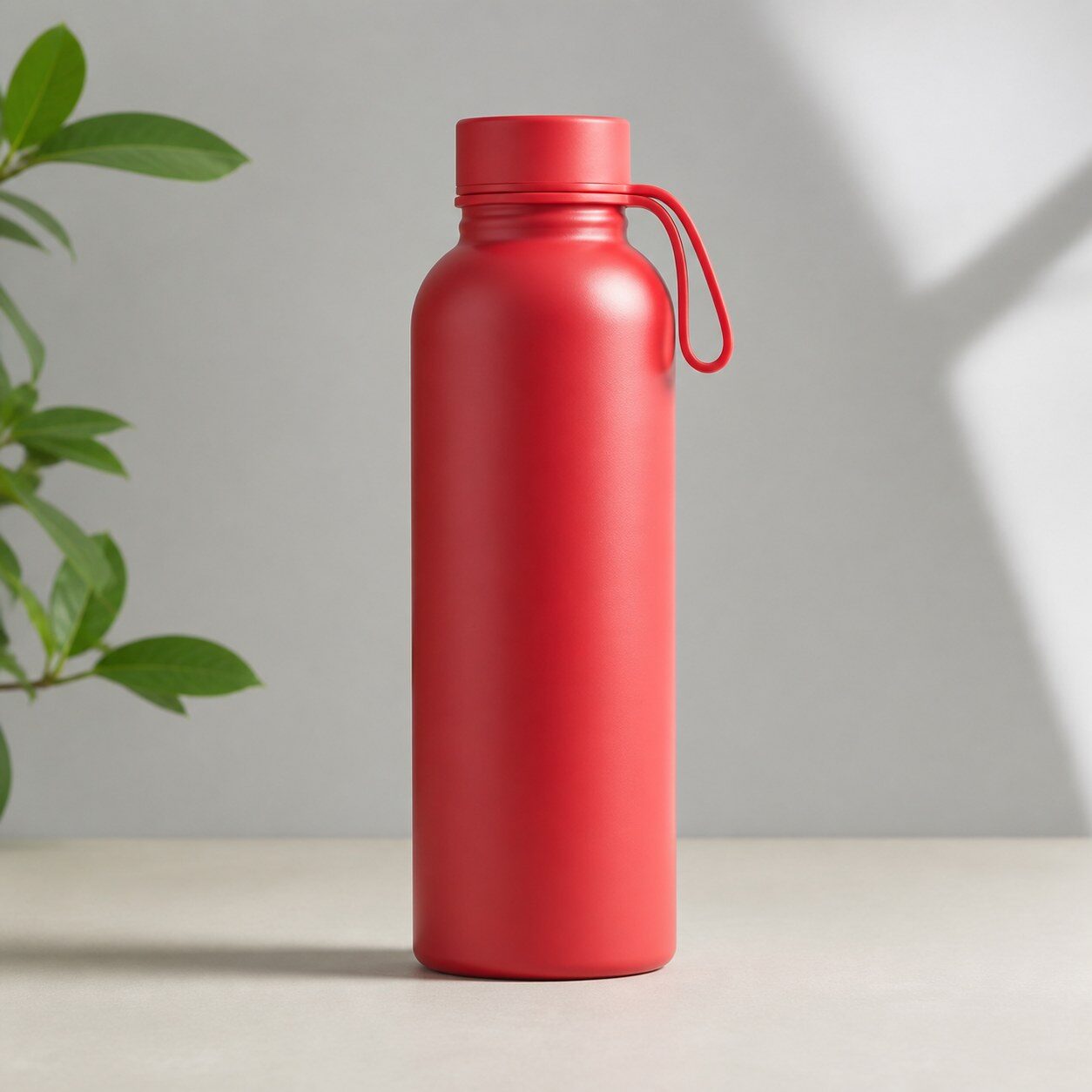
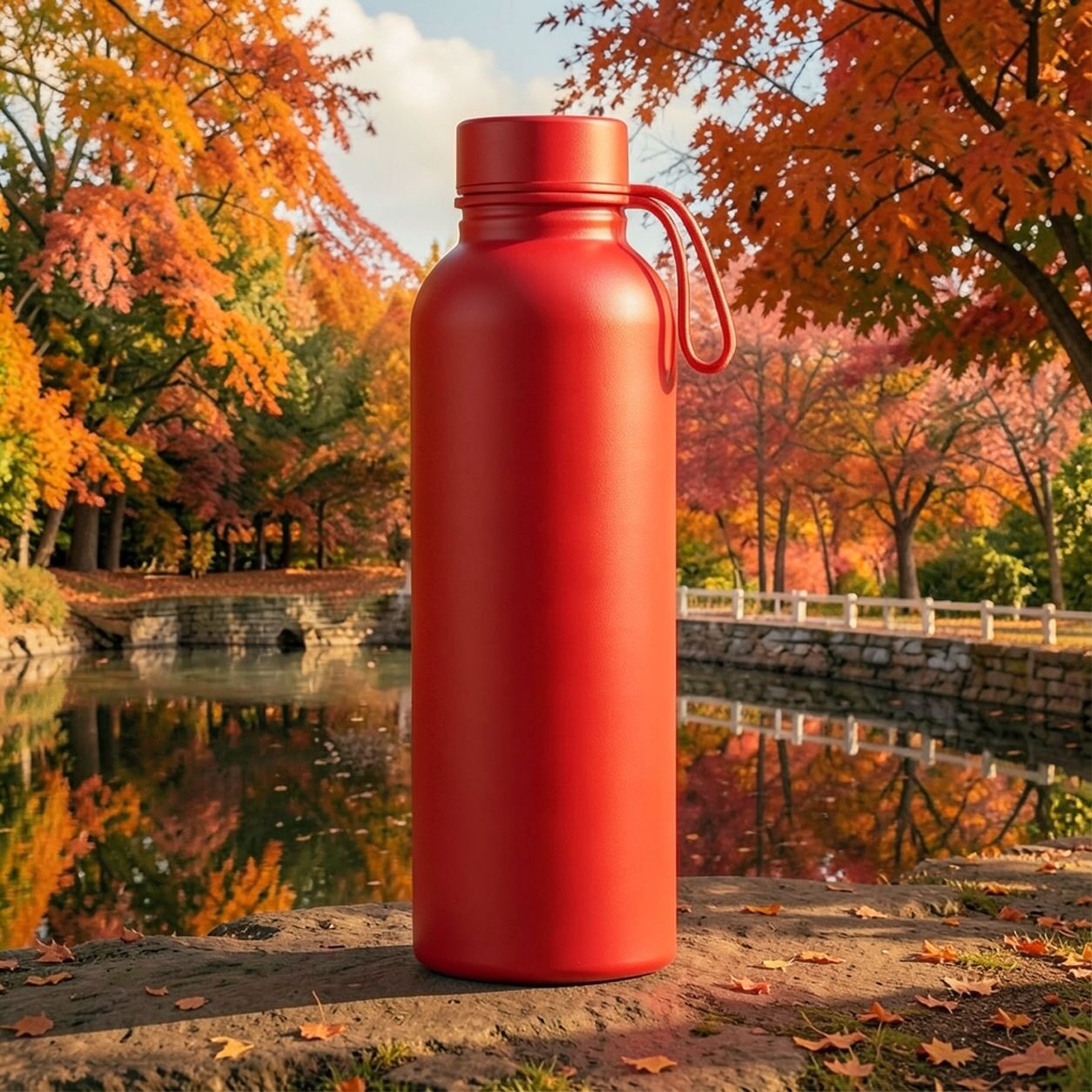
Compare portrait, product, and pet examples before opening the filter. Each result uses the same filter API path as the Magic Eraser app.


Portrait
Product


Pet
Photo workflow
How to get a cleaner maple filter result
明るく、主役が一つで輪郭が分かりやすい写真を選びます。
メープルフィルターを開いて写真をアップロードし、元画像とプレビューを比較します。
顔、ラベル、色が重要な部分を確認し、切り抜きや不要物の除去を行います。
Best source photos
- ポートレート、カップル、ペット、家族写真。
- 料理、商品、旅行風景、屋外のライフスタイル写真。
- 秋らしい暖色のムードに合う画像。
Filter tips
- ニュートラルな色や屋外の写真は、暖色の効果を生かしやすくなります。
- 商品色や記録写真の正確な色が必要な用途には使わないでください。
- シンプルな背景なら、強いアンバーや赤を加えても被写体が見やすくなります。
Before upload checklist
- Use the largest clean version of the photo, not a compressed screenshot or reposted image.
- Crop loosely before filtering so the AI has enough room around the subject.
- Remove obvious distractions first if they sit directly on the face, product, or main subject.
- Check the result at the size where it will be used: profile image, feed post, story, thumbnail, or banner.
When this filter is a good fit
Choose the maple filter when the original photo already has a clear subject and the goal is a recognizable stylized version, not a fully new generated scene. It is strongest for social, creator, profile, event, and campaign images where mood matters more than documentary accuracy.
Use a different workflow when the image needs exact product color, legal documentation, medical accuracy, or unmodified identity details. In those cases, use cleanup, crop, enhancement, or background tools instead of a heavy creative filter.
Free browser tools after filtering
FAQ
What should I upload?
Use a clear photo with one main subject. Strong lighting and simple backgrounds usually make the AI filter easier to control.
Can I keep editing after the filter?
Yes. After applying the filter, use Magic Eraser to crop, clean distractions, refine backgrounds, and export the final image.
Is this filter selected automatically?
The CTA opens AI Filter with the maple style parameter, and the app falls back safely if the filter changes.