
AI Filter style
AIラインアート写真フィルター
AIラインアートフィルターで写真を輪郭中心のイラストに変換します。ミニマルな人物画、塗り絵のアイデア、デザイン資料に適しており、被写体が明確でコントラストが高く、背景がすっきりした写真ほど線がきれいに出ます。

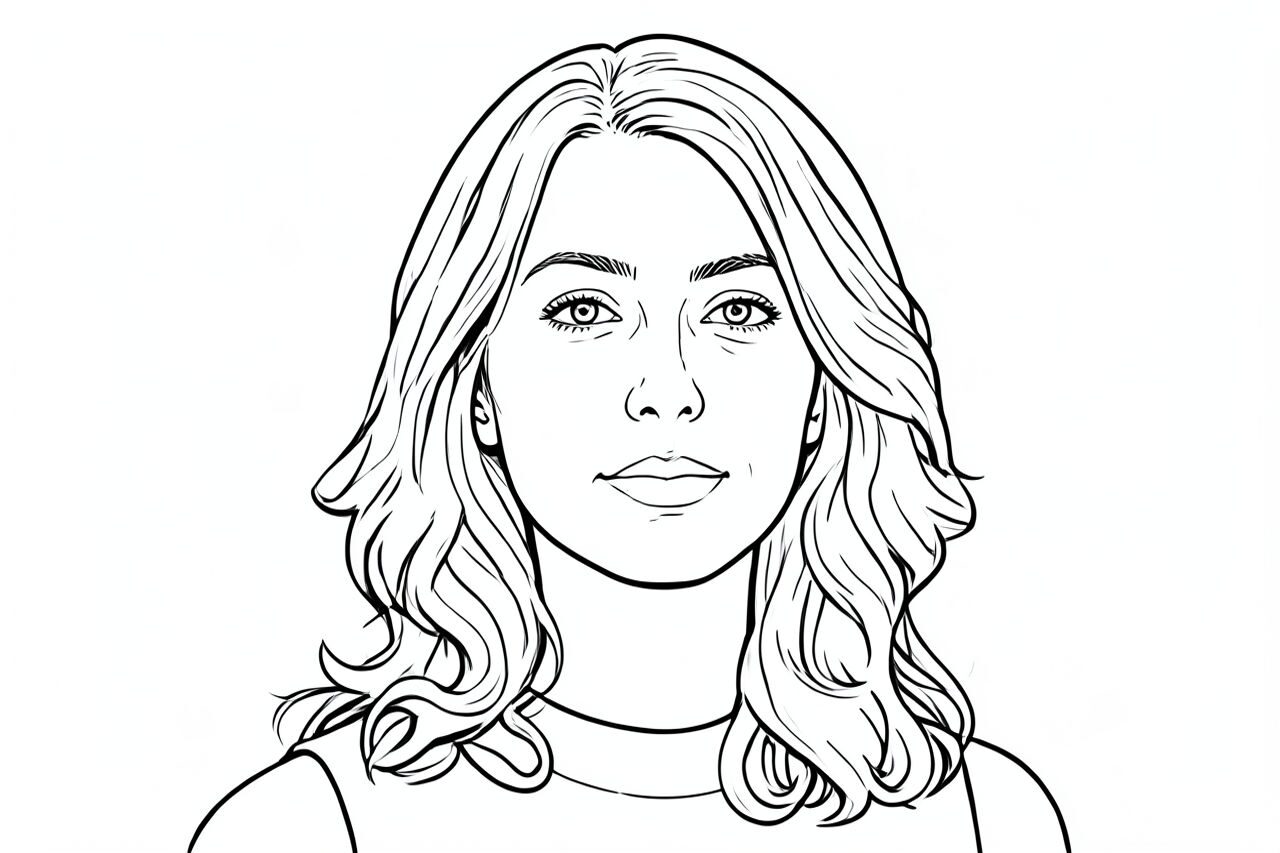
Use case
輪郭ポートレート、塗り絵案、ミニマルなグラフィック。
Use case
色より形を重視する製品や小物の資料画像。
Use case
シンプルな線表現が合う説明用・編集用ビジュアル。
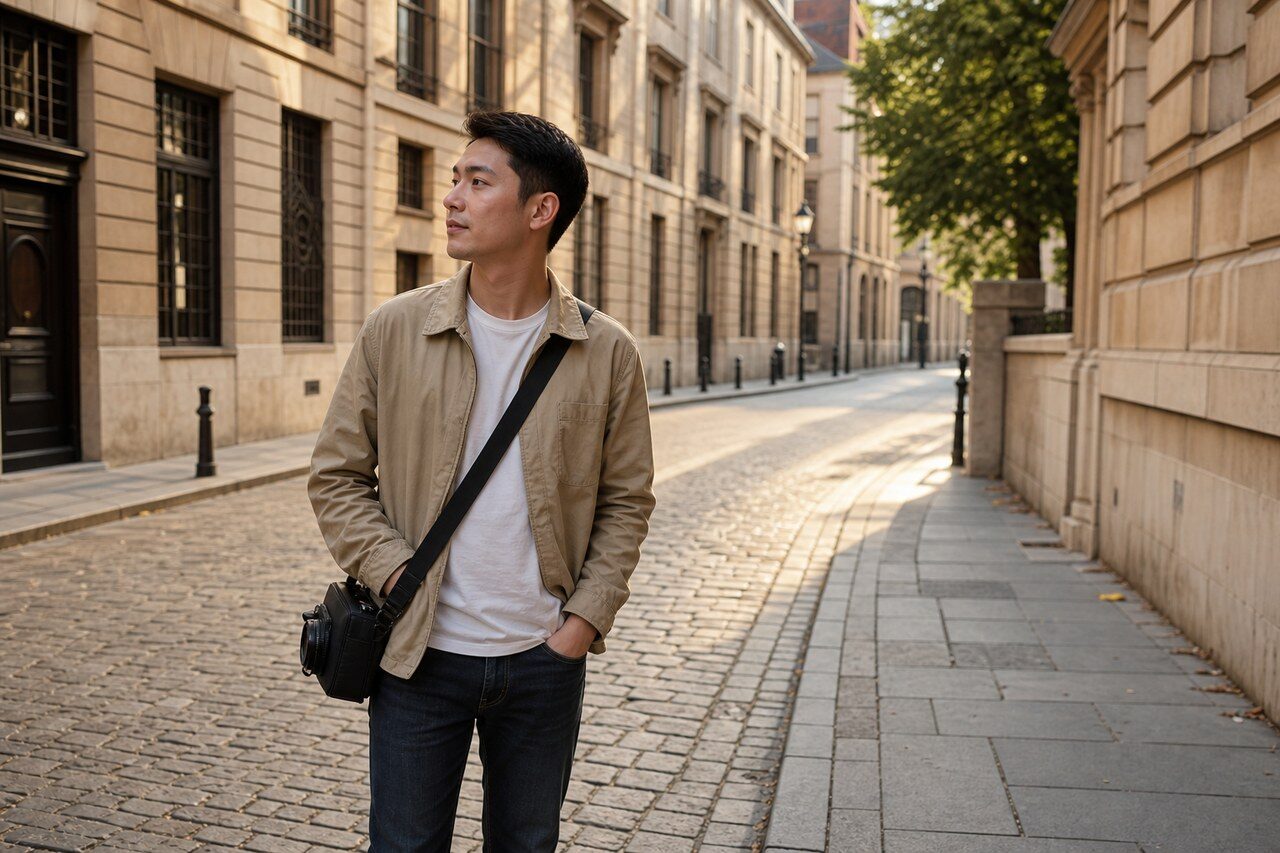
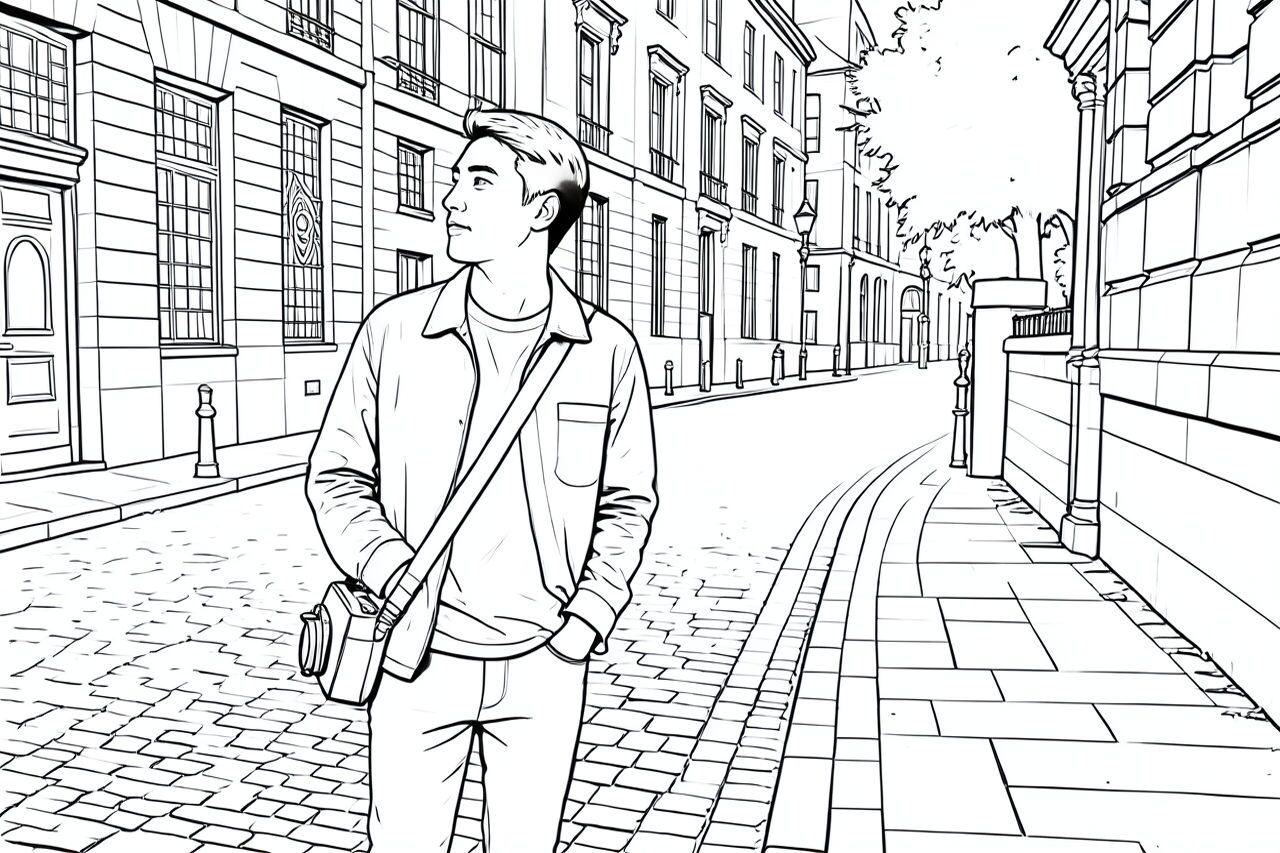
Filter preview
Compare the original photo with the line art result
The example uses a generated source photo and the same filter API path as the app, so users can judge the visual treatment before uploading their own image.
More examples
Test the line art filter on different photo types
Compare portrait, product, and pet examples before opening the filter. Each result uses the same filter API path as the Magic Eraser app.

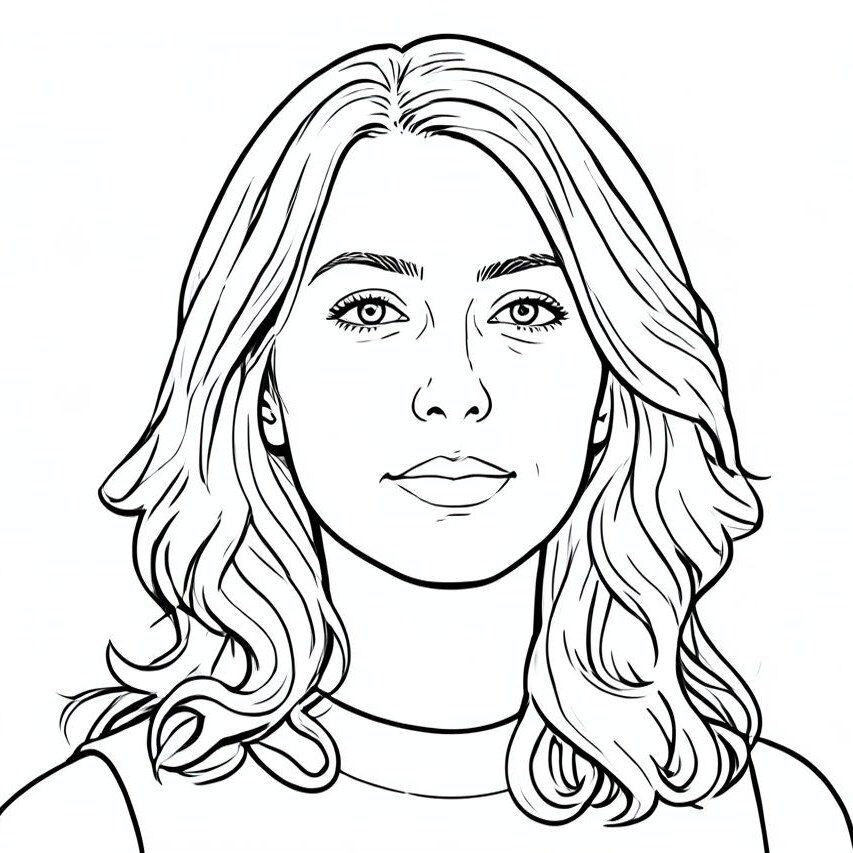
Portrait
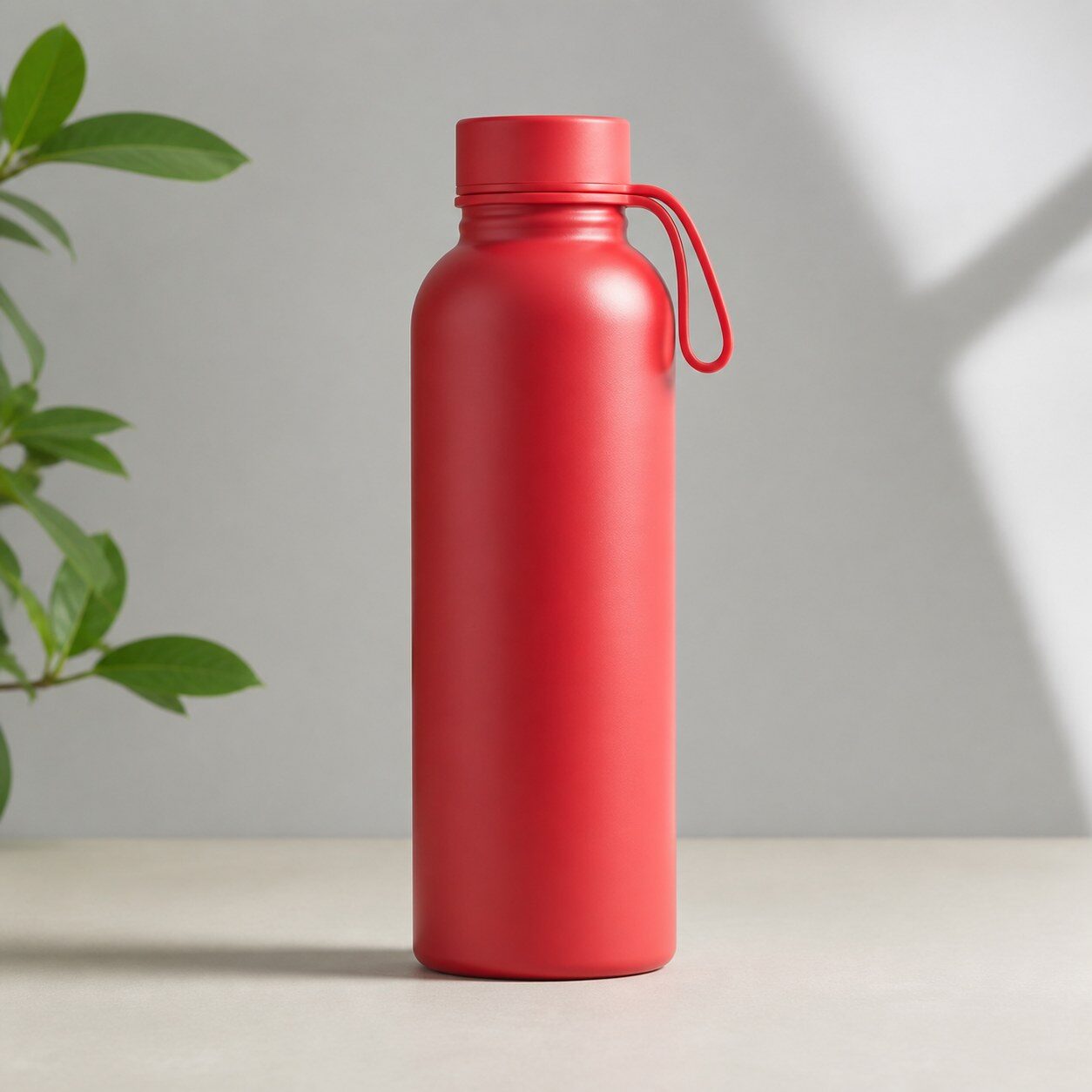
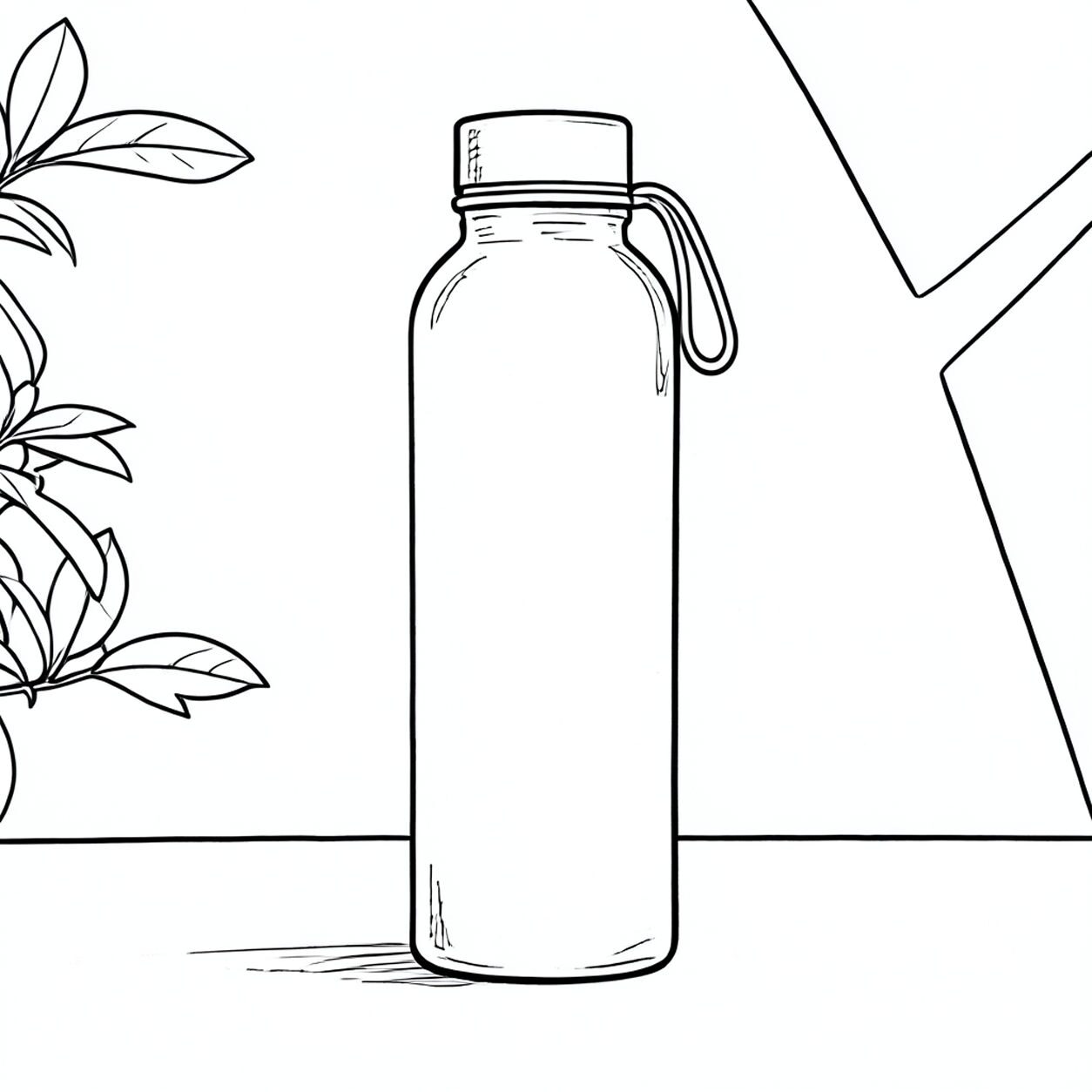
Product

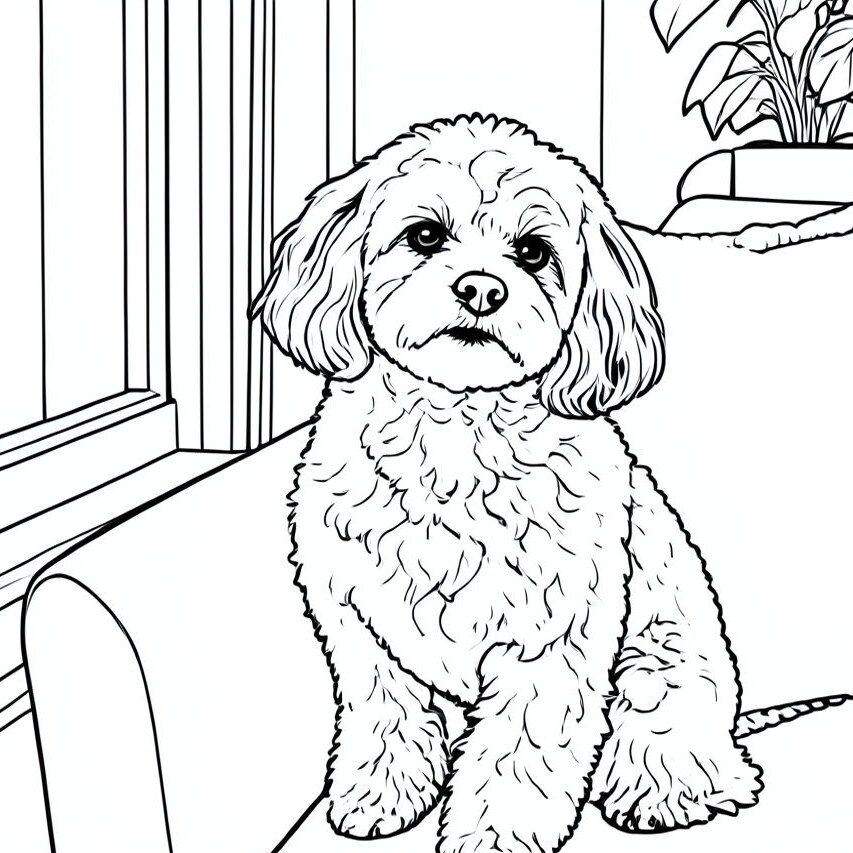
Pet
Photo workflow
How to get a cleaner line art filter result
背景から被写体が分かれた高コントラストの写真をアップロードします。
ラインアートフィルターを適用し、重要な輪郭が明瞭か確認します。
書き出す前にクリーンアップツールで余分な線や背景線を除きます。
Best source photos
- 人物、手、花、ペット、製品や小物。
- 輪郭が明瞭な高コントラスト写真。
- 色を除いても形が伝わるシンプルな場面。
Filter tips
- 無地の背景ほど輪郭がきれいになります。
- 輪郭にノイズがある低解像度写真は避けます。
- 製品資料では可能なら正面から撮影します。
Before upload checklist
- Use the largest clean version of the photo, not a compressed screenshot or reposted image.
- Crop loosely before filtering so the AI has enough room around the subject.
- Remove obvious distractions first if they sit directly on the face, product, or main subject.
- Check the result at the size where it will be used: profile image, feed post, story, thumbnail, or banner.
When this filter is a good fit
Choose the line art filter when the original photo already has a clear subject and the goal is a recognizable stylized version, not a fully new generated scene. It is strongest for social, creator, profile, event, and campaign images where mood matters more than documentary accuracy.
Use a different workflow when the image needs exact product color, legal documentation, medical accuracy, or unmodified identity details. In those cases, use cleanup, crop, enhancement, or background tools instead of a heavy creative filter.
Free browser tools after filtering
FAQ
What should I upload?
Use a clear photo with one main subject. Strong lighting and simple backgrounds usually make the AI filter easier to control.
Can I keep editing after the filter?
Yes. After applying the filter, use Magic Eraser to crop, clean distractions, refine backgrounds, and export the final image.
Is this filter selected automatically?
The CTA opens AI Filter with the line art style parameter, and the app falls back safely if the filter changes.