
AI Create style
AIタイポグラフィ画像生成ツール
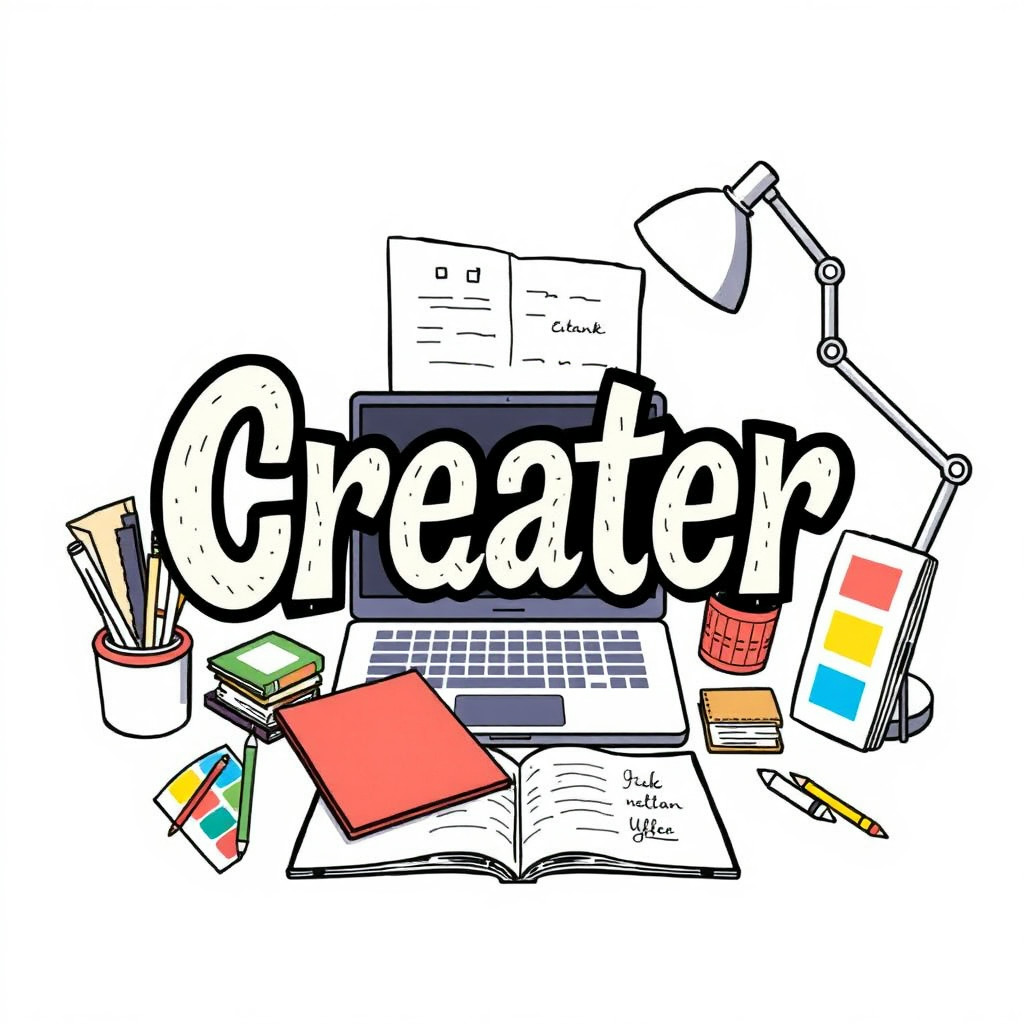
書体、レイアウトの雰囲気、グラフィック構成を中心に、文字主導のビジュアルコンセプトを生成します。ポスター案、引用画像、アルバム、グッズ、キャンペーンの検討に使い、正確な最終テキストは編集ツールで追加してください。
Use case
文字を主役にしたポスターや表紙のコンセプト。
Use case
表現豊かなレタリングを使う引用画像やSNS投稿。
Use case
グッズ、イベント、キャンペーンのビジュアル方向性。
Visual direction preview
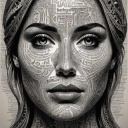
Use the style thumbnail as the creative target
The preview gives users a concrete reference for color, texture, edge detail, and mood before they open the generator. Pair it with the prompt starters below to keep the page useful instead of only decorative.
Generated examples
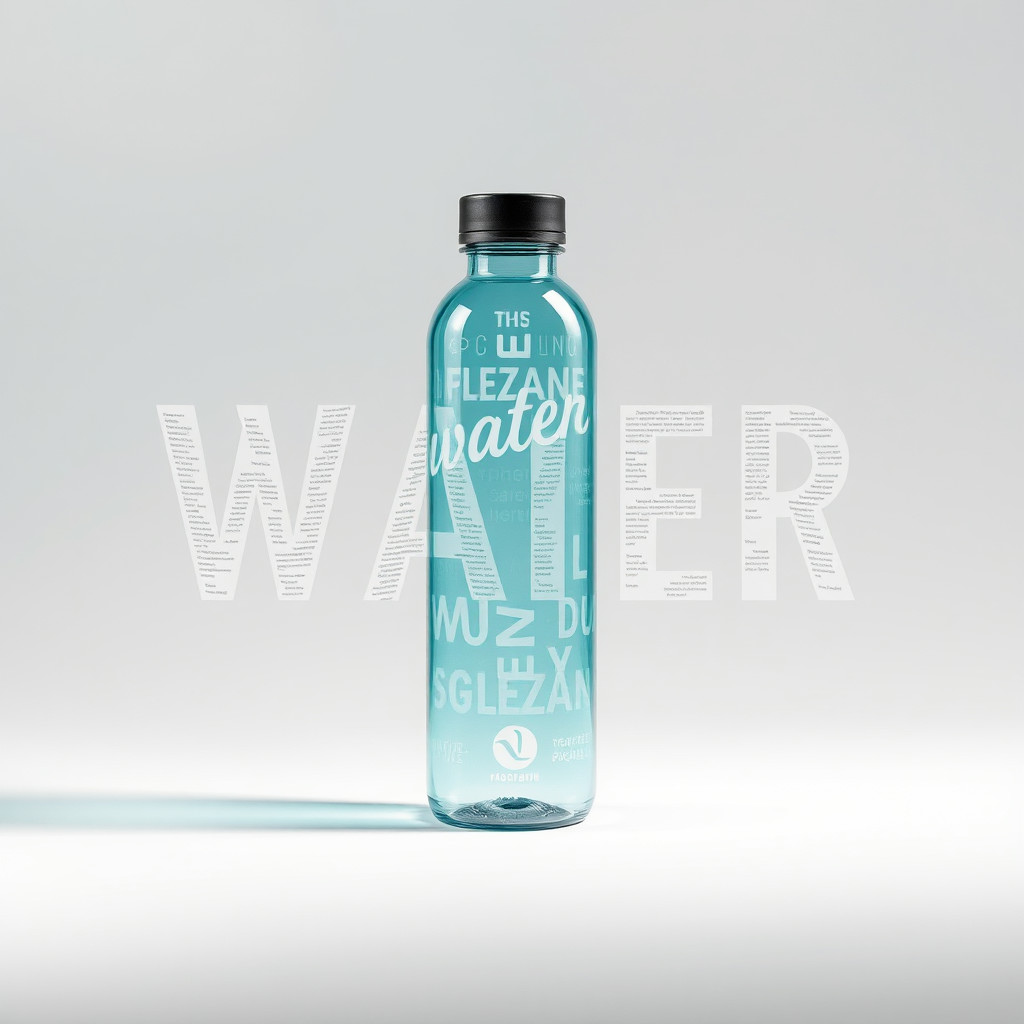
See the タイポグラフィ style in real outputs
These examples were generated through the Magic Eraser AI Create API with the タイポグラフィ style selected.
Prompt workflow
How to get a stronger タイポグラフィ result
短い単語やメッセージから始め、書体、配色、背景、構図を指定します。
複数案を生成し、文字形、視覚的階層、コントラスト、余白を比較します。
最良の構図を選び、公開前に生成文字を編集可能な正確なテキストへ置き換えます。
Prompt starters
- “FOCUSのタイポグラフィポスター案、太い赤のサンセリフ、白い背景、控えめな影”
- “夏の旅行をテーマにした編集タイポグラフィ、重ねた紙文字、鮮やかな色面”
- “音楽イベント用クローム文字コンセプト、暗い背景、反射する文字、ドラマチックな光”
Style tips
- 生成文字は正確な最終コピーではなく、視覚要素として扱います。
- 短い語句とシンプルな構図で方向性を明確にします。
- 氏名、日付、価格、ロゴは生成後に別途追加します。
Output planning checklist
- Decide the final placement before prompting: square post, vertical story, product insert, poster, thumbnail, or wide banner.
- Keep one primary subject and one visual mood so the タイポグラフィ style has a clear job.
- Describe the background as simple, detailed, bright, dark, studio, outdoor, or textured instead of leaving it open-ended.
- Generate variations first, then edit the selected image for crop, cleanup, and export size.
When to choose this style
Choose タイポグラフィ when the image needs a clear creative direction before production: an ad concept, a social visual, a character idea, a packaging mood, or a fast design draft. Choose another style if the final asset must look like a camera photo, preserve exact product color, or include precise typography.
For commercial work, treat the generated image as a starting point. Review details, remove distracting artifacts, add exact text separately, and export the final size from the editor.
FAQ
Can I edit the generated image?
Yes. Generate the image, then continue with cleanup, crop, background, and export tools in Magic Eraser.
Should I include exact text?
Use AI Create for the visual direction. Add exact text later with editable design tools for cleaner spelling and layout.
Is this style selected automatically?
The CTA opens AI Create with the タイポグラフィ style parameter, and the app falls back safely if the option changes.