
AI Create style
AIラインアート画像生成ツール
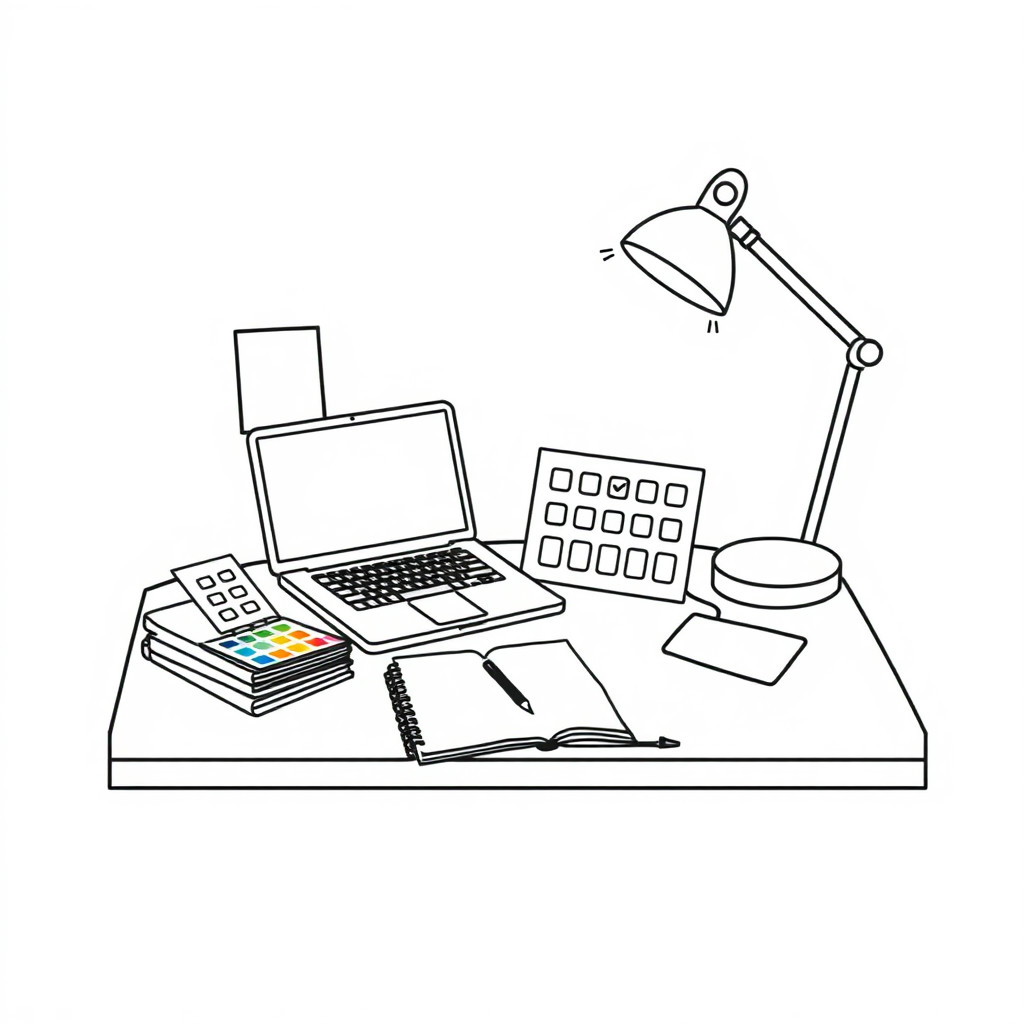
アイコン、タトゥー案、塗り絵、パッケージ装飾、編集用イラスト向けのラインアートをテキストから生成します。線の太さ、細かさ、ミニマル・装飾的・技術的・手描き風の方向性を指定してください。
Use case
ブランド挿絵、説明図、アイコン、パッケージ装飾。
Use case
タトゥー参考案、塗り絵、印刷用の輪郭画。
Use case
形と余白を生かす編集用ビジュアル。
Visual direction preview
Use the style thumbnail as the creative target
The preview gives users a concrete reference for color, texture, edge detail, and mood before they open the generator. Pair it with the prompt starters below to keep the page useful instead of only decorative.
Generated examples
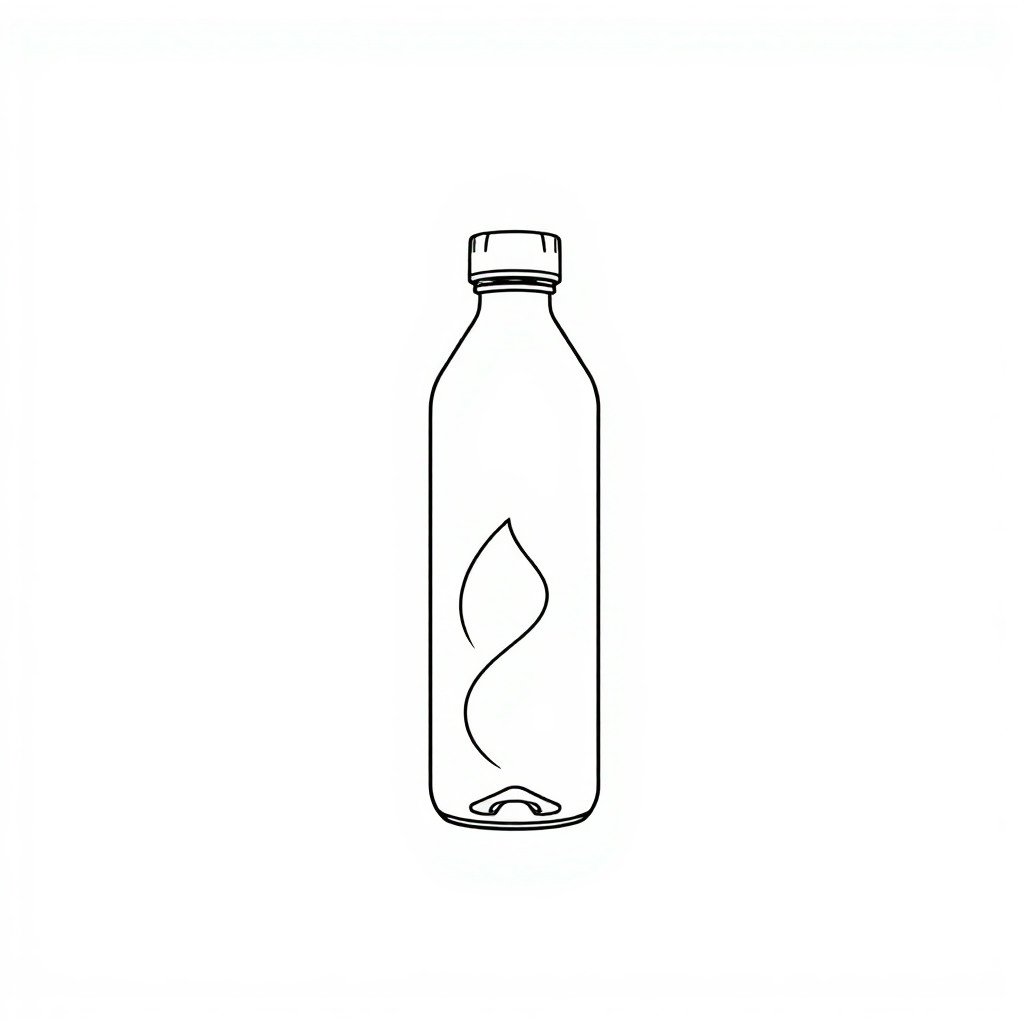
See the ラインアート style in real outputs
These examples were generated through the Magic Eraser AI Create API with the ラインアート style selected.
Prompt workflow
How to get a stronger ラインアート result
主題と、細線、太線、一筆描き、幾何学、有機的、スケッチ風などの線質を指定します。
複数案を生成し、バランス、対称性、余白を比較します。
選んだ画像を整えて切り抜き、必要なら色や文字を後から加えます。
Prompt starters
- “花を持つ手のミニマルな一筆ラインアート、無地背景”
- “ローズマリーとタイムの精密な植物ラインアート、印刷用黒インク”
- “幾何学的な山のラインアートバッジ、左右対称、文字なし、クリーンなベクター風”
Style tips
- 主題を少なくすると線がすっきりします。
- 再利用しやすいよう無地の背景を指定します。
- 印刷用途では高コントラストと明瞭な輪郭を指定します。
Output planning checklist
- Decide the final placement before prompting: square post, vertical story, product insert, poster, thumbnail, or wide banner.
- Keep one primary subject and one visual mood so the ラインアート style has a clear job.
- Describe the background as simple, detailed, bright, dark, studio, outdoor, or textured instead of leaving it open-ended.
- Generate variations first, then edit the selected image for crop, cleanup, and export size.
When to choose this style
Choose ラインアート when the image needs a clear creative direction before production: an ad concept, a social visual, a character idea, a packaging mood, or a fast design draft. Choose another style if the final asset must look like a camera photo, preserve exact product color, or include precise typography.
For commercial work, treat the generated image as a starting point. Review details, remove distracting artifacts, add exact text separately, and export the final size from the editor.
FAQ
Can I edit the generated image?
Yes. Generate the image, then continue with cleanup, crop, background, and export tools in Magic Eraser.
Should I include exact text?
Use AI Create for the visual direction. Add exact text later with editable design tools for cleaner spelling and layout.
Is this style selected automatically?
The CTA opens AI Create with the ラインアート style parameter, and the app falls back safely if the option changes.