
AI Create style
AIドリッピングペイント画像生成ツール
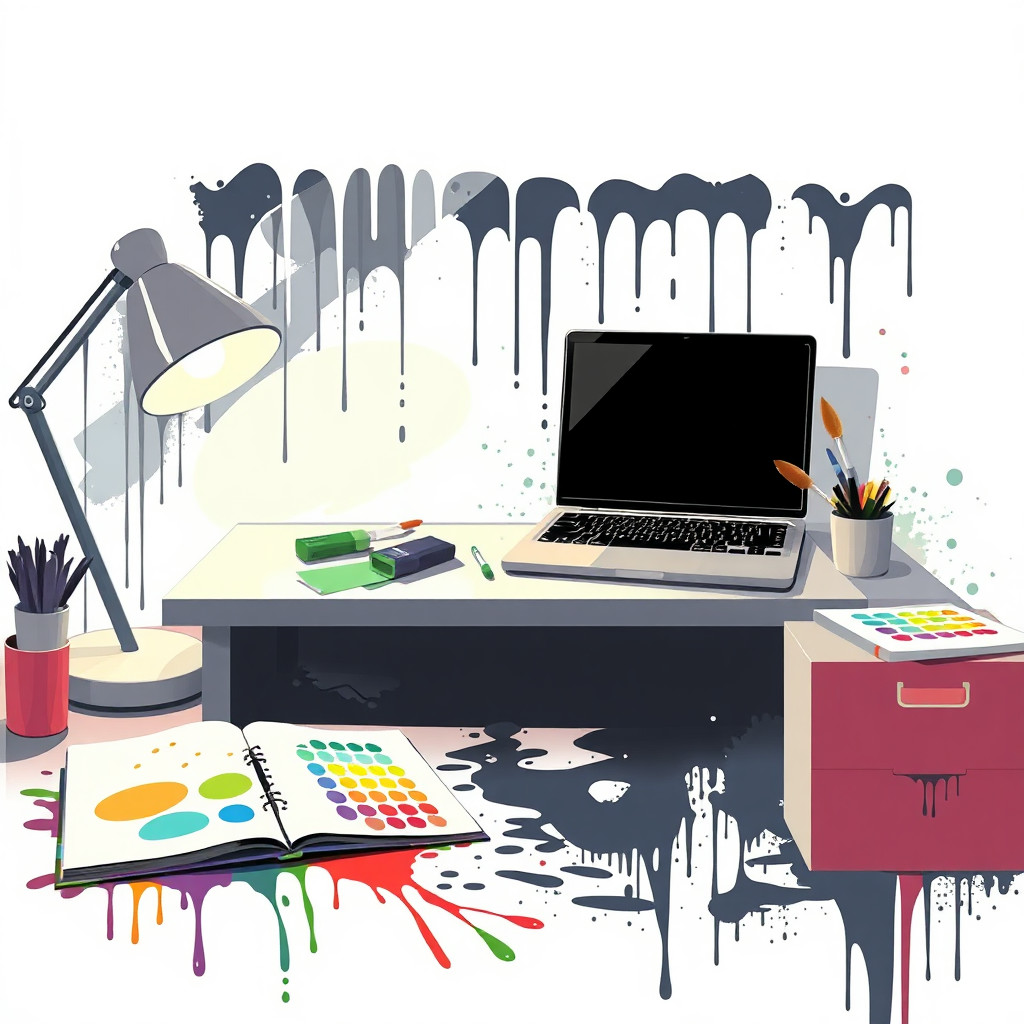
液体の筋、勢いのあるしぶき、重なる色、強いコントラストを備えた、垂れるペイントと飛沫の画像をテキストから生成します。ポスター、アルバムアート、SNS画像、商品コンセプトに適しています。
Use case
躍動的な絵具の質感を持つポスターやカバー。
Use case
カラフルな飛沫で囲んだ商品・ファッション案。
Use case
動きのある抽象背景や編集イラスト。
Visual direction preview
Use the style thumbnail as the creative target
The preview gives users a concrete reference for color, texture, edge detail, and mood before they open the generator. Pair it with the prompt starters below to keep the page useful instead of only decorative.
Generated examples
See the ドリッピングペイントスプラッター style in real outputs
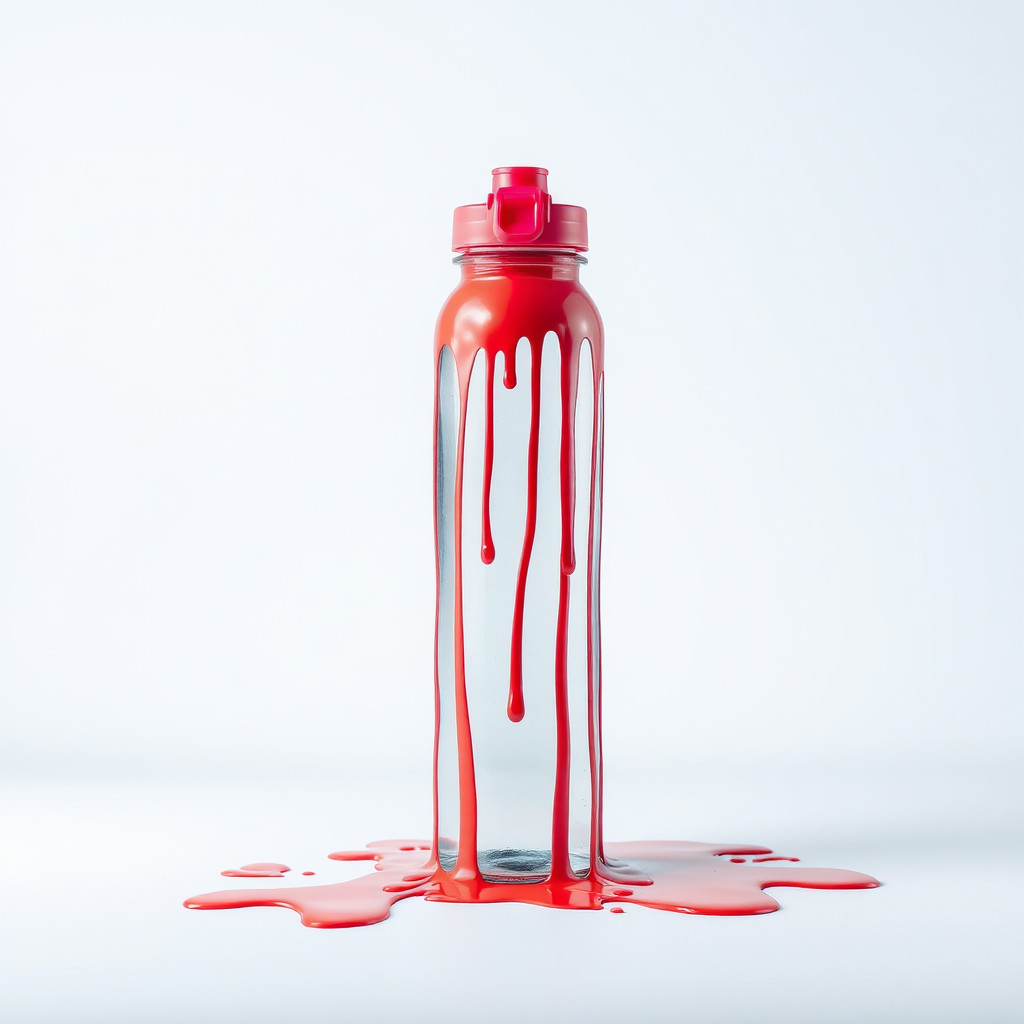
These examples were generated through the Magic Eraser AI Create API with the ドリッピングペイントスプラッター style selected.
Prompt workflow
How to get a stronger ドリッピングペイントスプラッター result
主役と構図を説明します。
絵具の色、粒の大きさ、垂れる方向、背景、照明を指定します。
複数案から明瞭なものを選び、不要な飛沫を整理します。
Prompt starters
- “黒いヘッドホン、ネオンピンクとシアンの絵具の飛沫、暗い背景、勢いのある垂れ”
- “白いスニーカー、赤と青の垂れる絵具、クリーンなスタジオ構図”
- “抽象的な熱帯の葉、緑と黄色の絵具の飛沫、クリーム色のポスター背景”
Style tips
- 筋を見やすくするため背景はシンプルにします。
- 主役を際立たせるなら2〜3色に絞ります。
- 正確な文字やロゴは生成後に追加します。
Output planning checklist
- Decide the final placement before prompting: square post, vertical story, product insert, poster, thumbnail, or wide banner.
- Keep one primary subject and one visual mood so the ドリッピングペイントスプラッター style has a clear job.
- Describe the background as simple, detailed, bright, dark, studio, outdoor, or textured instead of leaving it open-ended.
- Generate variations first, then edit the selected image for crop, cleanup, and export size.
When to choose this style
Choose ドリッピングペイントスプラッター when the image needs a clear creative direction before production: an ad concept, a social visual, a character idea, a packaging mood, or a fast design draft. Choose another style if the final asset must look like a camera photo, preserve exact product color, or include precise typography.
For commercial work, treat the generated image as a starting point. Review details, remove distracting artifacts, add exact text separately, and export the final size from the editor.
FAQ
Can I edit the generated image?
Yes. Generate the image, then continue with cleanup, crop, background, and export tools in Magic Eraser.
Should I include exact text?
Use AI Create for the visual direction. Add exact text later with editable design tools for cleaner spelling and layout.
Is this style selected automatically?
The CTA opens AI Create with the ドリッピングペイントスプラッター style parameter, and the app falls back safely if the option changes.