
画質を落とさずに写真を拡大する方法
小さな写真を大きく印刷したり、ピクセル化せずにしっかりとトリミングしたりする必要がありますか? Magic Eraser の AI 超解像度は、元のピクセルには存在しなかったシャープで自然なディテールを生成しながら、写真を最大 4 倍に拡大します。
Last updated
今すぐ写真を拡大してください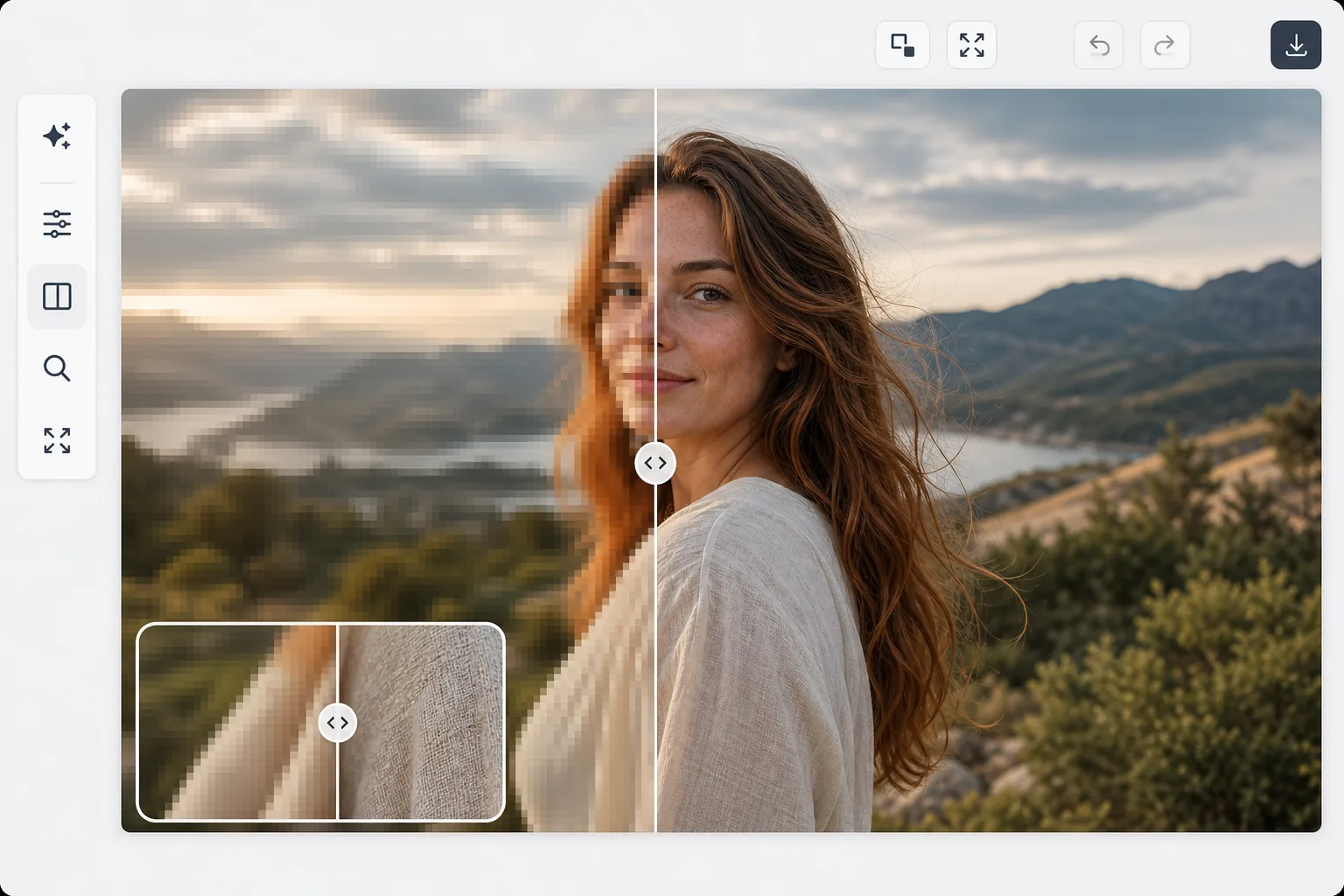
従来のアップスケーリングが失敗し、AI が成功する理由
画質を落とさずに写真を拡大するには、Web版・iOS版・Android版のいずれかでMagic Eraserを開き、「AI Enhance(AI高画質化)」を選択。画像をアップロードして2倍または4倍の倍率を選ぶだけです。AIの超解像技術が、ピクセルを引き伸ばしてぼかすのではなく、本物のディテール(くっきりした輪郭、読みやすい文字、はっきりした質感)を新たに描き起こします。登録不要・無料で使えます。ほとんどの写真、とくに人物の顔には2倍が最適。サムネイルのようにとても小さい元画像には4倍が向いています。拡大はディテールだけでなく欠点も強調するので、できるだけ高品質な元画像から始めましょう。必要ならノイズ除去やシャープ化を先にかけておくのがおすすめです。 ピクセルを引き伸ばして写真を拡大すると、従来のアルゴリズム (バイリニア、バイキュービック、ランチョス) が既存のピクセル間を補間し、ぼやけた柔らかい画像が生成されます。実際には新しいディテールはなく、ピクセルが滑らかになっているだけです。 AI 超解像度は根本的に異なります。何百万もの画像ペア (低解像度の入力、高解像度のグラウンド トゥルース) でトレーニングされ、ニューラル ネットワークはピクセル間にどのような詳細が存在すべきかを学習しました。より鮮明なエッジ、より鮮明なテキスト、明確なテクスチャ、および顔の特徴など、真に新しいディテールが生成され、拡大された画像がより高い解像度でキャプチャされたように見えます。 2x アップスケールではピクセル数が 4 倍になります。 4 倍のアップスケールでは、元のピクセルの 16 倍が生成されます。
Before you start
3 つのステップで写真を拡大します
Start with 写真をアップロードする. The result preview above and tips below use this guide's existing content; no separate before-and-after proof is assumed.
- 1
写真をアップロードする
Web、iOS、または Android で Magic Eraser を開き、AI Enhance を選択します。 Upload the photo you want to enlarge.どの形式でもどの開始解像度でも機能しますが、高品質のオリジナルの方が最良の拡大結果が得られます。
- 2
高級要素を選択してください
2x (寸法を 2 倍)、3x、または 4x 拡大を選択します。ほとんどのユースケースでは、2x は最小限の AI アーティファクトで優れた結果を提供します。 4x は、劇的な拡大が必要な小さな作物やサムネイルに最適です。このツールには出力寸法が表示されるので、結果がサイズ要件を満たしていることを確認できます。
- 3
詳細を確認してエクスポートする
拡大された画像をズームインして、生成された詳細を検査します。面、テキスト、エッジ、テクスチャが自然に見えるかどうかを確認します。前後の比較は、AI が追加した詳細を正確に示します。印刷、Web、またはその他の用途のために新しい解像度でエクスポートします。
こんな方に最適
- 元の解像度よりも大きい写真を印刷する - 携帯電話の写真からポスター サイズの印刷が可能
- 遠くの被写体を細部まで失わずに切り取って拡大する
- 大きな表示形式 (バナー、カバー、投影されたスライド) 用にソーシャル メディア画像を準備する
- 小さいまたは低解像度の歴史的写真やアーカイブ写真を現代のディスプレイ用に復元する
- 電子商取引の販売者は、小さなソース写真からより大きな商品画像を必要としています
最良の結果を得るためのヒント
入手可能な最高品質のオリジナルから始めます。AI アップスケーリングにより、品質と欠陥の両方が増幅されます。オリジナルにノイズが多い場合は、アップスケーリングする前にノイズを除去します。わずかにぼやけている場合は、アップスケーリングする前にシャープ化してください。印刷する予定の写真の場合は、ターゲット印刷サイズで少なくとも 300 DPI にアップスケールします。 1000x1500 の携帯電話の写真を 2 倍にすると 2000x3000 になり、300 DPI で 6.7x10 インチのプリントに十分な大きさになります。顔の場合、2 倍のアップスケーリングが最も自然な結果を生成します。より高い因子は、肌の質感を滑らかにしたり、顔の特徴を微妙に変えたりする可能性があります。テキストとグラフィックス (ロゴ、ドキュメント) は、そのパターンがシンプルで予測可能なため、どのような要因でもきれいにアップスケールされます。
よくある質問
- スクリーンショットやトリミングした写真をアップスケールすることはできますか?
- はい。スクリーンショット、トリミングされた写真、サムネイル、その他の画像をアップスケールできます。 AI は存在するあらゆるピクセルを処理し、コンテンツ タイプに適切な詳細を追加します。顔には顔の詳細が、テキストにはシャープなエッジが、テクスチャには適切なパターンが追加されます。
- 4x アップスケーリングは現実的ですか?
- ほとんどの写真では、2x で優れた結果が得られます。 4x は、大幅な拡大が必要な非常に小さなソース画像 (サムネイル、アバター) に最適です。 4x では、AI はかなりの量の詳細を生成します。これは通常説得力がありますが、グランド トゥルースではなくモデルの学習された予測を表します。
- 写真の拡大は無料ですか?
- はい。アップスケーリングを含む AI Enhance は、1 日の使用量制限付きの無料枠で利用できます。プレミアムでは制限がなくなり、写真コレクション全体を拡大するためのバッチ処理が追加されます。
- スマホで画質を落とさずに写真を拡大するには?
- スマホのブラウザ、またはiOS・Android版アプリでMagic Eraserを開き、カメラロールから写真を読み込んで「AI Enhance」を選びます。2倍か4倍を選ぶと、スマホ上でそのままAIが拡大し、より大きくシャープになった画像をカメラロールに保存します。動作はデスクトップ版と同じで、ブラウザを使えばアプリのインストールも不要。小さい写真や切り抜いた写真をその場で救済したいときに便利です。
- 拡大した写真はどのくらい大きく印刷できる?
- くっきりした印刷の基準である300DPIから逆算して考えましょう。1000×1500のスマホ写真を2倍にすると2000×3000になり、6.7×10インチ(約17×25cm)まで鮮明に印刷できます。4倍なら4000×6000に達し、おおよそ13×20インチ(約33×51cm)の印刷に適しています。文字やロゴは形がシンプルなのでどの倍率でも崩れにくく、人物の顔は2倍がもっとも自然に仕上がります。印刷がまだ甘く見える場合は、倍率を1段階下げるか、より高解像度の元画像から始めてください。