
How to remove a sticker from a laptop photo
Selling a laptop, water bottle, or car covered in old decals? Buyers want to see the actual surface, not your sticker collection. Magic Eraser brushes the decals out of the photo and reconstructs the lid, metal, or bumper underneath for a clean listing shot.
Last updated
Erase the decal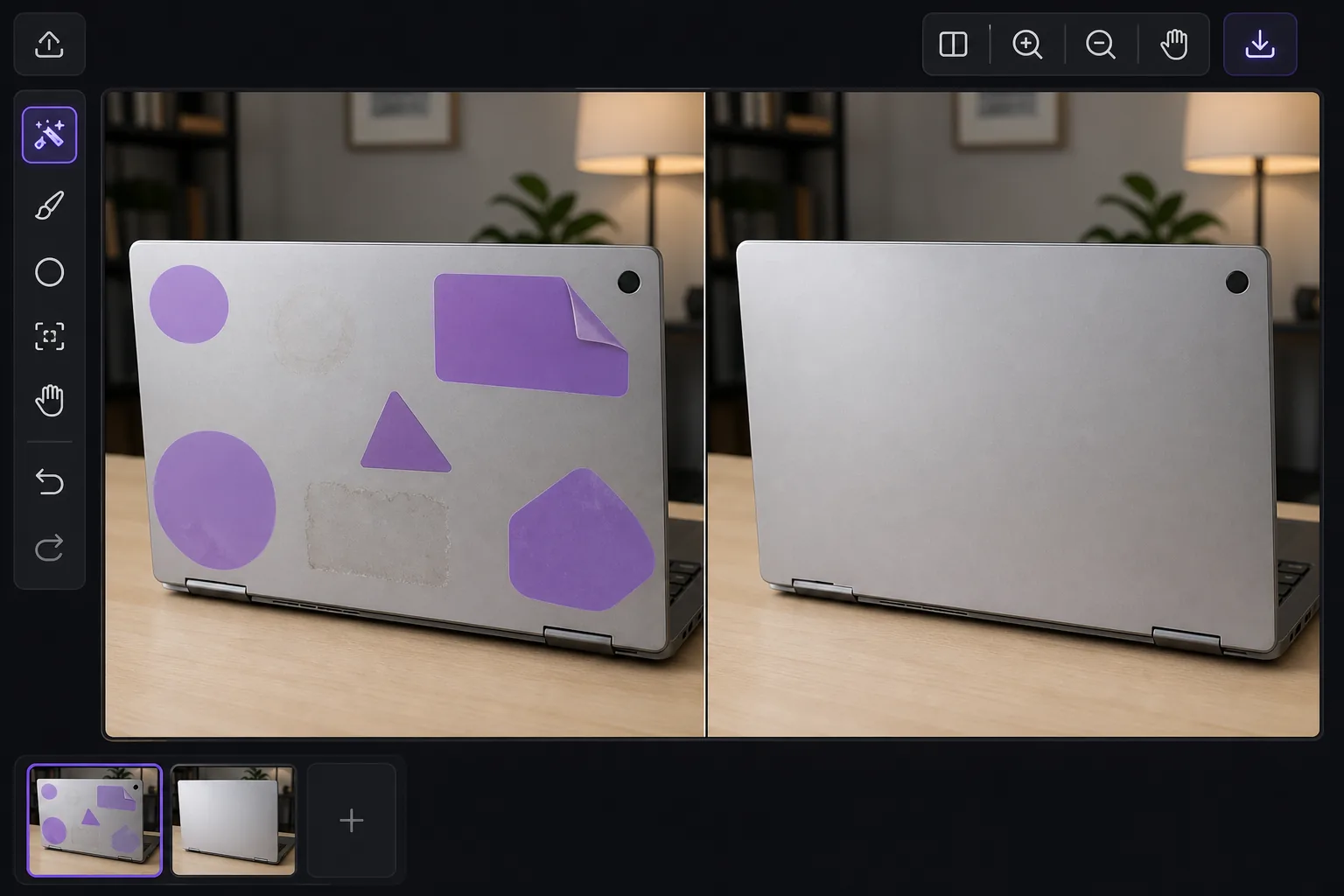
Clean product shots without re-shooting
Physical stickers and decals are a personalization habit: a laptop lid plastered with conference badges, a water bottle covered in brand logos, a car bumper carrying a faded political sticker. When it comes time to resell, those decals work against you. A cluttered lid makes a MacBook look beat-up; a logo-covered Hydro Flask looks less generic and harder to price; a bumper sticker dates a car and distracts from its condition. Peeling decals off in real life leaves adhesive residue, ghosting, or a sun-faded outline where the sticker protected the surface from UV. Editing the photo sidesteps all of that. Unlike an app-added emoji or caption that sits on top of the pixels, a real decal is part of the photographed scene, so removing it means rebuilding the surface it was stuck to. Magic Eraser's AI inpainting does this by reading the surrounding surface, the brushed aluminum grain of a laptop lid, the matte powder coat of a bottle, the painted panel of a bumper, and generating a plausible continuation across the gap. It is a synthesized reconstruction, not a peek at literal hidden pixels, so it shines on the uniform surfaces these objects usually have.
Before you start
Remove a decal in three steps
Start with upload your product photo. The result preview above and tips below use this guide's existing content; no separate before-and-after proof is assumed.
- 1
Upload your product photo
Open Magic Eraser on web, iOS, or Android and upload the shot of the laptop, water bottle, car, or other item. Shoot in even, diffuse light first if you can, since glare and harsh shadows on the surface give the AI cleaner reference to rebuild from. JPEG, PNG, and WebP all work.
- 2
Brush over the decal
Paint over the whole sticker, including its edges and any glossy outline or peeling corner. If the decal sits near a logo, port, or trim line you want to keep, brush carefully right up to that boundary so the AI preserves it. For a lid or bottle covered in many stickers, work in passes rather than masking the entire surface at once.
- 3
Erase, then check the surface
Tap Erase. The AI removes the decal and continues the surface texture across the cleared area. On a flat, evenly colored lid or bumper the result is usually seamless. Zoom in to confirm the brushed-metal direction, panel reflections, or curvature of a round bottle look continuous, re-brush any seam, then export at full resolution for your listing.
Best for
- Clearing conference badges and brand decals off a laptop lid before a resale or trade-in listing
- Removing logo and sponsor stickers from a water bottle, cooler, or hardshell case to show a clean surface
- Taking a faded bumper or window sticker out of a car-for-sale photo without dealing with adhesive residue
- Cleaning up skateboard decks, instrument cases, or gear photos where old stickers date or clutter the item
- Producing a neutral, distraction-free product shot for Marketplace, eBay, or Craigslist listings
Tips for best results
Decals on flat, uniform surfaces, a single-color lid, a matte bottle, a clean bumper panel, reconstruct best because the AI only has to extend one consistent texture. The hard cases are stickers that straddle a feature line: a decal wrapping a laptop hinge, sitting over an Apple logo, or crossing the seam between two car panels. There the AI may guess the geometry slightly wrong, so brush tightly and review at full zoom. Watch the lighting too, a reconstructed patch should match the glare gradient and reflections of the surface around it; harsh single-source flash makes mismatches more obvious than soft daylight. For round objects like bottles, the rebuilt area needs to follow the curve, so check that highlights bend correctly rather than appearing flat. And be honest in your listing: editing a photo to show a clean surface is fine for presentation, but if peeling the real decal will leave residue or fading, mention the item's true condition so the buyer is not surprised.
Frequently asked questions
- Will the laptop lid still look like real brushed metal after removal?
- On a uniform surface, usually yes. The AI samples the surrounding brushed-aluminum grain and extends its direction across the cleared spot, so a sticker in the middle of a flat lid disappears cleanly. It gets harder near logos, hinges, or edges, where the AI has to reconstruct a feature rather than just continue a texture, so zoom in and re-brush if a seam shows.
- Does it remove the real sticker or just hide it in the photo?
- Only in the photo. This edits the image, it does not touch the physical decal. The result is a clean listing or reference shot. If you also peel the actual sticker, expect possible adhesive residue or a sun-faded outline underneath, so describe the item's real condition to buyers.
- Is it free?
- Yes. Magic Eraser's free tier includes the brush-and-erase tool on web, iOS, and Android, with no watermark, so you can clean up a resale photo at no cost. Daily usage limits apply; a premium plan lifts them and adds batch processing if you are editing many listing photos at once.