
How to remove dark circles from a photo
Scopri come How to remove dark circles from a photo con Magic Eraser. Guida semplice passo passo con strumento AI gratuito. Funziona su web, iOS e Android.
Last updated
Prova ora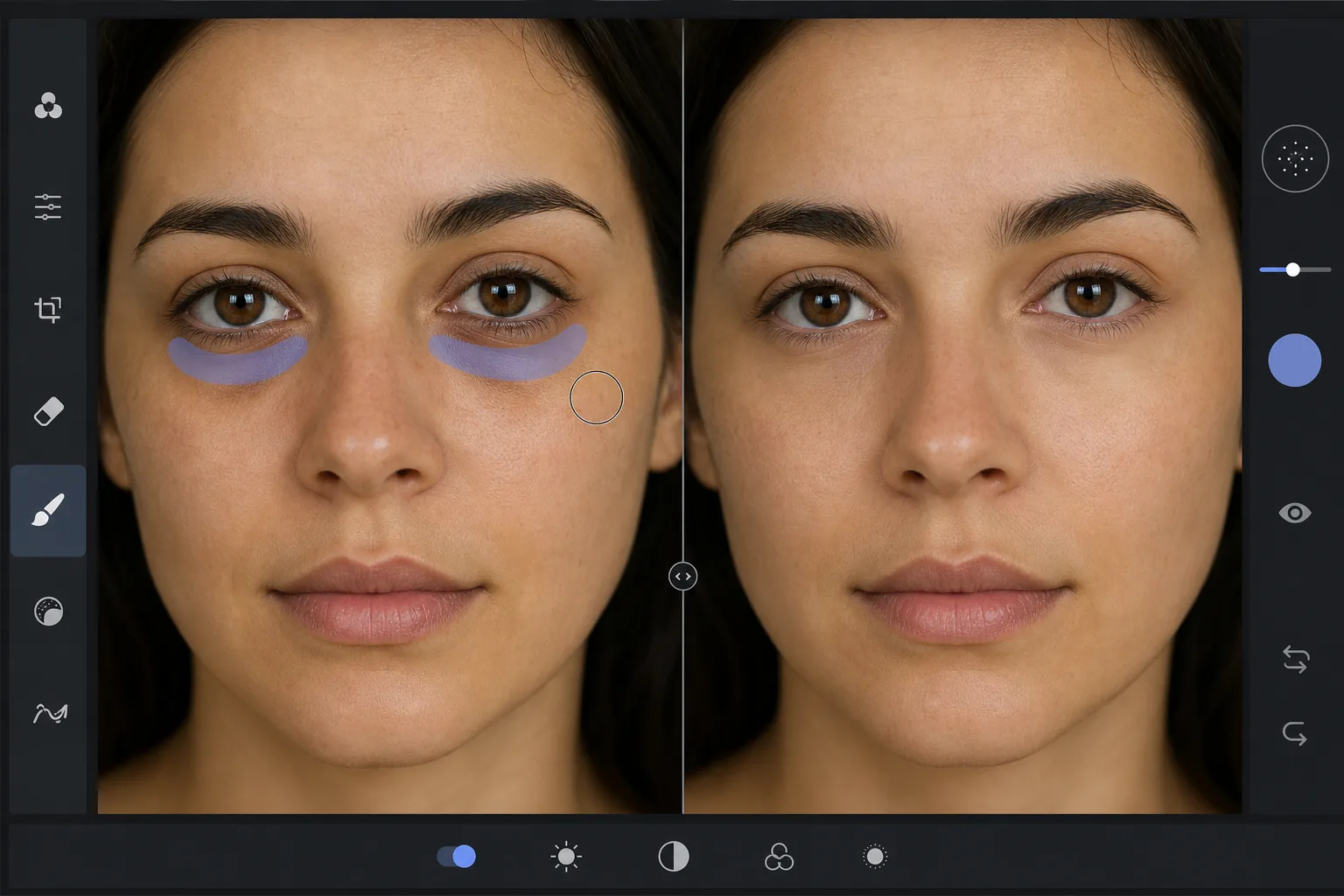
Why dark circles are tricky to retouch con Magic Eraser
Under-eye dark circles are not a single object you can cut out — they are a gradient of shadow and discoloration that blends into the surrounding skin. Heavy-handed editing (a brightness brush, a clone stamp) erases the natural shading that gives the face dimension, leaving a flat, obviously-retouched patch under the eye. The goal is to reduce the darkness while preserving skin texture, pores, and the subtle highlight-to-shadow transition that reads as real. Magic Eraser's AI treats the under-eye region as skin to reconstruct rather than a color to paint over: it lightens the area and rebuilds matching texture from the surrounding cheek and lower-lid skin, so the result looks like a well-rested version of the same face, not an airbrushed mask. This makes it useful for headshots, dating-profile photos, family portraits, and any shot where the subject looks more tired than they felt.
Before you start
Istruzioni passo passo
Start with carica la foto. The result preview above and tips below use this guide's existing content; no separate before-and-after proof is assumed.
- 1
Carica la foto
Apri Magic Eraser su web, iOS o Android. Trascina e rilascia la foto JPEG, PNG, HEIC o WebP. Nessun account necessario.
- 2
Seleziona lo strumento e l'area
Scegli lo strumento adatto e seleziona l'area da elaborare. L'AI analizza e applica le modifiche automaticamente in pochi secondi.
- 3
Scarica il risultato
Visualizza l'anteprima del risultato e scarica la foto modificata. Esporta in PNG o JPEG ad alta qualità.
Ideale per
- Professional headshots where the subject looks tired despite good lighting
- Dating-profile and social photos that need a fresher, well-rested look
- Family and event portraits taken late in the day
- Quick retouching without learning frequency separation or dodge-and-burn
- Batch-cleaning a set of portraits to a consistent look
Consigli per risultati migliori
Reduce, don't erase. Real faces have some shadow under the eye — removing it completely reads as fake. Aim to lighten dark circles to the point they no longer draw attention, not to a uniform flat tone. Brush each eye separately so the AI references the skin closest to each one. If the subject has both dark circles and under-eye bags, the discoloration and the puffiness-shadow are two issues: lighten the discoloration first, then assess whether the remaining shadow still needs a light pass. For a related cleanup, pair this with removing blemishes or skin shine in the same edit. And as always, the most natural result keeps pores and skin texture intact — Magic Eraser preserves them automatically, so avoid over-brushing into clear skin.
Domande frequenti
- La funzione How to remove dark circles from a photo è gratuita?
- Sì, Magic Eraser permette di How to remove dark circles from a photo gratuitamente con limiti giornalieri. Passa al piano Pro per elaborazione illimitata ed esportazioni ad alta risoluzione.
- Quanto tempo ci vuole per How to remove dark circles from a photo?
- Solo pochi secondi. L'AI di Magic Eraser elabora le foto rapidamente — la maggior parte dei risultati è disponibile immediatamente.
- Posso usarlo sul cellulare?
- Sì, Magic Eraser funziona su iOS, Android e tutti i browser web. Puoi passare da un dispositivo all'altro liberamente.
- La qualità dell'immagine viene compromessa?
- No, Magic Eraser preserva la qualità originale della foto. L'AI elabora in modo intelligente per mantenere dettagli e nitidezza.