
Remove the Background in GIMP — or Do It in 1 Click
Scopri come Remove the Background in GIMP — or Do It in 1 Click con Magic Eraser. Guida semplice passo passo con strumento AI gratuito. Funziona su web, iOS e Android.
Last updated
Prova ora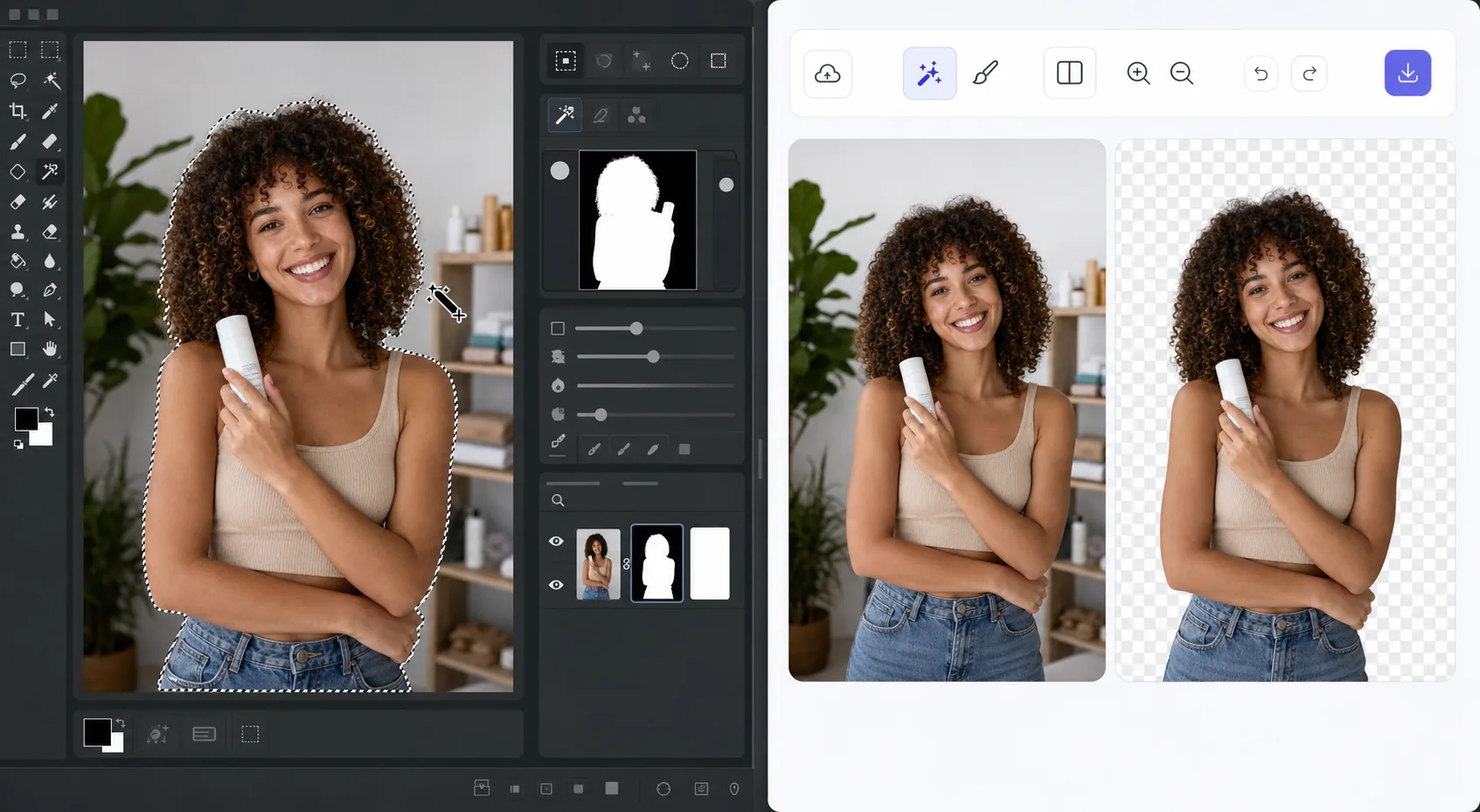
The GIMP method works — it just takes time con Magic Eraser
GIMP is a genuinely capable, free, open-source desktop editor, and removing a background in it is a well-trodden workflow. The usual route: open your image, add an alpha channel, then use the Fuzzy Select (magic wand) or Select by Color tool to grab the background. For clean, high-contrast edges you can often select and delete in a few clicks. For hair, fur, or busy backgrounds, you switch to a layer mask, paint with black to hide and white to reveal, and refine the edge by hand at high zoom. It's powerful and precise — but it's a learn-the-tools, manual process, and it lives on your desktop. If you just need a clean cutout fast, there's a shorter path that needs no install and runs on phone or browser.
Before you start
Istruzioni passo passo
Start with carica la foto. The result preview above and tips below use this guide's existing content; no separate before-and-after proof is assumed.
- 1
Carica la foto
Apri Magic Eraser su web, iOS o Android. Trascina e rilascia la foto JPEG, PNG, HEIC o WebP. Nessun account necessario.
- 2
Seleziona lo strumento e l'area
Scegli lo strumento adatto e seleziona l'area da elaborare. L'AI analizza e applica le modifiche automaticamente in pochi secondi.
- 3
Scarica il risultato
Visualizza l'anteprima del risultato e scarica la foto modificata. Esporta in PNG o JPEG ad alta qualità.
Ideale per
- Product photos that need a clean white or transparent background for a store listing
- Profile pictures and headshots where you want the subject isolated fast
- Anyone without GIMP installed who needs a cutout right now in the browser
- Mobile editing on iOS or Android with no desktop software at hand
- Batch social and marketing images where per-image manual masking isn't worth the time
Consigli per risultati migliori
Use whichever path fits the task. For maximum pixel-level control — compositing, tricky semi-transparent edges, or work you want to keep fully local and offline — GIMP's layer masks reward the effort and cost nothing. For speed and convenience on a clean subject, Magic Eraser's 1-click removal gets you there without the learning curve or the install. A useful workflow: get the fast cutout in Magic Eraser, then open it in GIMP only if you need fine compositing afterward.
Domande frequenti
- La funzione Remove the Background in GIMP — or Do It in 1 Click è gratuita?
- Sì, Magic Eraser permette di Remove the Background in GIMP — or Do It in 1 Click gratuitamente con limiti giornalieri. Passa al piano Pro per elaborazione illimitata ed esportazioni ad alta risoluzione.
- Quanto tempo ci vuole per Remove the Background in GIMP — or Do It in 1 Click?
- Solo pochi secondi. L'AI di Magic Eraser elabora le foto rapidamente — la maggior parte dei risultati è disponibile immediatamente.
- Posso usarlo sul cellulare?
- Sì, Magic Eraser funziona su iOS, Android e tutti i browser web. Puoi passare da un dispositivo all'altro liberamente.
- La qualità dell'immagine viene compromessa?
- No, Magic Eraser preserva la qualità originale della foto. L'AI elabora in modo intelligente per mantenere dettagli e nitidezza.